 In a separate article, we explain what plugins are and how you can use these to expand your website’s capabilities.
To read the article, go here:
In this tutorial you will learn why WordPress plugins need to be kept up-to-date, how to safely upgrade and uninstall plugins, and some plugin management tips if you need to manage multiple WordPress sites or blogs.
How To Update And Delete WordPress Plugins
Why Your Plugins Need Regular Updating
New WordPress versions are regularly released (about every three to four months) to fix bugs and address security issues and vulnerabilities found in earlier software releases, as well as to improve existing features or introduce new ones.
Depending on how many plugins you use on your site, there will typically be new new update notices for WordPress plugins whenever WordPress distributes a new version.
The reason for this, is because most plugins for WordPress are created by external developers, so sometimes code in the newly-released WordPress version conflicts with plugins that were built for a previous version. Whenever this happens, there is a potential for issues to sometimes develop.
Fortunately, most WordPress plugin developers (and the WordPress developer community itself) are quite proactive when it comes to making sure that plugins get updated when a new version of WordPress is released (if updating is needed). All you have to do on your end, is maintain your plugins up-to-date, which, as you will soon discover, is very easy and simple to do.

Keeping your plugins up-to-date and deleting old plugins you no longer use is an essential aspect of good WordPress management and helps to avoid any problems and errors.
The WordPress step-by-step tutorial below explains how to automatically upgrade and delete plugins from the WP admin dashboard without requiring web coding or programming knowledge or skills.
Upgrading And Deleting Plugins In The Dashboard – Step-By-Step Tutorial
WordPress employs a number of different methods to alert you when plugins need to be updated.
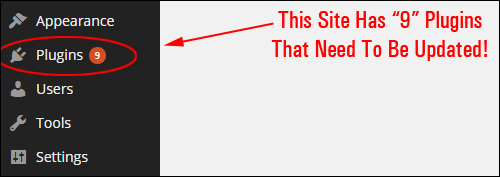
For example, you can immediately see how many plugins are out-of-date from your WordPress Dashboard by looking at the main “Plugins” menu.
In the example below, you can see that 9 plugins are out of date and need updating …
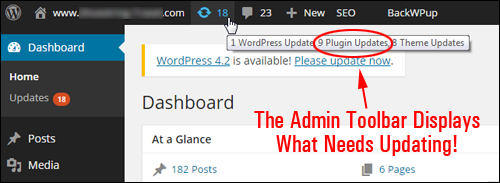
You can also tell how many plugins need updating from your WP Admin Toolbar (the example below shows that several plugins should be updated) …
The Plugins page (Plugins > Installed Plugins) also provides information about plugins that need to be updated …
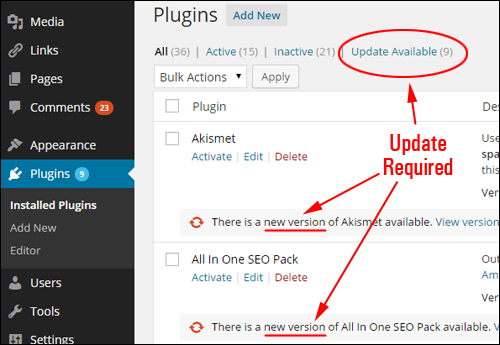
In addition to providing information about which plugins have available updates, the Plugins page provides links to the plugin developer pages and gives you the option to update the plugins with one-click …
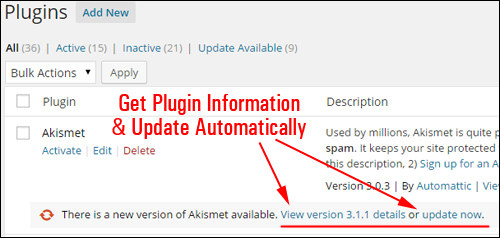
Let’s start by learning how to upgrade WP plugins individually.
How To Update Plugins Individually

We strongly recommend performing a full backup of your site files and database before making any updates to your website.
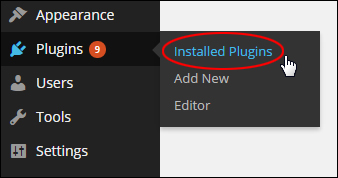
In your WP admin menu, go to Plugins > Installed Plugins …
You will be taken to the “Plugins” screen. This page can be quite lengthy depending on how many plugins you have installed on your site …
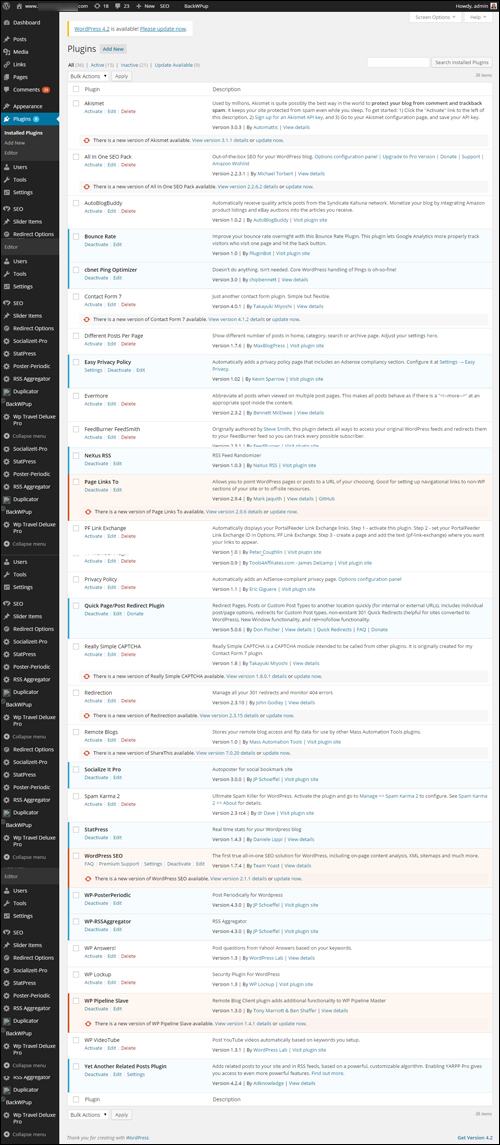
(Plugins Section)

Additional Info:
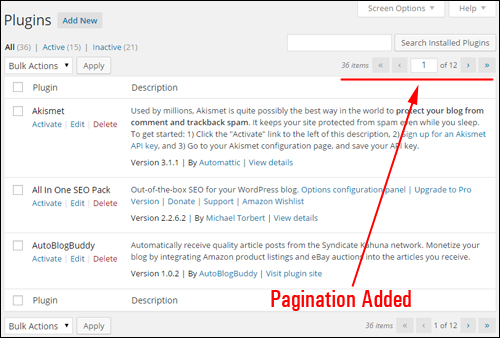
If you have too many plugins installed and would like to reduce the number of plugins displayed on the page, then click on the Screen Options tab at the top of your Plugins page and type in a smaller number of items per page (all plugins show on the page by default), then click the ‘Apply’ button …
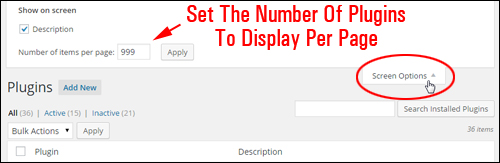
Your Plugins page will now be made more manageable with a pagination feature added. You can find an installed plugin by scrolling through the pages or using the “Search Plugins” feature …
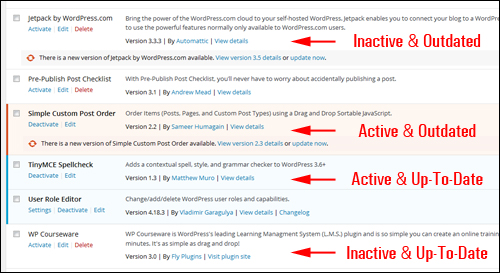
WordPress displays information about plugins in different color backgrounds depending on the status of your plugins (inactive vs. active and up-to-date vs. outdated) …
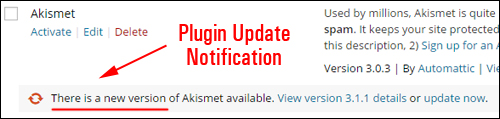
Plugins in need of upgrading show the following notification message: “There is a new version of [Plugin Name] available” …
Select the plugin that needs updating and click on the update now link …
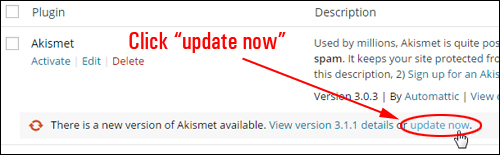
WordPress provides fast plugin updating, so that the process of updating your plugins takes place with just “one click” without leaving your Plugins area …
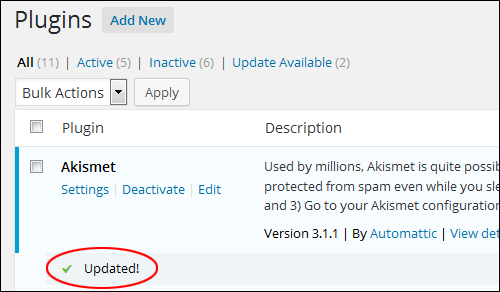
Repeat this process for any other plugins on your site that need to be updated, or refer to the section below if you have many plugins that are out-of-date and would like to upgrade them all in bulk.
***
Now that you know how to update one plugin at a time, the next step is to learn how to update multiple WP plugins simultaneously.
How To Update Various Plugins Simultaneously
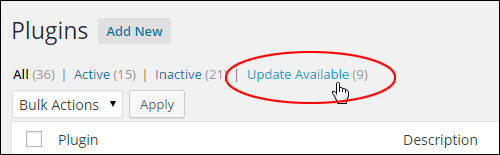
To bulk-upgrade WP plugins simultaneously directly inside your dashboard, go to the “Plugins” page and click on the Update Available link on the menu at the top of the page …
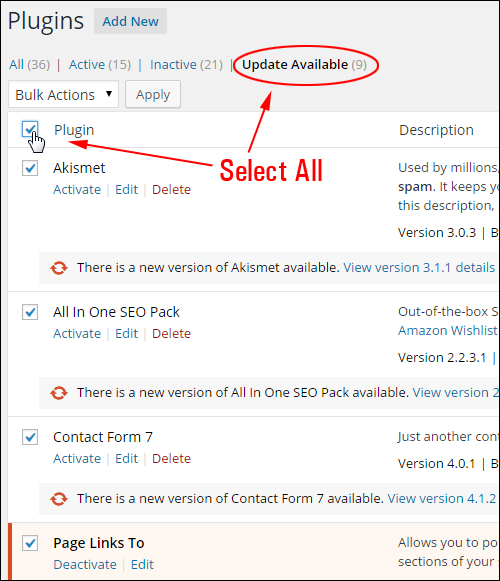
Click on the checkbox in the Plugin column header to select all plugins at once, or select only the plugins you want to upgrade by checking its box …
In the Bulk Actions dropdown menu above the plugin table, select Update …
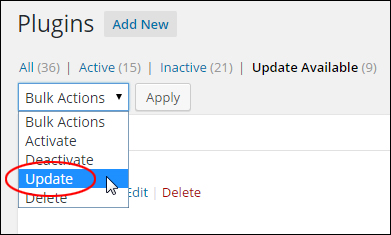
Click Apply …
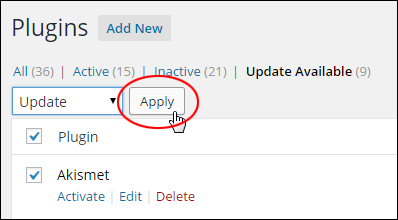
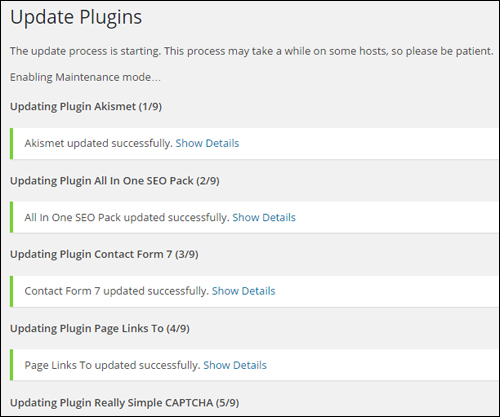
The plugins you have selected will begin updating …
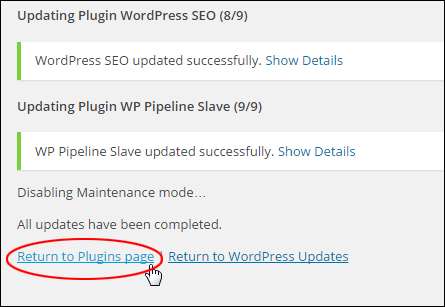
Once all updates are completed, you can click on the Return to Plugins page link to go back to the Plugins area, or visit another section of your dashboard …
Once all plugins are up-to-date, any plugin alerts disappear (i.e. the “at-a-glance” indicators and “There is a new version of XYZ plugin available” notices no longer display on your screen, toolbar and menus) …
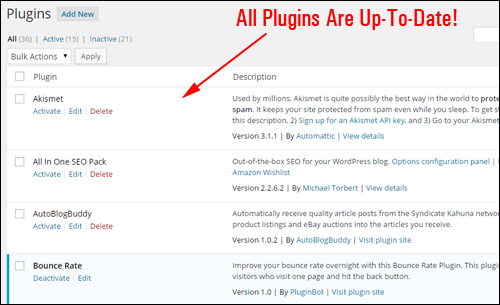
All plugins are now up-to-date!
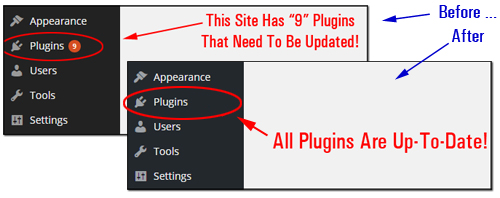
(When your site uses the latest version of all plugins, update icons do not display)
Now that you know how to automatically update plugins, let’s show you how to remove plugins safely from your WordPress site or blog.
How To Delete WordPress Plugins
Occasionally, you may choose to remove WordPress plugins that are no longer needed or being used on your site. This helps to decrease resource usage and also helps to eliminate causes of some problems.
In this section, you will learn how to safely deactivate and delete unused plugins from your blog or site.
We strongly recommend creating a full back up of your WordPress site before installing, upgrading or deleting plugins, in case something goes wrong and you need to recover data or restore your site.
To delete a plugin, go to your main menu and select Plugins > Installed Plugins …
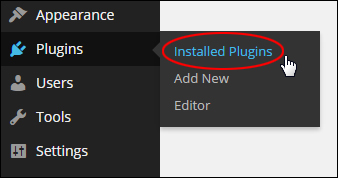
In the Plugins section, find the plugin you want to remove and make sure it is deactivated.
Hint: Inactive plugins are listed in a different background color than active plugins and display an “Activate” link below the plugin name …
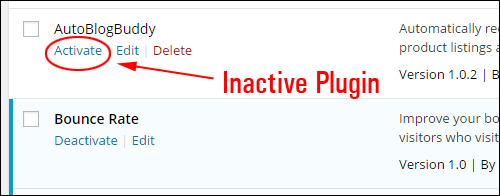
If the plugin is active, then click on Deactivate before proceeding …
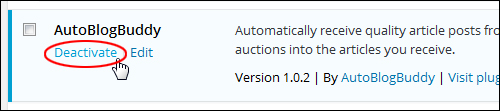
Next, click Delete …
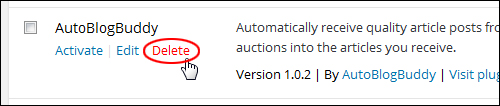
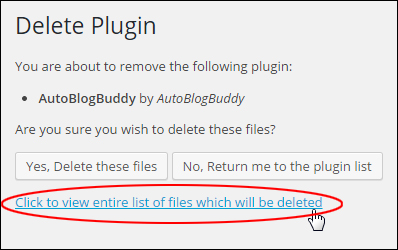
If you need to have a look at all the files that will be deleted before proceeding, then click on the “Click to view entire list of files which will be deleted” link in the “Delete Plugin” page …
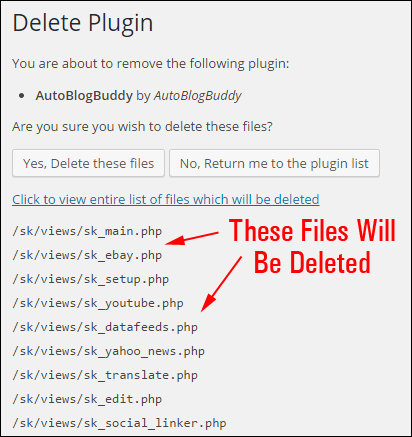
A complete list of files belonging to the plugin that you are about to remove will be listed on your screen …
If you are positively certain about going ahead and deleting these plugin files, then click on the Yes, Delete these files button …
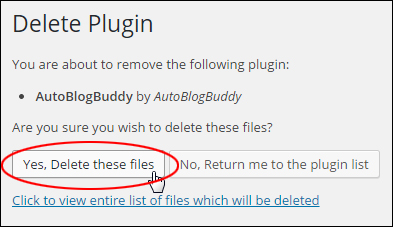
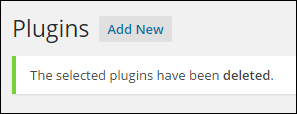
Your plugin(s) will be deleted from your server …
Deleting Multiple WP Plugins In Bulk
You can bulk-delete all inactive plugins on your site, or select a combination of active and inactive plugins to be uninstalled.
Note: To delete any plugins that are currently active, you must first deactivate them.
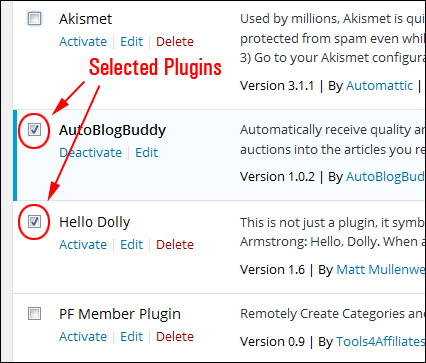
Go to the “Plugins” section and select all of the active plugins that you want to delete by either placing a tick next to their check box, or selecting the check box next to the Plugin column header to select all plugins (warning: this will deactivate all plugins) …
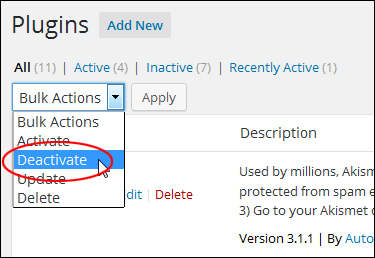
Once you have done this, specify Deactivate from the Bulk Actions drop down menu …
Click the Apply button …
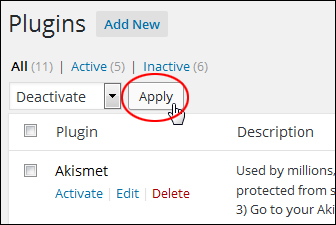
Your selected plugins will be deactivated …
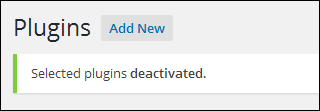
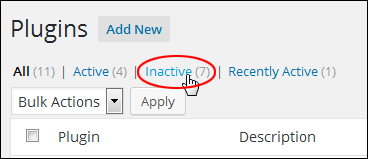
Once you have deactivated these plugins, click on the Inactive link on the menu at the top of the page …
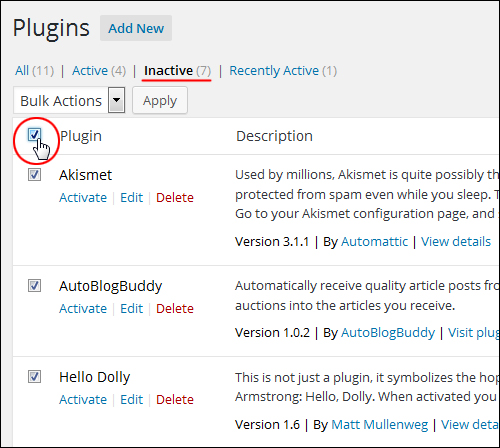
Tick the check box in the Plugin column header to select all plugins at once, or select only the plugins you want to remove by checking its box …
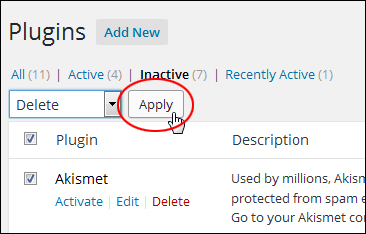
Once you have ticked all the check boxes next to the plugins that you want deleted, choose Delete from the Bulk Actions drop-down menu …
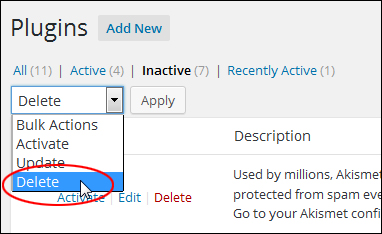
Click Apply …
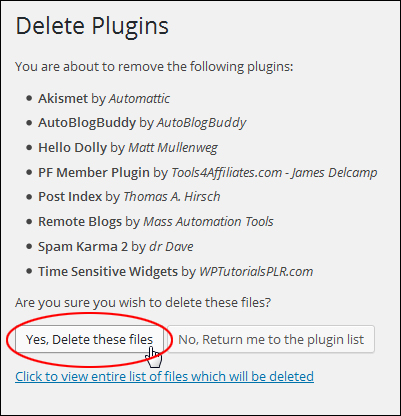
A list of all selected plugins will display in the Delete Plugins screen. Click on “click to view entire list of files which will be deleted” to review all the plugin files that you are about to delete, or click on the Yes, Delete these files button if you are sure that you would like to go ahead and remove all of the plugins listed …
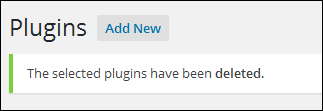
All plugins will be deleted …
WordPress Management Tools For Plugins
As well as the methods shown above, you can use a number of 3rd-party tools that let you manage your WordPress plugins.
Health Check & troubleshooting
This plugin provides comprehensive checks for your WordPress installation to detect common configuration errors and known issues. It also enables plugins and themes to add their own custom checks.
The debug section allows you to easily gather information about your WordPress and server configuration, which can be shared with support representatives for themes, plugins, or on the official WordPress.org support forums.
The troubleshooting feature allows you to initiate a clean WordPress session, where all plugins are disabled and a default theme is used, but only for your user account until you choose to disable it or log out.
The Tools section offers the ability to check for file tampering in WordPress, test email-sending functionality, and verify plugin compatibility with future PHP version updates.
For more details, go here: Health Check And Troubleshooting
Managing WordPress Plugins On Multiple Sites
As discussed earlier, when plugin updates are released, the best practice is to update the plugin as soon as possible to its latest version.
What if you run multiple WordPress sites using the same plugin?
Typically, you would need to log in to every site individually and update the plugin manually from the site’s admin dashboard.
If you manage or plan to manage multiple sites, this process can become very time-consuming, especially as plugins get updated quite often.
If you manage multiple WordPress sites, you can install, update, and delete multiple plugins on all your sites automatically and simultaneously using WordPress site management tools, like the one below:
WPMU DEV’s The Hub
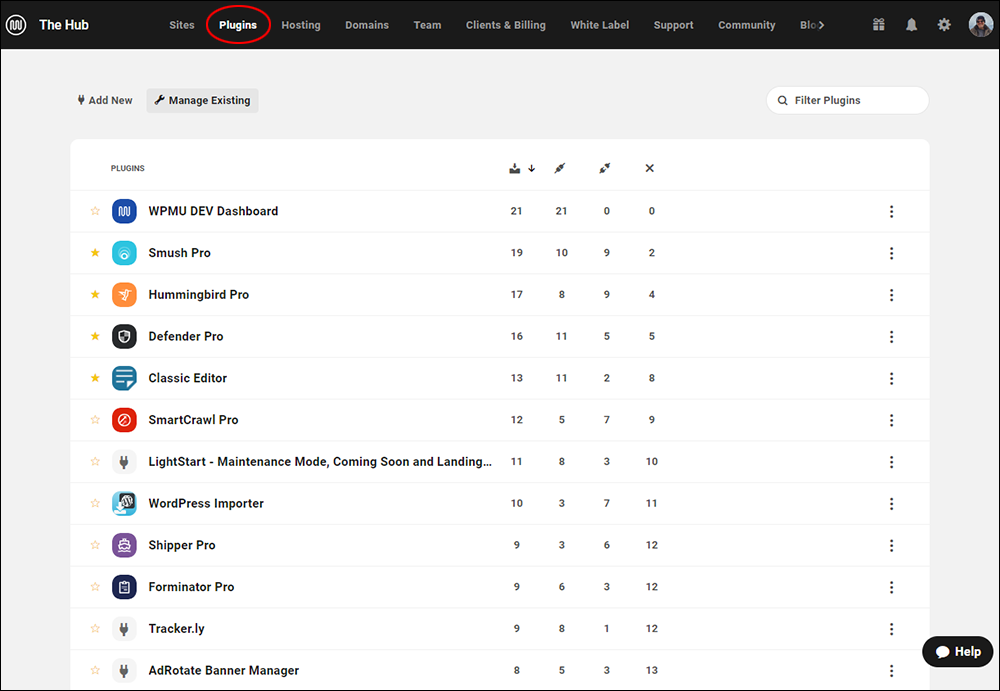
The Hub lets you manage unlimited WordPress sites easily and effectively from one central command center.
The Updates section of The Hub shows you exactly what needs updating on each of your managed site(s), including plugins, themes, and core software updates.
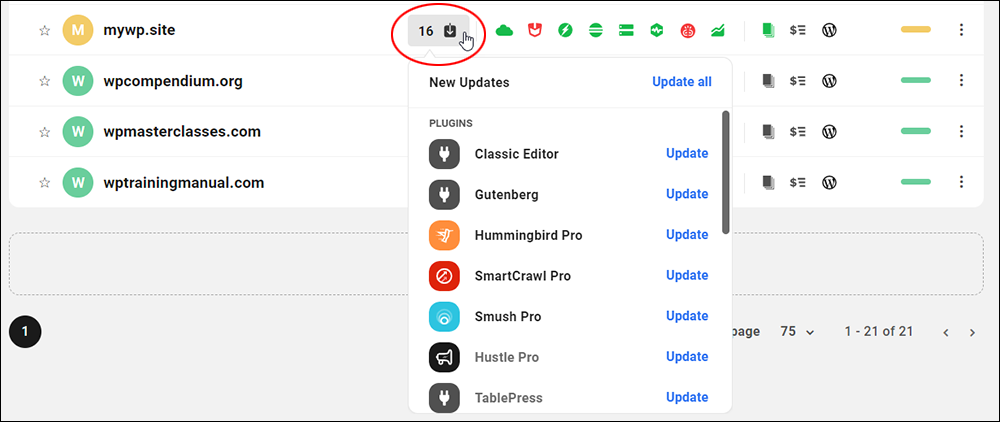
The Hub’s Updates features display how many outdated components need updating on your site(s).
You can choose to either update all your plugins at once or update them individually with just a few clicks. Best of all, you don’t need to log into every site separately to perform your plugin updates.
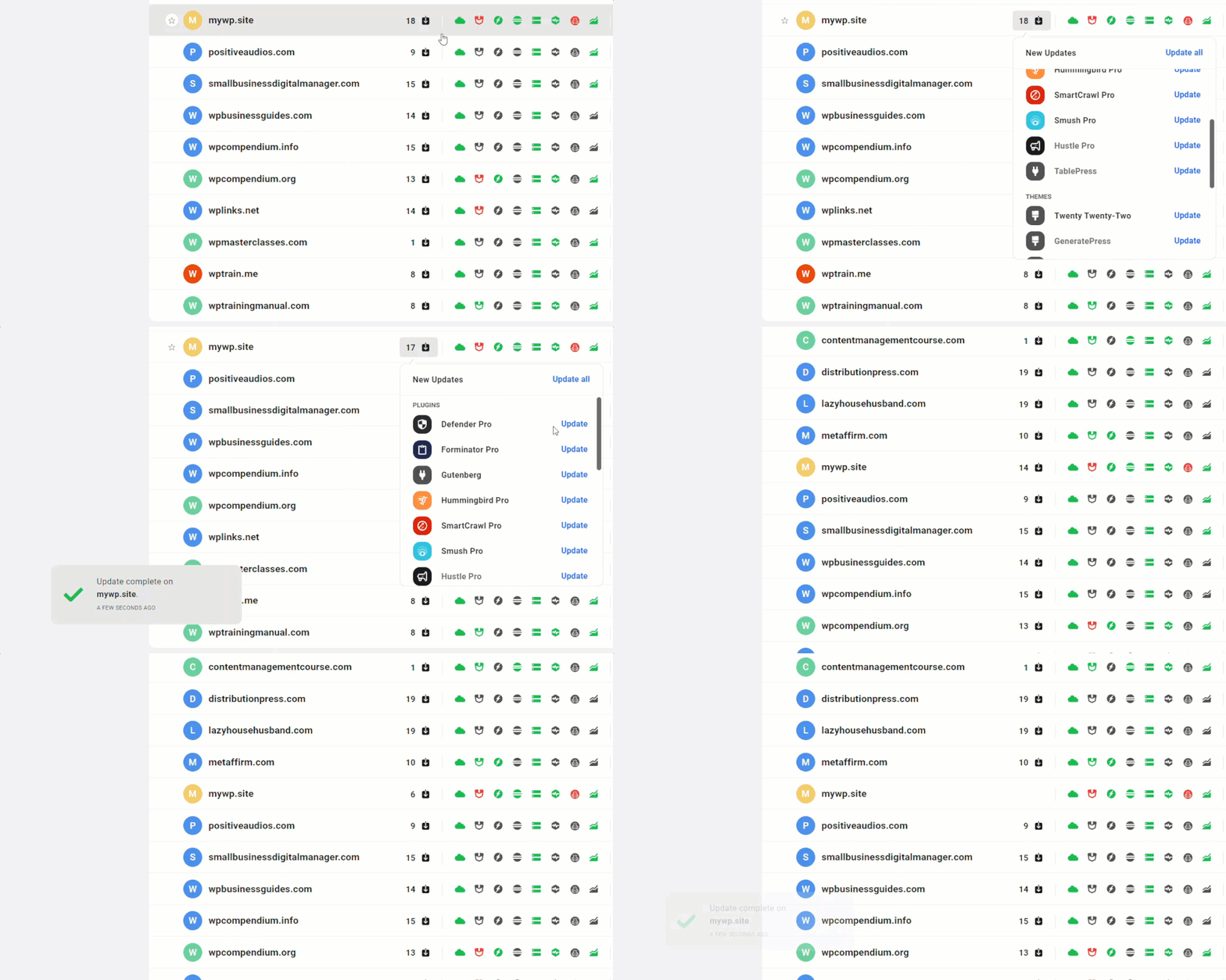
Update everything at once or perform individual updates directly in The Hub with a few clicks.
This can be a real time-saver when managing multiple WordPress sites, especially when WordPress releases a new version and you have to update many plugins and themes to prevent potential issues from happening.
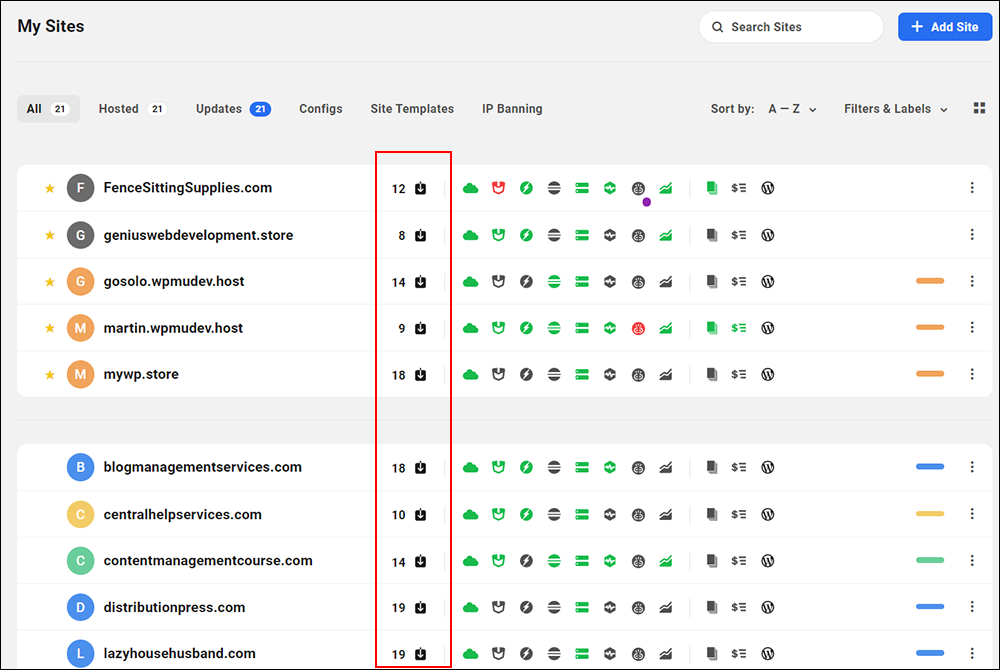
You can read our comprehensive article on managing multiple sites effectively using the Hub or visit WPMU DEV to learn more and try The Hub for free.
***
"These tutorials have so much information and are easy to understand. If you use WordPress or plan to in the future these will help you with everything you need to know." - Valisa (Mesa, Arizona)