 If you are new to WordPress, make sure you read our introduction to WordPress themes. We’ve written an in-depth article that explains what themes are and how using a theme can save business owners significant time and money.
This step-by-step tutorial will show you how to easily update your themes in your admin area.
Updating Your WordPress Theme – Best Practices Checklist
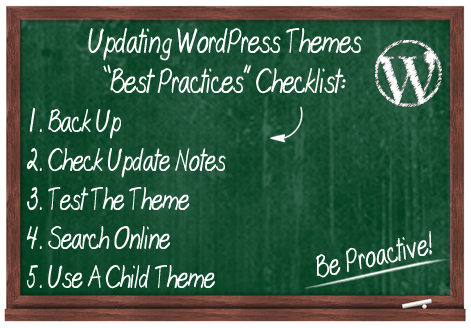
We recommend going through the checklist below before going through the upgrade process.
1. Make A Full Site Backup
Backing up your site before making any changes to your site is vital. If something goes wrong, you can always restore.
If you don’t want to perform manual backups, there are many plugins you can use. You can read about a WordPress backup plugin that can fully automate your backup process here:
2. Check The Changelog
Changes made to the WordPress software can affect the functionality of certain themes. Depending on the theme you have installed, there may be a changelog file included with an update listing new features, improvements, security fixes or important information pertaining to the new version.
If the theme changes seem irrelevant or unimportant, you can skip the update. Otherwise, you should upgrade.
3. Test Your Theme
If you can, it’s a good idea to check the theme before installing it on your site.

Typically, web service providers will set up a test site where they can test the latest version of the theme, track any bugs and verify that the new theme version doesn’t conflict with any existing plugins or settings before installing it on a live site.
If you manage your own website, you can set up a test WordPress site on a subdomain or a separate domain name using the same plugins and configuration settings and test new theme versions on your test site before applying it to your main site.
4. Search Online
Before updating your theme, it’s a good idea to search online and see if anyone has reported any issues with the new theme version.
You can type the theme name and version into Google, and search the theme developer’s support forum (many developers provide forums for paid WordPress themes, and even for some free plugins).
5. Is Your Theme Heavily Customized? Use A Child Theme
If you have made extensive customizations to your existing theme files, updating your theme may result in your custom modifications being overwritten. To prevent losing your theme modifications, therefore, we recommend you learn how to create “child themes”.
A WordPress child theme is a theme that inherits the functionality of another theme, called the parent theme, and allows you to modify, or add to, the functionality of the parent theme. When you update the “parent theme”, all modifications get preserved through the “child theme.”
If you plan to customize your theme files, then we recommend becoming familiar with the use of child themes, especially if you use a theme that gets regularly updated. You can learn more about child themes by searching online, or visit the WordPress Codex child theme page here:
As you will see below, the actual process of updating a WordPress theme is not complicated at all … a few simple clicks and you’re done! The bit of the update process that takes the most time and effort to complete is the preparation involved prior to upgrading.
Many people don’t upgrade their themes regularly, while others upgrade without going through some or all of the steps listed in the section above. As mentioned earlier, the above are “best practice” methods for ensuring problem-free upgrades. Ultimately, as a website owner, it is your responsibility to protect your digital assets.
Upgrading Themes In WordPress – Tutorial
Upgrading your themes from the WP dashboard is easy.
Log into your WordPress admin area …
Depending on the theme(s) installed on your website, you may receive occasional alerts in your dashboard that your theme(s) need updating …
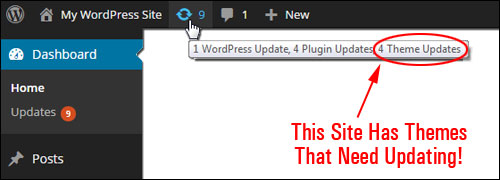
Updating WordPress themes in the WP dashboard is easy. You can update your theme using the “Themes” feature, or the “Updates” feature.
Updating Your Theme Via The “Themes” Area
You can see which themes need to be updated by going to your Themes page.
Select Appearance > Themes from your WordPress dashboard menu …
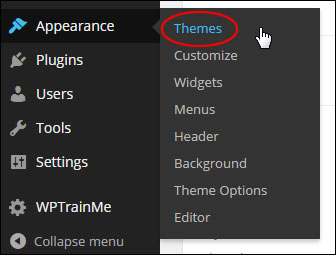
This opens up the “Themes” page …
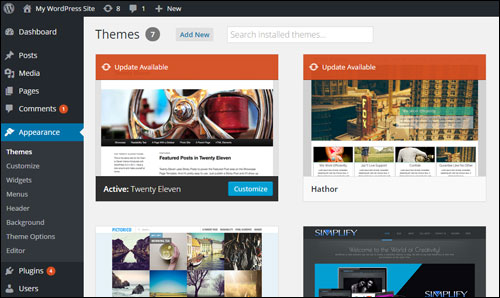
WordPress Themes with new versions display an “Update Available” message over the theme’s thumbnail image …
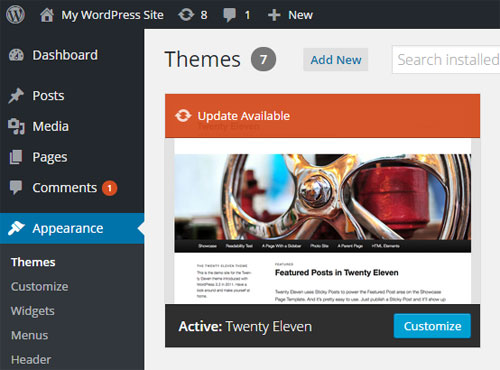
Locate the theme you want to update and click on the “Update Available” alert.
When the theme details window opens up, click on update now …
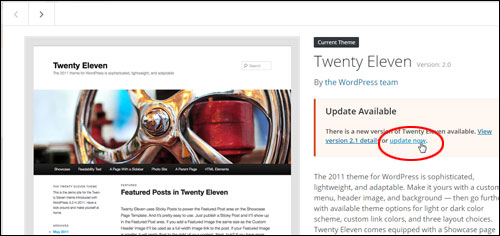
WordPress will automatically update your theme in seconds …
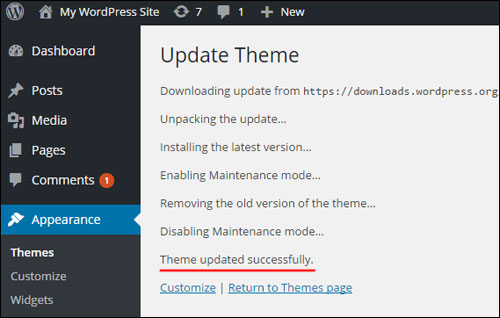
Your theme is now up-to-date …
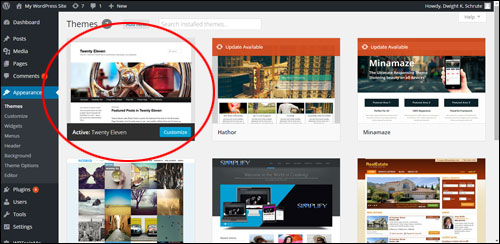
Repeat the above to update all of your outdated themes, or use the method below to update multiple themes at once.
Updating WordPress Themes Using The “Updates” Page
Update your themes from the “Updates” page as follows:
To view all themes on your site that require updating, click on Dashboard > Updates …
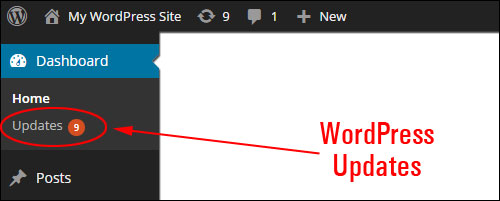
This opens up the Updates screen. Scroll down to the Themes section …
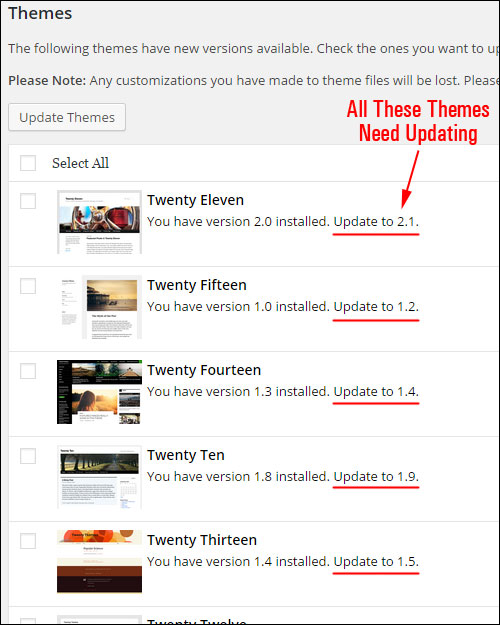
Check the box next to all the themes you want to update and click on Update Themes to complete the upgrade process …
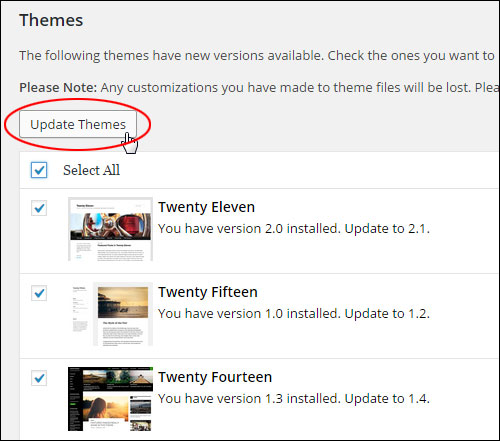
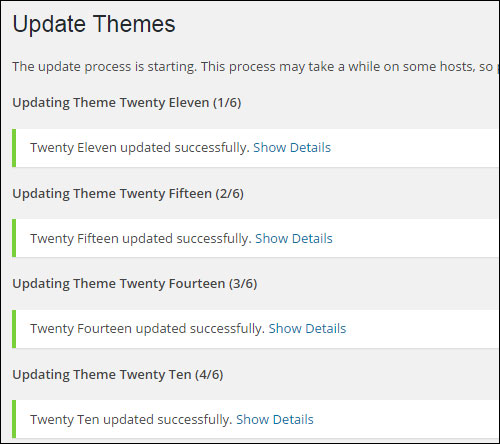
WordPress automatically updates all of your selected themes …
Congratulations! Now you know how to upgrade your themes in the WP dashboard.
***
"These tutorials have so much information and are easy to understand. If you use WordPress or plan to in the future these will help you with everything you need to know." - Valisa (Mesa, Arizona)