WordPress Plugins For Managing WordPress Post Revisions
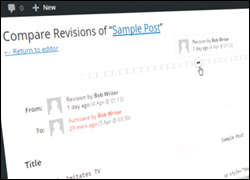
In a separate tutorial, we looked at the WordPress Post Revisions feature, where WordPress saves all your post revisions, so you can always go back to an earlier version of what you have written and restore it.
In this tutorial, we look at a number of WordPress plugins that will help you manage your post revisions.
Revision Management WordPress Plugins
As soon as you edit and save posts and pages, WordPress begins to store revisions for your content in its database. You can see these displayed in a Revisions box below your page or post …
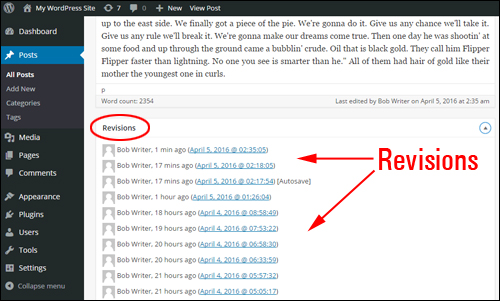
(The WordPress revisions box)
Autosave and post revisions are no doubt functions that help make work more efficient. If you write or edit a lot of content, however, the number of revisions can start to build up. This can significantly increase the size of your WordPress database, so it’s important to also be able to manage your revisions.
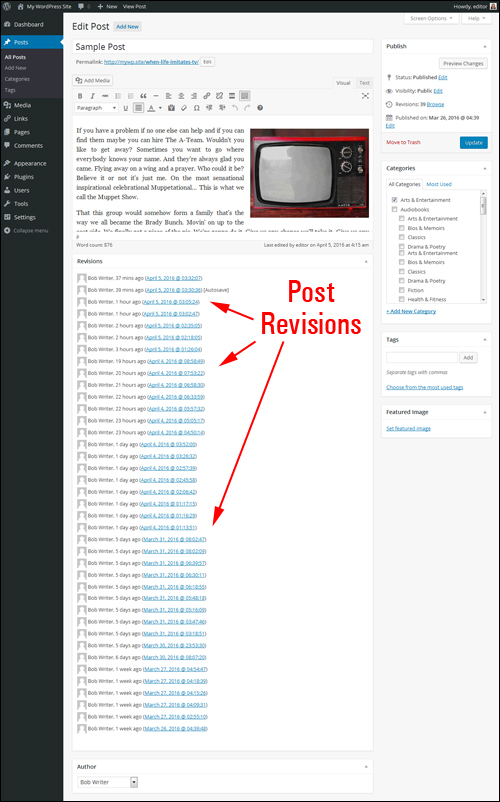
(As post revisions accumulate, your WordPress database could be storing lots of unnecessary data)
For example, if you have 10 posts published on your site with an average of 5 revisions each your database could be storing up to 500 copies of old data. If your post averages 100KB data, then with 500 post revisions, the total space wasted is about 50MB.
The good news is that there are various WordPress plugins available to help you manage your revisions and reduce the size of your WordPress database. Here are some of these:
Better Delete Revision
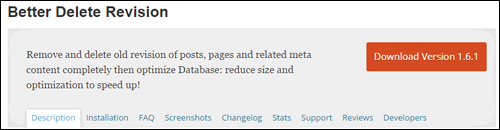
(Better Delete Revision WordPress Plugin)
Better Delete Revision removes redundant post revisions from your WordPress database and other revision-related content like tags, relationships, meta information, and more.
After installing and activating the plugin, you can use it to perform optimizations on your WordPress database.
Log into your WordPress dashboard, then go to the main navigation menu and choose click on Settings > Better Delete Revision …
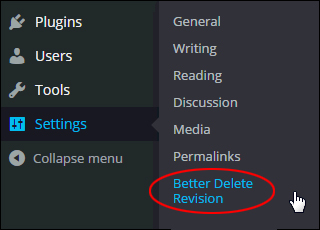
(WordPress Settings Menu – Better Delete Revision)
This brings you to the Better Delete Revision Manager screen. Click ’Check Revision Posts’ to calculate how many redundant post revisions you can remove from your database …
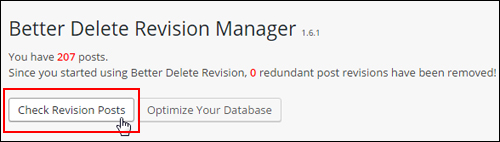
(Better Delete Revision – Check Revision Posts)
Depending on the number of posts and revisions stored with each post, the plugin will then calculate and display a table of revisions stored in the database …
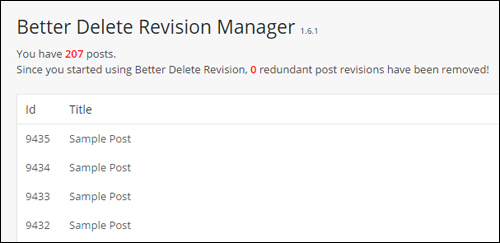
(Better Delete Revision – List of post revisions)
Click on ‘Yes, I would like to delete them! …’ below the list to clear the items from your database, or cancel the task and exit the Better Delete Revision Manager settings page …
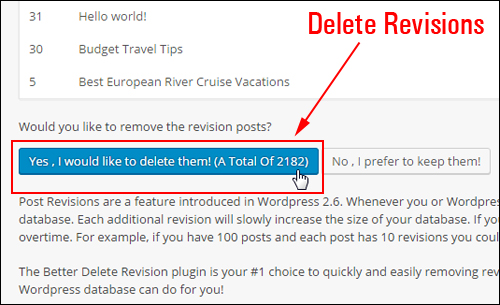
(Clear posts revisions list)
The unnecessary items will be deleted from the database …
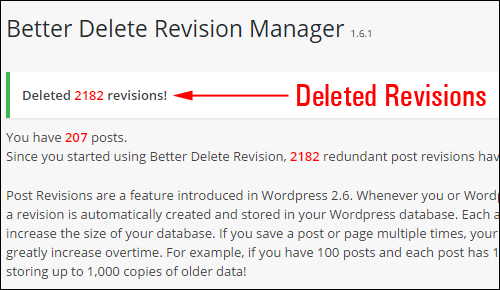
(Revisions list removed)

As WordPress automatically saves all new post revisions, the process will automatically begin again (unless you have turned the feature off). After a period of time and depending on the number of posts you have published on your website and their related post revisions, therefore, we recommend running the tool again to keep your database as light as possible …
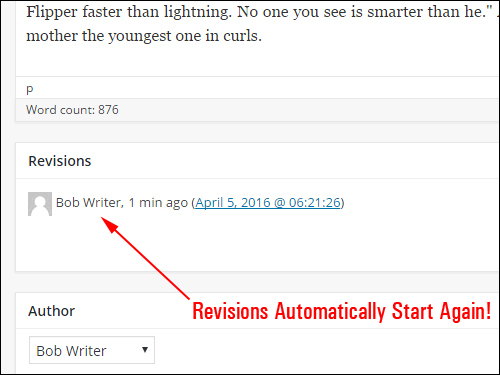
(Revisions automatically start again!)
Like the other plugins described in this section, you can also use this plugin to keep your WordPress database optimized …
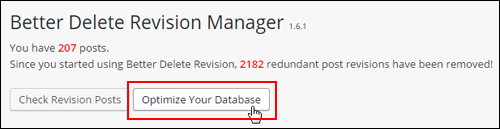
(Keep your WordPress database optimized)
The plugin checks to see if the database tables need to be optimized and provides a one-click optimization function without requiring you to log into your hosting panel …
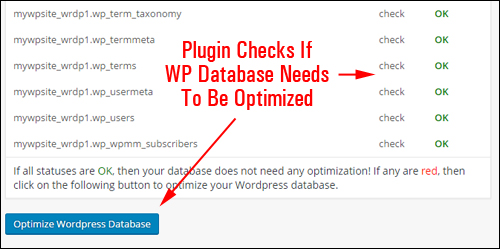
(Better Delete Revision lets you perform a one-click table optimization routine)
For more details, go here: Better Delete Revision Plugin For WordPress
Optimize Database after Deleting Revisions

(Optimize Database after Deleting Revisions Plugin For WordPress)
OptimizeDatabase not only can be used to delete unnecessary revisions of posts and pages (it also lets you keep a specific number of your most recent revisions) and checks if your database tables need to be cleaned and optimized, it also lets you do the following optional tasks:
- Delete trashed pages, posts, and comments
- Delete unused tags
- Delete ’pingbacks’ and ‘trackbacks’
- Exclude certain tables or even specific posts/pages from cleaning and optimization
- Create a log file of the optimizations
- And more!
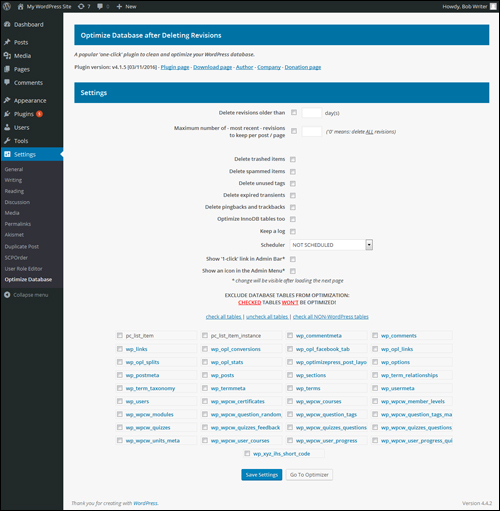
(Optimize Database after Deleting Revisions – Settings Panel)
For more details, go here: Optimize Database after Deleting Revisions Plugin For WordPress
WP-Optimize
(WP Optimize Plugin)
In addition to removing redundant revisions of posts and pages and performing optimization maintenance routines, WP Optimize also lets you do maintenance tasks such as:
- Enable/Disable comments for all published posts
- Remove stale unapproved comments
- Mobile device friendly
- Removal of all trackbacks and pingbacks
- Clear out the post trash
- Ability to retain data from selected number of weeks when cleaning up
- Add or remove link on WP admin bar
- Enable/Disable weekly optimization scheduling
- See database table statistics
- Receive email notifications after scheduled cleanup
- Marks potentially dangerous cleanup options in red
- And more!
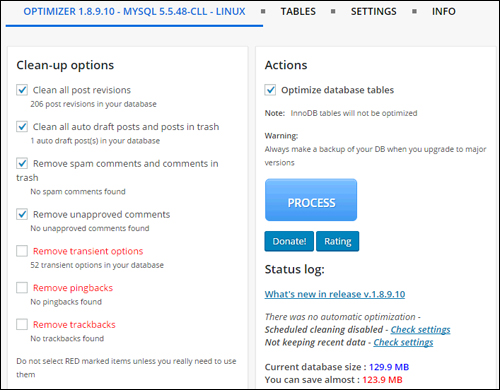
(WP Optimize Plugin For WordPress – Settings)
For more details, go here: WP Optimize Plugin For WordPress
WP-Sweep

(WP Sweep Plugin)
WP Sweep lets you clean up duplicated, orphaned, and unused data in the WordPress database, including revisions. This plugin cleans up:
- Auto drafts
- Unapproved comments
- Orphaned comment meta
- Duplicated comment meta
- Unused terms
- And more!
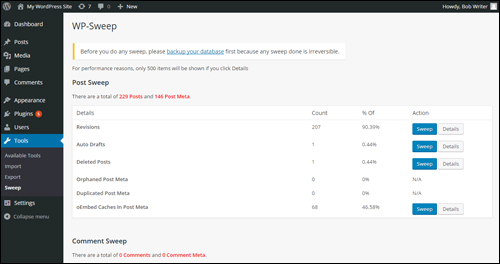
(WP-Sweep – WordPress Plugin Settings)
For more details, go here: WP Sweep Plugin For WordPress
Simple Revisions Delete
This lightweight and simple-to-use plugin lets you purge (delete) your posts revisions either individually or all at once.
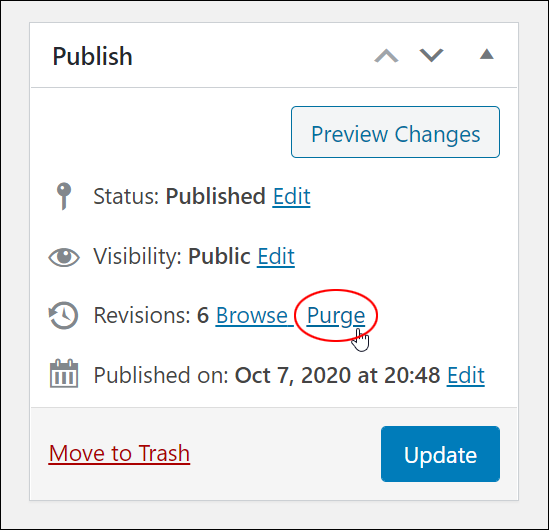
Once the plugin has been installed and activated, for example, a ‘Purge’ link appears next to the Revisions section in your Publish box (and in other sections of your admin area) allowing you to safely delete revisions.
For more details, go here: Simple Revisions Delete
WP REVISIONS CONTROL

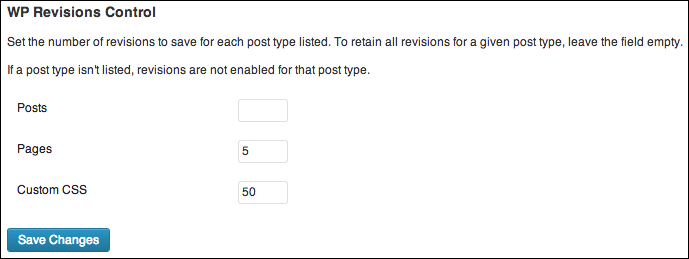
This plugin lets you specify the number of revisions retained for each post type in the Settings > Writing screen.
For more details, go here: WP Revisions Control
For more plugins that can help you manage post revisions and optimize your WP database, go to Plugins > Add New and type in keywords like “Revisions“, “Database Optimize“, etc …
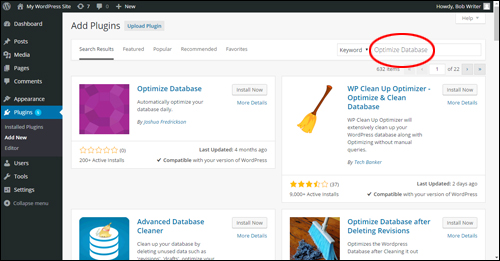
(Plugins Menu – Add New Plugins)
We hope that you have found the above information on plugins that will help you manage your WordPress post revisions useful.
***
"I am beyond impressed with what you have put together. I can tell that you put a ton of hard work into building what you have. You have the absolute best content on WordPress I have ever seen!" - Robert T. Jillie
***