 As you read this, there are millions of social conversations happening online. New information is constantly being published on websites, social media networks, and news media, and some of that information is related to subjects that interest you.
Wouldn’t it be great if there was a free, easy and simple way to know what is going on in your industry or niche so that you are not wasting a huge amount of time doing research? Well, there is, and it’s called …
Google Alerts
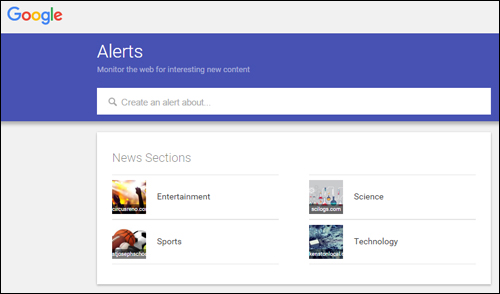
(Google Alerts – free web monitoring service)
Google Alerts is a service that will send you an email when your business is mentioned online.
Google Alerts is not only only a useful social media monitoring tool for helping you manage your reputation online, but also for automatically sourcing news about people, companies, or any other subject you need to know about.
With Google Alerts, you just subscribe to a keyword or topic and you’re done. Whenever Google’s bots (Googlebot) index a new web page, press release, blog post, news update, a tweet, video, or any other indexable content related to the topic you’ve subscribed to, you will automatically receive an email or RSS update.
How To Set Up Google Alerts In Three Simple Steps
Let’s go over the simple steps required to start using Google Alerts:
Step 1 – Log Into Your Google Account
If you haven’t got a Google account, create one. A Google account lets you access loads of free services with one username and password. If you use Gmail, post videos to YouTube, run an Adwords campaign or have a GooglePlus page, then you should already have a Google account set up.
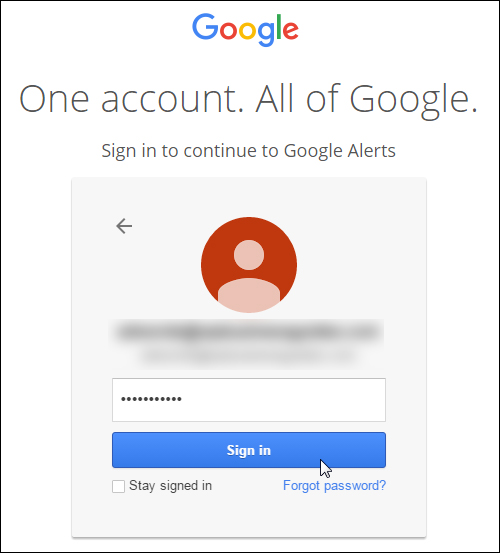
(Log into your Google Account to set up your alerts)

You can still set up Google Alerts without a Google Account, but this gives you fewer options (e.g. you can’t receive Google Alerts via RSS, only email).
After logging into into your Google Account, access the Google Alerts tool by entering the following URL into your web browser:
Step 2 – Set Up An Alert
Set up alerts for every topic, business, person, brand or web address you would like to receive updates about. You can keep track of brands, names of employees, investors, influencers, celebrities, competitors, etc. There are no limits to the number of alerts you can set up.
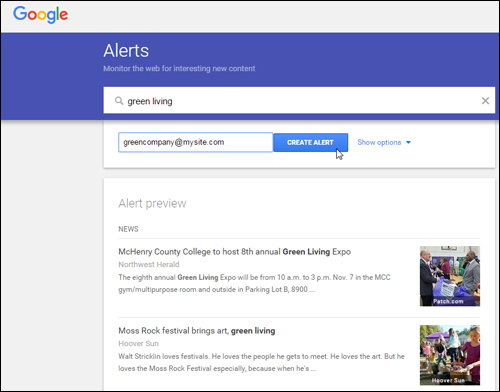
(Create as many alerts as you like with Google Alerts)
Step 3 – Configure Your Preferences
Google Alerts lets you specify the keyword(s) you want alerts for, how often alerts should be sent (as it happens, once a day, once a week), sources (e.g. automatic, news, blogs, web, videos, discussions, etc.), language, region, how many (all results, only the best results), and how to receive alerts (via email or RSS feed) …
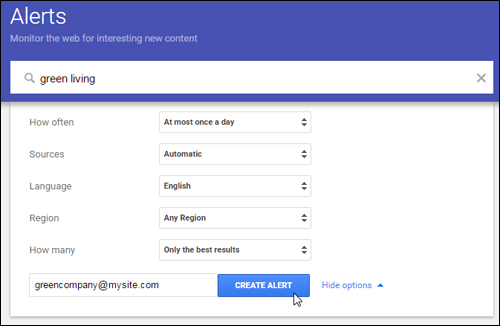
(Google Alerts – preferences)
To narrow the source of your alerts, select the source from the drop-down menu …
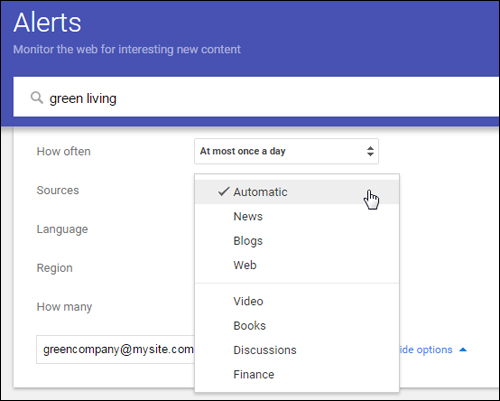
(Google alert sources)
You can also specify alert delivery times in your settings, and if you want to receive all alerts as a single email …
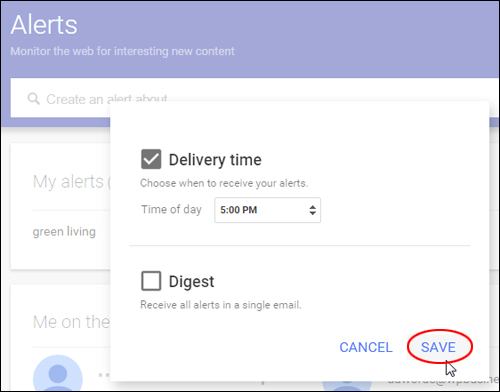
(Google Alerts – settings)
You can change these settings anytime.
You should begin receiving alerts as set in your preferences …
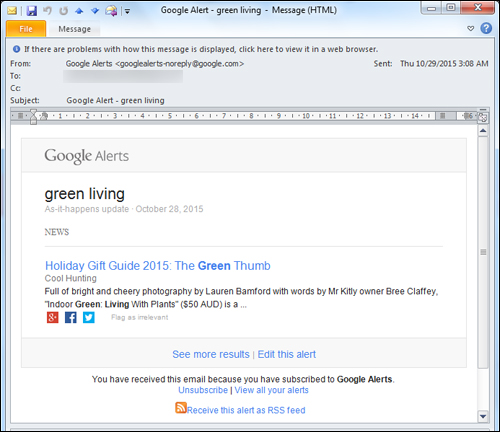
(Google alerts – email alert)
Note that at the bottom of your email notification, you are given various options, including:
- See more results
- Edit the alert
- Unsubscribe (stop receiving the alert)
- View all your alerts
- Receive the alert as RSS feed
How To Set Up Google Alerts While Browsing Google News
You can easily set up Google Alerts while browsing the web. Here’s how:
Go to Google News and type in your search term …
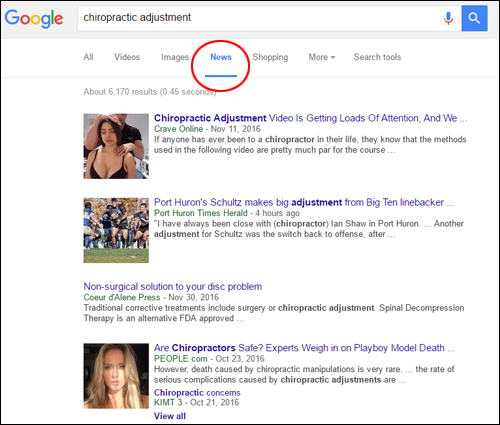
(Enter a search term in Google News)
Scroll down to the bottom of the page and click on ‘Create Alert’ …
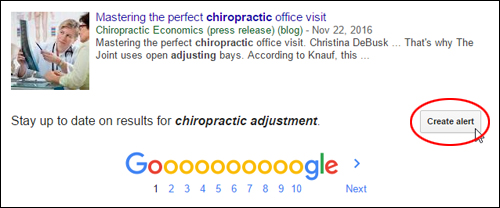
(Google News – Create Alert)
Type in your email address and click on ‘Create Alert’ …
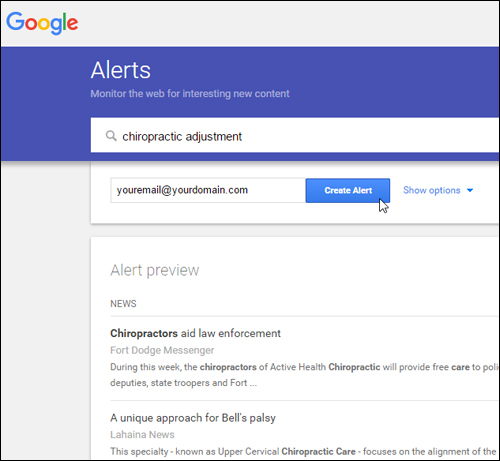
(Google Alerts screen)
If you elect to receive alerts via email, you will be asked to verify your Google Alert request …
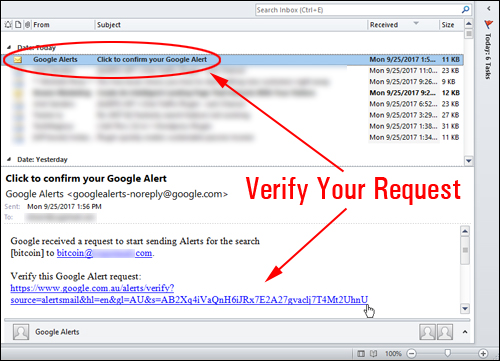
(Verify your Google Alert request)
After confirming your request, your Google Alert will be set up and you will begin to receive alert notifications via email.
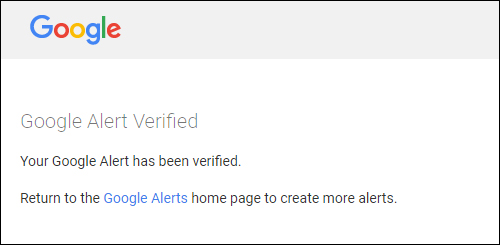
(Your Google Alert has been successfully verified)
You can return to the Google Alerts home page and create as many alerts as you want.
Deleting Google Alerts
You can delete any alerts you no longer want to receive …
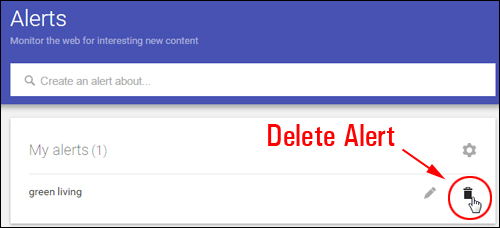
(Google alert settings)
You can also stop receiving alerts by clicking on the ‘Unsubscribe’ link at the bottom of your emails …
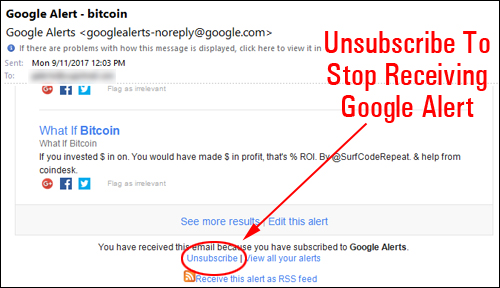
(Click the Unsubscribe link at the bottom of the email)
Confirm that you want to unsubscribe from your Google Alert …
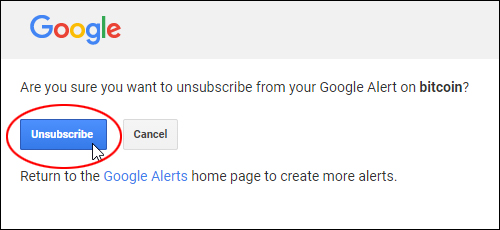
(Click unsubscribe to stop receiving Google Alerts)
Your Google Alert will be cancelled …
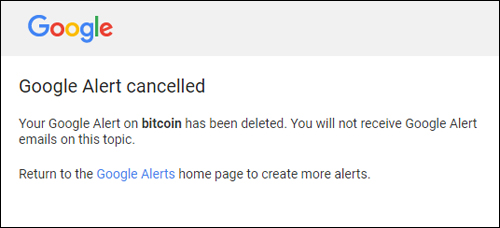
(Google Alert cancelled)
You will stop receiving alert emails on the topic after unsubscribing.

If you want to receive alerts sent to your inbox via email, you can configure rules in your email program to automatically send all alerts to one or more email folders. This will help keep your alerts organized and easier to track and sort through.
If you choose to receive alerts via RSS feed, you can use a feed reader to access the information on your smart phone or mobile device.
Once you have set up alerts, you can monitor information about keywords, brands, the competition, etc., or create web content about the latest news and updates in your chosen topic.
How To Repost News Items From Google Alerts On Your WordPress Site
You can publish news items directly from Google Alerts on your WordPress your blog as blog posts or as a ‘widgetized’ item on your sidebar.
Let’s take a look at both methods:
Publish Google Alerts News Items As A Blog Post
To repost news items from Google Alerts as a blog post, do the following:
Configure your site to post by email …
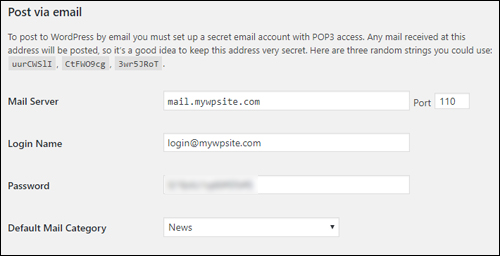
(Post to WordPress by email)
If you need help with this step, see this tutorial:
Next, set up your Google Alert to send to the email address you have set up …
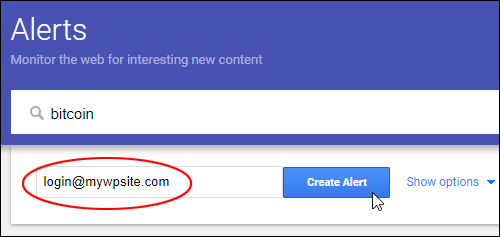
(Create Alert and send to email)
Alerts will now be posted to your site, or come in as ‘drafts’ that you can review and publish.
Publish Google Alerts News Items On Your Sidebar
To repost news items from Google Alerts as a as a ‘widgetized’ item on your sidebar, all you need to do is set up to receive your alerts as an RSS feed as described earlier …
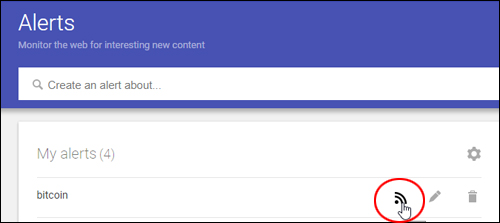
(Receive alerts as an RSS feed)
Next, copy the RSS feed link to your clipboard …
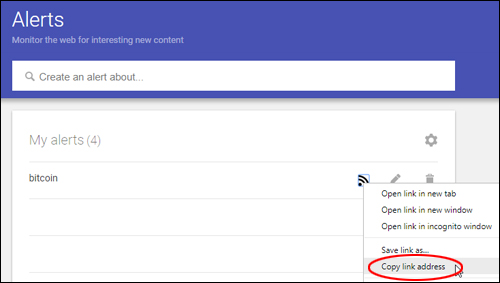
(Copy RSS link address)
And add the RSS feed to an RSS widget as described in this tutorial:
Your alert will display as a ‘widgetized’ item on your sidebar and the feed will update regularly as Google sources new items …
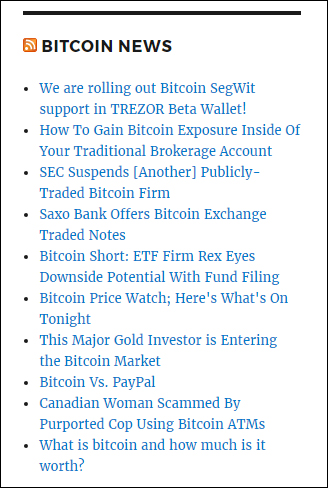
(RSS Widget with Google Alert feed)
Hopefully, you have found this tutorial helpful. To learn more about integrating social media with WordPress, see this article: 29 Social Media Tracking Resources For WordPress

***
"I love the way your email series "Infinite Web Content Creation Training Series" is documented and presented. It is very absorbing and captivating. The links and tutorials are interesting and educational. This has motivated me to rewrite my content following the concepts I am learning from the email series." - Mani Raju, www.fortuneinewaste.com
***