 At any given moment in time, there are millions of social interactions happening online. New information is constantly being published on social networks, blogs, and news sites, and some of that information is related to subjects you are interested in.
Wouldn’t it be great if there was a simple and easy way to know what is going on in your niche or industry that could save you time doing research? Well, there is, and it’s called …
Google Alerts
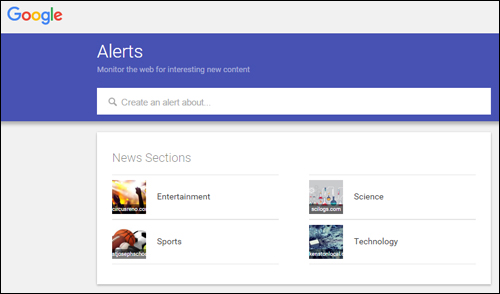
(Google Alerts lets you monitor the web for new content)
Google Alerts is simple, useful and free tool from Google that lets you keep up with news about all kinds of topics, stay informed about people, brands and companies, and track what other people say about you and your business online.
Google Alerts is not only useful for helping you manage your reputation online, but also for automatically sourcing news about people, brands, companies, or any other topic you need to know about.
With Google Alerts, you subscribe to a keyword or topic and you’re done. Whenever Google’s indexing bots crawl a new web site, news update, blog post, press release, a tweet, video, or any other indexable content related to the topic you’ve subscribed to, it will automatically send you an email or RSS update.
How To Set Up Google Alerts In Three Simple Steps
Let’s go over the simple steps required to start using Google Alerts:
Step 1 – Log Into Your Google Account
If you don’t have a Google account, create one. A Google account lets you access loads of free services with just one username and password. If you use Gmail, post videos to YouTube, run Adwords or own a GooglePlus page, then you should already have a Google account.
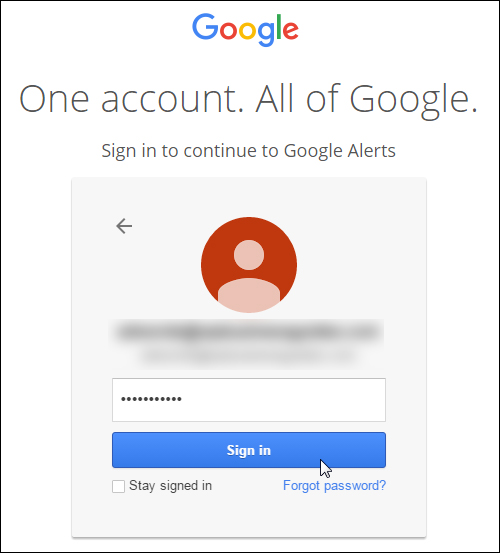
(Log into your Google Account to set up your alerts)

You can still set up Google Alerts without a Google Account, but this will give you fewer options (e.g. you can only receive email alerts, not alerts via RSS).
Once you have logged into your Google Account, access the Google Alerts tool here:
Step 2 – Set Up An Alert
Set up an alert for every topic, business name, person or website you want to receive updates about. You can keep track of brands, employees, celebrities, influencers, competitors, investors, etc. There is no limit to the number of alerts you can set up.
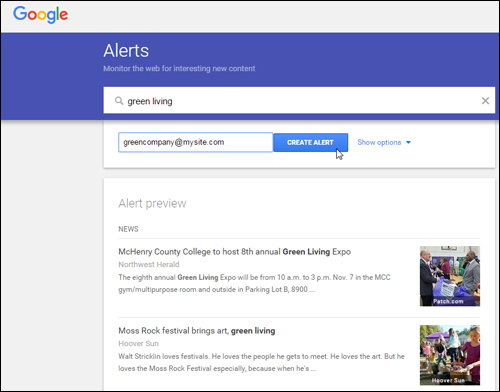
(Google Alerts lets you set up as many alerts as you like)
Step 3 – Set Up Your Preferences And Save
Google Alerts lets you specify the keyword or keywords you want to receive alerts for, how often alerts should be sent out (as it happens, once a day, once a week), sources (e.g. automatic, news, blogs, web, videos, discussions, etc.), language, region, how many (all results, only the best results), and how to receive alerts (via email or RSS feed) …
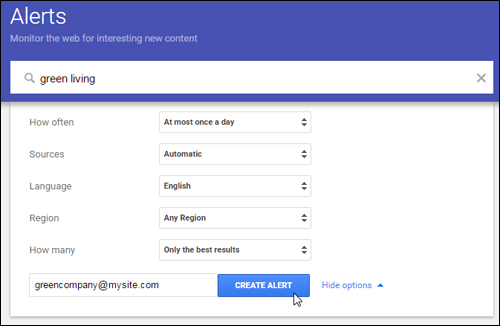
(Google Alerts – preferences)
If you want to narrow the source of your alerts, just select an option from the drop-down menu …
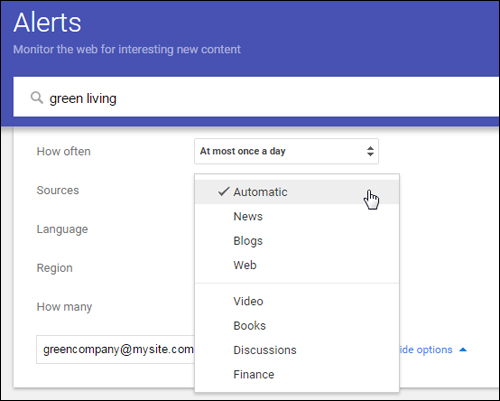
(Google Alerts – sources)
You can also specify alert delivery times in your settings, and if you want to receive all alerts as a single email …
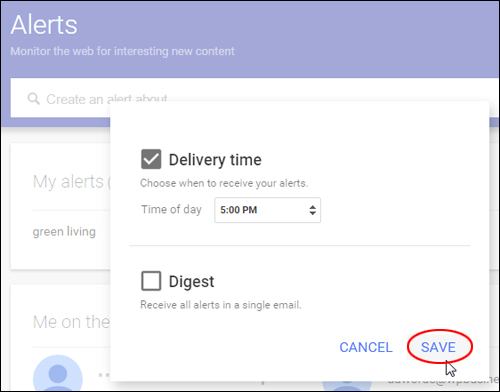
(Google Alerts – settings)
You can change these settings anytime you like.
You will begin receiving alerts as set in your preferences …
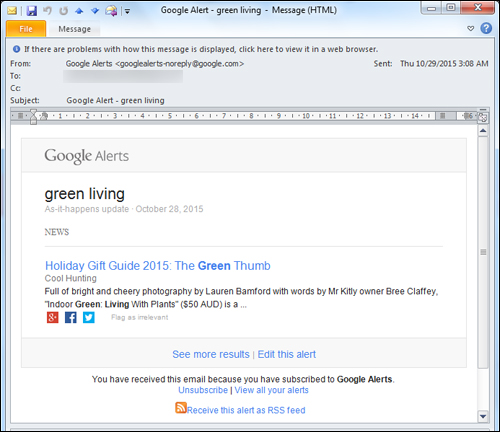
(Google alerts – email alert)
Note that at the bottom of your email notification, you are given various options, including:
- See more results
- Edit the alert
- Unsubscribe (stop receiving the alert)
- View all your alerts
- Receive the alert as RSS feed
How To Set Up Google Alerts While Searching On Google News
You can easily set up Google Alerts while browsing the web. Here’s how:
Go to Google News and type in your search term …
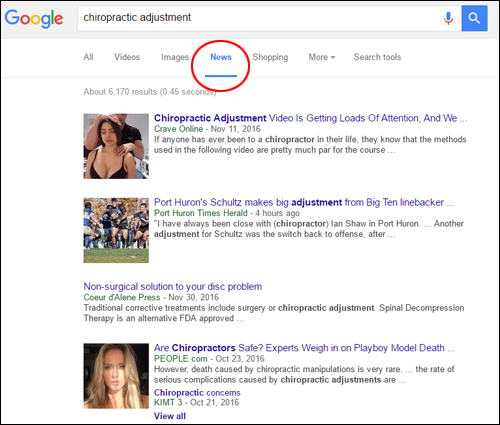
(Enter a search term in Google News)
Scroll down to the bottom of the page and click on ‘Create Alert’ …
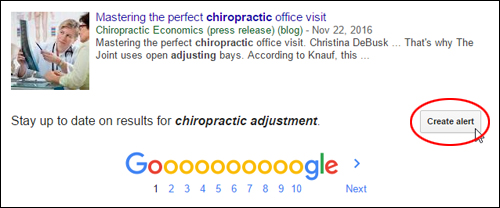
(Google News – Create Alert)
Type in your email address and click on ‘Create Alert’ …
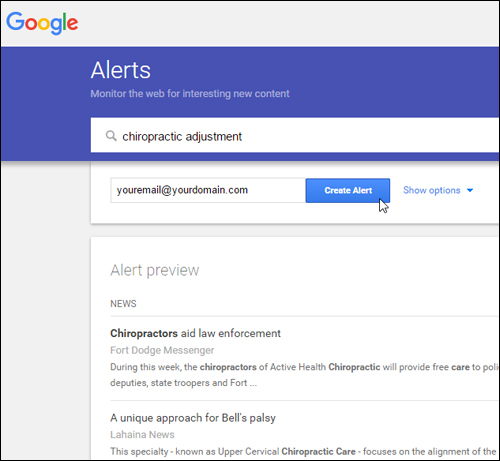
(Google Alerts screen)
If you elect to receive alerts via email, you will be asked to verify your Google Alert request …
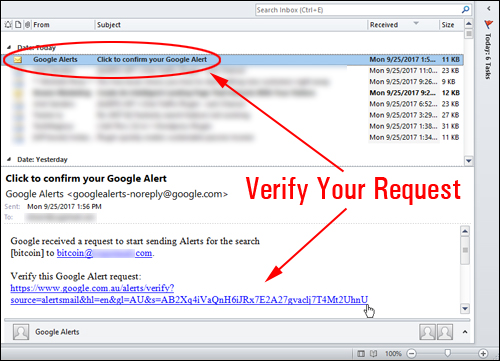
(Verify your Google Alert request)
After confirming your request, your Google Alert will be set up and you will begin to receive alert notifications via email.
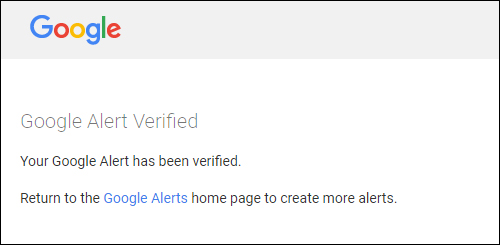
(Your Google Alert has been successfully verified)
You can return to the Google Alerts home page and create as many alerts as you want.
How To Delete Google Alerts
You can delete any alerts you no longer want to receive …
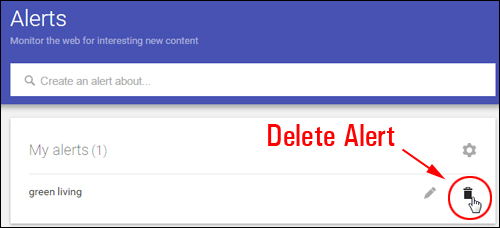
(Google alert settings)
You can also stop receiving alerts by clicking on the ‘Unsubscribe’ link at the bottom of your emails …
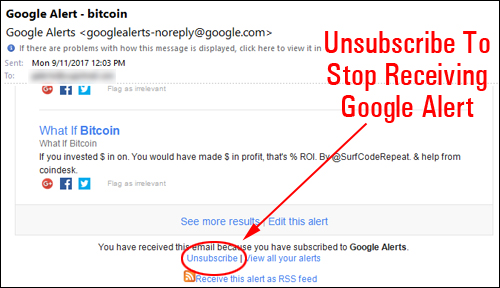
(Click the Unsubscribe link at the bottom of the email)
Confirm that you want to unsubscribe from your Google Alert …
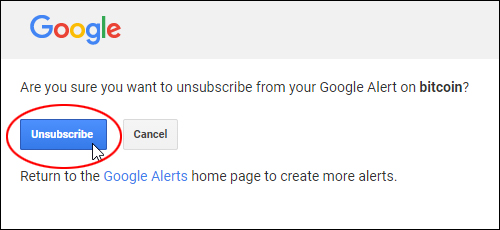
(Click unsubscribe to stop receiving Google Alerts)
Your Google Alert will be cancelled …
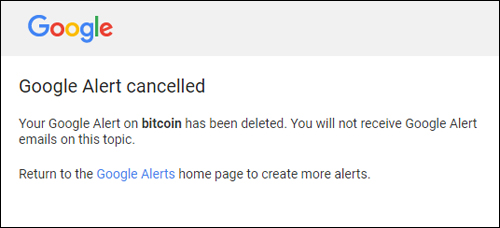
(Google Alert cancelled)
You will stop receiving alert emails on the topic after unsubscribing.

If you want Google to send our alerts via email, you can configure rules in your email program to automatically send all alerts to one or more email folders. This helps keep your alerts organized and easier to sort through.
If your alerts are sent out via RSS feed, you can use a feed reader to access the information on your smartphone or mobile device.
Once your alerts are set up, you can track information about keywords, your business, the competition, etc., or start creating content in your niche/industry.
How To Publish News Items From Google Alerts On Your WordPress Site
You can republish news items directly from Google Alerts on your WordPress your website as blog posts or as a ‘widgetized’ item on your sidebar.
Let’s take a look at both methods:
Publish Google Alerts News Items As A Blog Post
To repost news items from Google Alerts as a blog post, do the following:
Set up your site to post by email …
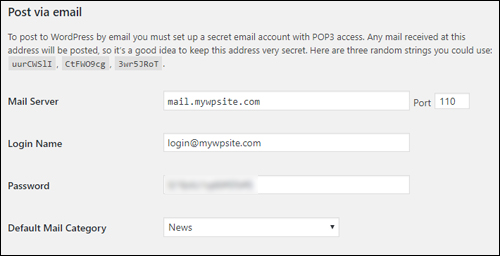
(Post to WordPress by email)
If you need help with this step, see this tutorial:
Next, set up your Google Alert to send to the email address you have set up …
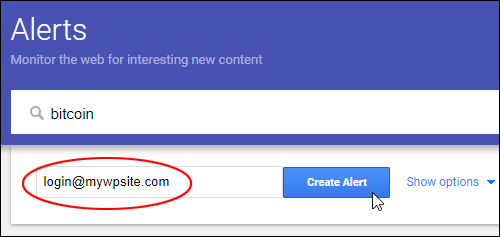
(Create Alert and send to email)
Alerts will now be posted to your site, or come in as ‘drafts’ that you can review and publish.
Publish Google Alerts News Items On Your Sidebar
To republish news items from Google Alerts as a as a ‘widgetized’ item on your sidebar, all you need to do is set up to receive your alerts as an RSS feed as described earlier …
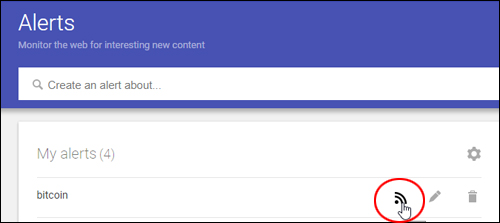
(Receive alerts as an RSS feed)
Next, copy the RSS feed link to your clipboard …
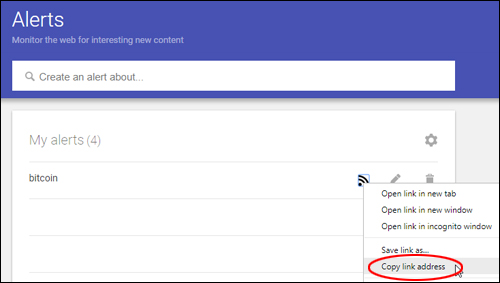
(Copy RSS link address)
And add the RSS feed to an RSS widget as described in this tutorial:
Your alert will display as a ‘widgetized’ item on your sidebar and the feed will update regularly as Google sources new items …
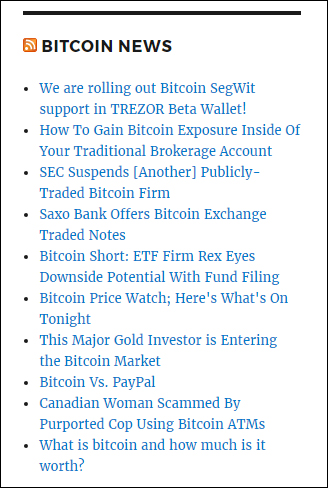
(RSS Widget with Google Alert feed)
Hopefully, this post has been helpful. If you would like to know more about integrating social media with WordPress, see this article: WordPress Social Media Monitoring – Useful Tools
***
"I was absolutely amazed at the scope and breadth of these tutorials! The most in-depth training I have ever received on any subject!" - Myke O'Neill, DailyGreenPost.com
***