How To Add Charts And Graphs To WordPress
No doubt you’re familiar with the saying “a picture is worth a thousand words.” This certainly applies when you are trying to present or explain data.
Graphs and charts can help to break up content that has loads of text, and make data more easily digestible.
You can use tables to present information, but if you want your audience to try and interpret complex data with numbers, trends and comparisons quickly, then graphs and charts are perfect for helping them visualize your data.

Charts and graphs help you explain complex information so people can more easily understand it!
Need to add charts or graphs to WordPress? This step-by-step tutorial shows you how to use the WordPress Visualizer plugin – a simple, easy to use and powerful tool that allows you to create, manage and embed colorful graphs and charts into your WordPress posts and pages with just a few mouse clicks that:
- Your visitors can interact with
- Allows you to upload graph or chart data from your computer or a web-based data source
- Is dynamically responsive for viewing on mobile devices
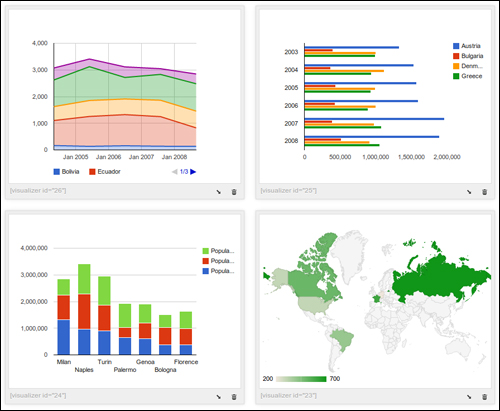

If you plan to display visual data like pie charts, comparison charts or trending graphs that contain static information (e.g. historical data), a simple method you can use is to create the charts or graphs using a desktop application, convert these into images and then simply insert the files and an image into your posts or pages.
Use WordPress Chart & Graph Plugins
If you want to easily add interactive bar charts and pie charts to WordPress with no coding skills required, the easiest way to do this is to use a plugin.
Fortunately, there is a great plugin for WordPress that is simple to install, easy-to-use and allows you to not only create colorful and interactive charts and graphs, it also lets you populate your charts and graphs with updateable content.
Visualizer
Plugin URL
You can install the plugin in your WP dashboard (we show you how to do this further below), or access and download WP Visualizer from the link below:
http://wordpress.org/plugins/visualizer
Visualizer Plugin Description
The Visualizer plugin is a simple, easy to use and powerful tool that allows you to create, manage and embed beautiful and mobile-responsive charts and graphs into your WordPress posts and pages in just a few simple steps.
Visualizer uses Google Visualization API to render charts, which support cross-browser compatibility (adopting VML for older IE versions) and cross-platform portability to iOS and new Android releases, and are based on pure HTML5/SVG technology (adopting VML for old IE versions), so no additional plugins or add-ons are required.
The plugin also provides a variety of built-in optimized for all your data visualization needs, including:
- Line chart
- Area chart
- Bar chart
- Column chart
- Pie chart
- Geo chart
- Gauge chart
- Candlestick chart
- Scatter chart
Visualizer is a flexible and customizable plugin, allowing you to use Google Chart Tools with their default setting, or configure an extensive set of options to match your web design. A number of options are available for each chart that allow you to further customize their settings.
Additionally, charts are rendered using HTML5/SVG technology to provide cross-browser compatibility (including VML for older IE versions) and cross platform portability to iPhones, iPads and Android devices. Your web visitors can see your charts and graphs on their mobile device browsers without having to install additional software.
Plugin Installation
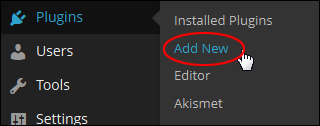
From your WP dashboard, select Plugins > Add New from the main menu …
In the Add Plugins screen type in “visualizer” into the search field and click enter …
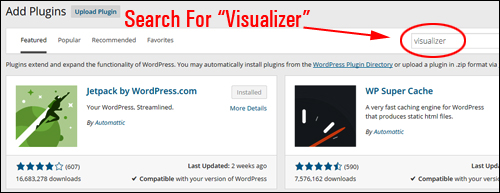
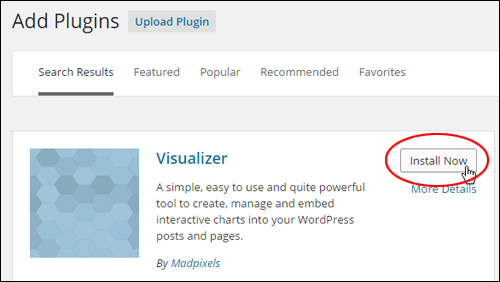
Locate Visualizer in the search results section and click the “Install Now” button …
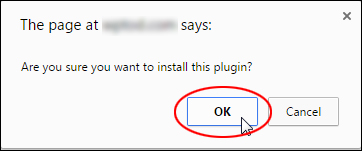
Click OK to proceed …
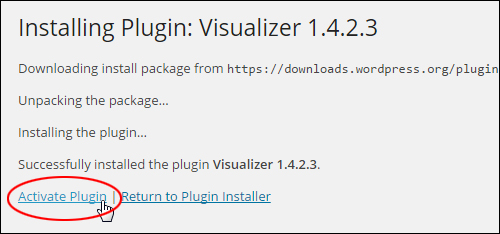
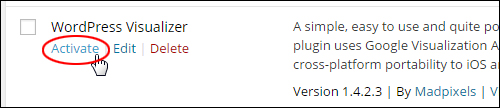
Activate the plugin after successfully installing it …
You can also activate the plugin in the Plugins page …
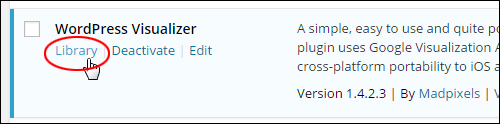
After the plugin has been activated, click on Library …
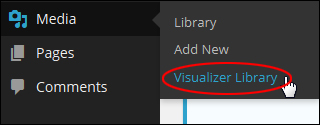
You can also get to the plugin’s ‘library’ screen by choosing Media > Visualizer Library from the main menu …
This takes you to the plugin’s Visualizer Library options page …
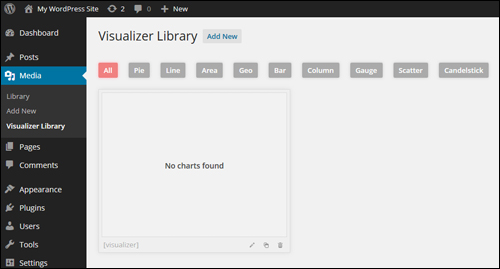
When you first install the plugin, this section will be empty.
The next step is to add the charts and graphs to your library that you will want to publish to your posts and pages.
How To Configure Visualizer
To add a graph or chart to the library, click on the Add New button …
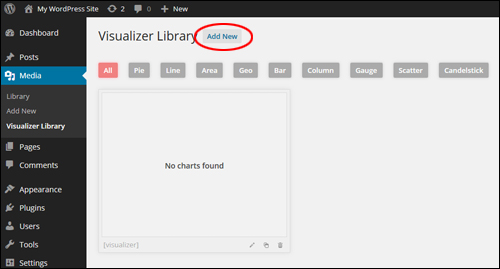
An image gallery displaying all of the built-in types of charts available will load on your screen.
Select the type of chart or graph you would like to create and click on the ‘Next’ button …
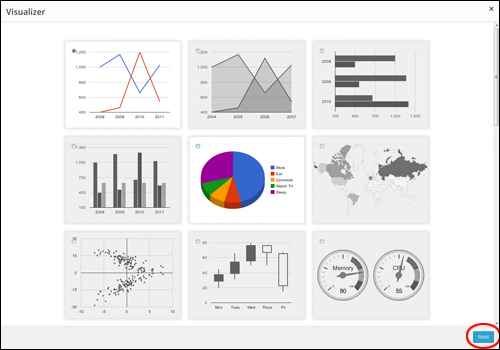
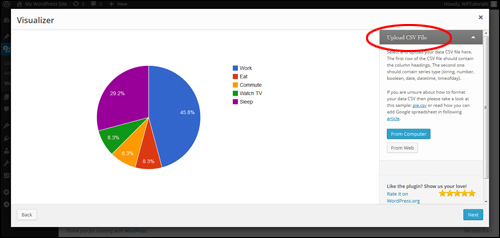
The graph/chart type will open up in a lightbox.
The next step is to upload a CSV file with your data …

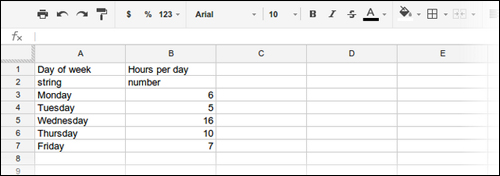
When creating your CSV data file, make sure that:
- The first row includes your column headings.
- Your second row includes the series type (e.g. string, date, etc.)
The screenshot below shows how to format your data correctly …
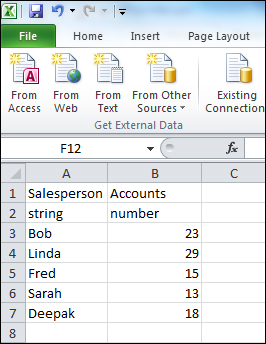
If you are unsure about how to format your CSV file, simply download the sample spreadsheet provided with the plugin.
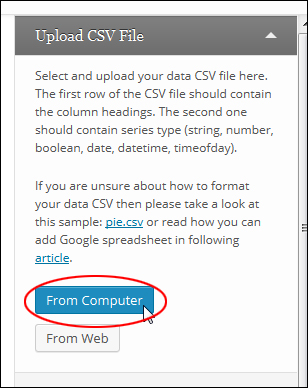
Once you have created your CSV file, select the data source (‘From Computer’ or ‘From Web’) in the ‘Upload CSV File’ section.
Upload CSV File From Computer
To upload your CSV file and data from your computer select ‘From Computer‘ …
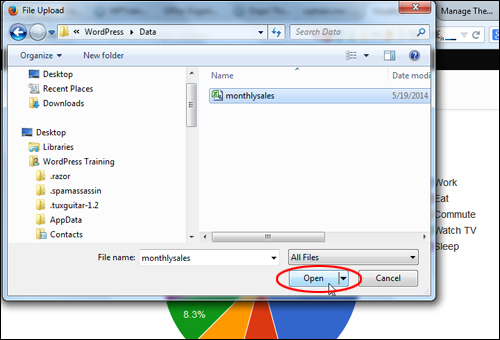
Locate and select your data file and click on ‘Open‘ …
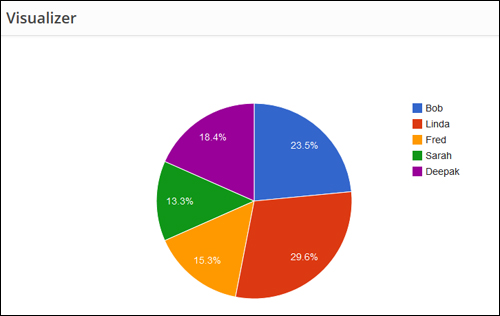
The plugin imports your data and displays it using the graph/chart type you have chosen …
Upload CSV File From The Web
To learn how to create, save and publish data to a Visualizer chart or graph using Google Spreadsheet, see the article below:
After importing the data, make sure that all of your information is correct (if not, click on the ‘Back’ button and reupload a new data file with the correct data), and click ‘Next‘ …
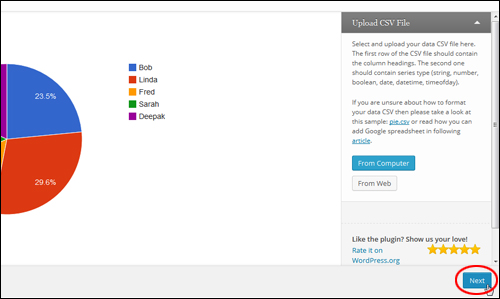
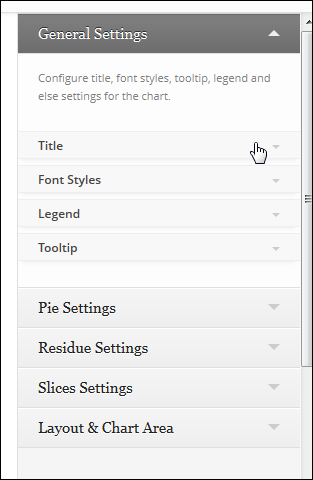
Depending on the chart or graph type selected, the plugin will display a range of customization options and settings …
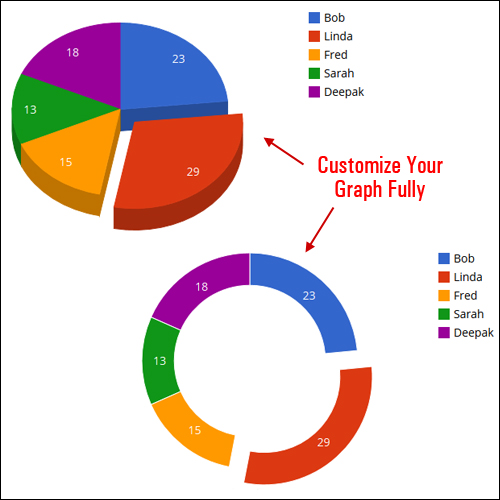
The WordPress Visualizer plugin gives you total control of your information, and updates your display in real time …
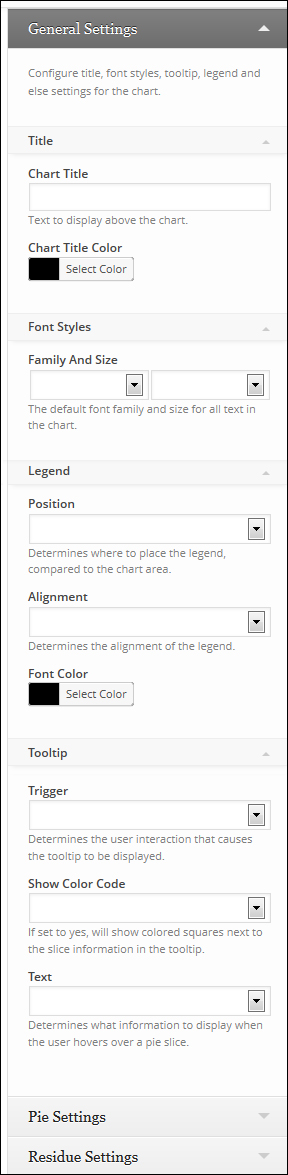
For example, the pie chart offers many configurable options, including:
- General Settings – Configure chart title settings, font styles, tooltip, and legend.
- Pie Settings – Create 3D pie charts, draw slices counterclockwise, set the text content displayed on the slice, create a “donut” pie chart, rotate the chart’s “start” angle and set the slice border color.
- Residue Settings – Set the ‘Visibility Threshold’ (the slice relative part, below which a slice will not show individually.), ‘Residual Slice Label’ (the label for the combination slice that holds all slices below slice visibility threshold, e.g. “Other”), and ‘Residue Slice Color’.
- Slice Settings – Customize the ‘Slice Offset’ (how far to separate the slice from the rest of the pie), and ‘Slice Color’.
- Layout & Chart Area – Configure the layout (total size of chart) including the width and height of the chart as a number of percentage, background color for the main area of the chart and the chart border width and color, and the placement and size of the chart area (where the chart itself is drawn, excluding axis and legends).
Once you are happy with the way your chart or graph looks, click on the ‘Create Chart’ button …
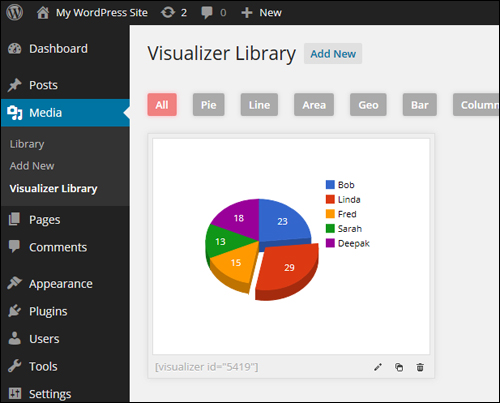
The chart or graph will now be added to the Visualizer ‘Library’ …
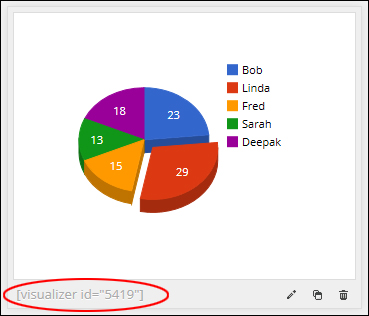
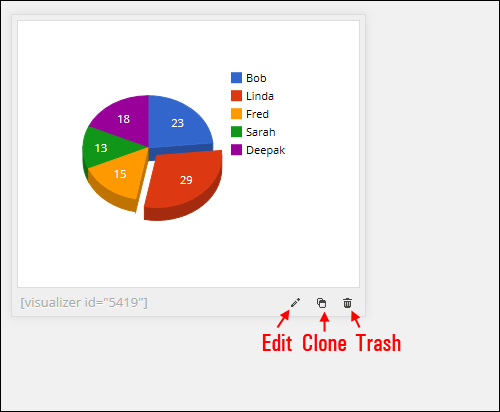
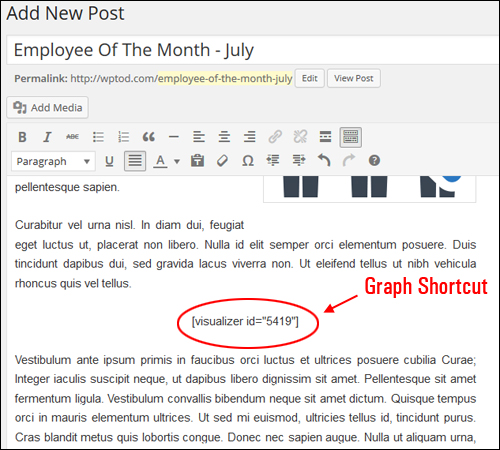
Note that new visual elements are given a unique ID displayed in a shortcode. As you will see very soon, this allows you to add graphs and charts to your posts quickly …
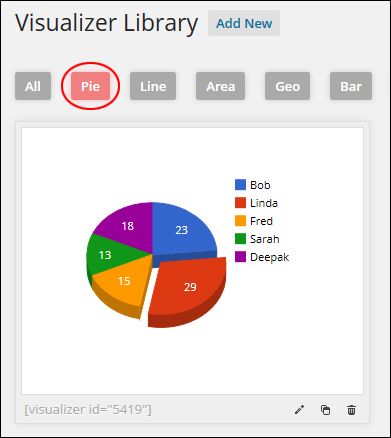
Graphs and charts added to the Visualizer Library can be accessed by type …
After an item has been added to the ‘Visualizer Library’, you can edit its details, duplicate it, or delete it …
Visualizer Usage
After creating a chart or graph and adding it to the Library, it’s very easy to add it to posts or pages.
First, create a new post or page (or open an existing one) …
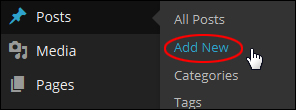
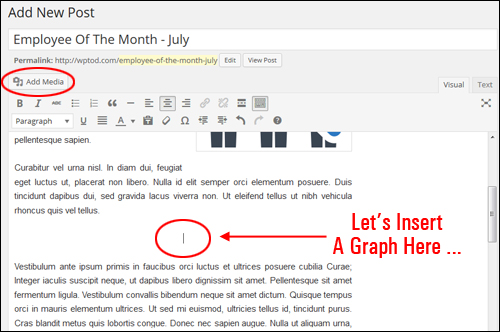
Next, place your mouse cursor where you would like to insert your visual element into your content and click on the ‘Add Media‘ button …
Click on ‘Visualizations‘ …
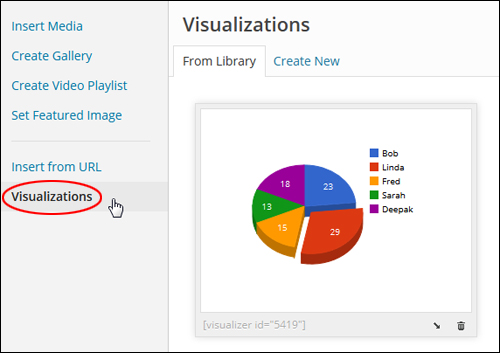
Find the chart or graph to be added to your content and click on the “insert” icon …
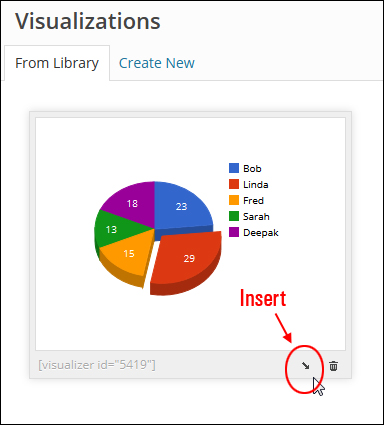
This adds a shortcode into your content …
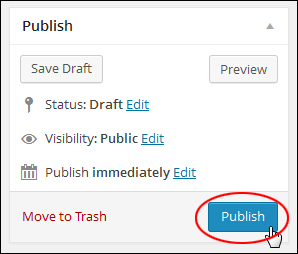
Once you have added your visual element, click on Publish to publish (or update) your page or post …
After publishing your post/page, click ‘View post’ to see the result …
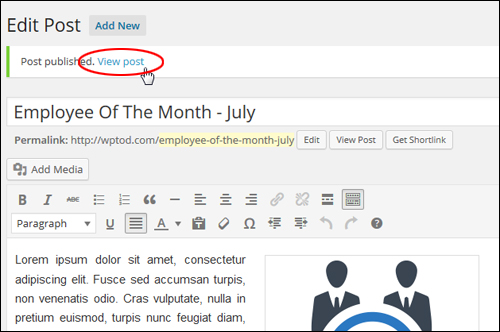
Your page or post displays your graph or chart in your content …
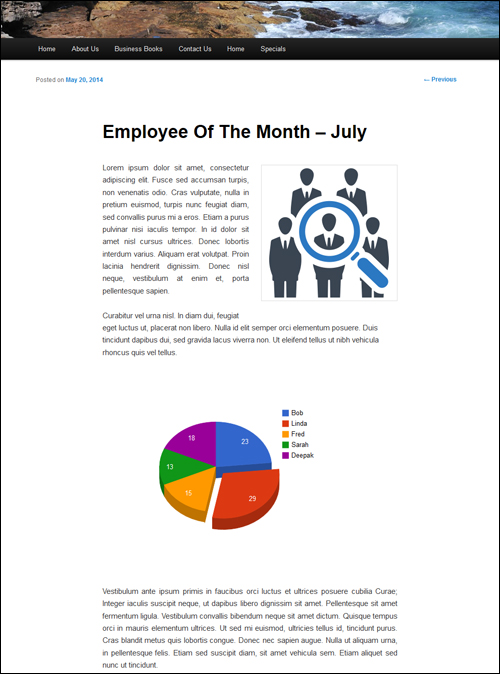
As mentioned previously, Visualizer also displays responsive charts and graphs for mobile screens …
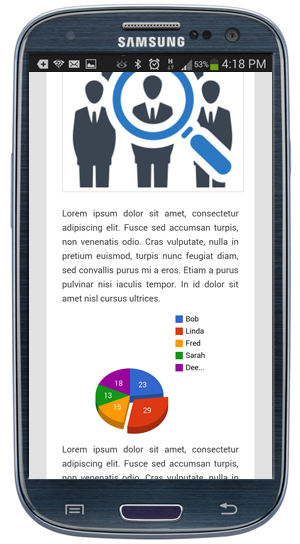
As you can see, WordPress Visualizer lets you insert and customize dynamic charts and graphs in your content. You can update your data and your changes will automatically be reflected throughout your website. This makes working with interactive graph data in WordPress really efficient.
The plugin developers have created a series of step-by-step tutorials you can refer to for ways to edit, customize and use Visualizer.
For tutorials on editing, cloning, deleting and adding data to your charts, refer to the site below:
Congratulations! Now you know how to easily insert beautiful bar charts and graphs into your WordPress posts and pages with WordPress Visualizer.
***
"Your training is the best in the world! It is simple, yet detailed, direct, understandable, memorable, and complete." Andrea Adams, FinancialJourney.org
***