 Are you planning to sell any products online worldwide? If so, then you may want to consider providing users with the convenience of currency conversion on your website.
Currency converting software lets your customers convert foreign currency transactions to their home currency when checking out products online. It also lets visitors and customers view the exact amount their card or PayPal account will be charged, displayed in their own local currency.
One advantage of providing currency conversion on your site is that it allows visitors to view and understand pricing in foreign countries in their own local currency, making it it easier for visitors to calculate their costs and expenses.
If your site is built using WordPress, you can add currency conversion using a plugin to WordPress, allowing your visitors to quickly and easily perform currency conversions to determine the cost of your goods.
WordPress Free Currency Converter – Currencyr
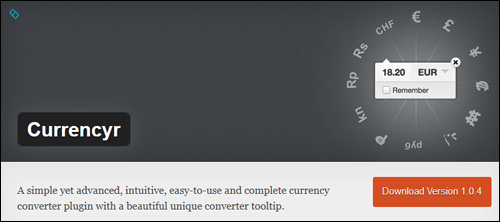
Currencyr is a simple yet advanced, intuitive, easy-to-use and complete currency converter WordPress plugin with a unique converter tooltip. It’s also free!
This currency conversion WordPress plugin includes many great features like the following:
- In-line converter
- Supports several exchange rates providers, like Yahoo!, Google, Open Exchange Rates, European Central Bank and FoxRates
- Supports Shortcodes
- Widgetized currency table and converter
- Supports integration with various e-commerce plugins like WooCommerce and Easy Digital Downloads.
- Automatically determines local currency
- Support for language translations
Note: This plugin requires PHP 5.3.0 or later. Do not use this plugin if you are running an older version of PHP. Alternatively, ask your webhosting support team to check and upgrade your PHP server installation.
***
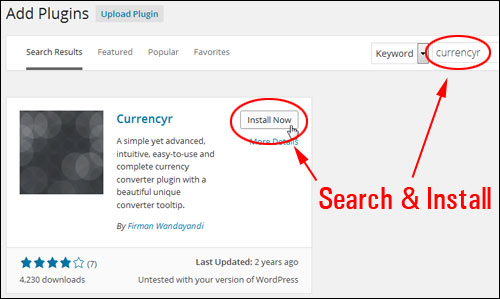
You can install the Currencyr plugin from your WP dashboard by searching for “currencyr” in the Plugins area and clicking the “Install Now” button …
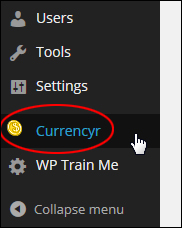
After installing and activating the plugin, you can get to the plugin’s settings by choosing Currencyr from your WordPress administration navigation menu …
The plugin settings page provides a number of configuration settings …
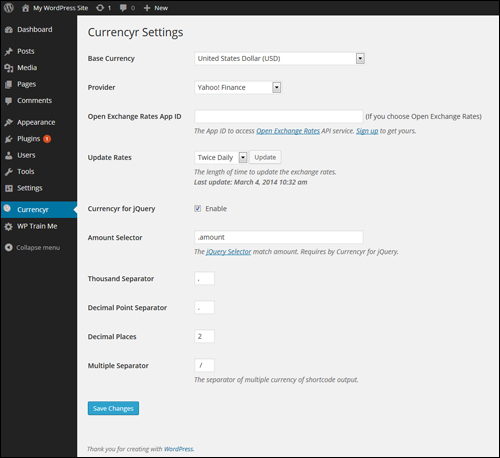
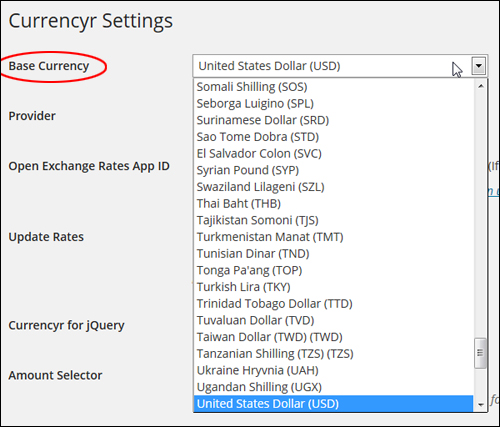
For example, you can select a base currency from a drop-down menu if you want a different currency than the default option ’United States Dollar’ …
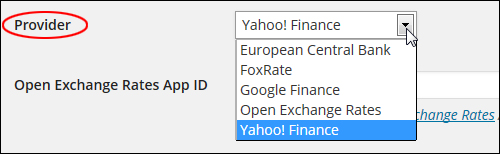
Similarly, you can choose which data provider you want to use from the dropdown menu in the Provider section. The default provider is ‘Yahoo! Finance’, but you can also select one of the other options, like FoxRate or Google Finance …
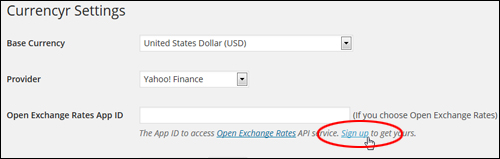
Note: If you choose Open Exchange Rates as your provider, an API (Application Programming Interface) will be required …
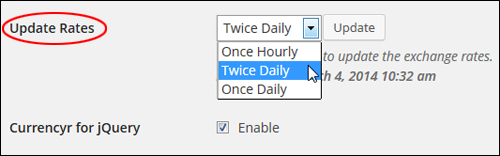
You can select how often you want the exchange rates to update by choosing an option from the ‘Update Rates’ drop-down menu …
The Currencyr plugin uses jQuery, which is an open-source library of Javascript code that lets web developers add things like animation effects to web applications (such as WP plugins).
If you have no reason to change the jQuery settings, leave these as they are …
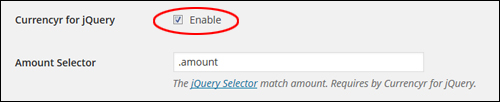
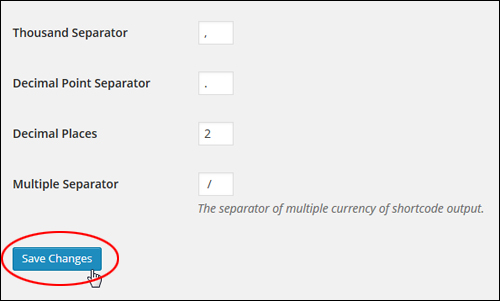
Configure the remainder of the plugin settings and remember to click the Save Changes button when finished …
When your plugin settings have been configured, you can add currency conversion to any WP page or post using shortcodes and widgets.
Refer to the ‘Additional Plugin Notes’ section below to learn more about using currency codes (e.g. USD, AUD, JPY, etc …) with this plugin.
Currencyr Shortcodes
You can add currency conversion to posts, pages and widgets without touching code using shortcodes.
Let’s take a look at some examples of currency shortcodes that you can add to your WP pages and posts:
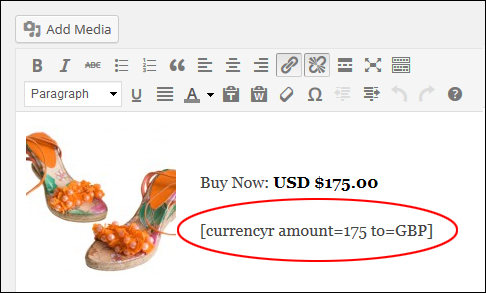
Let’s say that you sell a product for a set amount (e.g. $175) in US Dollars (USD), and you would like to display the conversion amount in British pounds (GBP) on your page.
To do this, just insert the following shortcode into your page content …

Note: You can also insert pricing in dollars and cents (e.g. 89.95, 47.00, 399.99, etc …)
The screenshot below shows how the above shortcode should look after being added to a page or post …
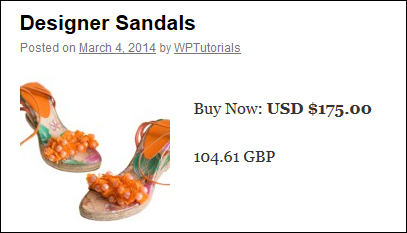
Once the post has been published, the converted currency will display like this …
Using the same example, let’s now display the same price into different currency formats.
To do this, use the shortcode below (you can add as many currency symbols as you like separated by vertical pipes) …

You can see how the shortcode appears when inserted into a post …
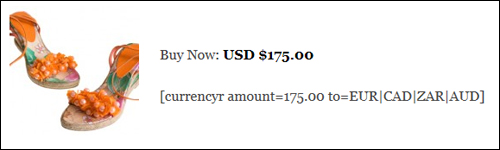
Once the post or page has been published, your converted currency will then appear like this …
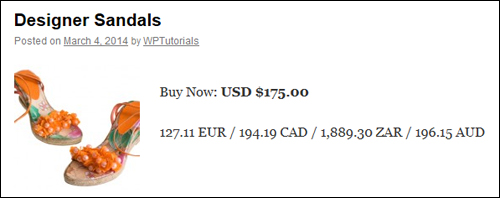
See the ‘Additional Plugin Notes’ section at the end of this tutorial to learn how to change the currency separator symbol with this plugin.
Now, let’s say that you would like to select a different base currency than the one you have set as your default.
For example, if you have specified your default base currency as EUR and you have a section on your website targeted to visitors in countries like Australia or Canada, you can change the base currency using the following shortcode …

The example below shows how the shortcode looks when added to your content …
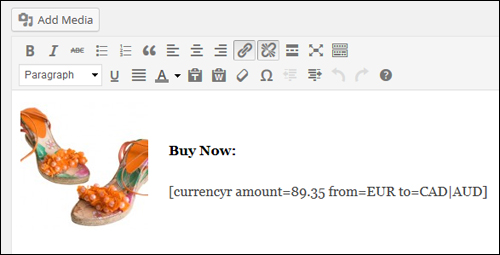
After publishing your post, your currency conversion will then appear like this …
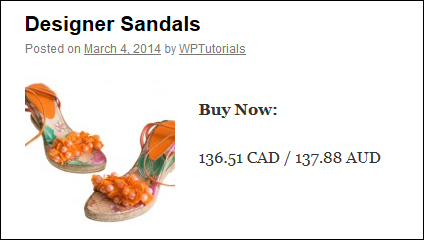
Widget
You can also add a currency converter to your website’s sidebar menu using the plugin’s widget.
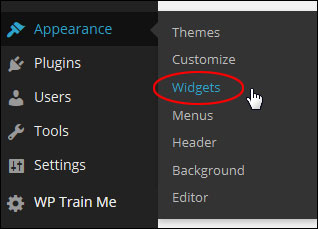
To add currency conversion to your sidebar, select Appearance > Widgets in your WP user admin menu …
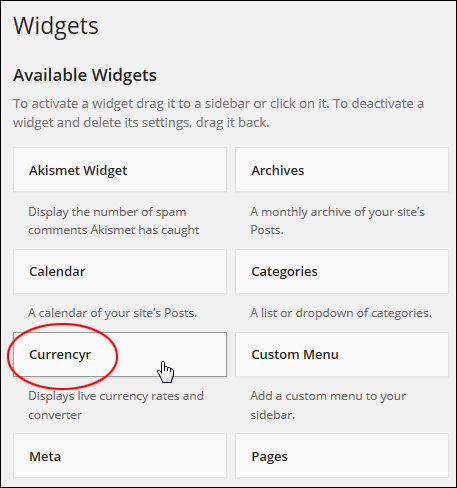
In the Widgets > Available Widgets area find the ‘Currencyr’ widget and drag it to the ‘Active Widgets’ location …
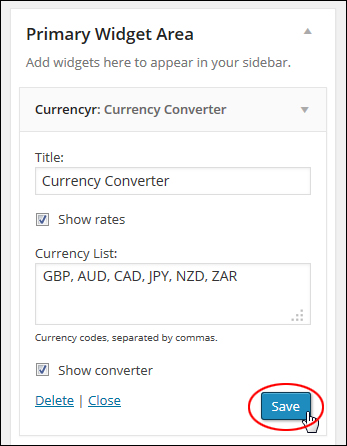
Configure the widget settings as shown in the example below (add currency codes separated by commas), and click Save to save your settings …
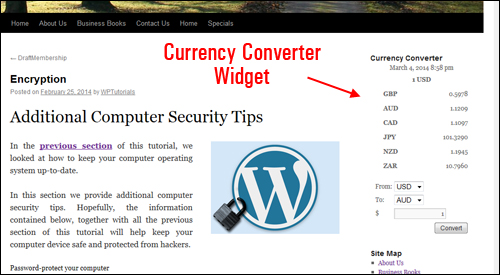
The currency converter tool will now appear on your sidebar with the settings you have selected …
Additional Plugin Notes
This section contains additional information about using the plugin.
Currency Separator
The Currencyr plugin allows you to specify the symbol to display as the currency separator when using several currencies.
You can select a different symbol in the ‘Multiple Separator’ settings section.
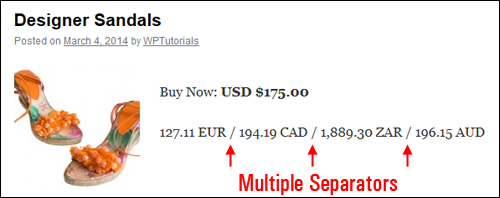
So, for example, using the default symbol “/” (forward slash) …

Displays your currency values separated by a forward slash as shown below …
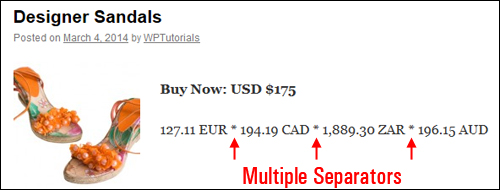
If you change this symbol and resave your settings …

Your web site visitors will see the new symbol being used as the currency separator …
Integration With WP e-Commerce Software
As mentioned earlier, the Currencyr plugin integrates with a number of WordPress-compatible e-commerce plugins such as WooCommerce, Shopp, and Easy Digital Downloads …
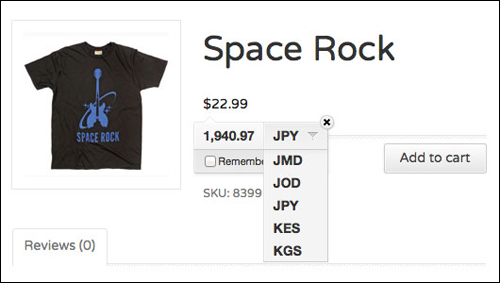
(image source: plugin website)
And there you have it! Now you know how to easily add a currency converter to your e-commerce web site.
To learn more about WordPress e-commerce plugins, see the tutorial below:
***
"I love the way your email series "Infinite Web Content Creation Training Series" is documented and presented. It is very absorbing and captivating. The links and tutorials are interesting and educational. This has motivated me to rewrite my content following the concepts I am learning from the email series." - Mani Raju, www.fortuneinewaste.com