
Thanks to the internet and digital technologies, thousands of entrepreneurial organizations and individuals are now finding new niches to profit from in areas like online education.
e-Learning is based on the concept of distance learning, where learners don’t have face-to-face interaction with the teacher or trainer.
The eTraining Industry Is Growing
eTraining course sites like Udemy are strong indicators of the growth of the eTraining industry.
Udemy currently offers 30,000+ ecourses covering all topics, from IT & software and personal skills, to better parenting and photography, etc …

(Udemy.com currently offers 30,000+ ecourses on every topic imaginable!)
This is not only great for people looking to learn new things, but also for businesses that have unique and valuable content to share with others.
e-Training – Opportunities & Challenges
The internet provides tools and technologies for creating courses online. e-Training computer-based tools and technologies include Learning Management Systems, online videos, video-conferencing apps, audio training, e-Books, forums, etc. There are, however, a number of drawbacks when it comes to planning, developing and implementing effective ecourses.
Some of the challenges and drawbacks include:
- Figuring out the,
- Employing familiar tools that don’t require spending additional time learning,
- Ensuring consistent standards are used throughout the content, branding, etc.
- Measuring outcomes,
- Assessing scores,
- Providing useful reports, certificates of completion
Additional factors include lack of face-to-face contact, student boredom, distractions, etc.
eLearning – Unlimited Possibilities
If you are a product creator, creating elearning products that teach useful skills is a great way to grow a list and develop another stream of revenue. Creating products is, after all, one of the best ways to build a customer base, establish authority and credibility and position yourself as a leader in your niche or industry.
There’s a ton of opportunity. Almost anything can be taught online.

(Got a business or passion for photography, landscaping or technical writing? Turn it into an ecourse!)
The problem is that creating “how to” ebooks and training courses from scratch can be very time-consuming. If you have been marketing your business online for a while, however, you probably already have the building blocks of great content on your blog or website that can be leveraged into a training product.
If your site is powered by WordPress and you’re searching for a cost-effective way to create and sell an online training product then here is a powerful courseware plugin that can help you.
Presenting …
WPCourseware – Learning Management System Courseware Plugin For WordPress
Description Of Plugin
WP Courseware is a learning management system plugin for WordPress that lets you set up training courses and build e-learning products quickly with WordPress.
(WPCourseware – Online Course Creation WordPress Plugin)
The WP Courseware plugin is used by thousands of businesses online and makes creating e-learning courses in WordPress simple.
In WPCourseware, A course includes training modules and modules are built using units, quizzes, etc.
WPCourseware can be fully integrated with any WordPress site. The plugin adds an “options” menu that lets you create a new course, add or edit existing modules and units, edit quizzes and surveys, edit settings, import/export your course information, modify certificates of completion, view training documentation, etc …
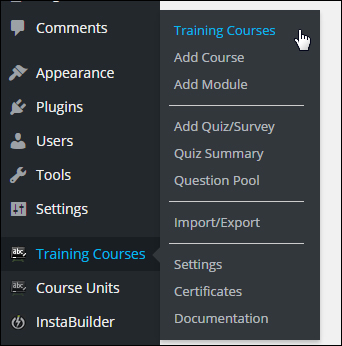
(WP Courseware options menu)
WPCourseware also lets you add a widget in your sidebar, giving users access to information about how they are progressing in the course …
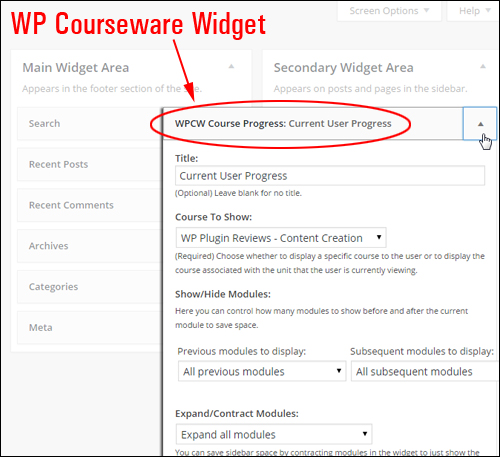
(WP Courseware Widget)
The courses you add can be entirely configured and customized.
For example, you can decide if participants need to have completed a training section before they are allowed to advance through to the next unit …
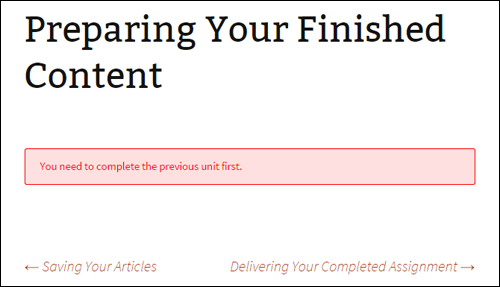
(Course settings can be configured to suit your needs)
You can see an overview of your training course information inside your admin dashboard and perform a range of actions (e.g. reorder modules, course units and quizzes) …
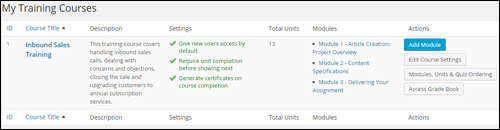
(View details about all training courses inside your admin dashboard)
If you have a basic understanding of how WordPress works, you can create training courses quickly using familiar interfaces and functionality.
For example, you can add and edit course titles and descriptions, set user access, customize user messages and notifications, provide course completion certificates and fine tune other course settings simply by switching tabs, entering data into fields, checking radio buttons, selecting drop-down menu options, rearranging elements around screens using drag and drop, etc …
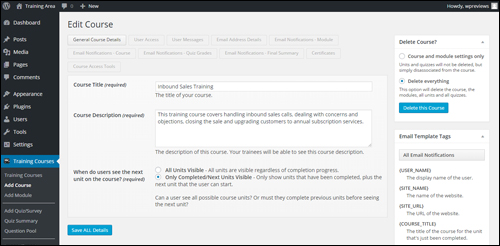
(Easily edit course options)
Adding training modules and course units is as simple as creating and editing WordPress posts. You can include text, images, embedded media, and any other kind of content that you would normally add to a post.
You can order your units inside training modules using drag and drop inside the Ordering section …
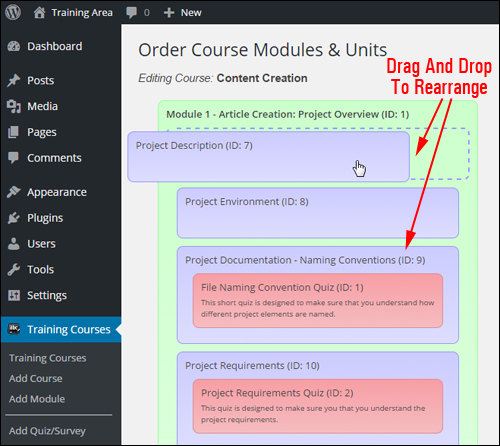
(Order Course Modules & Units settings area)
When you are done creating your unit, just publish it like any other WordPress post or page.
You can view a list of your course units in the “Course Units” section …
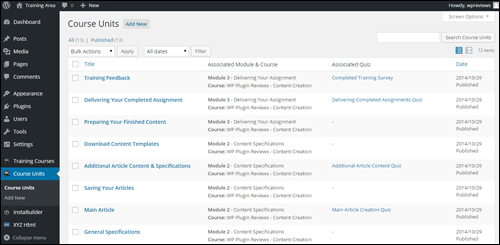
(Course Units table)
Placing your course and modules into pages is simple. WPCourseware allows you to insert courses and training module information into pages using a range of built-in shortcodes …
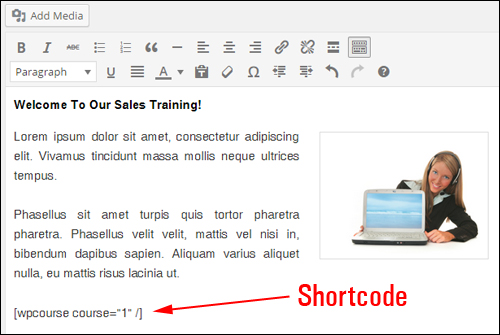
(WP Courseware shortcode)
With shortcodes, you can add course content to your pages and manage all of your course details from your dashboard …
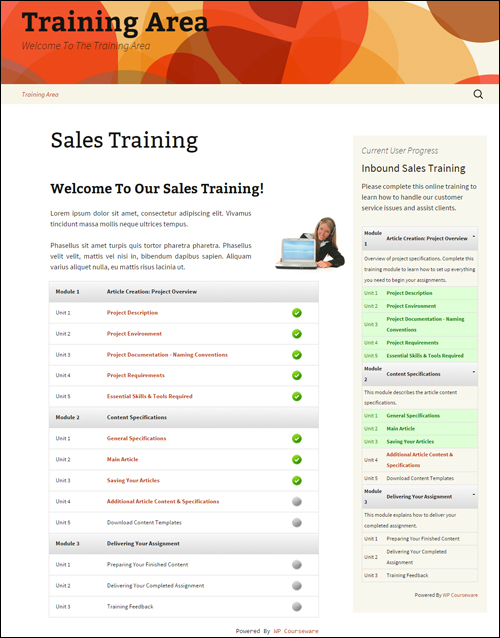
(Training course created with WP Courseware)
After publishing your elearning course, it can be viewed by users with access permission …
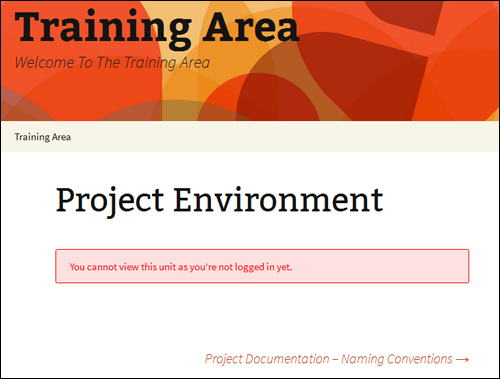
(Users must be logged in and have permission to view your training content)
To learn more about this plugin go here: WPCourseware
Benefits
Here we have listed just a few of the benefits and advantages of using WP Courseware to create training courses online on your WordPress web site:
Installation Is Easy & Quick
WP Courseware is very easy to install. Simply upload it to your Plugin folder via your administrator section and activate.
Create Courses Quickly And Easily
As mentioned earlier, if you have a basic understanding of the way WordPress works, you can quickly create training courses using familiar WordPress interfaces and functions.
Just create a new course, module, or course unit with course content, and optional quiz or survey. Drag and drop to organize the course and create a course outline using the plugin’s shortcodes or widget.
Unlimited Expansion Capacity
WP Courseware lets you set up unlimited courses, modules, lessons, surveys, quizzes and add an unlimited number of enrollees to courses.
Add Different Content Types
Course units use WordPress custom types, which allow you to add any type of content you would normally add to a WordPress post or pageWordPress posts or pages besides text, like audio, video, images, links, downloadable files, etc.
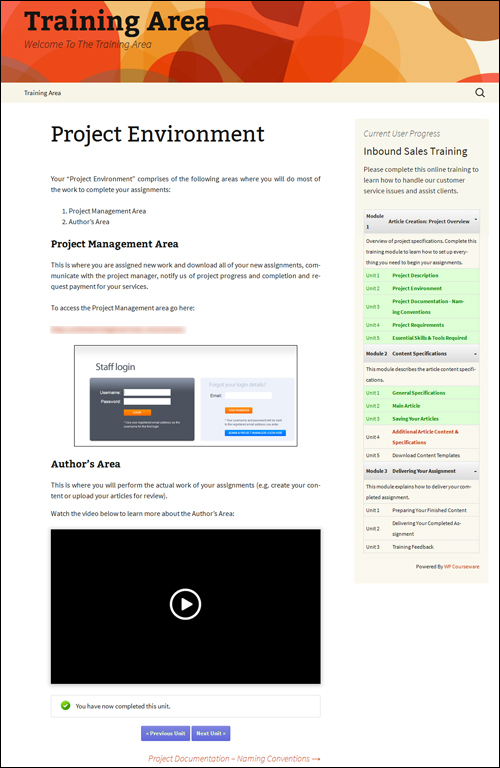
(Use different types of content to create your training courses)
Additional plugin benefits include the following:
- Compatible with all WordPress themes: The plugin integrates with all WordPress themes.
- Compatible with all devices: WPCourseware deliver content accross all devices.
Plugin Features
WPCourseware offers site owners with many features. Below we have listed just a few:
Course Outline
You can create a course outline and course progress page via shortcodes. The course progress shortcode displays all the courses students are enrolled in as well as displaying their current progress.
Progress-Tracking Features
Students can also view their course progress using a dynamic custom sidebar widget.
As a course administrator, you can also track a student’s course progress inside your dashboard …
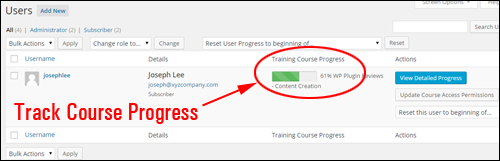
(Progress-tracking features)
Automatic Enrollment
You can set up courses to allow automatic enrollment of new course students.
Customized Certificates Of Completion
Students can receive a customized training certificate. Course completion certificates can be personalized with custom backgrounds, logos and signatures …
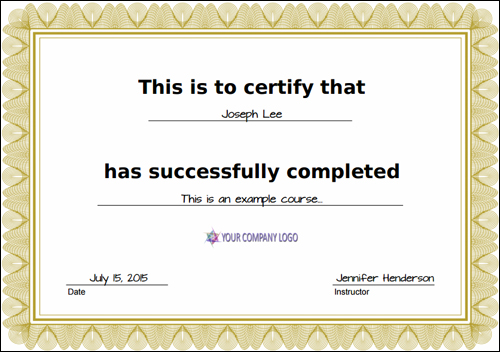
(Customized certificates)
Import/Export Functionality
The import/export function allows you to transfer courses to other websites.
Custom Email Notifications
WPCourseware allows you to set up custom user notifications to congratulate students upon module or course completion and for communicating course-related administrative matters. You can also customize the quiz result email so your students can be congratulated after successfully completing a quiz. Additionally, you can also send out mass emails to your students with their final grade with just one click …
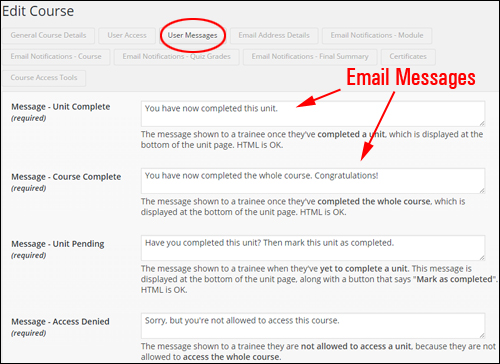
(User Notifications – WP Courseware)
Quizzes And Surveys
Add a quiz or survey to your course content …
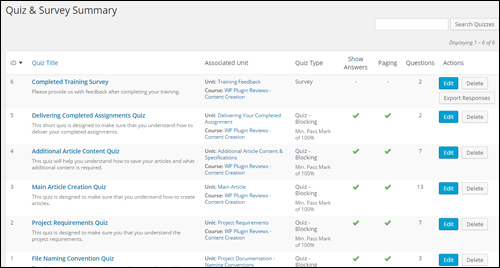
(Quizzes & Surveys)
- Add course progress blocking or non-blocking quizzes depending on your needs.
- Quizzes can be timed, paginated, and include customized feedback based on question tags.
- Quiz results can be downloaded in PDF format. You can also download CSV files with survey results.
- The course grade book will help track your student’s progress …
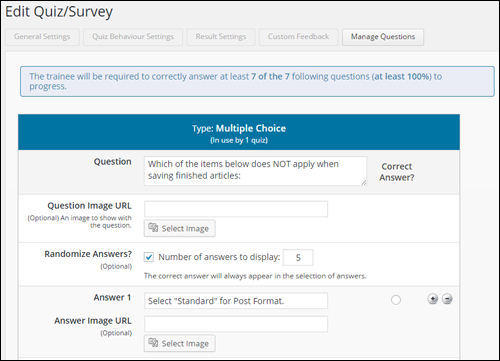
(Edit Quiz/Survey Settings Area – WPCourseware)
Integrates With Membership & e-Commerce Plugins
WP Courseware integrates with many leading e-commerce and membership plugins …
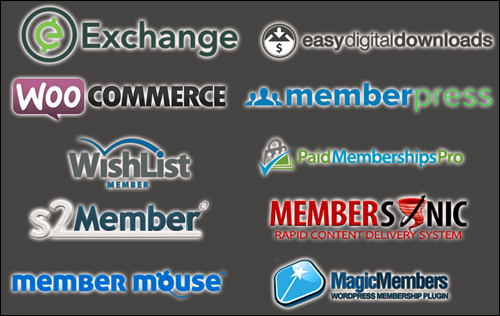
(eCommerce And Membership Plugin Integration)
Testimonials
Below are a few of the testimonials and feedback that customers have written about WP Courseware:
“No e-learning solution for WordPress compares to the ease and speed that WP Courseware offers people when setting up online courses.” Chris Lema, Author, Speaker, and E-Learning Expert
***
“Nate contacted me about checking out WP Courseware. I did… and I was impressed. Today, I have WP Courseware integrated into the delivery side of Blog Marketing Academy itself.” David Risley, Entrepreneur, Blogger, & Speaker
WP Courseware Plugin – Tips
As mentioned earlier, if you have been online for a while, you already have content on your blog or website that can be leveraged into a new product.
WPCourseware allows you to convert any any WordPress post or page into a course unit, so if you already have some instructional articles and tutorials.
Plugin Support
The plugin is very well-supported and backed by a risk-free, 30 day, 100% money-back guarantee. Users get free access to all integrations and 1 year of support and upgrades with their purchase.
The plugin’s “Documentation” screen inside the plugin’s options and settings menu provides a list of the available shortcodes …
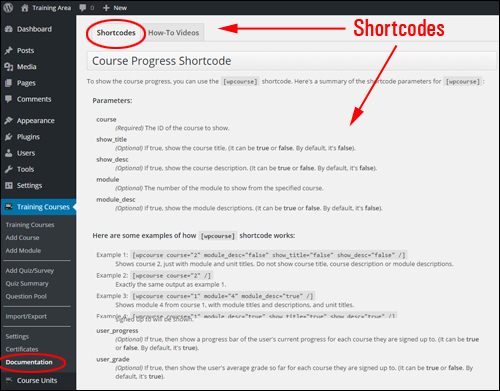
(Plugin Documentation – Shortcodes)
And access to dozens of plugin training step-by-step tutorials …
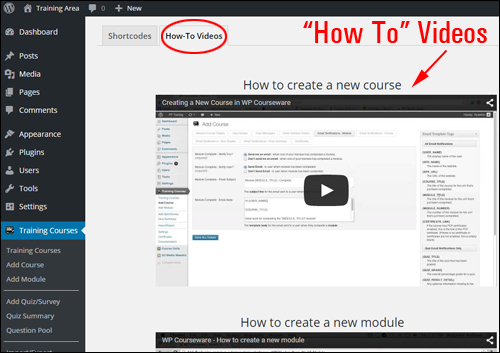
(WP Courseware Documentation – How-To Video Tutorials)
Plugin Price
WP Courseware is available in the following options:
- 2-Site Licensing – This edition enables you to use WPCourseware on a single site. Includes one year of free upgrades and support. Cost = $99.00.
- 10-Site Edition – This edition allows you to install WPCourseware on 10 sites. Cost includes 1 year of free upgrades and support. Cost = $125.00.
- 25-Site License – This allows you to install WPCourseware on 25 websites. Cost includes 1 year of free upgrades and support. Cost = $175.00.
Please Note: The price of this product can vary, depending on whether there are any promotions or limited-time special offers. The above reflects the current pricing when this article was written. This may not be the actual pricing set by the plugin author when you visit the product website and you may be shown additional upsells or one-time offers after you’ve purchased.
Check the plugin’s website for current pricing details:
Additional Information
For a demo video showing how the software works, including help documentation and tutorials, FAQs, customer helpdesk, contact details and more, visit the WP Courseware website.
Download This Product
WPCourseware helps you develop e-courses fast. This is a great courseware solution you should definitely add to your site.

For complete details, visit the plugin website here:
***
***