 No matter what what industry you are in, providing high-value information to your blog readers is essential. For example, if your business provides insurance-related services, you may want to provide users with the latest information from government departments, such as news and updates on statistical research, insurance advice, etc.
To create and publish this kind of information, however, involves an enormous amount of effort and expertise. You have to do a lot of data sorting, researching and organizing, fact-checking, content writing and editing (or hire someone to do this for you), and then continually make sure that this information is kept up-to-date. As you can imagine, this not only involves a lot of work but most of the information you are dealing with is entirely beyond your control.
Fortunately, there is a simpler way to provide your readers with up-to-date information.
It’s called RSS …

(RSS - One of the easiest ways to provide your subscribers with up-to-date information)
The Ultimate Guide To WordPress RSS
RSS – Basic Definition And Information
- RSS is an acronym for RDF Site Summary, or, as is more commonly known, Really Simple Syndication. It it is also called a “feed” or “newsfeed”.
- RSS allows content publishers to automatically syndicate their content to save readers time from having to keep revisiting their site to check for updates.
- RSS feeds are also used to publish information that is frequently updated, such as new blog posts, news headlines, video lists, etc., which users can choose to subscribe to.
- Essentially, an RSS feed is an XML document that includes full or summarized text along with metadata such as date of publishing, author, etc. It allows people to subscribe to content on websites and then view updates posted on these sites through an RSS feed reader. Conversely, RSS feeds also enable publishers to automatically syndicate their content.
- Feeds can be made available in different types and read by different aggregators. Some of these include RSS feeds, Atom Publishing Protocol) feeds and RDF (RDF = Resource Description Framework) feeds. All of these formats, however, use a standard XML file format to ensure that feeds are compatible with different devices and programs.
- Many sites and software tools also allow you to combine several RSS feeds to display news and updates sourced from various sites.
In this in-depth article, we explain where your RSS feed is located, how to syndicate your content online using feeds, and how to display content from other websites and blogs on your site using their RSS feed.
RSS (Really Simple Syndication) Feeds
Content syndication is a really powerful (and legitimate) way of sharing content online. RSS Feeds provide an easy way for web users to stay up-to-date with the latest information published on sites and blogs they are interested in.
First, let’s take a look at content syndication.
Global media and news reporting agencies rely heavily on content syndication to publish news and stories from content sources all around the world.
Syndication allows content publishers and many leading online media publications to deliver readers the latest news and fresh stories from all around the globe without having to set up more news reporting and content writing staff all around the world …
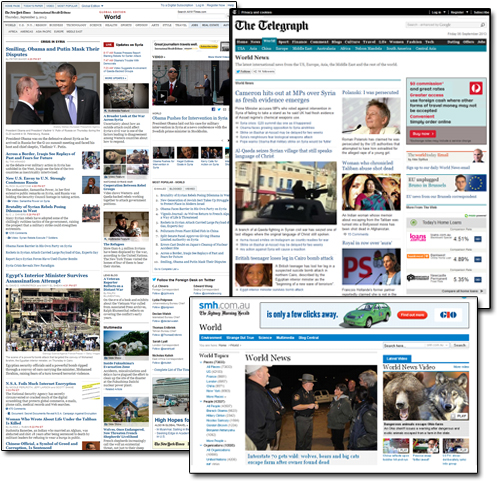
(News reporting agencies rely heavily on content syndication to publish newsworthy items from other news agencies all around the globe.)
Syndication is a legitimate way of sharing information with other sites. Global media publications syndicate their content using feeds …
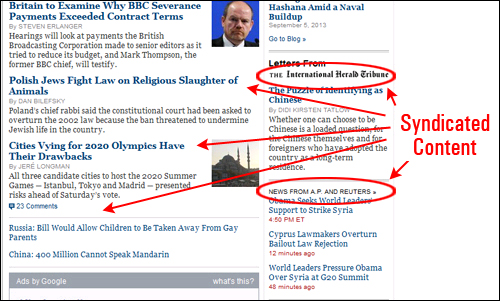
(Digital content publishing agencies syndicate their news stories using feeds)
Most websites actually want you to share their information. Content syndication not only allows information to be shared, but it can also send visitors back to the site that published the original content being syndicated. This creates new ways to drive traffic back to their site.
Major content sites include an RSS feed section (look for menu links that say “RSS” or “Newsfeeds” in them, or just search for “name of site/keyword + rss” – e.g. “nytimes rss”, “courier mail rss”, “sydney morning herald rss”, etc.) …
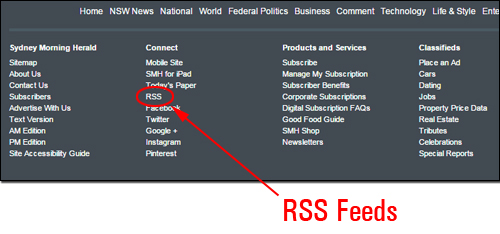
(Major sites contain a feed section. Source: smh.com.au )
Clicking on a site’s RSS links section brings up a directory of different RSS feed sections …
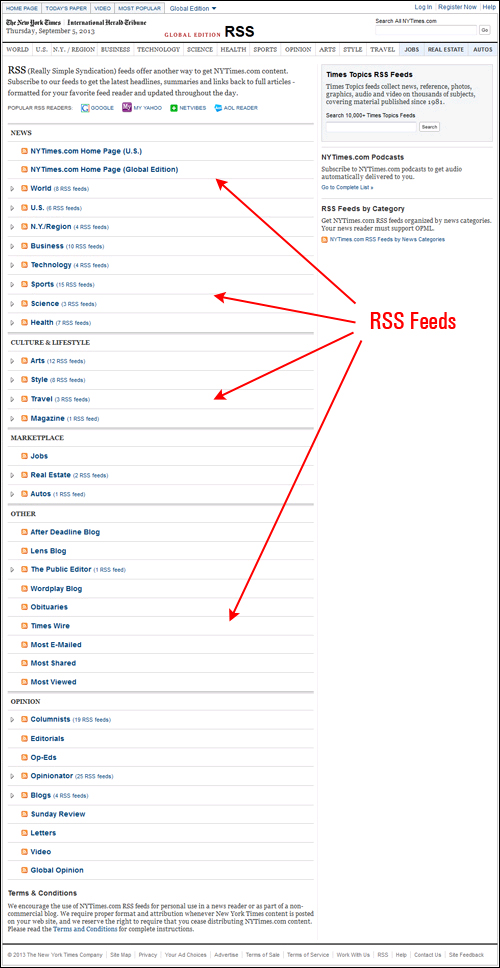
(RSS feeds list. Image: nytimes.com RSS feeds)
These RSS feeds give you access to information from different areas of the site (e.g. technology news, arts news, lifestyle magazine, etc.)
An RSS feed directory can also contain subcategory feeds …
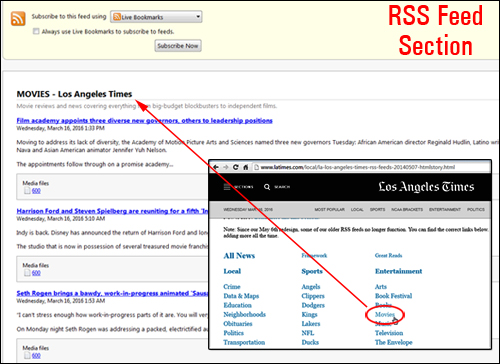
(Feed sections can also include subcategories. Image: latimes.com feeds)

Note: An RSS feed is just a URL. To use feeds, all you need to do is copy the URLs and paste these into a program that can process the feed code into something readable. We’ll cover this further below.
Using Feeds
Syndicating someone else’s content on your site has some obvious benefits. It helps someone else’s site and adds value to your site without you having to create this content …
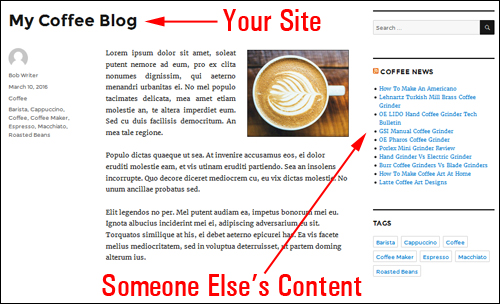
(Content Syndication Benefits Someone Else’s Website And Yours!)
While adding RSS feeds from another site is a great way to add content to your site without having to create it, it’s worth keeping in mind that there are benefits in getting other websites to use YOUR content.
When other websites syndicate your content, this gives your business the opportunity to get increased exposure online and drive more web traffic …
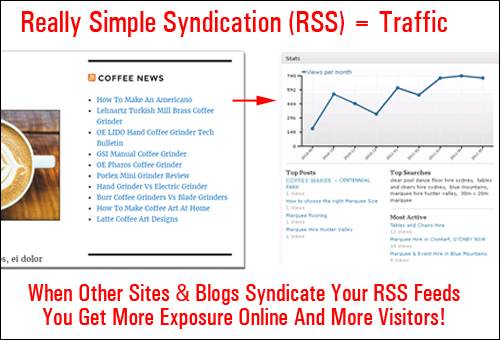
(Get users to syndicate your content … it will help drive more traffic to your site!)
WordPress Feed – About
WordPress automatically publishes a feed of all your posts, allowing other online users to syndicate your content on their websites.
Depending on the theme you have installed, there are a few ways to get your WordPress RSS feed:
1) If your theme allows the Meta widget to display as part of your navigation menu, scroll down to the Meta section and click on Entries RSS …
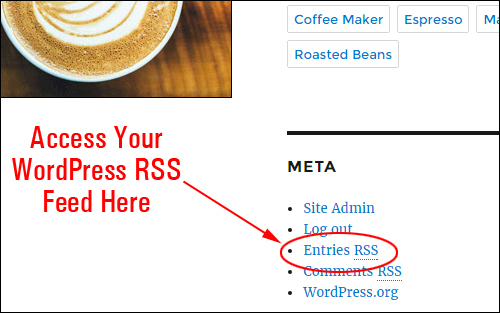
(Access your WordPress RSS feed from the Meta section)
2) You can also find links and buttons on certain themes that let your visitors copy your feed.
For example, in the screenshot below, a visitor can copy the feed URL by right-clicking and copying on the Subscribe to RSS link …
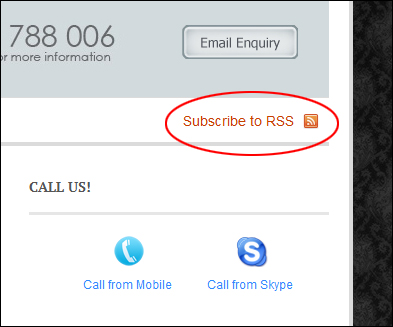
(Copy RSS URLs to your clipboard from “subscribe” buttons)
3) On many websites and again, depending on which theme you have installed, you can find the RSS feed displayed in a Keep In Touch, Share, or Links toolbar section …
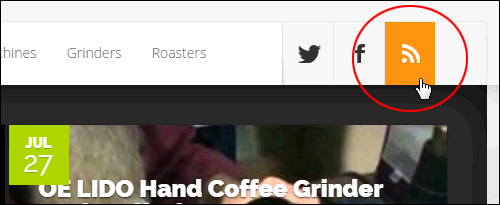
(Look for an RSS button in a a Stay In Touch, Share, or Links toolbar section)
4) You can also view your feed by typing your site’s URL into a browser and adding “/feed” after the URL, e.g.:
- http://www.yourdomain.com/feed
- http://www.yourdomain.com/blog/feed (if your WP installation is in a subdomain, e.g. “blog”)
Using any of the above methods will bring up a page containing your site’s feed …
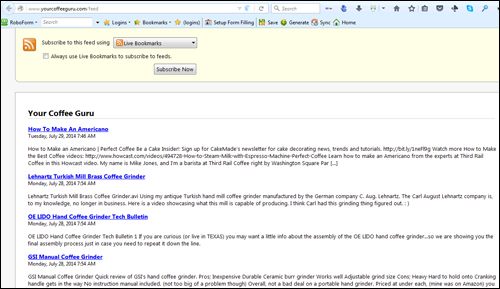
(RSS feed content as seen with a Firefox browser)
Note that your feed page will display differently depending on the web browser you use …
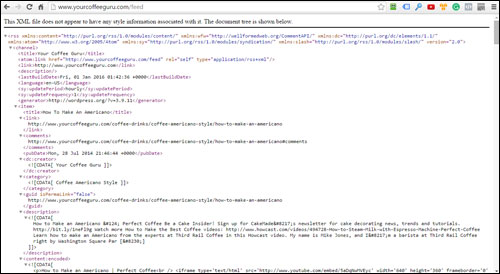
(Feed items viewed on Google Chrome)
Specify Number Of Items To Display On Your RSS Feed
You can specify how many entries you want to display in your RSS section, by going to your Reading Settings section and entering the number of items to show in the “Syndication feeds show the most recent” field …
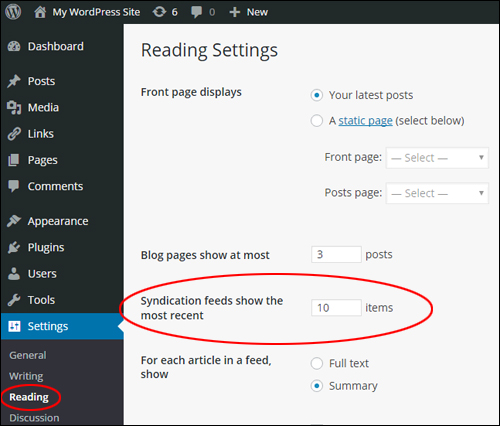
(Reading Settings – Number of syndication feed items field)
The feed section will display as many recent posts as you have specified in your Reading Settings section …
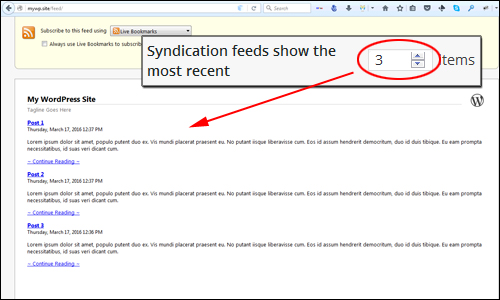
(The feed page will show as many recent posts as you have specified in the WP Reading Settings section)
Display Full Text Or Summary Of Posts In Your RSS Feed
The other setting in the Reading Settings section that affects your feeds is whether to display each article in a feed as full text, or a summary …

(Reading Settings – Show ‘Full Text’ or ‘Summary’ for articles in a RSS feed)

Post Excerpts can also affect how the content in your feed displays …
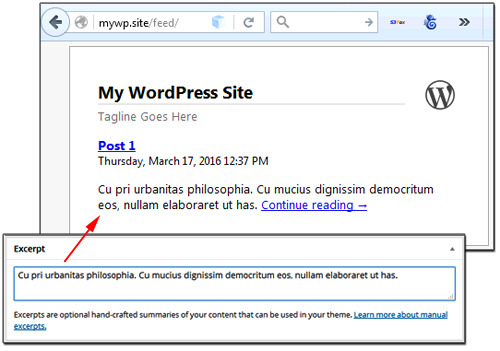
(Post excerpts can affect how content in feeds appear)
If you need help Post excerpts, refer to this tutorial:
View The Content Of Your RSS Feeds
As mentioned previously, all that’s required to view a feed’s content is to copy the feed’s URL and paste it into a feedreader, i.e. an application that translates feeds into readable content.
Let’s take a look at how this works.
First, go to a website whose feed you want to syndicate and look for a ‘subscribe’ button …
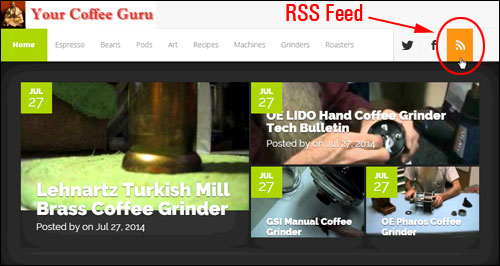
(Search for an RSS feed section. Image source: http://www.yourcoffeeguru.com)
Next, copy the feed URL to your clipboard …
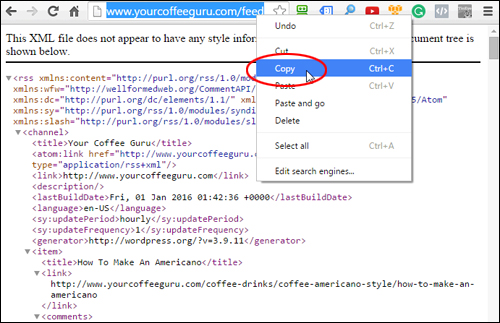
(Copy the URL of your feed)
If you want, you can check the feed content by pasting the feed URL into an online feedreader …
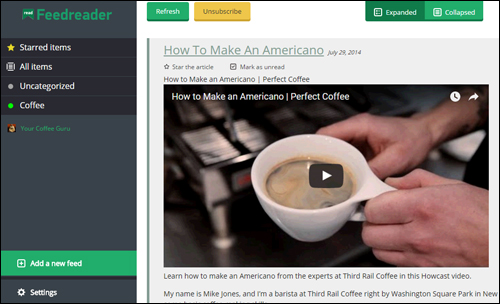
(Paste the feed URL into a feedreader to view the feed content. Image Source: Feedreader.com)
Like feedreaders, WordPress has the ability to process XML/RSS feeds and convert these into content that can be read by your subscribers.
How To Add RSS Feeds To WordPress Sites
In the example below, we’ll add RSS content from another site to yours.
Adding Feeds To Your Sidebar
As mentioned earlier, no matter what industry you operate in, you can add to your site the latest news and updates from an industry-related government department or authoritative site in your industry simply by importing their RSS feed. You can use RSS feeds to display a range of information on your WordPress site like news, Facebook updates, or content from thousands of sites using the WordPress RSS widget.
Let’s add content from an RSS feed to the WordPress sidebar area …
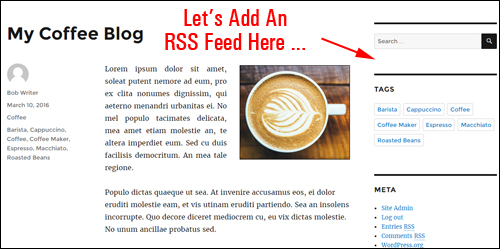
(Let’s add content from an RSS feed to the WordPress sidebar navigation area)
copy the RSS feed URL from a website containing content that you want to add to your sidebar to your clipboard …
(Copy your feed URL)
Next, go to your Widgets screen and paste the feed into an RSS widget …
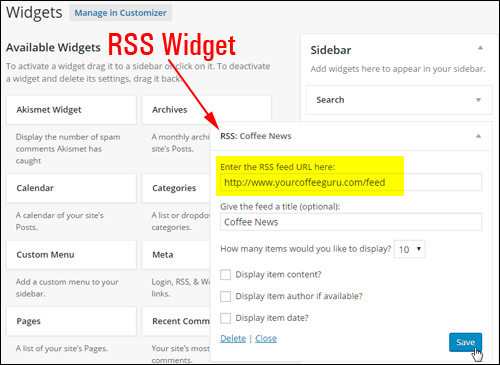
(WordPress RSS Widget)
To learn more about using sidebar widgets, go here:
Refresh your web browser. The content can now be seen on your sidebar …
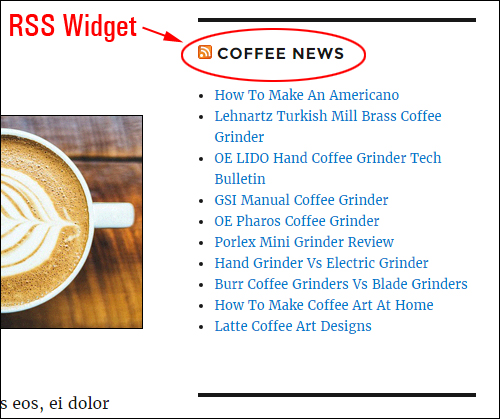
(RSS Feed Content Added To Sidebar Menu)
Add Your WordPress RSS Feed To Search Consoles
You can add your WordPress RSS feed to Google and Bing’s search consoles. This will help them index your content faster.
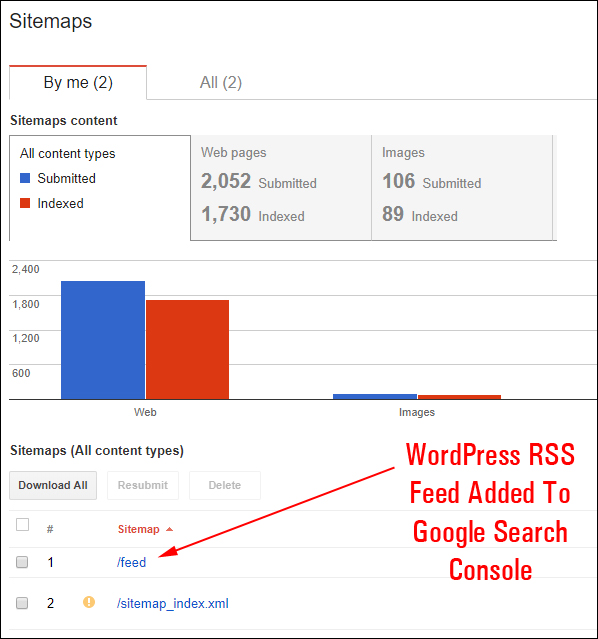
(WordPress RSS feed added to Google Search Console)
Adding your site’s RSS feed to search consoles is simple, fast, easy, and requires no technical skills. For a step-by-step tutorial, go here:
How To Add Content From RSS Feeds To Posts
What if you want to add content from RSS feeds to a post instead of your sidebar?
You can do this using plugins. Search on WordPress.org plugin repository for RSS Post, RSS feed to post, etc.
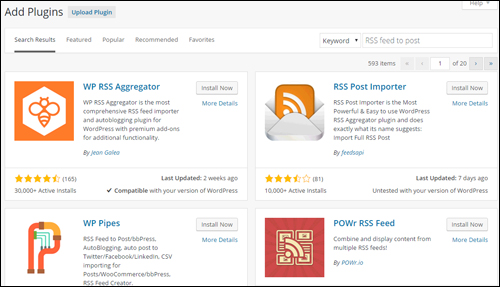
(RSS plugins)
Note: Most RSS plugins typically require configuration – visit the plugin sites for setup instructions, or contact us for help with plugin configuration.
Here are some plugins you can check out that let you add RSS feeds to your pages:
WPeMatico
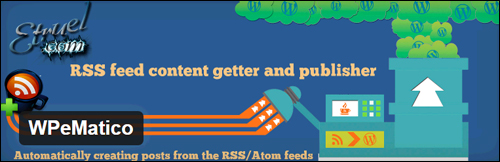
(WPeMatico – WordPress Plugin)
WPeMatico is an easy to use plugin that lets you publish posts automatically from RSS/Atom feeds that you specify.
You can manage all of your imported feeds and arrange them into campaigns.
For more details, go here:
WP RSS Aggregator

(WP RSS Aggregator – WordPress Plugin)
WP RSS Aggregator is an RSS feed importer and auto blogging WordPress plugin with additional functionality with premium extensions (add-ons).
For example, the Feed to Post extension lets you autoblog by importing RSS feeds directly into posts.
For more details, go here:
RSS Post Importer
(RSS Post Importer Plugin For WordPress)
The RSS Post Importer plugin can be used to import, syndicate, curate, merge and display full-text feeds on your WordPress website or blog.
The plugin fetches an RSS feed and publishes the entire content of every item in your feed as a standalone post.
For more details, go here:
Powr RSS Feed
(Powr RSS Feed – WordPress Plugin)
With POWr RSS Feed, you can automatically combine and display content from a number of different sources using RSS feeds.
This plugin also lets you display videos, images, and articles, adjust the priority of different feeds, use custom borders, fonts, colors, and more. It is also mobile responsive and supports text in every language.
The premium version of this plugin contains many additional features.
For more details, go here:
WP Pipes
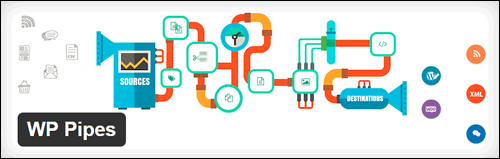
(WP Pipes Plugin For WordPress)
WP Pipes is a powerful data migration plugin that allows you to curate content from RSS feeds, Google News, and many other sources.
This plugin provides loads of functionality like CSV importing for posts/WooCommerce, RSS feed creator, autoblogging, auto post to Twitter/LinkedIn/Facebook, export posts as podcasts, create Google XML sitemaps, and more!
For more details, go here:
FeedWordPress

(FeedWordPress Plugin)
FeedWordPress provides flexible syndication options for WordPress.
As stated in the FeedWordPress site …
FeedWordPress is an open-source Atom/RSS aggregator for the WordPress blog publishing platform. You set up feeds that you choose, and FeedWordPress syndicates posts from those sources into your WordPress posts table, where they can be displayed by your WordPress templates like any other post — but with additional meta-data, so that your templates can properly attribute the post to the source it came from.
You can use this plugin to create aggregator sites, or bring together all of your online activity (e.g. from your blog, Facebook, YouTube, or other online services, into a Lifestream.
For more details, go here:
Autoblog by WPMUDev
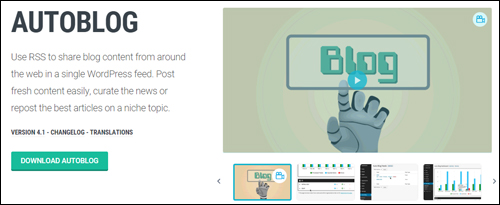
(Autoblog)
Autoblog is an easy-to-use plugin that can be set-up very quickly, with no coding required and no complicated instructions. Just copy and paste in your feed URL, give the feed a name of your choosing (for admin purposes) and select a blog that you want it to post to.
For more details, go here:
RSS Includes Pages
(RSS Includes Pages and Custom Post Types Plugin)
RSS Includes Pages and Custom Post Types lets you display pages in your RSS feed in addition to posts.
For more details, go here:
Using RSS Feeds – Useful Tips
Tip #1 – WordPress Comment RSS Feeds
WordPress makes available RSS feeds of comments posted on your site in addition to displaying feeds of your posts.
You can inspect these comments by clicking on Comments RSS in your ‘Meta’ widget area (note: this section may not be visible on some themes) …
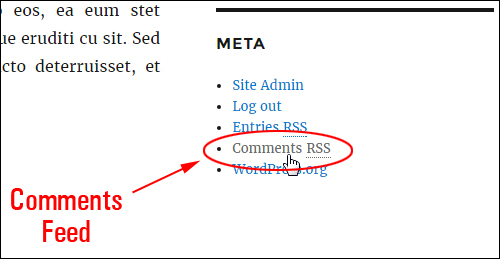
(Comments RSS)
Comments posted on your site by visitors display in your Comments RSS page …
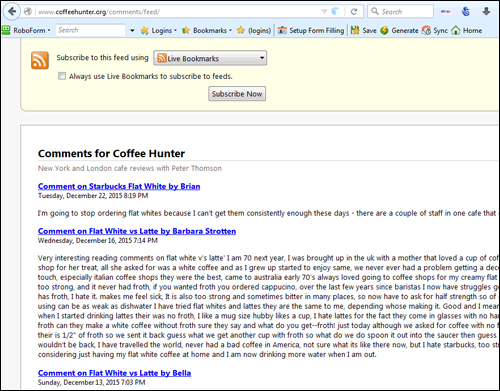
(RSS comments feed items as seen on Firefox)
Like post entries, your comments feed items will display differently depending on which browser you are using …
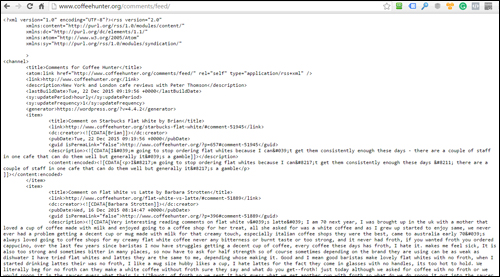
(Comments feed items seen with a Google Chrome browser)
Again, you can check what the comments feed contains by pasting the feed URL into a feedreader …
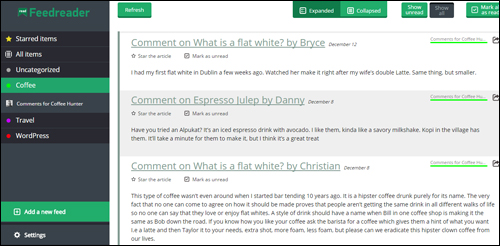
(Paste the feed URL into a feed reader to view the feed content. Image Source: Feedreader.com)
Note: If the Meta section is not displaying on your theme, you can view the Comments RSS section of your site by opening up a browser and typing in the following URL:
- http://www.yourdomain.com/comments/feed
- http://www.yourdomain.com/blog/comments/feed (if your website or blog is located in a subfolder, e.g. “blog”)
Tip #2 – Using Feeds For Specific Post Items
Being able to use an RSS feed for single post items can be useful. For example, you may want to add feeds from specific posts to RSS directories, or you may have created a valuable resource that other online users will want to syndicate.
The formula for using an RSS feed for a single post is shown below:

(Individual Post RSS Feed)
To create the above feed, copy the post URI, and add “/feed/?withoutcomments=1” to the end.
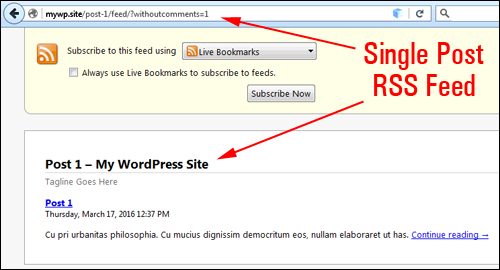
(Single Post Feed)
Note: By default, if you only add “/feed” to the end of the post URI, WordPress will return the comments for your post, not the post content itself.
Tip #3 – Post Category RSS Feeds
Some your site visitors may only be interested in subscribing to content from specific categories. They may not want to subscribe to all of your site’s content.
If you publish content under many categories, WordPress allows you to provide a separate feed for each category.
All you need to do is use the format shown below:

(RSS feed format for post categories)
Copy the selected category URL …
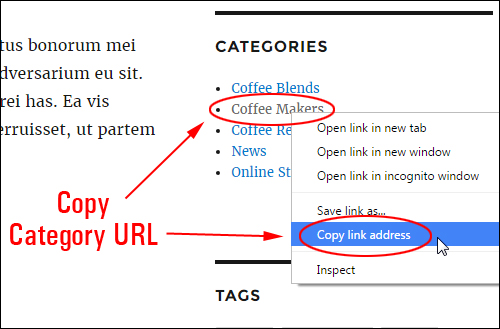
(Copy the selected category link address …)
And add “feed” to the end of it …

(Use this format for WordPress category feed)
Your feed now only displays content specific to that category …
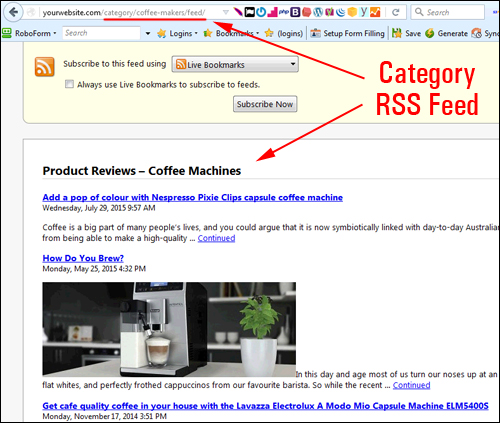
(Category feed)
The WordPress Codex also provides different ways to create feeds not just for post categories, but also feeds for tags, authors, search, etc.
For this example, let’s create a feed for a specific post category using the format shown below:

(Post Category feed format. Source: WordPress Codex)
Here is the feed format WordPress recommends using. In this example, the post category ID is ’42’. We’ll need to replace the post category ID and the domain name …

(WordPress post category feed format)
To find the post category ID, go to Posts > Categories …
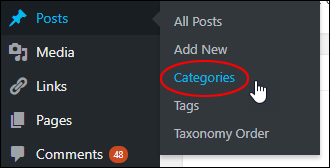
(Posts > Categories menu)
Locate the post category you want and hover your mouse over the title to reveal its unique ID …
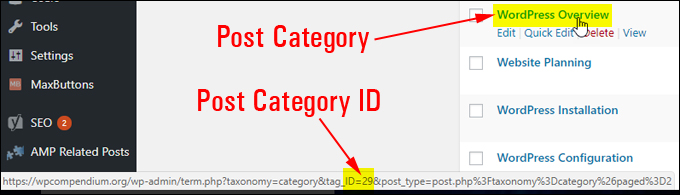
(Post Category ID)
In our example, the post category ID is ’29’ and the post category feed format we need to use for this specific category with our domain name looks like this …

(Post category feed format with domain name and ID)
Copy and paste the feed into your browser and hit enter …
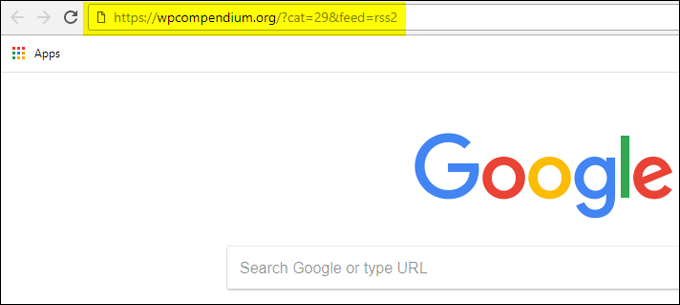
(Paste the feed into your browser)
This will display the feed for that specific category …
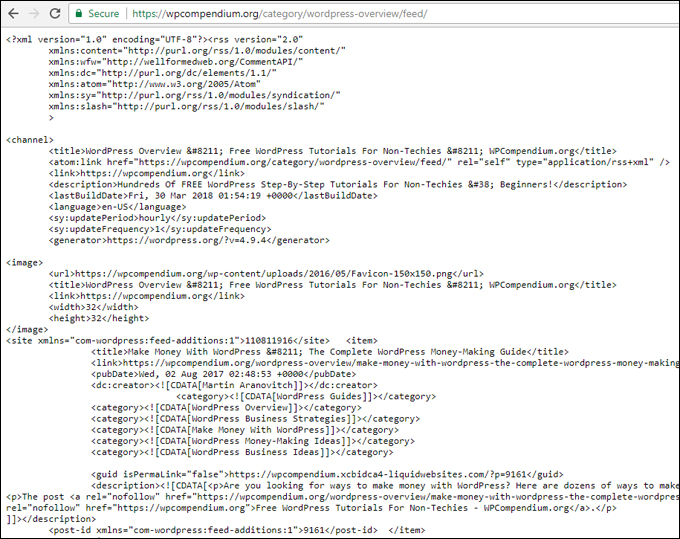
(RSS feed of a specific post category)
Note that in this example, WordPress automatically converted the feed format we pasted into the browser into the category feed we had used in the previous section of this tutorial …
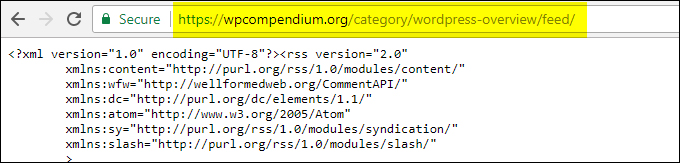
(Post category feed format)
Here is the feed format again …

(Post category feed)
In this case, the simplest way to create additional feeds for specific categories is to simply change the post category slug …

(Change the post category slug to create a new category specific feed)
Paste the edited feed into your web browser and hit enter to display the content for that specific category’s feed …
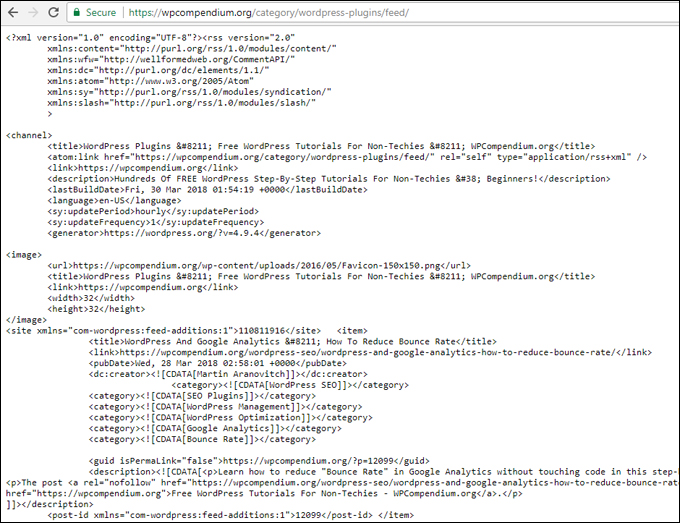
(Post category feed content)
Now that you have a method for creating feeds for specific post categories (or tags, authors, etc.), you can even create a directory or list of individual feeds for visitors.
Tip #4 – Provide Your Own RSS Feeds Page
You can set up a feeds list that allows readers to subscribe to specific categories, just like large websites …
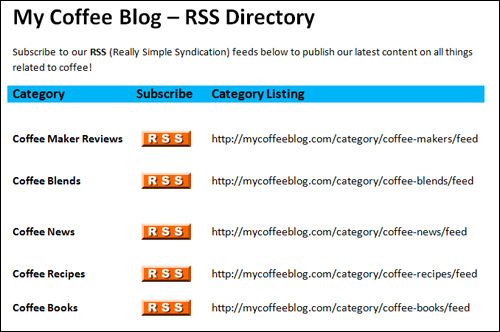
(Provide Your Own List Of Feeds On Your Site)
You can link an image like the one shown below to the URL of your category feed and then create a table or a list of all your category feeds on a new page …

(RSS button image. Image Source: public-domain-photos.com)
If you need help with creating tables in WordPress, see this tutorial:
WordPress RSS – Notes
You can customize your RSS in several different ways, such as adding videos to feeds, ads, etc. Some of these feed customizations require editing code.
WordPress allows a number of feed configurations without editing code. For example, here are just some of the kinds of feed formats you can use …
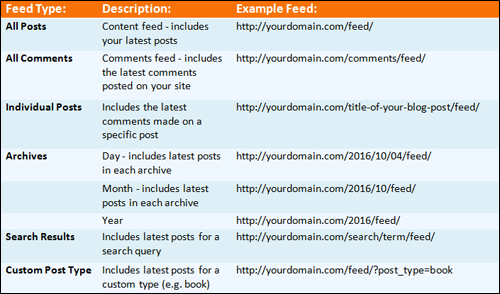
(WordPress RSS – Feed Types)
For your convenience, here are the different feed types, descriptions, and feed examples listed above:
- Feed Type: All Posts
- Description: Content feed – RSS feed that includes your latest post entries
- Example Feed: http://yourdomain.com/feed/
- Feed Type: All Comments
- Description: Comments feed – Feed displaying the latest comments posted on your blog
- Example Feed: http://yourdomain.com/comments/feed/
- Feed Type: Individual Posts
- Description: Feed containing specific post entries
- Example Feed: http://yourdomain.com/post-title/feed/
- Feed Type: Individual Posts Comments
- Description: Contains the latest comments made on individual posts
- Example Feed: http://yourdomain.com/post-title/feed/
- Feed Type: Archives
- Description: Day – Contains the latest post entries in each archive
- Example Feed: http://yourdomain.com/2011/07/09/feed/
- Feed Type: Archives
- Description: Month – Includes the latest items in each archive
- Example Feed: http://yourdomain.com/2010/09/feed/
- Feed Type: Archives
- Description: Year – Displays the latest entries in each archive
- Example Feed: http://yourdomain.com/2012/feed/
- Feed Type: Search Results
- Description: Contains the latest items for a search query
- Example Feed: http://yourdomain.com/search/term/feed/
- Feed Type: Custom Post Type
- Description: Includes latest items for a custom type (e.g. book)
- Example Feed: http://yourdomain.com/feed/?post_type=book
One more thing …
Remember to let your site users know that they can subscribe to your RSS feed. Place your subscribe button image in a visible location …
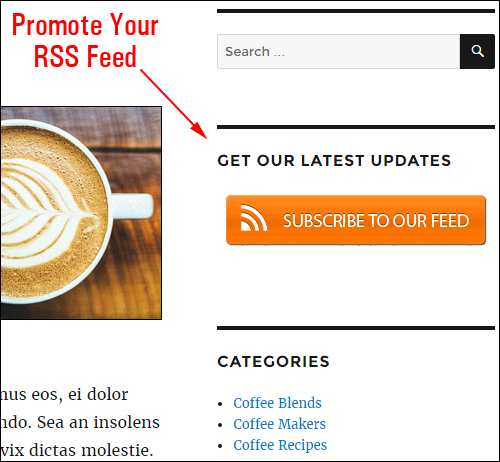
(Promote your RSS feeds!)
Also, keep in mind that online users will only syndicate your content if you provide your visitors with high-quality content that will add great value to their sites and benefit their users.
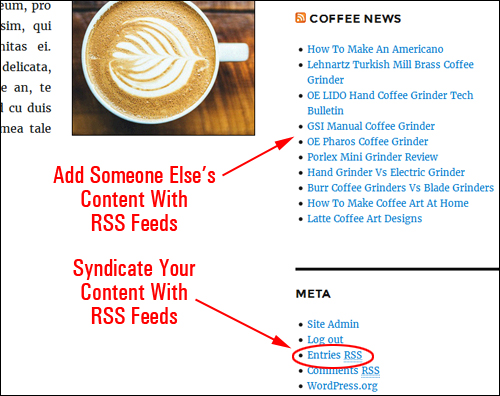
(Easily add someone else’s content and get other users to share your content with RSS feeds!)
If you need help coming up with content ideas subscribe to our FREE content creation course using the form below:
Also, don’t forget to subscribe to our RSS feed 🙂
Resources:
- Feed Buttons – Visit an online resource site like FeedIcons or search online (e.g. “free RSS icons”, “rss buttons”, etc.) for sites that allow you to download RSS images.
- RSSBoard.org – The RSS Advisory Board Go here to learn more about RSS.
- Wikipedia/RSS – Learn more about using RSS.
- WordPress.org/RSS Feeds – Official WordPress documentation and information. Visit this site to learn more about using feeds in WordPress.
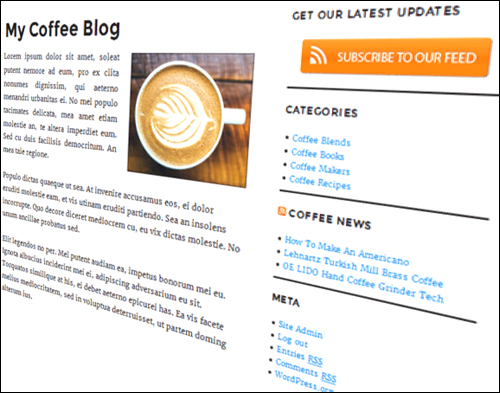
Congratulations! Now you know how to find your WordPress RSS feed, how to use your WordPress RSS feed to get your content syndicated online, and how to add content from other websites and blogs to your site via RSS feeds.
Hopefully, this article has given you a better understanding of problems that can affect your website and how WordPress can help you get better results online. To learn more about using the WP platform please click on links to visit other posts we have published on this site.
***
"Wow! I never knew there's so much to learn about WordPress! I bought one of the WordPress for Dummies three years ago, such authors need to be on this course!" - Rich Law, Create A Blog Now