
Wouldn’t it be great if after publishing content on your WordPress website, the following could happen … all from your post address:
- Users could gain an understanding of what your content was about,
- Search engines would discover your pages faster,
- Each content item added to your website or blog would have its own unique ID, making your site easier to manage.
Well, this is what WordPress permalinks let you do!
How To Set Up And Use WordPress Permalinks
Permalinks – Definition
Permalinks are the permanent URLs to an individual post, category, or other taxonomy (a way to organize things together) like archives.
A permalink is the URL that other people will use to link to posts or sections of your site or the links you send in emails pointing readers to content items on your blog. Permalinks are often called “pretty” URLs.
Permalinks make the URL pointing to each post on your website permanent, hence a permalink.
Permalinks – Why Do I Need To Use Them?
Hopefully, you probably know by now that, WordPress is one of the best CMS tools you can use when it comes to publishing search engines optimized content.
WordPress is not only well optimized straight out of the box, but the SEO aspect can be considerably improved using excellent SEO plugins.
If you are looking to optimize the SEO aspect of your site or blog, then you should not ignore the importance of its site’s URLs. Google places considerable weight on the structure of URLs when indexing its pages.
Permalinks can be used to make the links on your site into memorable and more “search engine friendly” URLs. Permalinks can also improve the usability, aesthetics, and forward-compatibility of your links.
Now … let’s see why you may need to use permalinks in WordPress.
Typically, a default WordPress installation uses a link-naming structure for your posts that isn’t very search engine friendly and looks like this …
 WordPress uses the above link with a string query to find information within its database. It doesn’t really help your site with on-site search engine optimization.
As the screenshot below shows, many WordPress site owners haven’t yet set up their sites to use WordPress permalinks …
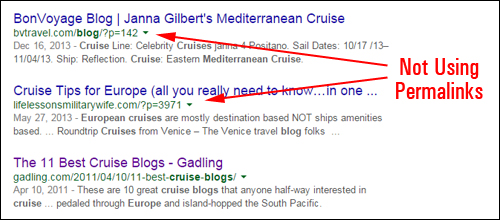
Although Google is still indexing the above sites, many site owners are potentially missing out on additional SEO benefits.
To get maximum SEO benefit from using WordPress and improve your site’s traffic results, you will want to make sure to configure your permalinks structure to make it more SEO-friendly by displaying relevant keywords in your URL, instead of meaningless numbers and symbols.
WordPress allows you to create a custom URL structure for your published posts, so your pages can easily go from something that is non-SEO friendly like this …
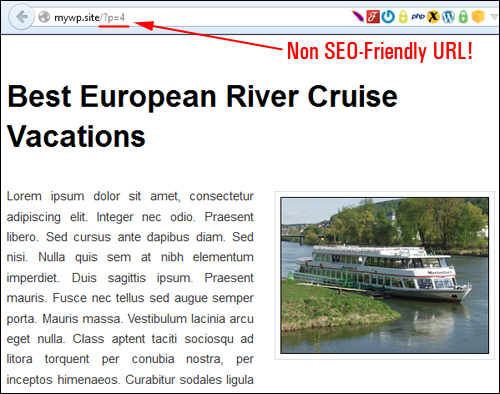
To this …
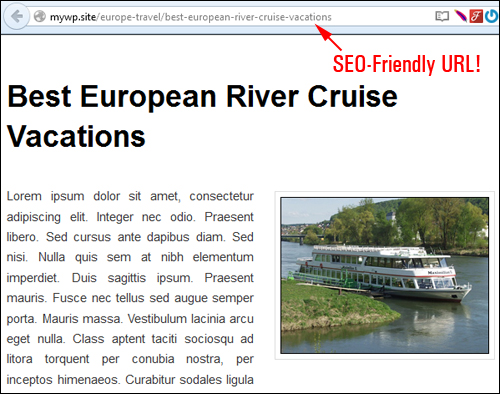
By default, WordPress post URLs are not very search engine-friendly. This step-by-step tutorial shows you how to configure the Permalinks section of your WordPress site to help your content rank better in search engines.
How To Configure WordPress Permalinks
From your WordPress dashboard menu, select Settings > Permalinks …
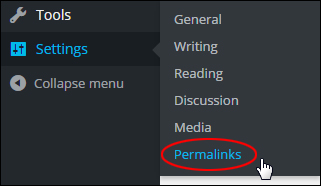
This will bring up the Permalink Settings screen …
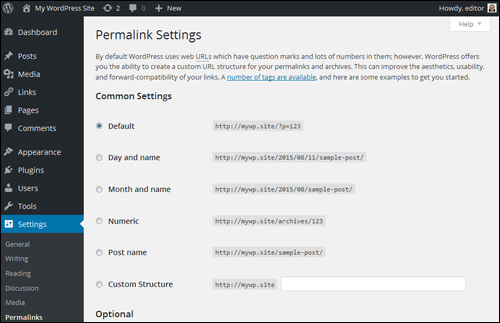
As mentioned earlier, by default WordPress web URLs use characters like question marks and numbers to create unique Post Ids and URLs. We want to create a search engine friendly URL instead for our posts. To do this, we will need to specify a different Permalink structure than the default one.
Permalinks > Common Settings
In the Common Settings section, select Custom Structure, then add one or more ‘tags’ (see below) to create SEO-friendly URLs …
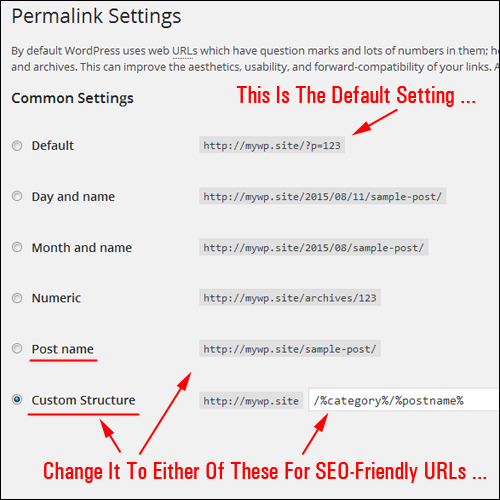
(Configure your permalink settings to create search engine-friendly URLs)
If you use the custom permalink structure shown in the example above, your URL would look something like this:
http://www.mytravelsite.com/travel-deals/how-to-save-money-on-cruise-travel
Instead of this …
http://www.mytravelsite.com/?p=9975

(Using permalinks helps visitors and search engines understand what your page is about)
Creating SEO-Friendly Tags
“Pretty” permalinks, or search engine-friendly URLs, are created by adding one or more ‘tags’ in the Custom Structure field:
- %year% – The year of the post, displayed as four digits (e.g. ‘2014’)
- %monthnum% – The month your post gets published (e.g. ‘01’)
- %day% – The day your post is published (e.g. ‘19’)
- %hour% – The hour the post is published (e.g. ‘11’)
- %minute% – Minute of the hour (e.g. ‘37’)
- %second% – The exact second the post gets published (e.g. ‘21’)
- %post_id% – The unique ID # of the post (e.g. ‘7680’)
- %postname% – A sanitized version of your post title. For example, if the post title is ”Ten Signs That You’re About To Get Fired From Your Job!”, the postname tag will convert this into “ten-signs-that-youre-about-to-get-fired-from-your-job” (all lower case letters and removed exclamation marks) in the URL. Tip: You can always edit the URL wording in the post slug field on the Add/Edit Post/Page screens.
- %category% – A sanitized version of the category name. Nested sub-categories appear as nested directories in the URI (Uniform Resource Identifier – the string of characters used in the URL). Tip: You can edit this text in the category slug field in the New/Edit Category screens.
- %author% – A correctly formatted version of the author name.
Note: When using multiple tags, separate each tag using a ‘/’ (forward slash), or hyphen.
For a quick setup, choose the Custom Structure option, and enter the code below into the ‘Custom Structure’ field …

Or, use one of the following structures:
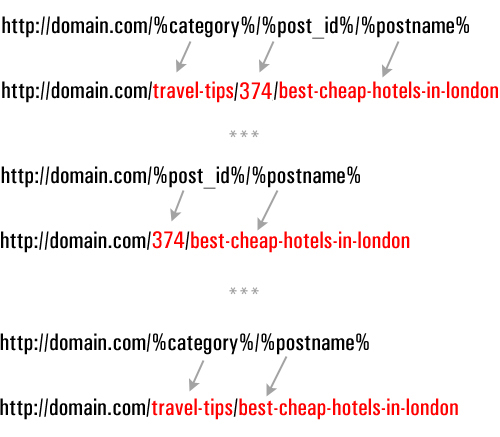

Tip: If you want search engine friendly URLs for your posts, but don’t want to use a custom permalink structure using tags, then choose Common Settings > Post name instead …
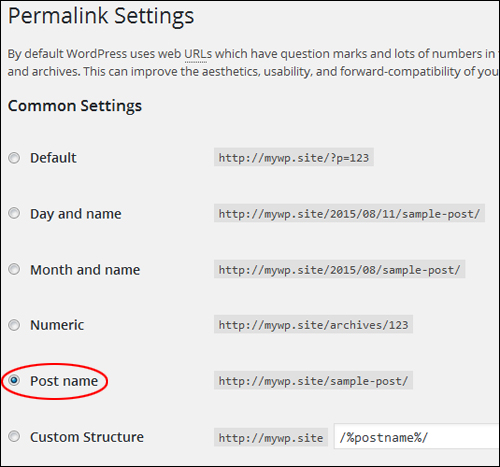
Choosing ‘Post name’ is the same as selecting ‘Custom Structure’ and adding the /%postname%/ tag.
Permalinks – Optional Settings
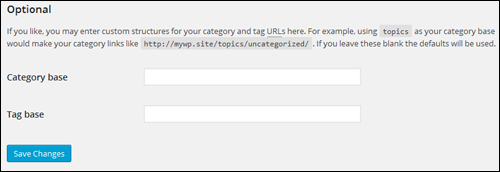
If you need to configure custom permalinks for your category and tag page URLs you can do this in this section.
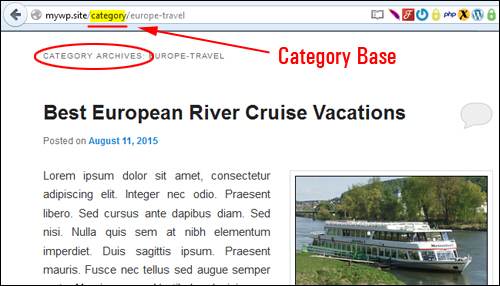
This changes the ‘base’ tag or category URLs using the following syntax:
- domain.com/category_base/category_name
- domain.com/tag_base/tag_name
For example, using “topics” as your category base would display your category links as ‘http://domain.com/topics/uncategorized/’.
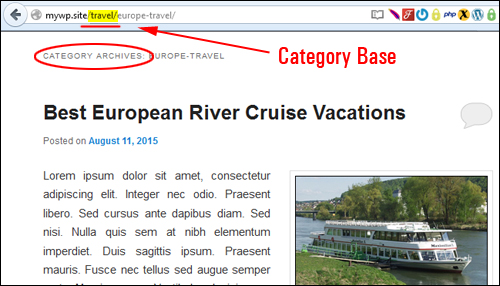
So, if you add the following to your permalinks Optional > Category base settings section …
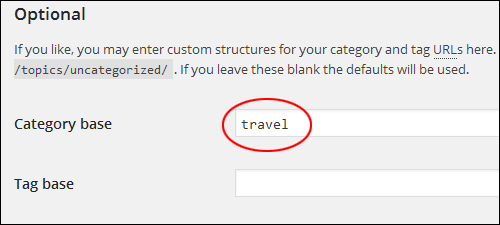
Your ‘category archives’ page URL will change from this …
To something like this …
If you leave these fields blank the default settings will be used.
Remember to save any changes when finished …
Permalinks – Useful Tips
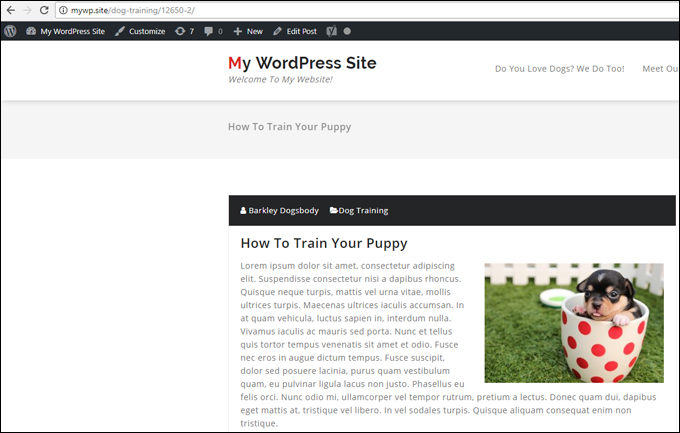
Sometimes, when you are creating a new post and haven’t given the content a post title yet, the WordPress Autosave feature will save your draft with an assigned numerical permalink (see the example URL in the screenshot below) …
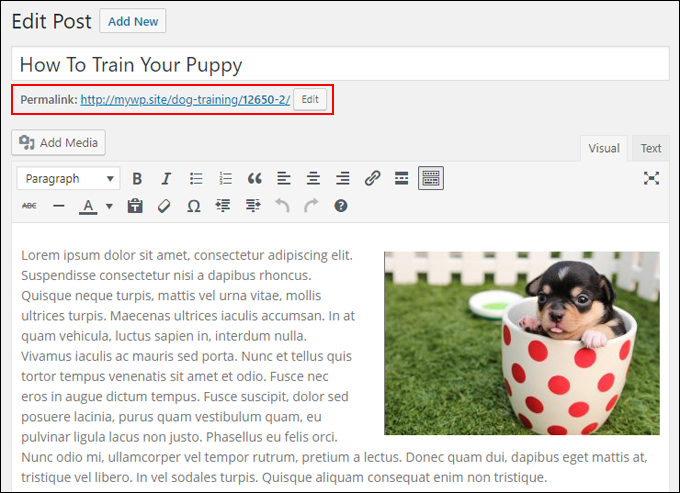
To fix this and give the post its proper permalink, go to ‘Edit Post’ …
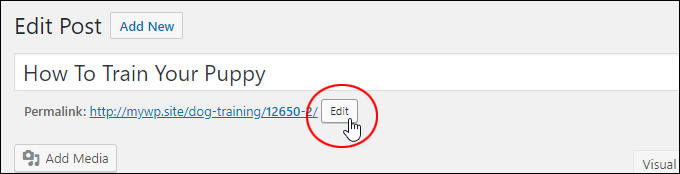
Click on the ‘Edit’ button in the post slug section …
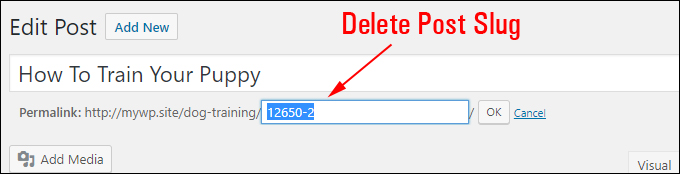
Select all content in the post slug field and delete it …
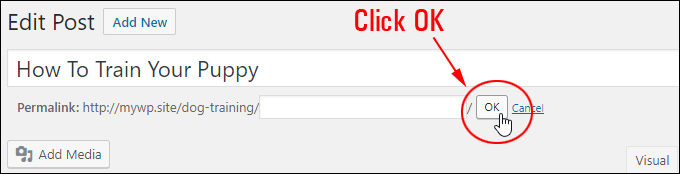
Click ‘OK’ …
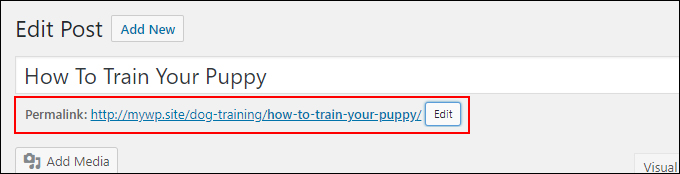
The post slug entry will be replaced with the correct permalink based on your post title …
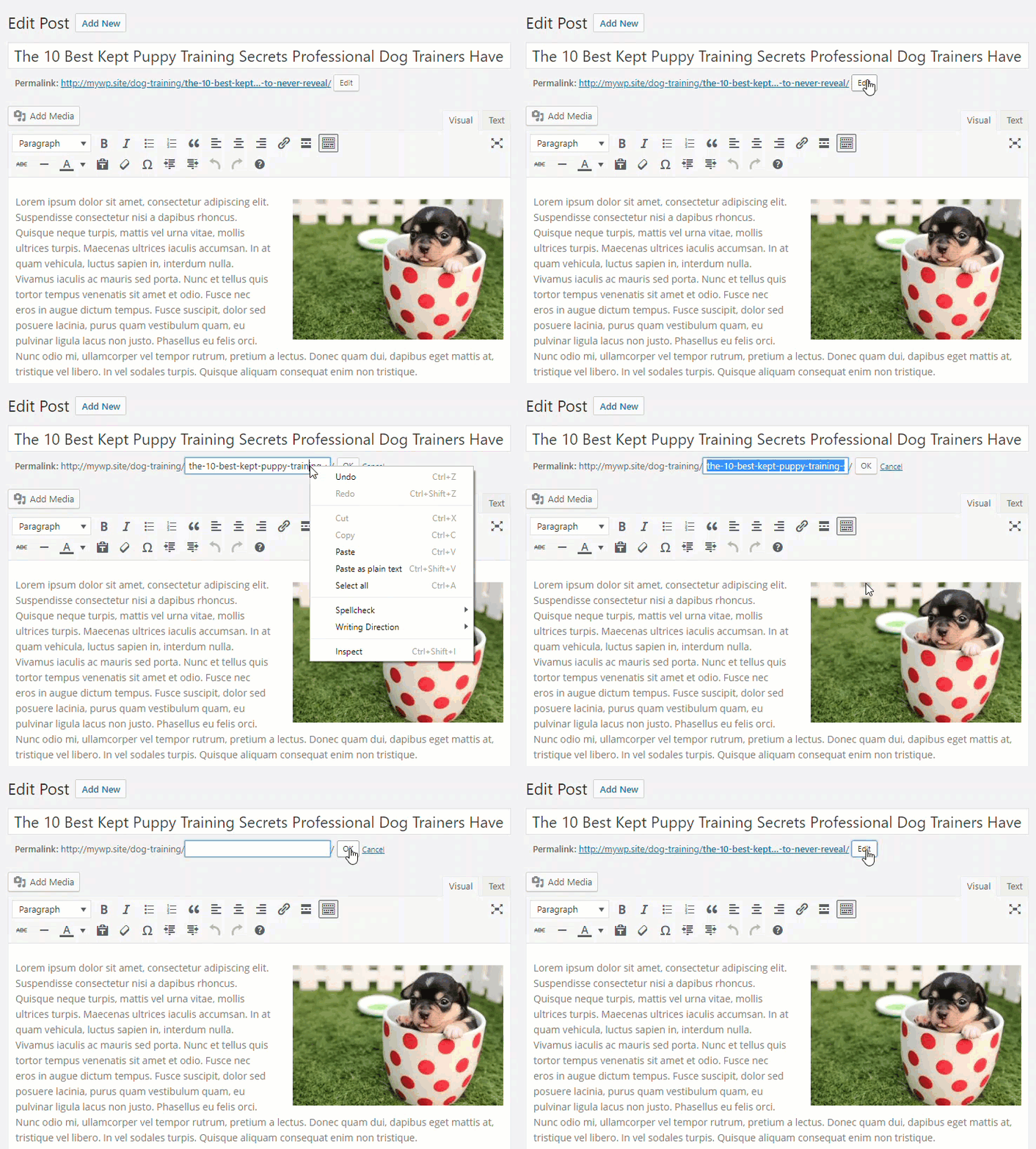
Here is a quick recap of the process …
Remember to update your post to save the changes …
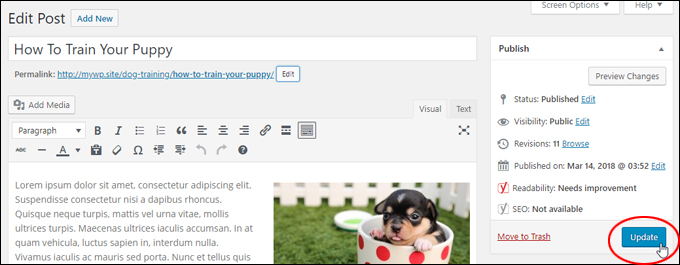
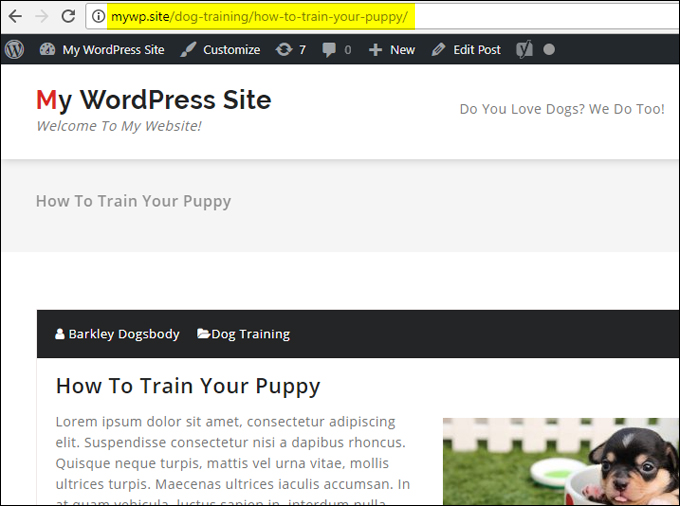
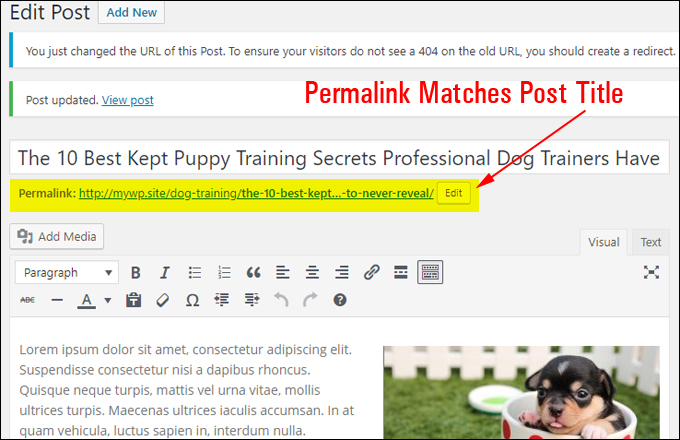
Your permalink should now reflect the new post title …
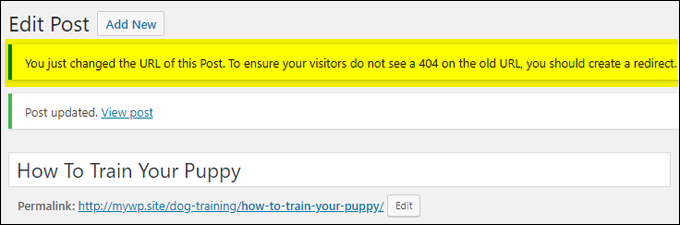
Note also that when you change the URL of a published post, you should also create a redirect link …
If you change your post title at a later date (e.g. you think of a more compelling post title or use a headline generator tool to help you come up with some killer post titles), remember to fix the permalink to match the new post title and add a redirection to the new post URL …
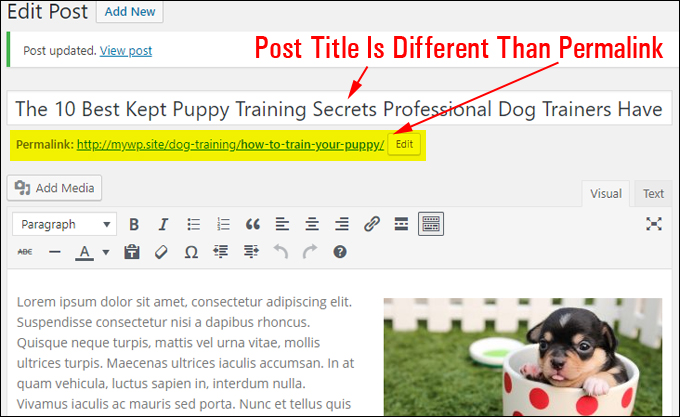
Make sure that your permalinks match the titles of your posts and pages to help site visitors find what they are looking for and ensure that search engines will better index your content …
Permalinks – Additional Notes
Categories
To get the maximum SEO benefit out of using Permalinks, you will need to set up your WordPress Categories correctly. If you do not have any categories set up, WordPress will use the default category (uncategorized).
According to WordPress SEO plugin developer Joost de Valk, here are a few points to keep in mind if you are wondering whether or not to add categories to your permalinks:
- If your category slug is short and descriptive (e.g. adds a relevant keyword or keyword phrase to your URL), you may want to use categories in your permalink.
- If your post slug (the part of your URL that identifies your post) is too long, it can make your post URL harder to share or copy and reduce the SEO benefit.
- If you plan to post content under multiple categories, then we recommend not using the category tag in your permalink structure.
Ultimately, when it comes to using category vs no category there really is no perfect permalink structure to use. Use the permalink structure you think will suit your needs best. Many SEO experts and webmasters recommend making your web address short enough to be attractive and long enough to be descriptive.
We provide detailed information about WordPress categories in another article.
Don’t Use Date Permalinks
Another great tip from Joost de Valk is that unless you run a news site or you have a special reason to create dated website URLs, it’s best to avoid using date-based permalink syntax for your site’s URLs.
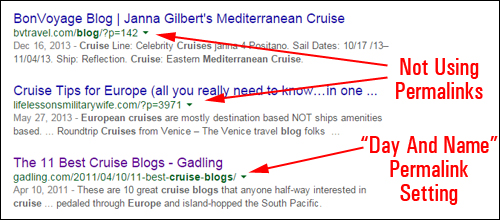
(Avoid setting up URL structures that date your content)
Visitors are less likely to click on posts that are a couple of years old, even if the content is relevant to what they are searching for.
What About Blogs With Indexed Posts?
Normally, it’s best to set up your site’s permalinks when you first install WordPress. This should be part of your site planning process.

If your site has been running for a while or your site already has many posts indexed in the search engines and you would like to change the permalink structure, make sure that this is absolutely something that needs doing, as doing so could create SEO issues and errors.
Use 301 Redirection
As you’ve seen in the above screenshots of actual search results, many WordPress users (or whoever set up their site) seem to be completely unaware of the SEO-friendly URLs feature of WordPress.
Maybe when you started out, your site used the default WordPress permalinks and now you want to improve your site’s SEO. Perhaps your site was originally set up to display post dates in your web address and now all of your content is perceived as being out-of-date and you want to delete the date tags in the permalinks.
To edit your permalink structure without impacting your site’s SEO or rankings in a negative way you should add ‘301 redirects’ to point all links set up using the old URL syntax to web URLs using the new permalink syntax.
Search engines interpret a ’301′ code as a link that has been permanently relocated to another destination. 301 redirection is the most effective and search engine friendly way to redirect users to new web page destinations and avoid running into page errors if they click on an old link.
To create an effective permalink syntax change and avoid damaging your rankings, sending visitors to broken links, etc. you will need to set up your redirection system before messing with the permalink structure of your site.
You can WP site using redirection plugins like Simple 301 Redirects, or Redirection, or get a professional to help you set up and redirect your permalinks correctly to avoid issues and troubleshoot any errors.
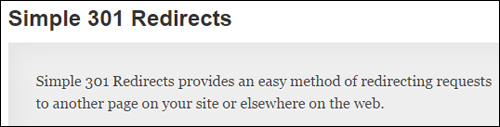
(Set up a link redirection system using redirection plugins or use the services of a professional)
Congratulations! Now you know how to set up your WordPress site or blog’s permalinks to display SEO-friendly URLs for your posts. For additional information on using Permalinks, see the official WordPress documentation here:
http://codex.wordpress.org/Using_Permalinks
***
"Your training is the best in the world! It is simple, yet detailed, direct, understandable, memorable, and complete." Andrea Adams, FinancialJourney.org