 When the “blogging revolution” first began, blogs looked like blogs and websites looked like websites. One could easily tell the difference.
Then the WordPress CMS came along and changed everything. Now, it’s becoming almost impossible to tell blogs and websites apart. Not so much in terms of what the sites are being used for, but in terms of web design and also being able to tell what type of web application is actually powering the site.
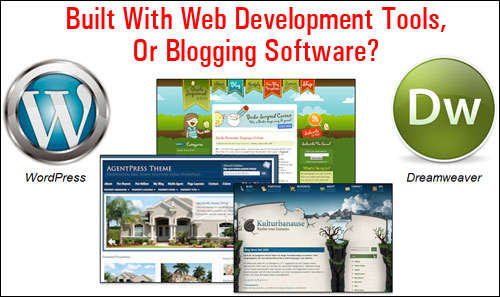
(It’s Getting Harder To Tell Websites Built With Web Development Tools Vs ‘Blogging’ Software!)
For website owners, understanding the difference between a CMS tool like WordPress and other website-building software is huge, not so much in terms of the technical differences, but more importantly, regarding the areas that matter to most website owners, such as web development costs, ease of use, ability to maintain the website up-to-date, managing content, etc.
Think about this …
Which of the following options would you choose?
A) An eye-catching, professional-looking website that is actually expensive to build, or
B) The same eye-catching, professional-looking site, but at a cost that turns out to be significantly less than the cost of getting option ”A” built.
If you selected site ”B” above, then you need to learn more about WordPress, why WordPress can provide you with an eye-catching website that could turn out to be much less expensive to build than websites built using a web building tool … and how to tell the two types apart!
WordPress is the world’s preferred online publishing platform and content management system (CMS). It is a budget-friendly CMS application that is ideally suited for all types of businesses.
Whether your reason for having a website is for personal blogging or business use, WordPress is easy enough for a beginner with no programming skills to use and manage, and offers an array of helpful features that make your web site extremely effective in terms of getting your content published and indexed by search engines, promoting visitor interaction, generating business leads and sales, enhancing your site’s functionality, etc.
With almost one in every five websites around the world currently being powered by WordPress, chances are that if you already own a website, yours is also a WordPress site.
And if you don’t have a website yet, or are thinking of getting one built, then wouldn’t it be great to show your web developer an existing site with the design and layout that you like, know that it was built with WordPress and that you can, therefore, get a similar site built for your business for very little cost?
Does My Website Run On WordPress?
Do you need to know if your website is powered by WordPress? Maybe you’ve come to our site because you’ve read about all of the great benefits of using WordPress, and you’re now wondering if your site runs on WordPress, or some other content management system.
Also, have you ever looked at a competitor’s website and wondered what they’re doing to try and get better results online?
Knowing if your competitor’s site is built with WordPress can tell you a few things about their strategies and methods, such as what themes or plugins they are using.
Here are a number of ways to tell if sites are powered WordPress:
Look At The Page Source Code
If you know how to bring up the source code of a web page (e.g. Firefox Menu > Web Developer > Page Source if using Firefox, or Google Menu > More Tools > View Source if using Google Chrome), you can look for a telltale footprint …
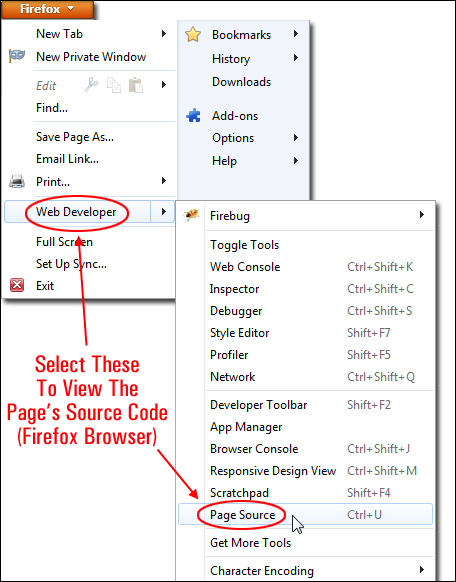
(Viewing web page source code in Firefox)
Suppose that you are surfing the web and you visit a web site that you like, and you’re wondering if the site uses WordPress …
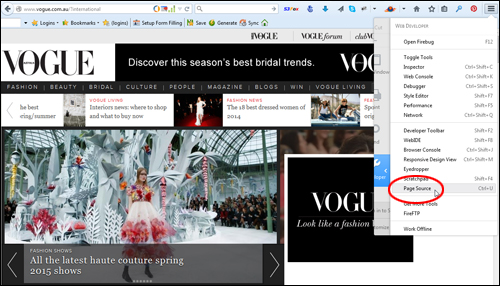
First, bring up the site’s source code on your screen, using the methods described above.
In the source code, search for the words “wp-content” either by visually scanning the code …
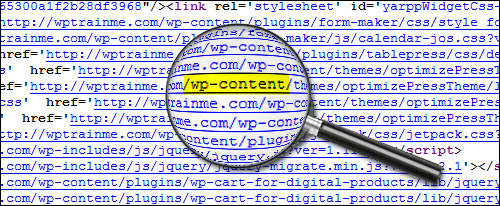
Or use the browser’s “Find” function …
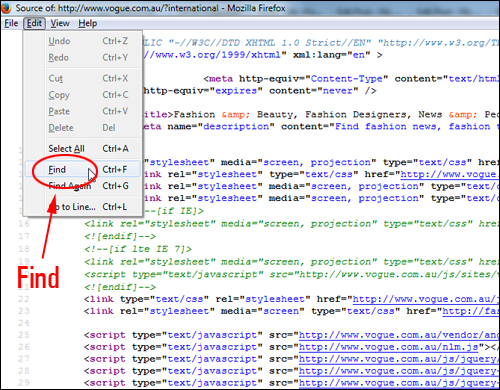
(Using the Firefox browser ‘Find’ function)
This will tell you if the site is powered by WordPress or not.
Note: If you do not see “wp-content” in the page source code, it does not mean that this is not a WordPress site.
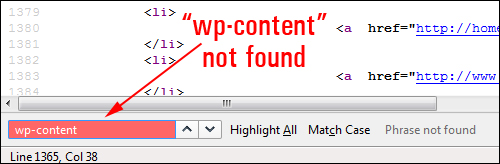
There are other ways to tell if the site runs on the WordPress software, as we will soon be discussing.
As the focus of this post is to help non-technical users, however, below you will find a number of easier ways to check if your website is built with WordPress other than scanning the source code.
Just Ask Your Webmaster
While this may seem like the most obvious thing to do, a number of website development companies, for whatever reason, may build clients a website and not tell them it’s WordPress.
If you have an existing website and you can’t tell what CMS application was used to build it, just ask your developer or whoever built your site if your website was built using WordPress.
That was easy, huh?
Okay … what if you can’t reach your website developer, or what if you’ve come across a website that you really like while surfing the net late at night and you need to know if the site was built with WordPress?
Powered By WordPress
If the site uses a WordPress theme where the theme templates have not been edited, you will typically find a “Powered by WordPress” notice shown in the footer area …

(Proudly Powered by WordPress)
If the simple methods above aren’t helpful to you, here are some other ways of identifying WordPress sites …
Online Tools That Can Tell You If A Website Was Built Using WordPress
Here are a some online applications that can tell you if a particular website uses WordPress or not, and what themes or plugins the site uses …
Is It WP – WP Website Checker
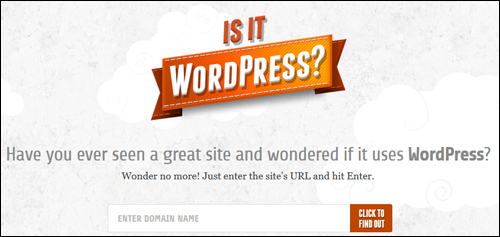
(IsItWP.com – WP Checker)
IsItWP.com is a free tool that lets you easily check if a website runs on WordPress or not.
Using this tool is really easy. Just type the address of the website into the search field and click the button.
The tool will then go through the URL code and tell you if the site was built using WordPress, and if so, which version of WordPress it is currently using …

If the site is not powered by WordPress, you will see a message like the one below …
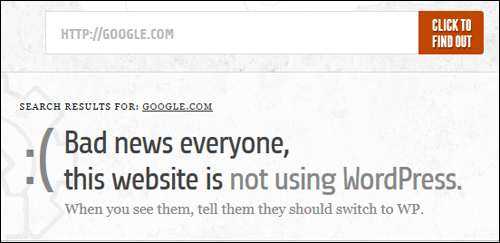
To use this tool, go here:
Advanced WP Theme Checker by Satori
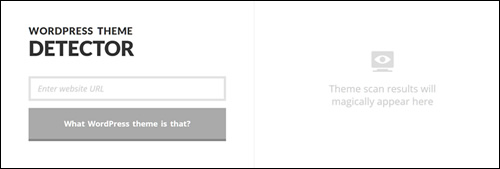
(WordPress Theme Detector)
WordPress Theme Detector by Satori Studio is a free tool that can help determine whether or not a website uses WordPress as its CMS engine; it will also tell you which theme the site is using and provide a link to the theme’s official page.
To use this tool, paste the URL of a web page (it doesn’t have to be the home page) into the ‘Enter website URL’ field and click on the ‘What WordPress theme is that?’ button …
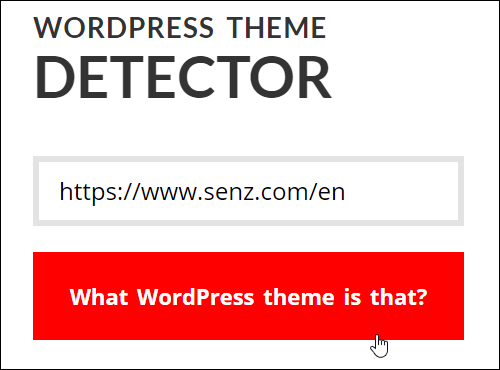
(Enter website URL and click the button)
The Theme Detector will automatically scan the website and output its theme information …
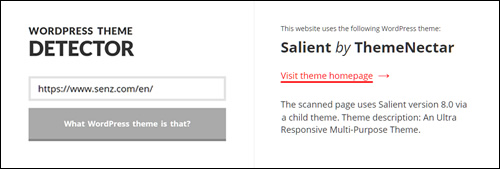
(WordPress Theme Detector displays theme results)
If a website is built with WordPress but the theme is too customized to contain any traces of its origins, the Detector will still let you know it’s a WP site by outputting a message on the right.
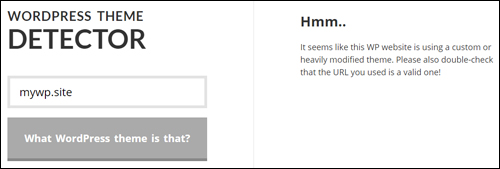
(Modified WordPress theme message)
If the website is not using WordPress at all, the tool will also let you know …
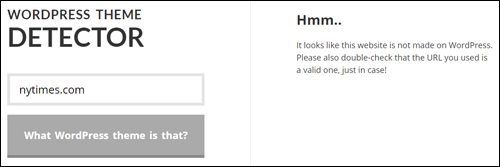
(This website is not WordPress)
You can try the Detector yourself by visiting this link:
Wappalyzer

(Wappalyzer)
If you browse the net using either Firefox or Chrome and want to be able to see if the sites that you are visiting use WordPress, then Wappalyzer is a useful extension for your web browser.
Wappalyzer helps you identify what software is installed in the sites while you are browsing.
According to their website …
“Wappalyzer is a browser extension that uncovers the technologies used on websites. It detects content management systems, eCommerce platforms, web servers, JavaScript frameworks, analytics tools and many more.”
It’s also a very easy to install and very easy to use browser add-on.
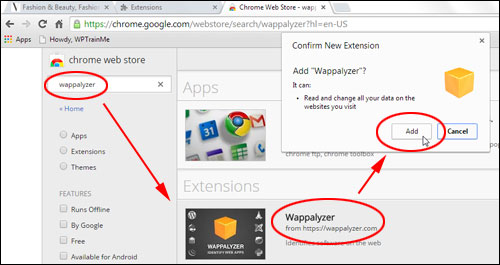
After installing Wappalyzer, icons will show up in your browser, in the URL field identifying which technologies are installed on all the sites you visit …
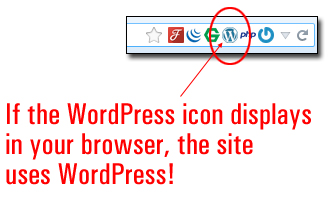
If you see the WordPress icon showing on the browser menu (as shown in the screenshot above), then the site has been built with WordPress.
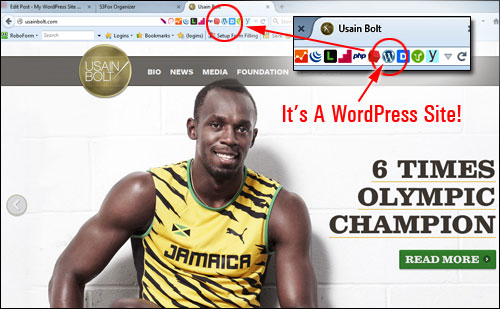
(A WordPress site!)
Go here to learn more about the Wappalyzer add-on:
SpyBar

(SpyBar – Browser Addon For WordPress)
SpyBar is a browser addon that lets you ‘reverse engineer’ any WordPress site you visit and see which WordPress plugins and themes are being used, right inside your web browser …
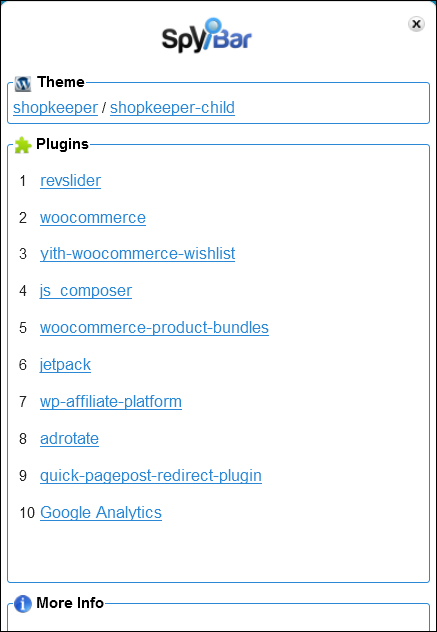
(SpyBar – Discover WordPress Plugins And Themes Used By Your Competitors)
SpyBar can be installed as a browser extension on Google Chrome and Mozilla Firefox and is compatible with PC and Mac.
To download or learn more about SpyBar, go here:
Plugin Sniper
(Plugin Sniper – Find out what plugins a WordPress site is using)
Plugin Sniper lets you find out what plugins a WordPress site is using. This is a useful tool if you want to know what WordPress plugins are being used by your competitors.
Plugin Sniper is also a useful tool for researching what kinds of plugins businesses in certain niches are using …
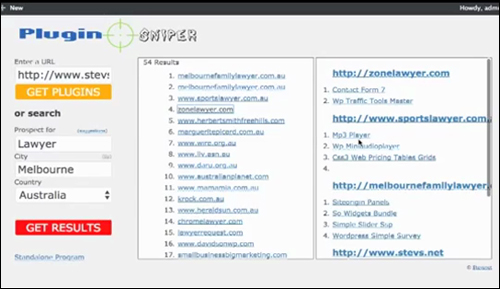
(Search WordPress sites by categories and location)
To download or learn more about Plugin Sniper, visit the site below:
We hope that you have found this information useful.
***
"These tutorials have so much information and are easy to understand. If you use WordPress or plan to in the future these will help you with everything you need to know." - Valisa (Mesa, Arizona)