
The ability to easily add tables to your content can be very useful. Tables are great for sorting and presenting data to visitors in a format that can make your information easier to understand.
The WordPress visual editor is great, but there are some things that the default editor doesn’t do, like being able to create tables without having to learn code.
Although you can add tables manually to your content in WordPress if you have knowledge of HTML (Hyper Text Markup Language) and CSS (Cascading Style Sheets), for many non-technical WordPress users, this is simply not a practical option.
Fortunately, you can do just about anything you need done on a WordPress site with plugins, and inserting tables into your content is no exception.
In this tutorial you will learn how to easily create and insert tables into your WordPress posts and pages with no coding skills required.
Creating And Inserting Tables With WordPress
If you want to create and add tables to your WordPress posts or pages without touching code, the tutorial below will show you how to easily add tables into your WordPress posts and pages using a FREE WordPress plugin called TablePress.
TablePress

A very powerful and time-saving plugin that makes creating, editing and managing tables in WordPress a very simple and easy process is TablePress.
TablePress requires no knowledge or skills coding HTML, CSS, etc. The plugin lets you easily edit table data. You can add any kind of data, even formulas to your tables.
An additional JavaScript library can be used to include features like pagination, sorting, filtering, and more for visitors. You can include the tables into your page content using shortcodes and display these inside text widgets.
A table can also be imported and exported from/to CSV files (e.g. from Excel), HTML files, and JSON.
The plugin was developed by Tobias Bäthge and is licensed as Free Software under GNU General Public License 2 (GPL 2).
Using TablePress WordPress Plugin – Step-By-Step Tutorial
To create and manage tables in WordPress using TablePress, install and activate the TablePress plugin.
You can download the plugin here:
https://wordpress.org/plugins/tablepress
Or install it from your own WordPress Dashboard …
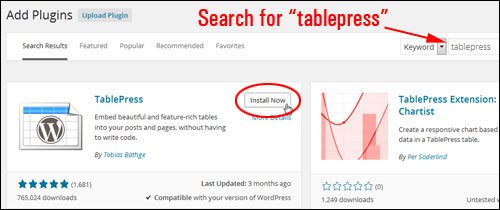
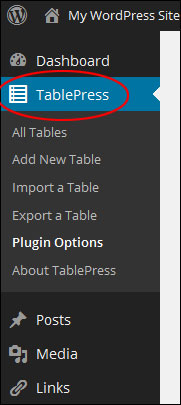
Once the plugin has been installed and activated, a new menu item will appear on your WP admin menu called TablePress …
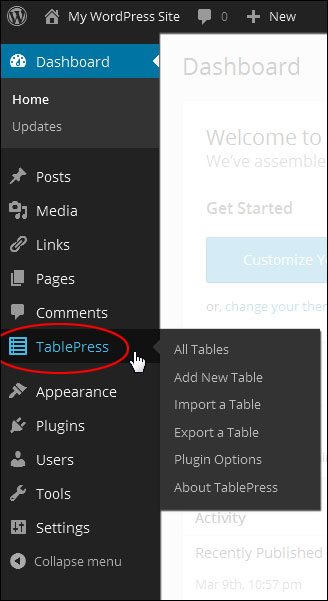
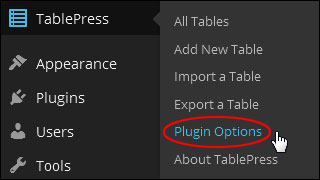
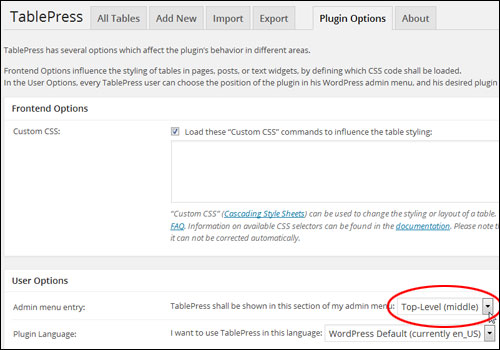
Click on TablePress and select Plugin Options from the submenu list …
The “Plugin Options” screen affects the plugin’s styling and display settings …
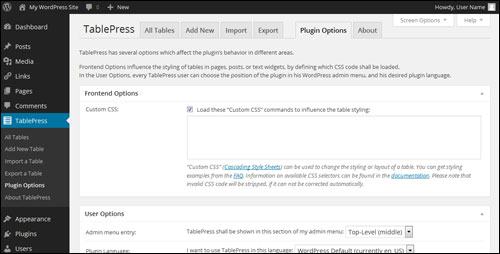
For example, in the “User Options” section, you can change the position of the TablePress menu entry in your WP admin menu.
By default, the menu item appears somewhere near the middle of your menu. If you plan to use this plugin often, then you can easily position the menu item towards the top of the Dashboard menu by specifying “Top-level (middle)” on the User Options > Admin menu entry dropdown menu …
The TablePress menu entry now shows towards the top area of the menu …
You can also play with other plugin options in the “Plugin Options” screen, like table formatting styles, default language, etc. If you don’t need to change this section, then just leave the options as the default.
With TablePress, tables are created and edited inside the plugin area. Tables are then inserted via a shortcode into your pages. The tables will then display or update after republishing or saving your post.
The benefit of doing this is that you can easily update the data in your tables without having to open any of your posts and pages. TablePress then updates all of your table data everywhere where the table has been added to your content.
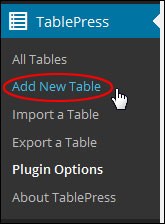
To create a new table select TablePress > Add New Table …
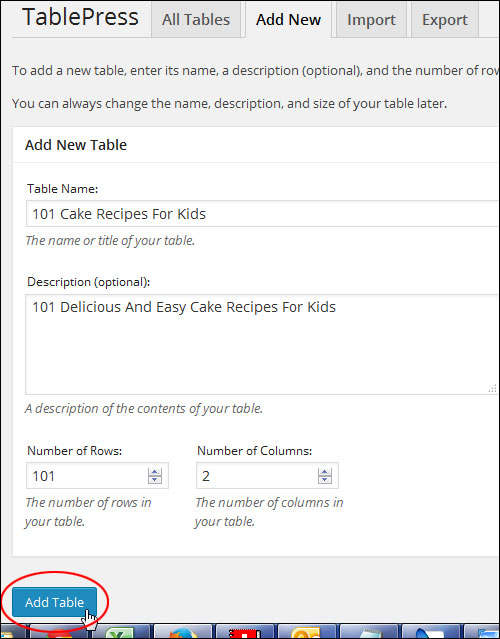
Enter a table name, an optional description, and the number of rows and columns you want for the new table into the “Add New Table” form in the Add New tab, then click on the Add Table button to create your new table. You can change the name, description and size of your table at anytime…
Once your new table has been created, it will be listed in the “All Tables” list and get assigned a unique Shortcode ID …
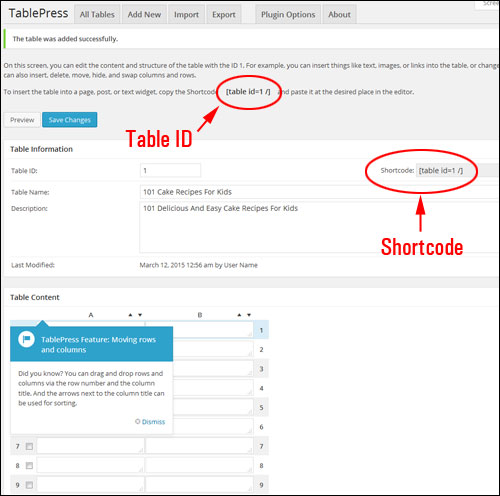
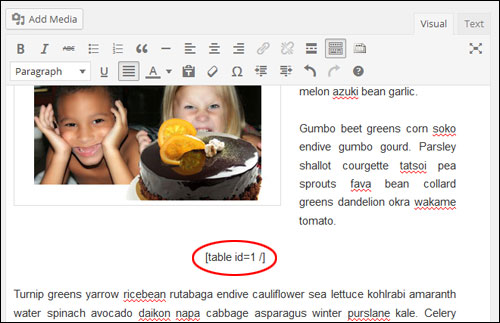
The TablePress shortcode lets you easily insert tables anywhere inside a post or page simply by inserting or copying and pasting the shortcode wherever you want your table to be displayed …
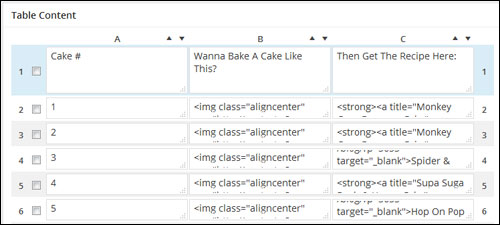
Once a new table has been created, adding content to it is very easy.
In the “Table Content” section, click in the cell and either type or paste your content. You can add text, images and format your content (e.g. add bold text, insert links, etc …)
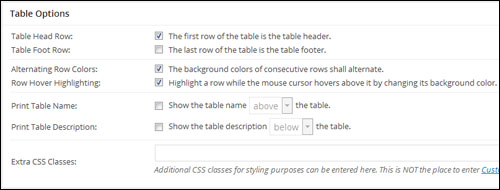
After your new table has been created, additional options appear that let you configure your table.
For example, in the “Table Options” area you can specify the first row of your table to be the table header or the last row of the table to be the table footer, display alternate background colours on consecutive rows, highlight rows when a visitor hovers their mouse over the table, show the table name and description above or below the table, and more …
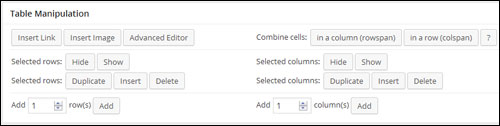
You can also edit your table after it has been created in the “Table Manipulation” subsection. You can perform a number of table edits, like inserting links or images, hiding, showing, inserting, deleting and cloning selected rows and columns, adding new columns and rows, combining cells, etc …
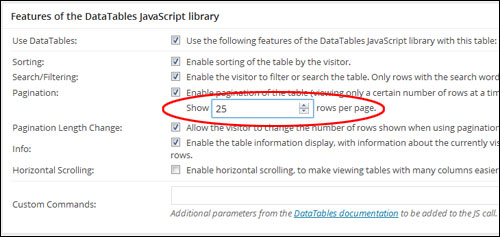
You can also enable JavaScript library features in your tables, such as allowing your visitors to sort, filter and search your table content, change the number of table rows showing on your pages (and also allow users to specify the number of rows displayed), display table information, etc …
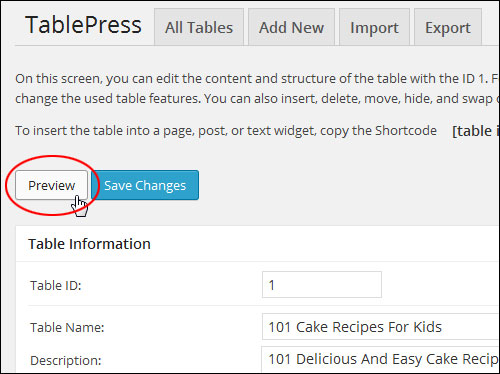
You can see how your table looks anytime, by clicking on the Preview button …
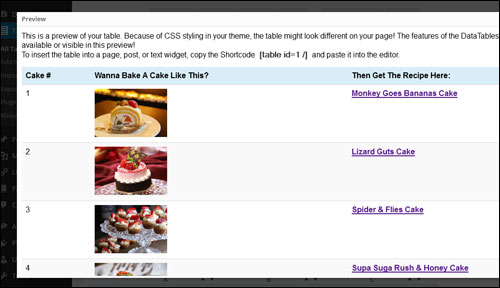
A preview window will open allowing you to preview your table. Certain features such as the JavaScript options are disabled in preview mode, but will display once your post or page is published …
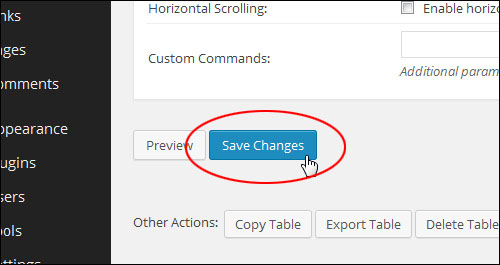
Remember to click the Save Changes button when finished to update your new table data …
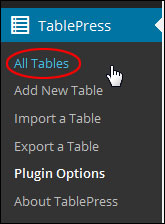
Once you have created one or more tables, you can view a list of all your tables by going to TablePress > All Tables …
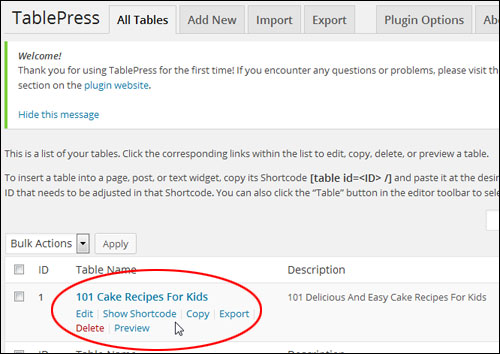
A list of all the tables you have created will be displayed in this section. You can edit, see shortcodes, copy, delete, export and preview your tables …
How To Use The Shortcode
You embed a table into pages and posts with a shortcode.
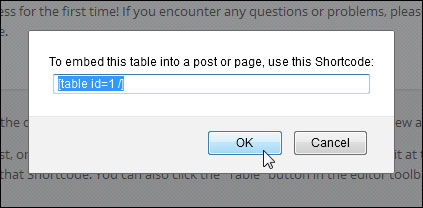
Get the shortcode for your tables by clicking on the Show Shortcode menu item under the table title to get the shortcode …
The plugin also adds a shortcode menu icon to your WordPress editor. This allows you to easily insert tables into your posts and pages while working on your content.
Place your cursor where you want your table to appear then click the TablePress menu icon …
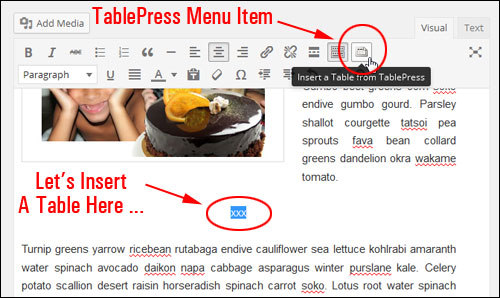
TablePress Menu Icon In WordPress Visual Editor Screen
Note: You can also insert a table when working in the “Text” area of the WP editor …
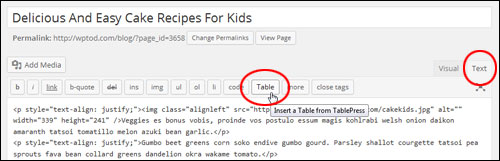
TablePress Menu Icon In WordPress HTML Editor Screen
Clicking on the menu icon displays a list of all the available tables you have created.
Select the table you want to embed in your post or page and click Insert Shortcode …
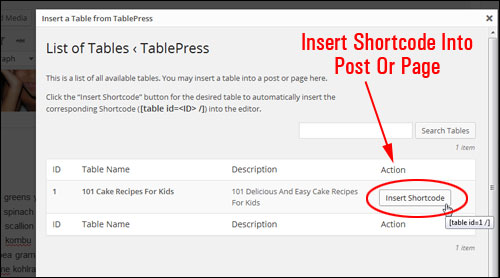
Your TablePress shortcode will be added …
Publish the post or page to display the table and table contents …

As stated earlier, one of the great things about TablePress is that you can change the contents of your table after publishing the table without having to edit your post or page. Change the content in the plugin area, then save your new table settings and refresh your content to view the updated information.
Another great time-saving feature of this plugin, is that if you plan to keep adding new data to an existing table, you can simply export your current table, then add new data, make changes, etc. You can then re-import your exported file with the news changes and your table content will be automatically updated throughout your site.
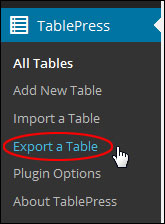
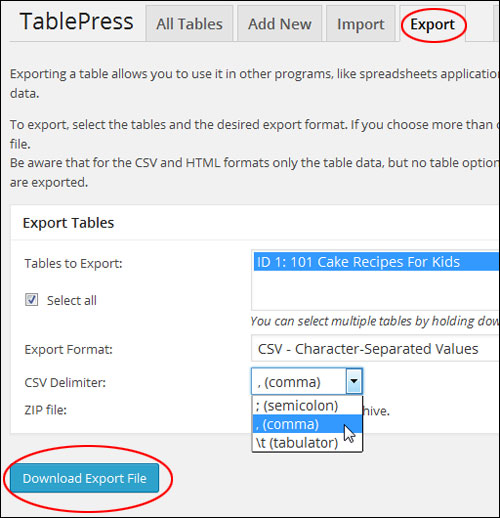
To export a table, select TablePress > Export a Table in the admin menu …
In the “Export Tables” section, select the table(s) you want to export (tip: select multiple tables by holding down the “Ctrl” key), then select the Export Format you want(e.g. CSV) and any other export options you’d like to make and click on the Export Table button to download the table file to your hard drive …
After changing and resaving your file, you can then reimport your table into WordPress.
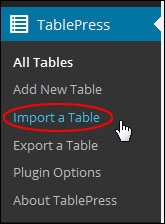
To import a table, select TablePress > Import a Table …
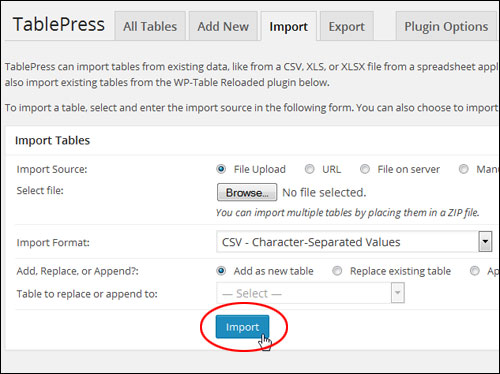
TablePress can import tables from existing data, such as CSV file data, from a spreadsheet application (e.g. Excel), an HTML file resembling a webpage, or its own JSON format.
To import a table, select and enter the import source in the “Import Tables” section. You can also import multiple tables from a compressed (ZIP) file and choose whether to import a table as a new table or replace an existing table.
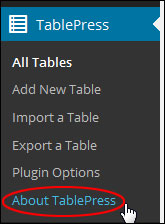
To learn more about TablePress, including where to access documentation about extra features, or get technical support for the plugin, contact the plugin author, etc., click on the “About Tab” in the plugin admin section, or select TablePress > About TablePress …
As you can see, TablePress is a very useful and feature-rich free plugin will help you easily create and insert tables into your site content.
***
"This is an awesome training series. I have a pretty good understanding of WordPress already, but this is helping me to move somewhere from intermediate to advanced user!" - Kim Lednum