 In Part 1 of this step-by-step article on ways to improve your accounting business web presence, we covered the following areas:
- Online Challenges For Accounting & Financial Businesses
- Opportunities For Professional Accountants
- Essential Web Pages
- Tips On How To Improve The Content On Your Website
In this section, we explore more ways to grow your accounting services business online. Areas covered include:
- Ways Of Improving Traffic
- Ways To Generate More Leads & Enquiries Using WordPress-Based Applications
- How To Improve SEO, Increase User Engagement And Drive More Visitors To Your Website With Plugins

For more information about WordPress plugins and themes, go here:
- Adding New Functionality To Your Web Site With Plugins
- WordPress For Newbies – An Introduction To Themes
Ways Of Improving Traffic With WordPress
Your web traffic is an integral part of your online business growth. In this section, we discuss WordPress plugins for improving search engine optimization, increasing user engagement and driving more visitors to your accounting or financial services site.
Optimizing Your Website For SEO
There are so many ways that WordPress helps optimize your website for search engines:
- SEO-Friendly – configure the permalinks to create search engine-optimized URLS for your content posts.
- Tags – WordPress lets you select the keywords that you want your article pages to be indexed by in the search engines.
- Categories – Add SEO-friendly categories for archiving and organizing your content.
- Excerpts – Create descriptions for your posts that visitors will see in the search engine results.
- Images – add search-optimized titles to your content images for improved search engine results.
- Content Linking – WordPress has a built-in feature that allows you to easily create internal links
- Post Notification – Set up your site to automatically notify other search directories immediately upon publishing new content on your website.
WordPress Plugins That Can Help Improve Search Engine Optimization (SEO), Improve User Engagement And Increase Web Traffic Generation
As well as the built-in features of WordPress, there are many plugins for WordPress that improve SEO, increase user engagement and drive more traffic to your business.
For example, you can use the plugins below to improve your website’s search engine optimization:
- Yoast SEO – WordPress SEO plugin
- Google XML Sitemaps – WordPress sitemap plugin
- WP Tree – WordPress site map plugin

(Use a plugin like Yoast SEO to improve your SEO)
Other ways to improve SEO, increase engagement and drive more web traffic to your website are to add a forum, newsletters, comments, and social sharing. Here are a few plugins that can help:
- BuddyPress – Run a social community on your WordPress website, with member profiles, messaging, user groups, activity streams, and more.
- bbPress – Run a discussion forum on your website.
- E-Newsletter – E-Newsletter allows you to send professional email newsletters, track results and manage subscribers from your WordPress dashboard, without 3rd-party subscriptions.
- Disqus – Disqus lets you power discussions and increases user engagement on your website or blog.
- Monarch – Use this WordPress plugin to add powerful social sharing features and buttons to your website.

(You can easily add social sharing buttons to your site using free or inexpensive plugins)
How To Generate New Leads & Enquiries
This section looks at how to improve your sales and generate more leads and enquiries.
Providing An Email Newsletter
Adding a newsletter is a great way to build a list of subscribers. Adding newsletters] provides several benefits and advantages including:
- Drives targeted traffic to your site
- Keeps your business at the forefront of your reader’s minds
- Provides updates
- Provides you with a targeted marketing channel
- Allows you to provide special services or products to a select audience
- Increases user engagement
- Provides additional opportunities for your content to be shared with others
An effective strategy for attracting subscribers is to provide them with content of high value and offer them free gifts in exchange for their personal details. This could be an exclusive guide, checklists for handling tax, access to financial calculators, coupons, membership access to videos, contests, etc.
Contact Forms
Contact forms make it easy and simple for readers to contact you. A contact form also allows readers to raise problems, contact specific departments, ask for quotes, send suggestions and more.
A contact form provides a number of benefits including:
- Reduces spam
- Set up automated responses
- Gives you control over what is sent to you
- Allows you to keep your email address private
- Different forms can be added to any page or post
- Looks professional
- Convenient for visitors
A very popular WordPress contact form plugin is Contact Form 7.
Contact Form 7

(Contact Form 7)
Contact Form 7 is easy to install and set up and allows you to add and manage multiple contact forms on your website, customize the forms and the email contents, add fields, and more.
International languages, Ajax-powered submissions, CAPTCHA, and Akismet spam filtering is supported.
Something to consider is adding sections to your contact form so prospective customers can select which aspect of your business they are contacting you about. This ensures that contact form requests reach the right person.
Add A Map
Adding a map helps your visitors and customers find you.
A map is a useful tool for several reasons:
- A map increases local SEO
- Allows clients to better plan their meeting or appointments
- Displays location of events
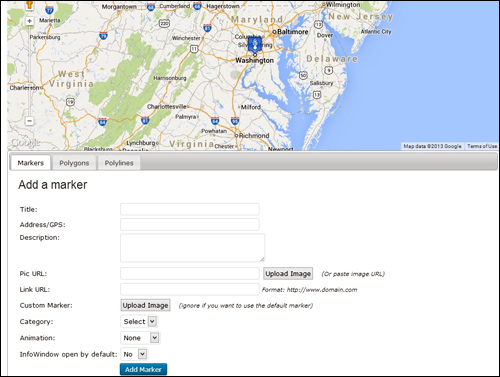
(Adding maps to your website helps your visitors and customers find you)
Popular Google Maps plugins for WordPress include:
- Google Maps
- Advanced Google Maps Plugin for WordPress
- WP Google Maps
- Comprehensive Google Map Plugin
WordPress Plugins For Improving SEO, Increasing User Engagement And Web Traffic Generation
Accounting WordPress Plugins
WordPress provides a number of plugins you can add to your accounting website to immediately add a range of practical tools for visitors. Here are just some of the plugins you can choose from:
Calculator Pro Calculators

(Calculator Pro Calculators – WordPress Plugin)
This plugin provides a free collection of 400+ calculators that you can display on your website. It also supports internationalization
Note: Most of them aren’t focused specifically on accounting, but there are a few you can use for:
- Interest rate
- Loans
- Tax
- Debit
- And lots more
For more details, go here}:
Show Stock Quotes

(Show Stock Quotes Plugin)
With this plugin you get a widget that displays a number of different stock quotes per portfolio. You can show as many widgets as you like.

(Show Stock Quotes Plugin For WordPress – Stock Portfolio)
For more details, go here}:
Custom Stock Ticker

(Custom Stock Ticker Plugin)
This plugin lets you place a custom stock ticker on any page, post, or sidebar with shortcodes.
This plugin offers a number of customizable ticker. Choose from built-in themes or customize it yourself. It’s easy to customize it so it matches your website. You can also add custom stocks to specific categories.
Customize the appearance by changing width, height, scroll speed, background color, opacity, number of stocks displayed simultaneously, font family, text color, font size, etc.
For more details, go here}:
Finance Calculator

(Finance Calculator – WordPress Plugin)
This free calculator lets your site visitors calculate indicative repayments online. This is a great tool for calculating car loans, property loans, or other large loans.
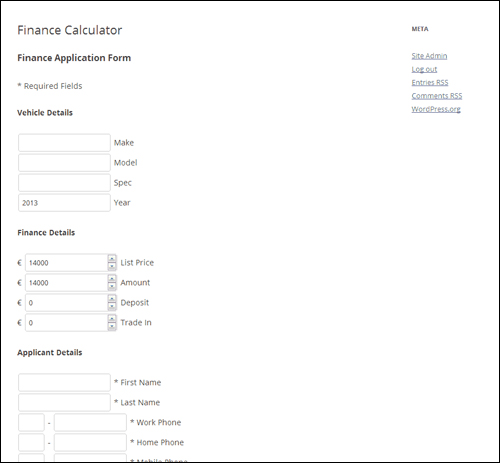
(Finance Calculator – WordPress Plugin – Loan Calculators)
The plugin also contains an application form that will send a notification message to the email address you specify.
It will display payment protection, calculate 12 to 60 months loans and create a form that can be placed in any page or post.
For more details, go here}:
WP-Invoice

(WP-Invoice Plugin For WordPress)
WP-Invoice lets you send itemized invoices to clients.
WP-Invoice integrates billing into WordPress. You can send clients itemized invoices, set up recurring billing and expand functionality with free and premium add-ons that let you manage business, accept electronic signatures, create PDF versions of invoices, provide quotes, create single-page checkout forms, and more.
The plugin ties into WP’s user management database to keep track of clients and their information, and integrates with PayPal, Authorize.net, Stripe, 2Checkout, USAePay, and others.
WP-Invoice features include adding custom payments and charges, adding pre-defined line items and discounts, quickly viewing invoice status and progression, easily filtering and finding invoices, seeing invoice receipts and invoice history, creating e-mail notification templates, viewing reports (collected vs uncollected invoices, valuable clients and top grossing line items), and more..
For more details, go here}:
All In One Business Management Application
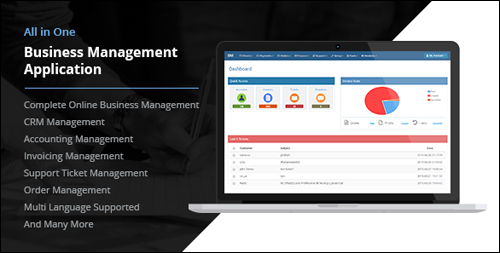
(All In One Business Management Application – WordPress Plugin)
This is a complete business management system that includes accounting management, invoicing, order management, help desk with support ticket system, client relationship management and many more features.
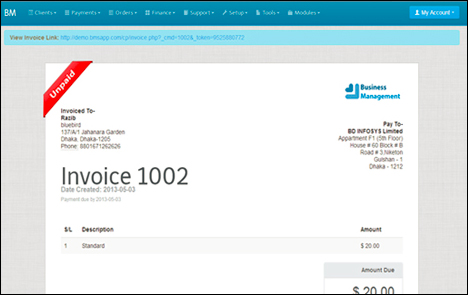
(All In One Business Management Application Plugin For WordPress – Client Invoicing)
The plugin supports different languages, is fully customizable and provides additional tools like document management, notice board, and more.
For more details, go here}:
iBilling – Accounting And Billing Software
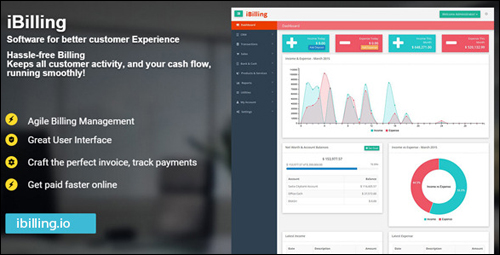
(iBilling – Accounting and Billing Software – WordPress Plugin)
This is a scalable business software that lets you manage customer data and invoicing, tracks your company’s cash flow and net worth, and lots more.
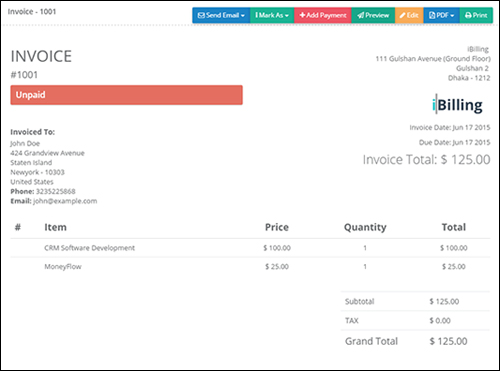
(iBilling – Accounting and Billing Software – Client Invoice)
It integrates with several online payment gateways.
For more details, go here}:
Accounting WordPress Themes
To benefit the most from using WordPress to grow your business online, we recommend choosing a theme specifically suited for accounting businesses. Here is a look at some of the best accounting themes available. These themes allow you to own a professional accounting website within minutes and save hundreds to thousands of dollars on the cost of web design.
Accounting Pro
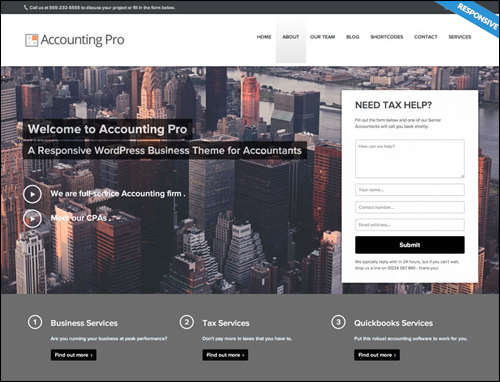
(Accounting Pro)
This is a turn-key theme developed for accountants and accounting firms. It’s a responsive theme with a drag-and-drop page-builder, has several page templates, custom menus, a content composer (which improves on the standard WordPress editor), a sidebar manager, auto-resizing for images, and a whole lot more.
Accounting Pro can be customized using premium add-ons.
Go here for more information:
Accountancy

(Accountancy Theme For WordPress)
This premium theme for WordPress comes in a variety of styles and layouts to help give your accounting website a professional look and feel.
It includes a custom slider, a featured testimonial, and more. It’s lightweight, SEO friendly, fast loading, and fully responsive. It provides what you need without bloating your theme. The cost of purchasing includes free updates and 1 year of support.
Visit this website to learn more this WordPress theme:
Accounting
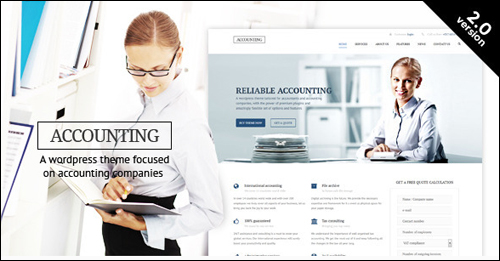
(Accounting)
This theme includes a drag-and-drop builder that allows you to design your website any way you want. The theme also provides unlimited sidebars and custom widgets, four different types of headers, a custom admin panel, four color schemes, custom slider, three different blog types, and is fully responsive (mobile-friendly). Accountancy looks clean and modern and is fast to load.
For more details, go here:
Kathryn

(Kathryn WordPress Theme)
Kathryn is a premium WordPress child theme for the Genesis Framework designed for accounting businesses. It has a slider, multiple layouts, multiple sidebars, a variety of colors, is easy to use, inexpensive, search optimized, and is mobile-friendly. Although it could easily suit any profession, it builds a great looking accounting theme. It includes a license for the Soliloquy plugin and is a separate purchase from the Genesis Framework.
Go here to learn more this WordPress theme:
Accounting WordPress Theme

(Accounting WordPress Theme)
Accounting WordPress Theme was created to exude professionalism within the accounting industry. It features authoritative colors and elements specifically designed to help make your accounting website look professional while not looking dull. It’s a turn-key installation but you can still modify it if you want. It’s fully responsive (mobile-friendly) and includes pages for your services, contact form section with consultation requests (downloadable as CSV), testimonials, and a blog.
To learn more about this WordPress theme, visit the theme site:
WP Advocate
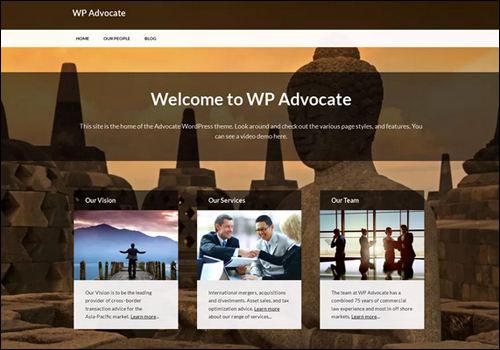
(WP Advocate WordPress Theme)
This is a corporate theme built for professionals such as accountants and attorneys. Use the bundled images or upload your own. It includes a custom post type adding employee profiles. It will also integrate with BeSpoke profile templates. It’s clean and loads fast.
Go here to learn more about this theme:
Divi
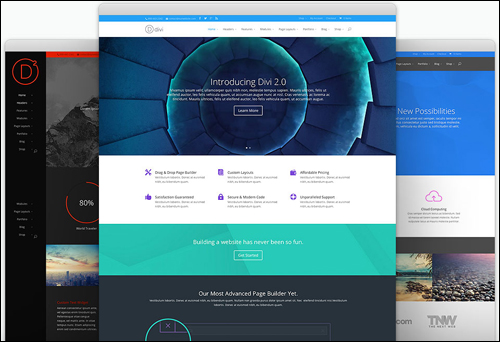
(Divi WP Theme)
This theme is one of the most flexible themes in Elegant Themes‘ entire collection of WordPress themes. You can create any style of professional site you want using its page builder or beautiful and unique pre-made layouts. You can modify your layout as much as you need.
The builder transforms elements into visual building blocks, allowing you to understand and easily redesign the structure of their pages without editing any code.
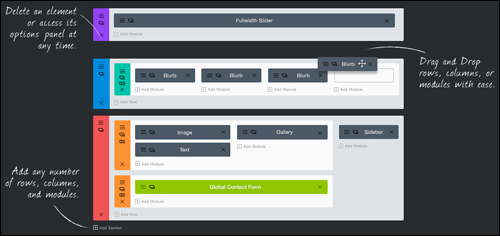
(Divi WP Theme – Page Builder)
It comes with 40 content modules that you can drag and drop anywhere you want. These modules include multiple layouts, a slider, you can place pricing tables, testimonials, call-to-action, and lots more. It is responsive and completely customizable. Elegant Theme prices start at $69 per year and includes full access to over 80 themes.
Go here for more details:
The Corporation

(The Corporation Theme)
The Corporation Theme from Elegant Themes was built specifically to create great-looking corporate websites.
It has a page-based home page design with a prominent, flashy slider, blog design, six different different color schemes, multiple page templates which include contact pages, blog feeds, sitemaps, search page, gallery page, and more. Theme prices start at $69 per year and includes full access to 80+ professional themes.
More info:
Adviser

(Adviser)
This premium WordPress theme was built specifically to help those in the financial industry to build trust online through clean web design. It’s perfect for businesses that provide services like investing or tax advice. The theme includes a recruitment page with hiring announcements and where to send applications, lease calculator, widgets and multiple shortcodes, and the drag-and-drop visual composer..
For more details, go here:
Tax Help

(Tax Help Theme)
This premium theme for WordPress was developed specifically for financial organizations, tax and finance advisors, and firms that offer tax services. It’s designed to showcase your services in a professional way to help build your business reputation. It provides different blog styles, uses a drag-and-drop visual composer, includes a shortcode builder, the Revolution Slider, and many custom shortcodes.
Go here to learn more about this theme:
Finance Business

(Finance Business)
This premium WordPress theme was designed specifically for firms that provide any type of financial service including tax help, consulting, insurance, corporate, finance, loans, accounting, and more. It includes a custom CMSMasters Visual Content Composer plugin, around 100 shortcodes that includes charts and financial content, custom drag-and-drop composer, two premium sliders, page options, color management, animations, and a whole lot more.
Go here to learn more this theme:
Avada
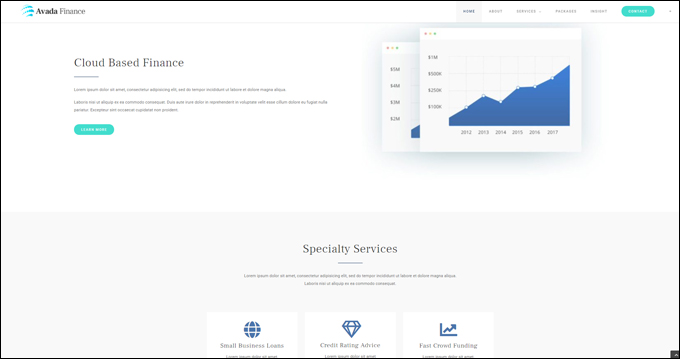
(Avada Finance WordPress Theme)
Avada is a fully responsive and versatile multipurpose theme that lets you easily build, configure, and run any kind of website you want without touching code, including a website for an accounting or finance-related organization.
To learn more about the Avada theme for WordPress, go here: Avada
Hopefully, you have found this comprehensive guide on ways to improve search engine optimization, increase user engagement and generate more traffic with WordPress plugins & themes useful.


Subscribe below to receive 101+ useful WordPress tips that will help you grow your business …
***
"Wow! I never knew there's so much to learn about WordPress! I bought one of the WordPress for Dummies three years ago, such authors need to be on this course!" - Rich Law, Create A Blog Now
***