
This is Part 3 of our comprehensive guide on ways to grow your medical-related business presence online.
So far, we have covered the following areas:
- Online Challenges For Medical & Health Businesses
- Opportunities For Health And Medical Businesses
- Essential Website Pages For Medical Websites
- Ways To Improve Your Web Content
In this section, we discuss more ways to grow your medical or health-related services online by looking at the best website themes for your practice:
WordPress Themes For Healthcare And Medical-Related Services
WordPress has many professional themes to help build any type of health or medical website, including sites for doctors, surgeons, physicians, dentists, health clinics, medical centers, day surgeries, and every other type of health care field or facility you can imagine.
To benefit the most from using WordPress to grow your business online, it’s best to choose a theme specifically for health businesses.
Below is a list of WordPress themes for medical practitioners and health services that are highly configurable and professionally designed. Most of these themes include plugins, shortcodes, widgets and page templates for doctors, FAQs, patient testimonials, contact/enquiries, schedules, etc. These themes will help give your medical business a polished and professional presence.
Medica Pro

(Medica Pro WP Theme)
This premium WordPress theme is a clean, flat theme for a medical website. It can be used as a blog, a website, or both.
It includes a number of widgets that increase the theme’s functionality. It includes a number of web page templates including Our Doctors, Testimonials, and Contact Us. It includes a contact form, slider, image gallery and Google Maps. You can display your site pages with a sidebar or full-width.
You can easily customize your site from the theme options area where you can adjust your layout, colors, logo and social media links. You have an unlimited choice of colors. It’s responsive so it works correctly on small screen sizes. The theme is also localized so your content will translate into the language used by your visitors. Its clean code helps your site load fast in any browser.
Medica a nice choice for any medical-related business practice. It includes an option panel that allows you to make customizations and selections for your business logo, links to social pages, colors and page design layout. It offers unlimited colors. It also includes custom widgets. It’s responsive to work properly on any device. It’s also localization ready so the text can translate easily to the language your readers are using.
More information: Medica – WordPress Theme
Medicenter – Responsive Theme
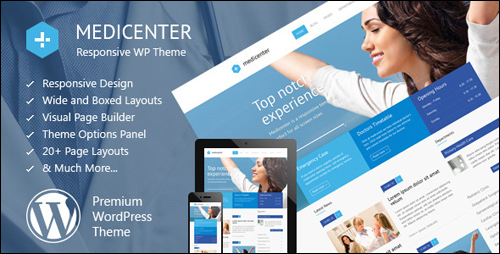
(Medicenter)
MediCenter WP Theme is ideal for doctors, health clinics, hospitals and medical organizations, as well as health-related businesses like veterinary clinics, a gym, pharmacies, or health care practitioners like surgeons, dentists, ophtalmologists, psychologists, physiotherapists, or psychiatrists, etc.
This theme includes several predefined custom header variants, 20+ web page templates, 6 home page layouts, wide and boxed layout, and an AJAX contact form that saves users time waiting for the page to reload. It also includes the Visual Composer Page Builder plugin and Timetable Responsive Schedule Plugins, which allows you to add various departments and a database list of doctors (or other practitioners), define consultation days and available hours, add a description or additional tooltip and present everything in timetable format.
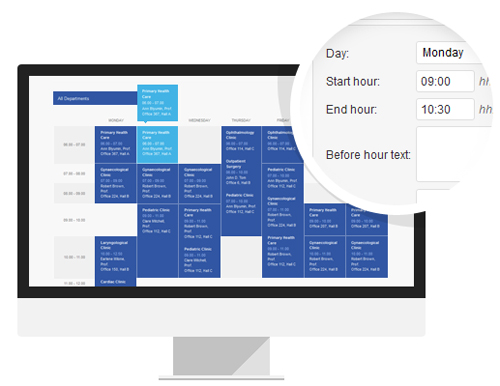
(Built-In Schedule (Timetable) Manager – MediCenter Theme)
You can customize theme options like colors, layout, business logo, fonts and icons, etc. from the theme settings panel. It’s responsive so it works properly on small screen sizes.
Shortcodes include pricing tables, testimonials, carousel, accordion, announcements, notifications, icons, tabs, lists, etc. There are several layouts for home pages, blogs, galleries and more to choose from, plus a full-width slider.
To learn more about this WordPress theme, visit this website: Medicenter – Responsive Theme
MedicalPress
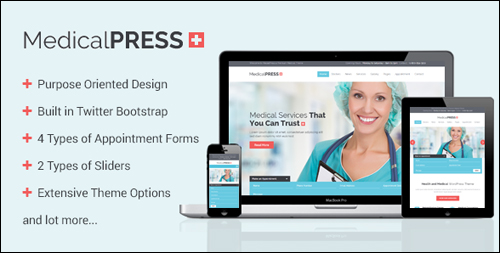
(MedicalPress Theme)
This premium WordPress theme is a clean-looking, modern and fast loading theme. MedicalPress is suitable for hospitals, health clinics, doctors, surgeons, dentists, ophtalmologists, psychologists, physiotherapists, psychiatrists and all types of medical or healthcare organizations.
It includes 4 different appointment forms, two sliders including the Revolution Slider that displays images, links, video, and more. The theme offers multiple layout options so you can present your content in 1-4 columns. 3 different home page designs are included, plus shortcodes and templates to manage featured sections, facilities, appointment forms, services, practitioners, FAQ’s, testimonials, gallery items and more. It also features a back to top of the page button.
You can customize your website any way you want using an extensive range of option settings. The theme includes the Visual Composer plugin for free allowing you to drag and drop page elements and create your own layouts. It’s a responsive theme so your content displays properly on all mobile devices and screen sizes. It integrates with WooCommerce to handle any type of sales or payments. One sample child theme is also included.
For more information, go here: MedicalPress
Medi
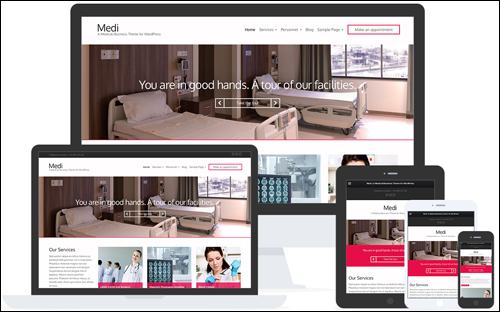
(Medi)
Medi is an elegant premium theme with a drag and drop homepage that’s focused on the medical field. This theme includes several pre-made layouts and adds Personnel, Services, and Slider content types. Lots of custom widgets like content widgets, Twitter, Flickr, etc. are included. You can select multiple color schemes and even assign a different color scheme to each page.
It’s responsive and Retina ready to look great on all screens. It’s also speed optimized to help give your site visitors fast-loading pages. It’s translation ready and search engine optimized.
More info: Medi Theme For WordPress
Care
(Care – WordPress Theme)
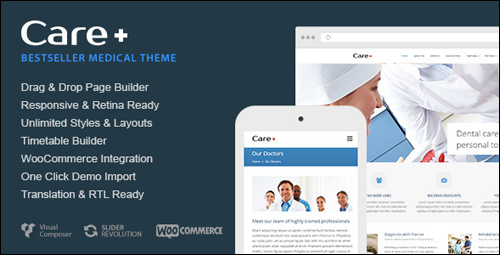
This theme is aimed at doctors, dentists, and various other health-related fields. The theme includes a schedule manager, Revolution Slider plugin, pre-defined background patterns, multiple blog layouts, unlimited headers and sidebars, parallax effects, and loads of extra features, including:
- 100% Responsive
- Advanced Option Panel
- Custom Background Uploaders For Sections
- Parallax Effects
- Dedicated Theme Support Forums
- And more …
It includes a custom layout creator for all post types. You can design the layout any way you want using the drag and drop page builder plugin called Visual Composer. You can customize your site using the advanced option panel. It includes Google fonts. It’s 100% responsive and Retina ready. You can choose the width of your content. It includes scalable vector icons.
More info: Care Theme For WordPress
Dentist
(Dentist)
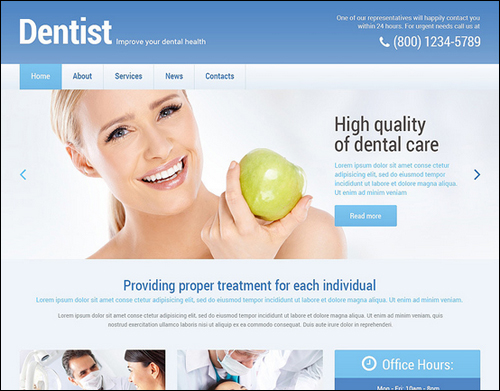
Dentist is an elegant WordPress theme for dental services or any other health-care practice. Over 80 built-in shortcodes lets you add many features to your site including columns, elements, comments, custom widgets for social sharing, etc., includes custom formats and post types, a filterable portfolio, sliders, different color options, and more. Stock images are also included. Web page templates include FAQ, Archives, Full Width Page, Filter Pholio Page, Testimonials, Home Page, and more. Custom post types include Testimonials, Our Team, Portfolio, etc. Also included are 4 gallery scripts: Carousel, Accordion, Isotope and Slider.
The Dentist theme is built on the Cherry Framework and can be edited fully using advanced options and settings. You have complete control over colors, styles, widths, sliders, sidebar layouts, and lots more. It includes Google Maps, back to top of the page button, and more. It’s also 100% responsive, multilingual ready, and SEO optimized.
Go here for more info: Dentist – WordPress Theme
HealthPress
(HealthPress – WordPress Theme)
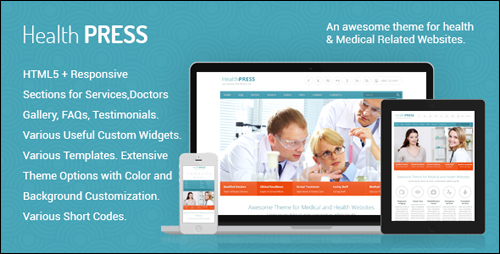
HealthPress is a clean-looking, SEO optimized and fully-responsive theme that was made for anyone in healthcare including hospitals and clinics, surgeons, doctors, dental services, veterinarians, psychiatrists, physiotherapists, psychologists and every type of health and medical business.
It has page templates and service management features that include home page, doctors, testimonials, gallery templates, schedules, news posts, FAQ’s, etc., with multiple templates for each. The theme also includes four appointment forms and has 2 different kinds of sliders including Slider Revolution. The gallery will show 2-4 columns. Various post types are included.
There are extensive theme options for fonts, colors, layouts, etc. It supports custom backgrounds. There are several custom widgets including Google Maps, and AJAX contact form with CAPTCHA, AJAX appointment form with CAPTCHA, newsletter subscription, footer information, footer location, recent posts with thumbnail widget, and a quick contact form widget. All PSD files are included with the theme.
For more details about using this WordPress theme, go here: HealthPress WordPress Theme
Alean

(Alean – WordPress Theme)
Alean is a clean theme suitable for most healthcare-related and medical businesses. It uses a white background with a compact slider design that’s clean and optimized for mobile and table browsers. The theme includes custom sidebars with multiple layouts. You can also have no sidebars for full-width pages. It includes a contact form, Google Maps, a dynamic content loader that loads your content without reloading the page, a social share bar, powerful shopping cart features that fully integrate with your website, multicolored-related posts, anti-spam without CAPTCHA, and more.
The Alean theme is built on the SMT 2.0 framework and offers loads of configuration options. It is search engine optimized. There are many advanced editor options, allowing you to add design to your posts and pages. It has translation options so you can translate your content into any language. Alean is an excellent choice for health practitioners and medical service providers. It offers both a FREE and paid versions.
Smart Magazine Themes, the theme developer has created a number of themes that are suitable for medical businesses.
For example:
- Vaccination
- Medicine
- Dentist
- Paramedic
- Diet
- Healthcare
- Toothmed
- And many more …
For more details about using this WordPress theme, go here: Alean Theme
Eyesite
(Eyesite – WordPress Theme)
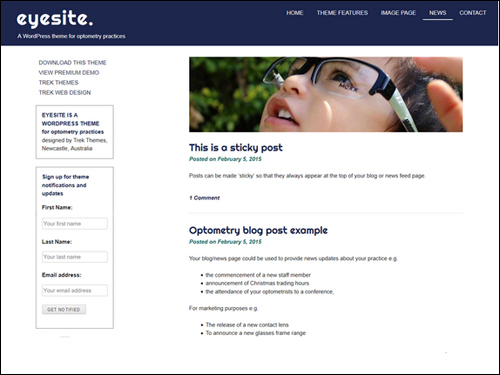
Eyesite is a simple and clean theme suitable for all types of health and medical businesses. It’s a good choice as an information page and can be expanded with 3rd-party plugins to include many different features. It’s responsive to fit any size screen. It’s also customizable so you can modify the colors and fonts. With Eyesite theme you can create a a website with blog, a single information page site, or just a blog. A premium version offers extra color schemes and fonts.
Go here for more details: Eyesite Theme
Avada
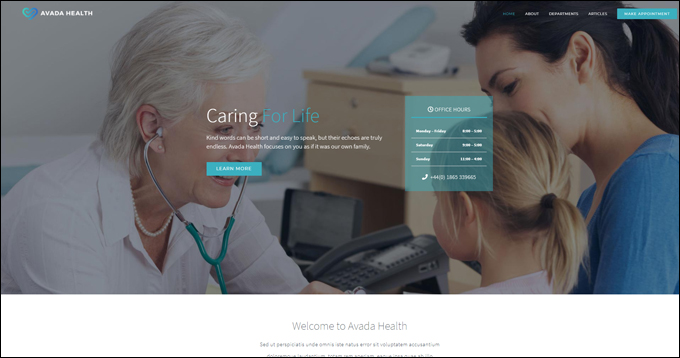
(Avada Health WordPress Theme)
Avada is a fully responsive and versatile multipurpose theme that lets you easily build, configure, and run any kind of website you want without touching code, including a website for a medical or health-related organization.
To learn more about the Avada theme for WordPress, go here: Avada
We hope that you have found this comprehensive guide on how to improve search engine optimization, increase user engagement and generate more traffic with plugins helpful.


Subscribe below to receive 101+ useful WordPress tips that will help you grow your business …
***
"Learning WordPress has been a huge stumbling block for me. I've been looking for something that covers absolutely everything but doesn't cost an arm and a leg. Thank you so much ... you have just provided me with what I have been looking for! Truly appreciated!" - Tanya
***