 The sheer number of attacks on websites and blogs worldwide is massive, and it’s getting worse.
You can safely assume that if your website or blog hasn’t been hacked yet, then it’s inevitable that at some point in time someone will attempt to hack into your site.
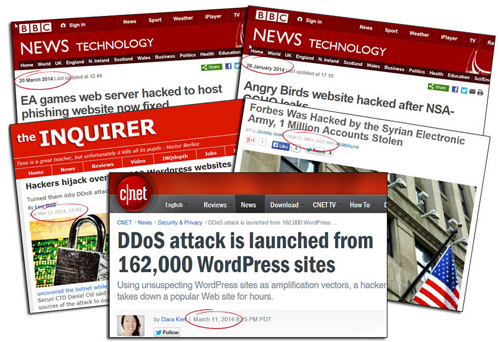
On March 11, 2014, technology sites like Cnet.com began reporting that over 162,000 WordPress-powered sites had been hacked.
Thousands of websites are hacked every year! Could your website be next?
(Image source: Blog Defender)
According to the Cnet report,
“With some old-fashioned trickery, hackers were able to get more than 162,000 legitimate WordPress-powered Web sites to mount a distributed-denial-of-service attack against another Web site.”
(Source: cnet.com/news/ddos-attack-is-launched-from-162000-wordpress-sites)
As described by security firm Sucuri, hackers had leveraged a well-known flaw to attack unsuspecting WordPress websites and direct a distributed-denial-of-service attack (DDoS) towards another popular website.
You may think that the information in your website or blog has nothing to offer to hackers, but the reality is that to a hacker, every website is an opportunity to profit or benefit at your expense.
If a hacker can exploit a vulnerability and remotely take control of your blog, your blog can then be employed to attack larger and more highly-valued web sites.
The truth is that malicious bots are probably trying to break into your blog while you are reading this article right now. Whether they can get in or not, will depend on how hard you have made it for hackers or botnets to continue persisting until they can work out a way to get in, or are forced to give up and decide to look for a less protected target.
How Much Information About Your WordPress Site Are You Broadcasting To Hackers?
Does your website run on WordPress? If so visit a site like Hackertarget.com and run your website through their WordPress security scan …
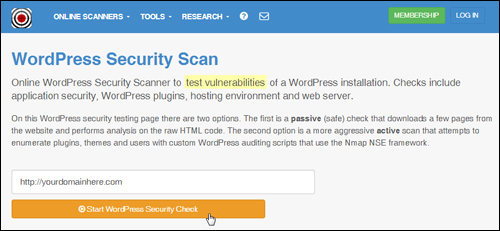
(Hackertarget – WP Security Scan Screenshot source: Hackertarget.com)
You will see that the check returns various results and details about your WordPress setup …
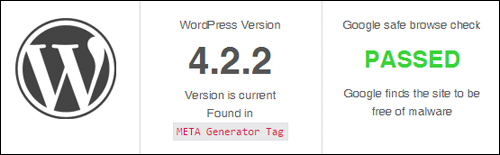
(website security check results. Screenshot source: Hackertarget.com)
It should be obvious after using the above tool that if you can freely access all of this information, then hackers can too.
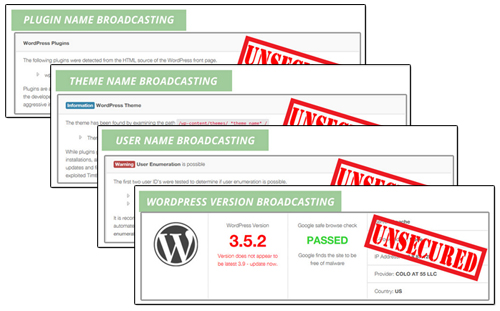
(Screenshot image: BlogDefender.com)
The ability to see what version of WordPress you are using, which plugins and themes you have installed, and which files have been uploaded to certain directories can be valuable information to hackers, as these can inform them about any exploitable security weaknesses, especially in older versions.
Fortunately, there is a simple and inexpensive solution that will stop broadcasting all of this information about your site and help to protect it against other malicious threats.
Blog Defender
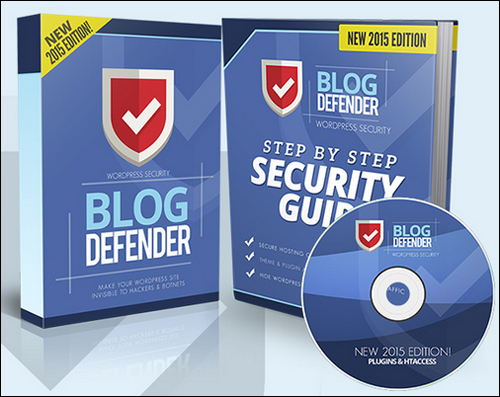
Product Description
The product is a suite of WordPress security video tutorials, plugins and tools, plus WordPress security documentation in PDF and DOC formats.
Matt Garrett, the creator of the BlogDefender security suit developed BlogDefender after noticing that a WordPress site he set up for his mother had been hacked into. This site had practically no value to offer, yet it was still targeted by hackers.
Matt only became aware of what had happened after being contacted by his host and observing that a significant amount of unusual activity had taken place within his site, as well as the addition of a number of malicious files by whoever had broken into his site.

(Image source: BlogDefender site)
Matt’s experience illustrates the fact that all websites are valuable to hackers.
Blog Defender shows you where the security weaknesses in your web site are …
And then shows you how to quickly and easily fix these …
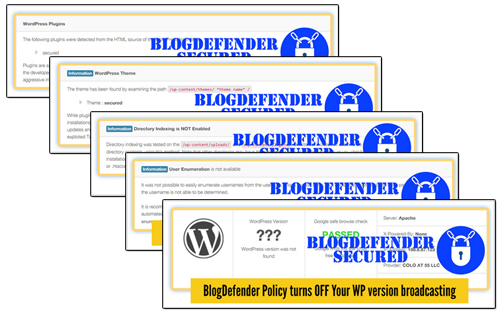
Blog Defender – WP Plugins
The Blog Defender security suite includes three plugins for WordPress:
Plugin #1 in the Blog Defender product suite helps you schedule automated backups …
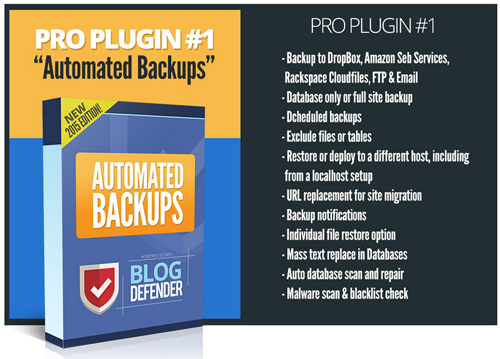
(Product image: BlogDefender website)
The plugin lets you do secure backups to your server, third-party servers and cloud solutions using a number of backup methods (including FTP and email backups), schedule complete or partial backups, exclude tables or files from your backups, restore previous backups, replace URLs (useful when migrating sites to different domains or server locations), search and replace text in your WordPress database, perform auto database scans and repairs, and more.
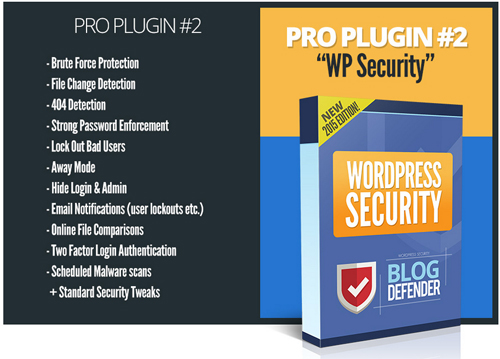
Plugin #2 provides your site with security …
(Screenshot image: BlogDefender website)
Pro Plugin #2 “WordPress Security” provides a range of vital site protection functions (see “Product Features” section below).
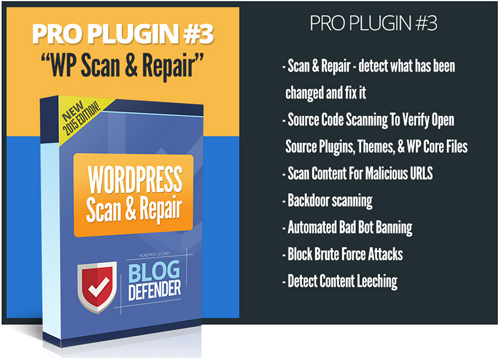
The third plugin scans your website or blog to see if code in your files has been tampered with, and repair the problem …
(Source: BlogDefender.com)
Pro Plugin # 3 also scans content to see if any malicious scripts have been inserted into your site files, bans bad bots, blocks brute force attacks and detects any content leeching (where others benefit from your work without reciprocating the favor).
Blog Defender – Step-By-Step Videos
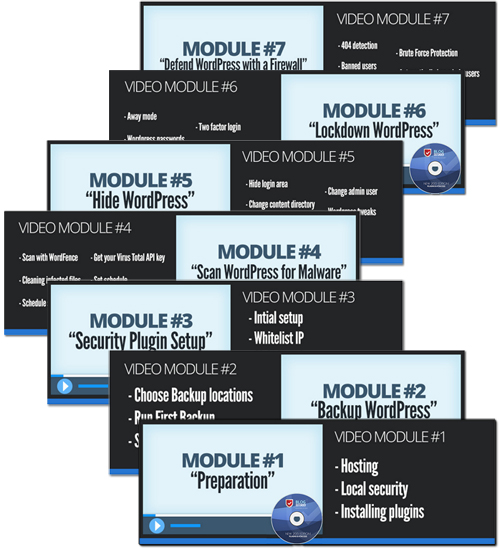
In addition to the plugins, the Blog Defender suite of products also includes step-by-step training videos plus PDF/DOC documentation that teach you exactly what you need to do to protect your site from hackers …
(Screenshot source: Blog Defender)
For more details, visit the plugin site here:
Benefits
Below we have listed just some of the many benefits and advantages of using Blog Defender to make your WordPress site invisible to hackers and botnets on your website:
Be Up And Running In Minutes
The Blog Defender plugins are really easy to install. Just upload a zip file that contains the plugins to your Plugin folder via your WordPress dashboard and activate.
Simple And Easy To Follow Training
Blog Defender can be used as a do-it-yourself step-by-step training product that will take you through the website security process and show you what to do, including how to set everything up, and even which free WordPress plugins to install to get the job done.
Some additional benefits and advantages include the following:
- Protect your WordPress site from hackers, spammers, bad bots, data miners and malicious users whose aims is to ruin your business for personal and financial gain at your expense.
- Helps Prevent Intellectual Property Theft – If you sell digital products (e.g. downloadable ebooks, video tutorials, etc.), your work can be stolen and end up becoming freeware on peer-to-peer sharing sites.
- Avoid Getting Suspended By Your Web Host And Delisted By Search Engines – When a website gets hacked, expect to go through a great deal of frustration and aggravation. It can take days to uncover problems and sort through the issues these have caused. Your, websites can get suspended by your webhost, or even deindexed in search engines. In addition, your contacts could end up being spammed, your customer list and financial details could be stolen, you could be fined or even charged with fraud, and much more.
Plugin Features
Blog Defender provides many great features to website owners.
Blog Defender provides fixes for the following areas:
- Hosting Security Advisory
- WP Plugin Security Audits
- WordPress Theme Security Audits
- Anti Brute Force Security
- Anti Cross-Site Scripting
- WP Database Security
- Nefarious Traffic Blocking
- Hiding WordPress ‘Tell Tale’ Signs
- Anti-Comment Spam Blocking
- Monitoring Files
- Track Links
- Blocking Known Offenders
- Automating Core WordPress Updates
- WordPress Security Audit
- Tightening Server Security
- Kick Out Policy
- Reputation Checking
- And More …
Blog Defender follows a logical process for securing your site, addressing potential hosting security issues, using scanning and detection tools to quickly identify risky themes and WP plugins, and then implementing website-wide security using the tools and plugins provided.
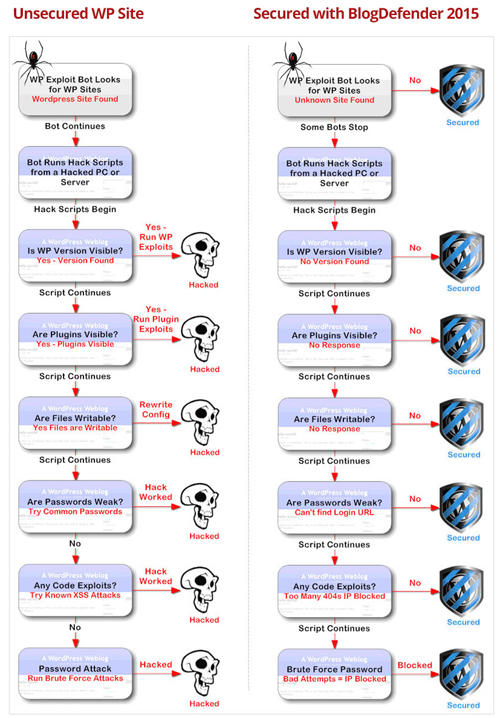
(Blog Defender website security process. Screenshot source: BlogDefender website)
Feedback From Users
Here are some of the testimonials and comments that users have published about the Blog Defender security products:
”This is a seriously good product!” Simon Hodgkinson, www.hodgkinsonpublishing.com
***
”Just one tip could have prevented my blogs getting hacked!” Richard Legg – www.richard-legg.com
Useful Tips
According to the plugin’s site, since Blog Defender was released back in 2012, no Blog Defender-protected websites have been hacked.
The product developer also states on his site …
“With the volume of attacks nowadays … we probably won’t hold forever, so we’ve been busy creating even tougher WordPress security.”
Cybersecurity is is a perpetual game of cat and mouse and all security solutions are only as good as the knowledge and tools that developers currently can access. The latest release of Blog Defender creates an easier WordPress security solution that doesn’t need constant attention, won’t cost you a fortune and it’s as good if not better than most web security products or services currently being offered at a higher price.
Product Support
The product is well-supported, can be used by both Mac and PC users, is compatible with the latest WordPress release and is backed by a risk-free, thirty day, complete refund guarantee.
Plugin Cost
Blog Defender is normally available for personal use only on unlimited sites. When we last checked, however, it was also being sold with Developer rights, allowing users to secure client sites as well.. Cost = $47.00.
Note: The cost to purchase Blog Defender depends on whether there are any promotions or limited-time special offers. The above reflects the current pricing when this review was written. This may not be the actual pricing charged by the software developer when you visit the plugin website and you may be shown additional upsells or one-time offers after your purchase.
Check the plugin’s website for the latest pricing:
Additional Plugin Info
For installation instructions and tutorials, FAQs, customer helpdesk, contact details and more, visit the Blog Defender website.
In Conclusion
No matter what type of business you run or plan to run online and how small you think your web presence is, you simply cannot ignore the importance of website security.
WordPress is a secure platform, but neglecting basic maintenance tasks like ensuring that your WP installation, WP plugins and themes are kept up-to-date, tightening file and data protection and taking other necessary precautions can have disastrous consequences.
Adopting a security policy like the one Blog Defender provides, will help you understand what your responsibilities as a website owner are, what hosting companies can and can’t do if your sites are compromised, what security features to look for in a webhost, and how to avoid all the major security risks without paying a lot of money.
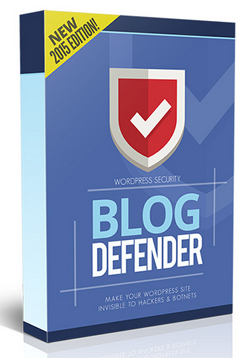
For complete details, check out the plugin here: Blog Defender WordPress Security Solution
***
***