 Does your company currently run or plan to run events that need to accept bookings or registrations, such as workshops, community courses, charity fund-raisers, marketing functions, or even a large-scale event such as a food fair, a sporting or religious event, or any kind of event where people need to book to attend?
Co-ordinating event bookings can be a complex process. You will probably have to co-ordinate scheduling, available dates and spaces, registration numbers, data entry, payments and sending invoices, confirmations and reservations, reminders and notifications, refunds and cancellations … perhaps even accommodating special requests and issuing tickets to event participants.
There are many benefits to setting up a web-based event registration system. It can streamline your business processes, save time and reduce expenses, help you easily duplicate similar events, give you more control, create a more enjoyable user experience and increase your sales.
The problem is that setting this up can be very expensive.
The good news is that if you run a WordPress-based web site, you can download and install a very inexpensive and professional online event registration solution.
Introducing …
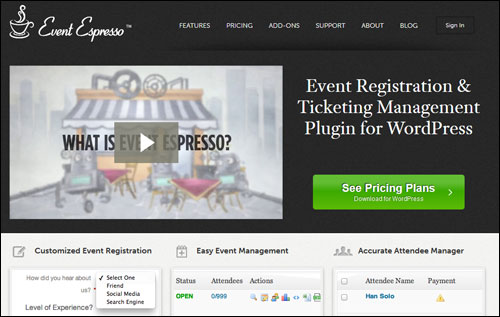
Event Espresso – WordPress Event Management And Registration Plugin

Plugin Description
The Event Espresso online event registration plugin for WP lets you easily set up your event and begin processing bookings in just a few minutes.
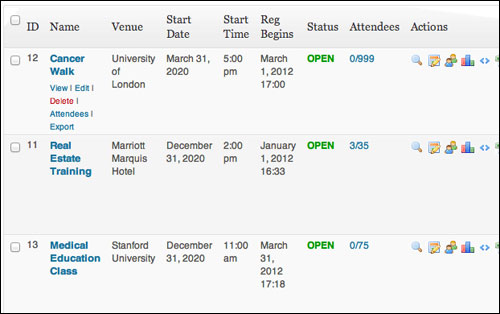
(Set up multiple events and receive online event registrations with Event Espresso)
Event Espresso is a feature-packed application that gives you complete control over your event registration management process.
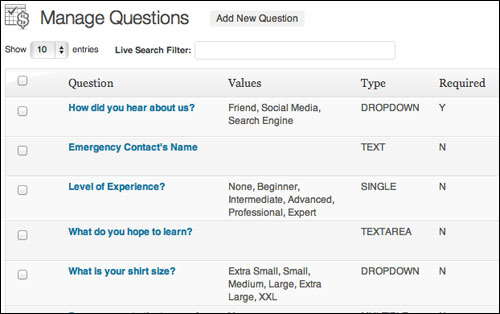
Create custom event registration forms
You can use a range of event registration strategies, from simple online sign-ups and straight up ticket-selling, to setting up custom registration forms for collecting detailed information about your event participants, or integrating your event bookings with social media sites like Facebook.
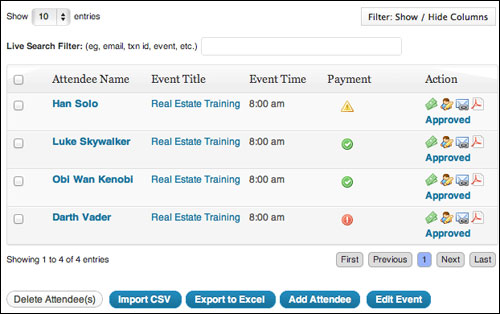
Access detailed information about your event attendees
Please Note: Currently, Event Espresso provides two different versions of their software: EE 3 and EE 4. The new Event Espresso 4 is considerably different than the older Event Espresso 3, as it has been redeveloped using a different structure to allow for future growth and expansion. The Event Espresso 4 plugin software has different features, user interface, data structure, coding method and pricing. The developers aim to eventually transition completely to EE 4, so keep this in mind as you read more about this plugin.
Learn more about the plugin here:
Plugin Benefits
Here are just some of the benefits and advantages of using Event Espresso to manage event registrations on your website or blog:
Automated Event Registration Management And Ticketing System
Event Espresso provides you with everything you need to turn your existing online presence into a fully-featured event management website … from custom registration forms and automated emails, to seating capacity limits, multiple price levels and discount codes, to printable tickets and even seating charts.
Better Business Productivity
By using a web-based event registration system like Event Espresso, you save time and improve your business productivity by practically eliminating the need to process registrations and signups manually.
Essentially, you are facilitating participants to complete the registration process themselves.
Allowing your enrollees to do all of the data entry frees up your time and lets you concentrate more of your energy on creating a memorable event.
Complete Control Over The User Experience
As you will soon learn, Event Espresso gives you more control over the event management process that you want your attendees to experience.
Some additional plugin benefits include the following:
- Reduced Costs: The Event Espresso plugin is a very inexpensive online event registration management solution compared to other options or using a third-party provider. This is made possible by using a model where users buy the core plugin (which suits the needs of most users) and then buy add ons only if you need additional features.
- Higher Sales: Event Espresso lets you accept new registrations 24 hours a day. Not only that, but, Event Espresso social and marketing features (see below) let people interested in registering for your event share your information with others who may also be interested.
- Green Event Registration Process: With Event Espresso, your event booking process is performed entirely in digital form, significantly reducing typical paper consumption from tasks related to administration.
- Own Your Information. You own all the information you obtain from event participants.
Event Espresso Features
The Event Espresso plugin provides functionality to its customers via built-in features (these come with the software) and optional features that you can buy for an added cost, called add-ons.
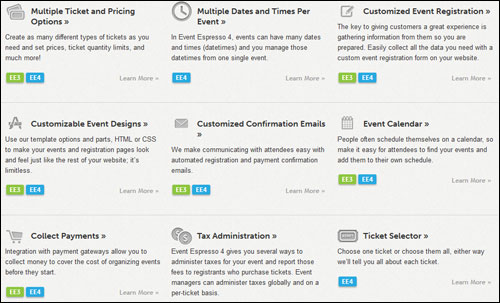
Event Espresso offers many unique features to web site owners. Here are just a few:
- Fast and easy to install and use. Be up and running in very little time.
- Multiple Ticket And Pricing Options. Event Espresso lets you create as many kinds of tickets as you need and specify prices, limits on ticket quantities, etc.
- Event Calendar. Customers can easily see your upcoming events and add these to their schedule with the calendar.
- Tax Administration Options. Event Espresso 4 provides a number of options to manage taxes for your event and report tax fee components to customers when purchasing tickets. You can configure taxes globally or on a ticket-by-ticket basis.
- Custom Post Types. Integrate Event Espresso into your WP theme and reuse attendee details throughout other areas of your site.
- Spam Protection. Reduce the chance of spammers and robots making fake registrations with reCAPTCHA settings that confirm human activity.
- In-App Documentation. Event Espresso 4 comes with three built-in in-app documentation systems: Help Tours, Help Tabs and Tool Tips.
- Event Check-In List. Generate an exportable list of registrants and check-in those who attend.
- Waiting Lists. Prospective participants can subscribe to a waiting list if your event is full. Additionally, you can make it a requirement wait-listed registrants pay for their spots if you plan to add more capacity for your event.
- Event RSS Feeds. Provide automatic updates to your customers, drive quality traffic and reach a wider audience with the built-in XML RSS events feed.
- Optimized For The Most Up-To-Date WordPress Version. The Event Espresso 4 user interface follows all WordPress guidelines to help you build highly aesthetic event pages that are responsive and mobile-friendly.
- Country-specific Settings. Event managers can configure the country and currency settings that will be used to promote your events, such as currency name, currency symbols, decimal characters and places, country codes, regions, and so on.
- Exportable Data. You can export all of your data collected from your event customers into Excel or CSV format for compiling advanced reports, planning new marketing strategies, reviewing attendee statistics, etc..
- Venue Manager. The venue manager feature in Event Espresso 4 lets information about a venue to appear throughout the Event Espresso admin and the public areas of your website to inform site visitors of your event’s location. The venue record has many standard WP settings such as tags, categories, discussion settings, comments, etc., but also includes information like venue capacity, venue web address, venue phone number, physical and/or virtual location, location map, etc. You can also display venues in specific parts in your WP theme and on a venue archive page on your website where you can set up and reuse venue profiles for multiple events or display all the events for a specific venue.
- A Community Of Event Experts. Event Espresso lets you engage with an expert community of event managers and other plugin users. You can network with other members of the Event Espresso community via their community chat room, support forums, job board, and social media pages on Twitter, Facebook, Linkedin and Google+.
- Staff Member Manager. Save time and stay organized by reusing team member profiles for multiple events or displaying profile information such as staff member’s contact information, resume and photo using a shortcode in an event description.
- Event Posts. Publish your events using pages or posts and take advantage of WordPress custom post types. You can even customize the page templates to display events in your own unique way.
Additional features include:
- Object-Oriented Programming (OOP). Event Espresso is simple enough for general WP users, and also extremely robust and customizable for higher end users and web-based software developers. The bottom line is that by using OOP, Event Espresso 4 facilitates more complex developments and customizations to the application.
- Full Logging, Remote Logging. Event Espresso 4 lets you output a log file with debugging data which can be helpful for developers when troubleshooting.
- Autonomy, Flexibility And Value For Money: According to the philosophy stated on their website, Event Espresso’s goal is to “empower business and organization leaders with the event registration, ticketing and management tools that maximize the success of events.” To achieve their goals, the company operates on a modular and efficient model that provides users with great autonomy and flexibility and delivers value for money as a result.
The premium edition of Event Espresso also includes 40+ additional features, including:
- Duplicating events – limits the work of re-entering event information when creating new events.
- Question groups that simplify the process of reusing a series of questions for similar events.
- Default payment status.
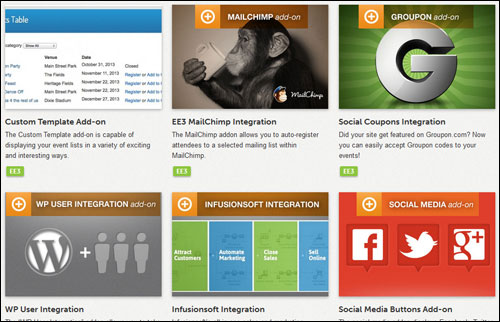
Add-Ons
As mentioned previously, Event Espresso provides “add ons”, which allow you to further expand the capabilities of events.
Some of these add-ons include:
- EE4 Events Grid Template Addon: Displays events in a pure CSS grid-like structure using the featured image. Hovering over the image will display further information. If an event does not have a featured image, it will use a default image.
- Recurring Events Dropdown Custom Template Add-on: The Recurring Events Drop-down custom template lets you organize the events with multiple datetimes into a dropdown list.
- Events Category Accordion Template Add on: The Category Accordion template shows the categories as a simple list. Clicking a category name displays the events related to that category and closes previously open categories.
- Events Social Sharing Add on: This add on adds social sharing features to the end of your Event Espresso “thank you” page that lets your attendees to share a message about their event registration on Twitter and Facebook after booking.
- WP User Integration: The WP User Integration addon allows you to take advantage of the WordPress user system. With the WP User Integration add-on you can give users a special incentive by offering member prices and overriding event prices when members are logged in. You can even set up member-only events where only registered site users will have access to these special events. Members can also input personal details into their profile page allowing them to quickly register for events by auto-filling in their personal information on the event registration form. Users can also view event history and pay for new events.
- Seating Chart Add-on: The seating chart add-on is great for venues and events that sell and reserve seats for attendees in advance. This is ideal for venues and events such as theaters, concert halls, play houses, sports arenas and stadiums. The Seating Chart addon allows you to promote reserved or assigned seating to your events and venues right from your WordPress website. The Seating Chart addon lets you control the experience for your attendees and design assigned seating charts and attach a single price to every seat.
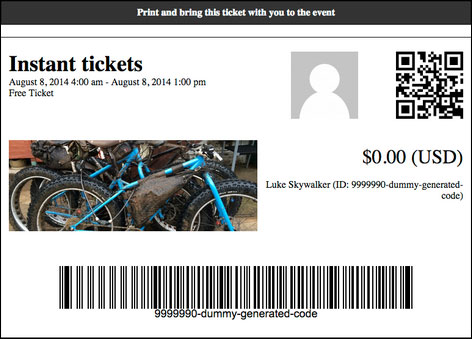
- EE4 Event Ticketing Addon: The Ticketing addon adds the capacity to generate tickets with bar codes. The Bar Scanning add-on gives you the capacity to scan ticket barcodes. The ticketing addon includes the ability to customize event tickets. Multiple bar code types are included for handling check-in scans at venues. Attendees can either print out their tickets or display them on their mobile devices. The barcode scanner can be used for checking in or checking out registrants and to validate tickets.
- EE4 Events Calendar Addon: This addon uses the WordPress calendar to display events and categories of events via a nice graphical calendar.
- MailChimp Integration: The MailChimp addon lets you auto-register participants to a selected autoresponder list or group within MailChimp.
Note: The Event Espresso development team is continually adding new features and improvements to the software, including new add ons.
To learn more about the latest Event Espreso features and add ons, visit the plugin website here:
User Feedback
Below are some of the many great testimonials that satisfied customers have written about Event Espresso:
”Tri-South, Inc is using Event Espresso to manage the course catalog, event ticketing, and class registration. [As their developer] I have customized a few items to make the site and plugin a seamless integration. The client is very pleased!” Jenifer Design
”I recently downloaded it to add to a nonprofit site for a Boy Scout troop and the features work wonderfully with what we wanted to accomplish for the site. It allows us to set up calendar, events, and even take payments for trips. At first, I thought that it would be overkill for such a small site, but now I see the possibilities and will definitely be offering Event Espresso to my clients that need an event organization system for their web sites.” Lucy Conn, Troop 462
”I can’t even imagine what I would want the plugin to do that it doesn’t already do. I’m really happy with the features.” Jim Harmer, Improve Photography

Event Espresso Tips
Whether you are an education services provider, trainer, workshop promoter, or event professional, there are just endless possibilities of what you can achieve with the Event Espresso software.
After purchasing your copy of the plugin and becoming a licensed owner, spend a little time visiting the support forum for useful ideas and practical suggestions to improve your event management and registration process or improve the experience of your event customers.

Event Espresso Support
Event Espresso works with with other WP plugins and themes that follow standard WordPress development rules. If you experience issues with the plugin, however, you will find that Event Espresso provides great end-user support, as many of its end-users attest:
“I’m really impressed with not only the application itself but the support. I have rarely seen such a responsive support staff than at EE. They rock…I highly recommend this plugin!” sock2me
The plugin provides robust support that includes access to a support forum, in-depth online documentation with faqs, knowledgebase and how tos, email support and even a monthly VIP member pass giving you access to community of developers, designers, event managers, publishers and webmasters that use Event Espresso tools, plus faster support response times.
In addition, Event Espresso boasts a well-staffed team of experienced WordPress web developers with a solid track record of support, so this is definitely a solution you can depend on to organize and manage your events.
Product License Cost
Event Espresso is available in different editions, including a FREE basic edition (called Event Espresso Decaf). For personal support and advanced plugin features, however, you should consider purchasing one of the paid plugin editions below:
- Personal License – This license enables you to install Event Espresso on one site only. It includes 51+ Premium features, (addons sold separately) and one year of upgrades and support. Cost = $69.95.
- Everything License – This enables you to configure Event Espresso on one site only. Price includes 51+ Premium features, 29 Premium add-ons and one year of upgrades and support. Price = $279.95.
- Developer Licensing – This allows you to configure Event Espresso on five domains. Includes 51+ Premium features, (add ons sold separately) and one year of upgrades and support. Cost = $249.95.
Pricing details of the Event Espresso plugin depends on whether there are any promotions or limited-time specials being offered. Presently, the software retails for the amounts shown above. Check the plugin’s website for the current price: Event Espresso – Event Registration And Ticket Manager
Note: The above reflects the pricing when this review was written. This may not be the actual pricing charged by the plugin developer when you visit the site.
Additional Info
The Event Espresso development team is continually adding new features and improvements to the plugin. Make sure to register for their newsletter when you visit their site to receive the latest information and updates.
Look up the software’s online documentation pages to find answers to common questions about setting up and using Event Espresso, and the support forums for questions related to a specific situation, or to notify developers about errors and share feedback.
For all documentation, demos, downloads, videos, tutorials, FAQ and more, visit the Event Espresso product information pages.
We Recommend
Event Espresso is the leading WP event registration and ticketing management software, used by thousands of companies.
If you are a WordPress user and you currently run an event that requires scheduling dates and venues, enrolling attendees, and selling seating, then you will probably not find a better WordPress plugin for your needs than Event Espresso.

For more details, check out the plugin here: Event Espresso – WordPress Event Registration & Ticketing Manager System
***