How To Create To Do Lists In WordPress
 There never seems to be enough hours in the day to get things done, especially if you are a business owner or busy manager.
There are so many things to do and remember. You have clients to meet, project tasks to complete, priorities to attend to, fires to put out, deliveries to make, commitments to keep and so on. The “doing” never ends.
Now … on top of all this, add the extra dimension of promoting and growing your business online and maintaining your website or blog updated with regular content and things can quickly start becoming unmanageable and chaotic.
Whether you are running a business, website, blog, or managing a team, it’s important to be able to organize and prioritize your activities, monitor your progress, and, if necessary, delegate tasks and responsibilities to members of your team effectively.
One proven method that can help you save time, create a sense of order and manageability, and allow you to gain some control is to use “to-do” lists.
To Do Lists – Benefits
A “to-do” list helps you monitor your progress when working towards specific goals. Your to do list can be very detailed or specific, or serve as a reminder of what needs to be done today, tomorrow, this week, this month, etc.
Here are some of the many benefits of using to do lists:
Free Up Resources
Writing a to-do list means you won’t have to keep remembering stuff or store a ton of information inside your head. Once tasks are jotted down on a to do list, your head is free to process information and you can focus on other important things.
Time Prioritization
Prioritizing tasks on your list helps you save time and manage your workload more effectively. You can develop a clearer perspective on what’s truly urgent vs what isn’t, and what tasks should be completed first.
Quickly Reorganize
Having a to-do list lets you better cope with situations. If you find that a meeting gets cancelled or extra time has been made available when some task gets completed sooner than expected, you can quickly reorganize and reschedule and continue moving forward with no loss of focus.
Relieve Stress
Stress can result from feeling overwhelmed by the fact that there are so many things that needs doing and very little time to do it in. Using a to do list allows you to prioritize important items that need to get done immediately, and push out tasks that can be worked on later. This can reduce the feeling of being overwhelmed and help to relieve some of the stress you may be feeling.
Better Delegation Of Tasks
A to-do list helps you assign tasks to others better. This is also important if you plan to collaborate with others (see further below).
As you can see, there are many benefits to using to do lists, both in business and in your personal life. Create a list, prioritize your list items and work in a systematic way and productivity and efficiency in your business is sure to increase.
What about using a to do list on your WordPress website or blog?
In this step-by-step tutorial you are going to learn how to easily add a to do list to WordPress to improve business efficiency and productivity using a great little plugin for WordPress called Cleverness To-Do List.
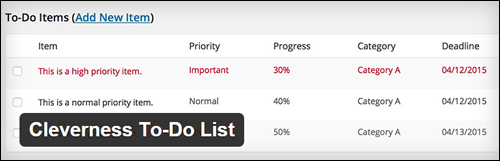
Cleverness To-Do List
Download The Plugin
http://wordpress.org/plugins/cleverness-to-do-list/
Description
This plugin lets you easily add a to-do list to a WordPress site.
Plugin Features
Note: the features described below are discussed in more detail in the tutorial section.
You can set up the plugin to assign private to do lists for each user, to have all users share a to do list, or to have a master list with individual item completions.
The shared to-do list option has a variety of settings available. You can delegate to do items to a specific user (this includes a setting to email a new to-do item to the assigned user) and optionally to have assigned items be seen by that user. You can also assign different permission levels to different users. There are also settings available to display deadline and progress fields. Category support is included as well as front-end administration.
A new menu item is added to the backend to help you manage your lists and the to-do list is also displayed on the dashboard widget.
A sidebar widget is available as well as short code to display the to-do list items on your site. There are two short codes for front-end list administration. Category management is accessed through the back-end admin section.
If you plan to run a multi-author blog you can use this plugin to create custom to do lists for your post planners if you also download a copy of the developer’s premium plugin, Post Planner.
How To Install The Plugin
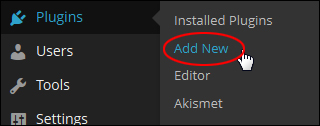
Inside your WP admin area, go to the main menu and click on Plugins > Add New …
In the Install Plugins screen, type in “cleverness” into the search field and hit Enter …
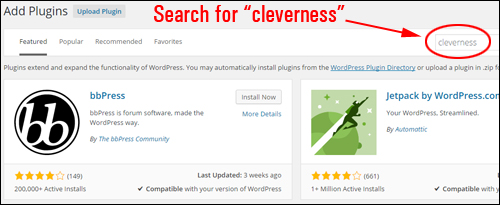
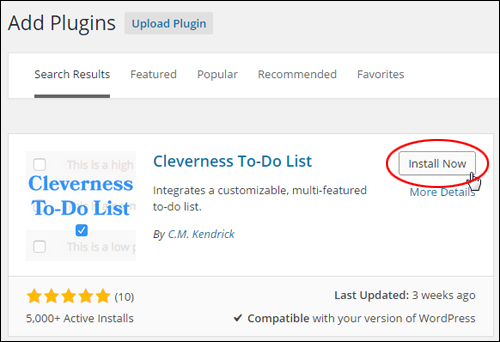
Locate the entry in the Search Results tab and click Install Now …
Click “Activate Plugin” …
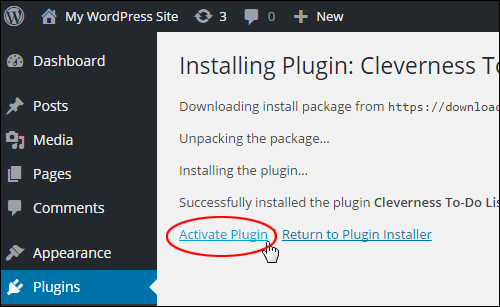
Note: You can also activate the plugin from the Plugins section …

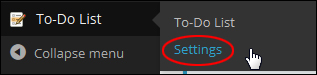
After you have activated the plugin, click on Settings …

Note: The settings area can also be accessed by choosing To-Do List > Settings from your admin menu …
This takes you to the plugin ‘Settings’ section …
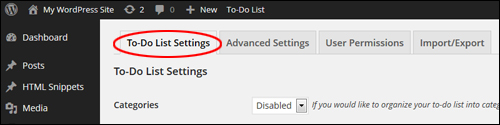
The section below shows you how to set up the plugin …
How To Set Up The Cleverness To-Do List Plugin
The Settings screen is divided into four tabs:
- To-Do List Settings – In this section you can specify the main plugin settings.
- Advanced Settings – This section is where you can customize to-do lists, assign tasks to other users and perform database maintenance tasks.
- User Permissions – In this section you can set up user permissions and capabilities for Group and Master List types.
- Import/Export – This section is where you can import and export to-do plugin and list data settings.
Let’s now take you through each of these sections.
To-Do List Settings
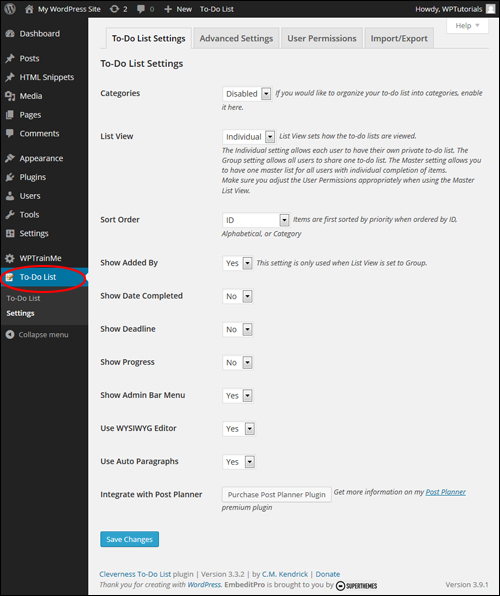
To-Do List Categories
Choose ‘Enabled’ to organize lists into categories, otherwise leave this option set to ‘Disabled’.
Note: If you enable this option, a ‘Categories’ item gets added to the To-Do List plugin menu …
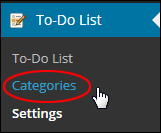
This allows you to add categories to your to-do lists (see ‘Plugin Usage’ section further below for more details) …
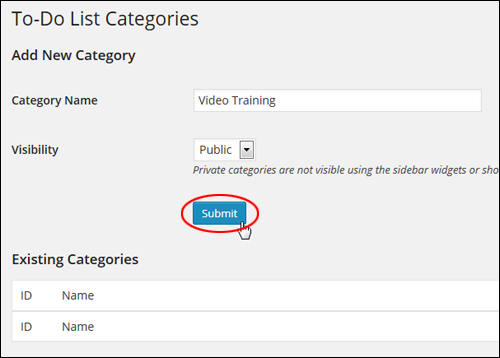
You can set up ‘public’ and ‘private’ categories for your to-do lists.
Private categories are not visible when using widgets or shortcodes (only when ‘Sort Order’ is set to ‘Category’)
List View
List View allows you to choose how your lists are viewed. There are three list views available:
- Individual – Choose this option if you want each user to create and manage their own private to-do list.
- Group – Selecting this option lets all users share the same to-do list.
- Master – This option allows you to have one master list for all users, where users have their own individual completion of items. If you select the ‘Master’ list view, make sure that you configure the User Permissions appropriately in the ‘User Permissions’ tab (this is covered further below).
Sort Order
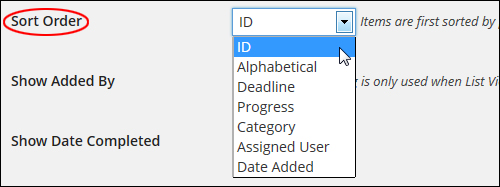
‘Sort Order’ lets you specify how your to-do list items will be sorted.
If you select Alphabetical, ID or Category, ID, Category or Alphabetical options, items will be first sorted by priority.
Show Added By
Enabling this option lets you display which of your members has added an item to the to-do list.
Note: This setting only applies when ‘List View’ is set to ‘Group’.
Show Date Completed
If this option is enabled (‘Yes’), completion dates will display for to-do tasks.
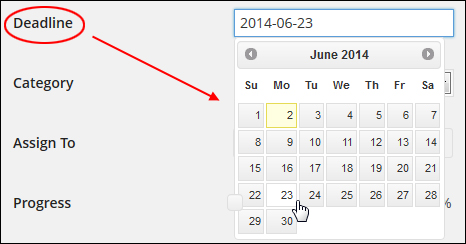
Show Deadline
Enabling this option (‘Yes’) lets you specify deadlines for to-do tasks …
Show Progress
Enabling this option lets you specify task progress indicators for your to-do items …

Show Admin Bar Menu
Enabling this option displays the ‘To-Do List’ menu in your WP Dashboard Admin bar …

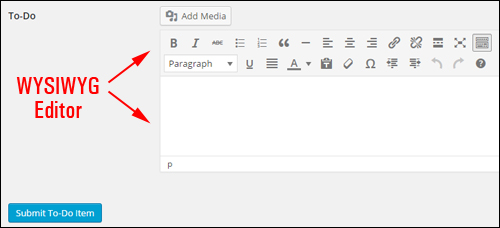
Use WYSIWYG Editor
If this option is enabled, you will be able to add and edit items on your to-do list using the WordPress WYSIWYG Editor …
Use Auto Paragraphs
If enabled, automatic paragraphs are used to display content in your to-do list items.
Integrate with Post Planner
If you are running a collaborative website or blog, you can integrate the Cleverness To-Do List plugin with a plugin called WordPress Post Planner, from the same developer that helps to make the task of managing a multi-author WordPress site easier …
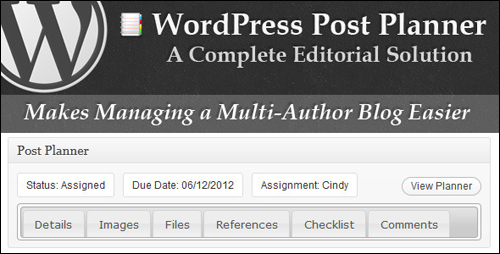
To learn more about this plugin, visit this site: WordPress Post Planner
After you are done configuring your plugin options in this section, click the ‘Save Changes’ button …
Advanced Settings
After you have configured the settings in the To-Do List Settings tab, click on the ‘Advanced Settings’ tab to proceed …

This brings up the ‘Advanced Settings’ screen …
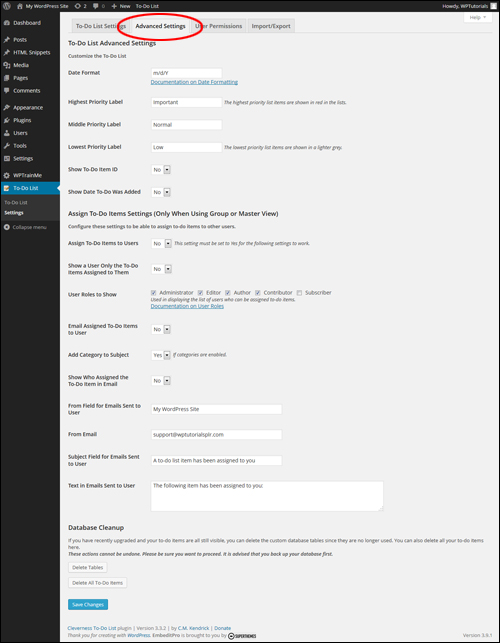
This area lets you customize your To-Do lists, assign to-do tasks to users and perform plugin database maintenance tasks.
Let’s take you through how to configure the plugin’s ‘Advanced Settings’ section …
To-Do List Advanced Settings > Customize The To-Do List
Here you can customize your To-Do List …
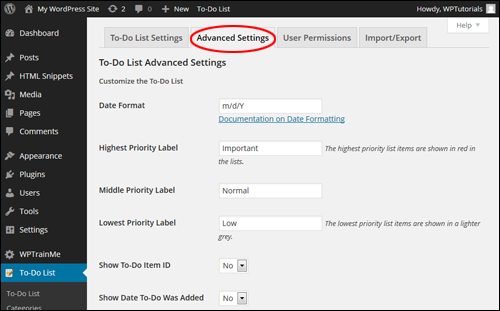
You can configure the following options in this section:
Date Format
This section lets you specify how to display dates in your to-do lists (e.g. month/day/year, day/month/year, etc.)
Note: To learn more about formatting dates in WordPress, visit the relevant section of the WordPress Codex below:
WordPress Codex – Formatting Date And Time
Priority Labels
In this section you can customize your labels for prioritizing highest (important), middle and low items …
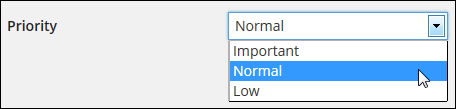
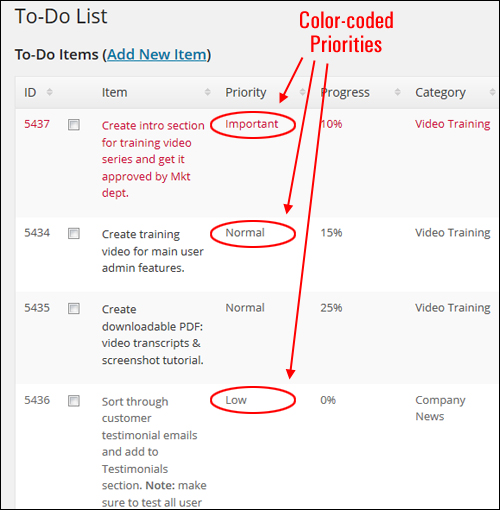
Items given the highest priority are color-coded in red in the lists and low priority items display in a lighter shade of grey …
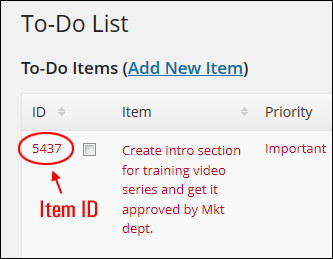
Show To-Do Item ID
Enabling this option (‘Yes’) shows item IDs on your to-do list …
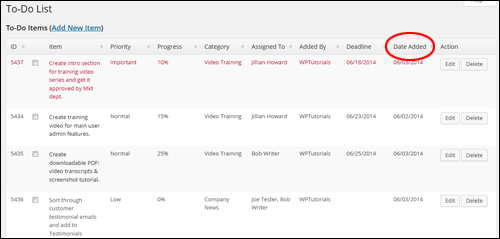
Show Date To-Do Was Added
Enabling this option shows the date the items table was added …
To-Do List Advanced Settings > Assign To-Do Items Settings
If you have chosen either ‘Group’ or ‘Master’ View for your to-do list, you can configure the settings in this area and assign to-do items to other users …
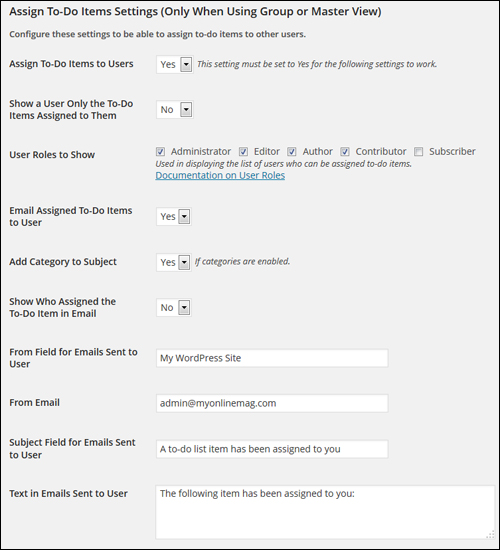
The following options can be configured in this section:
Assign To-Do Items to Users
Enabling this option lets you assign to-do items to other users …
Note: This set this option to ‘Yes’ for the settings below it to work.
Show a User Only the To-Do Items Assigned to Them
Enable this option (‘Yes’) to display to-do items only to users who have been assigned those items. Leaving this option disabled (‘No’) will display items to all users.
User Roles to Show
Check the boxes in this area (Administrator to display the type of users that can be assigned todo items. If you don’t want to assign to-do items to a specific role, then leave its checkbox unticked.
Email Assigned To-Do Items to User
If you enable this option, WordPress will automatically send users an email with their assigned to-do items …
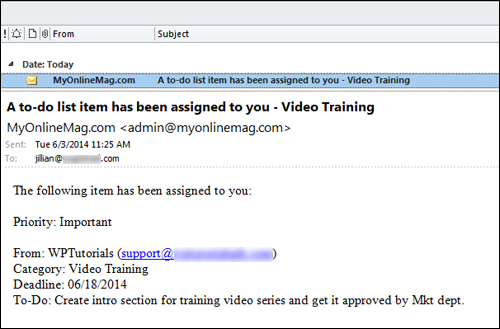
If you don’t want to send out emails to users, then leave this option disabled.
Note: If this option is disabled, skip the other items in this section.
Add Category to Subject
If you have enabled categories in your plugin settings and select ‘Yes’ for this option, the to-do category will display in the subject of emails sent to users …
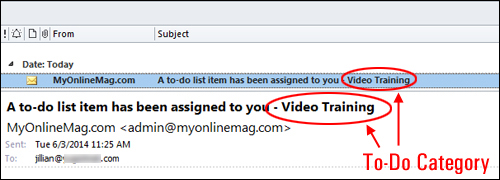
Leave this option disabled (‘No’) if you don’t want to display to-do categories in the subject of your emails.
If you don’t want to show to-do categories in the email subject, then leave this option disabled.
Show Who Assigned the To-Do Item in Email
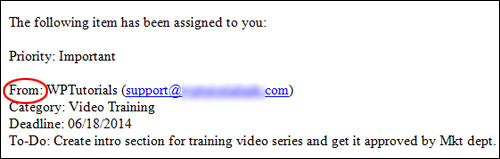
Enable this option (‘Yes’) to display the user who assigned the to-do item in the email. This option is useful if, for example, your site has several project managers assigning to-do items to users …
From Field for Emails Sent to User
This field lets you customize the “From” field when sending out email notifications. Add your company name, your domain, your name, or anything you like in this field …

From Email
Add into this field the email address that you want displayed as the “sent from” address …

Subject Field for Emails Sent to User
Type in a subject field for the email that will be automatically sent to users whenever a new item has been assigned to your to-do list …

Text in Emails Sent to User
Add the body of the email message that will be sent out automatically to users when a new item has been assigned to your to-do list.

To-Do List Advanced Settings > Database Cleanup
This area allows you to carry out database maintenance tasks related to plugin data directly from your plugin settings area itself without having to access your web server …
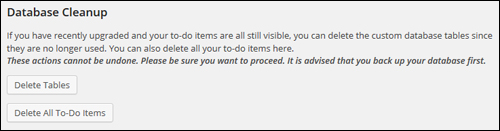
This is useful if, for example, you see that todo items you have deleted are still showing up on your site.
The tasks below can be performed in this section:
- Delete Tables – Remove custom database tables that you are no longer using.
- Delete All To-Do Items – Delete all to-do items.

Actions that you perform on your database from this screen cannot be undone. If you are sure that you want to proceed with any of the database operations available in this section, then we recommend backing up your database first.
If you don’t want to perform your own backups, then get help from a WordPress professional, or use a WordPress backup plugin. You can read about a great WordPress backup plugin that we recommend using to completely automate your backups here:
User Permissions
Here you can configure user permissions and capabilities for Group and Master List types …


If you choose Individual List, the only item that applies in this section is the View To-Do List permission …
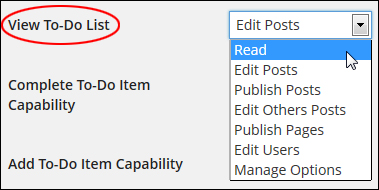
If you plan to configure user permissions and capabilities for Group or Master List types, select the highest level capabilities that you want users to have access to for each option …
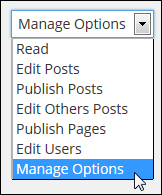
By default, general capabilities for each user role are configured as follows:
- Subscribers: Read
- Contributors: Edit Posts
- Authors: Publish Posts
- Editors: Edit Others Posts
- Administrators: Manage Options
Note: When using the Master list type non-admin users should only be authorized to view and complete items, otherwise they will have the ability to edit the Master list.
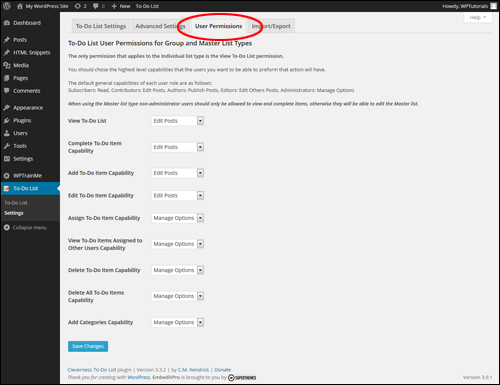
Let’s review the settings for the User Permissions section:
View To-Do List
This option permits the selected capability to view items in the dashboard widget and on the To-Do List page under the ‘Tools’ section.
Complete To-Do Item Capability
Here you can permit the chosen capability to mark items as completed or uncompleted.
Add To-Do Item Capability
This setting enables the chosen capability to add new to-do items.
Edit To-Do Item Capability
This enables the chosen capability to modify existing to-do items.
Assign To-Do Item Capability
This setting permits the chosen capability to assign to-do items to individual users.
View All Assigned Tasks Capability
Here you can allow the selected capability to view all tasks even if “Show Each User Only Their Assigned Tasks” is set to ‘Yes’.
Delete To-Do Item Capability
Here you can enable the selected capability to delete individual to-do items.
Delete All To-Do Items Capability
Here you can allow the selected capability to purge all the completed items.
Add Categories Capability
This option enables the chosen capability to add new categories.
Import/Export
The ability to import and export to-do list data can be useful. For example, you may want to transfer data from one site to another, or store your list data for backup or reporting purposes.
To access this function, click on the ‘Import/Export’ tab in your plugin settings area …

Now you can import or export your list data and plugin settings …
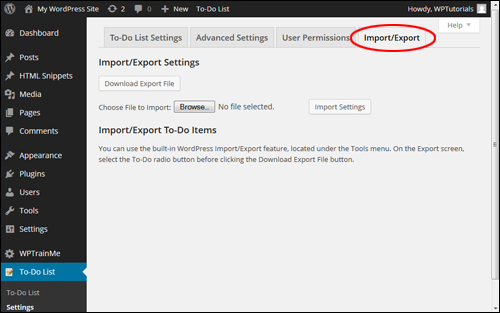
Exporting To-Do List Data
To export and download your data settings click on the ‘Download Export File’ …
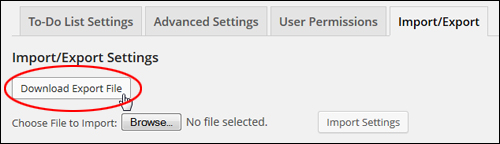
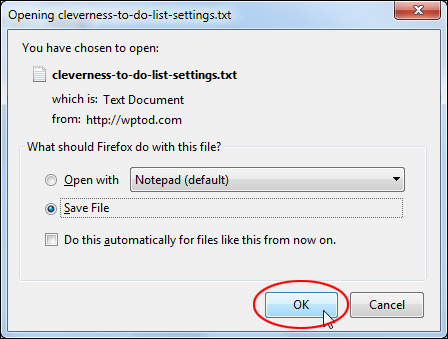
This will open up a window allowing you to download and save the data as plain text to an internal or external drive …
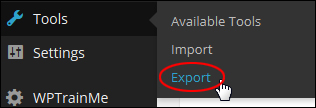
In addition to exporting list data from the ‘Import/Export’ section, you can also export data by going to your WordPress dashboard menu and selecting Tools > Export …
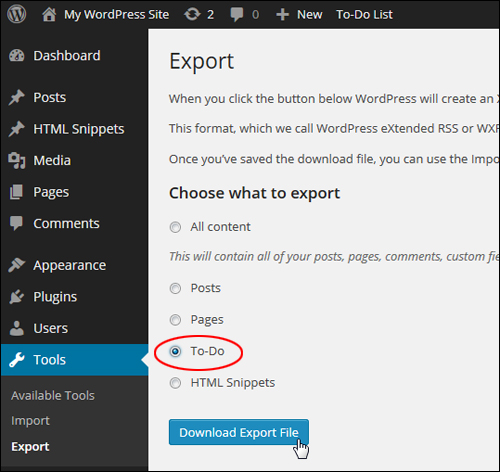
You can include to-do list data in an export file (in XML format), either by selecting ‘All content’ (includes everything – posts, pages, etc…), or selecting ‘To-Do’ from the ‘Choose what to export’ section and clicking the ‘Download Export File’ button to download your file to your hard drive…
Importing To-Do List Data
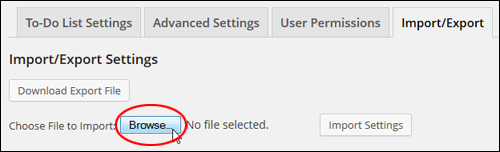
To import a list data file, click on the ‘Browse’ button next to the ‘Choose File to Import’ field …
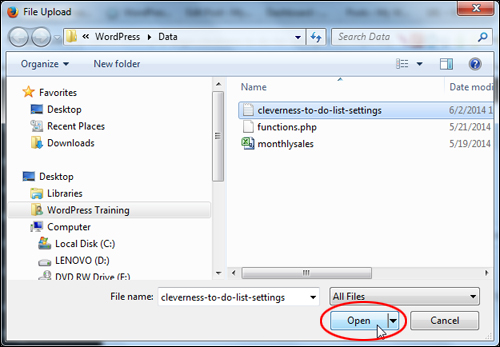
Locate the previously saved to-do list data file in your hard drive or external drive and click ‘Open’ …
After your data file has been uploaded to your settings area, click the ‘Import Settings’ button …
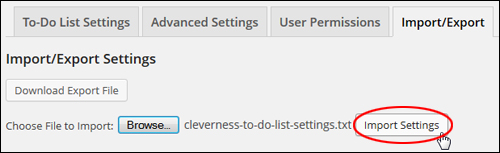
Your file data will be imported.
Now that you have configured all plugin settings, you can start creating and editing to-do lists.
How To Use The Cleverness To-Do List Plugin
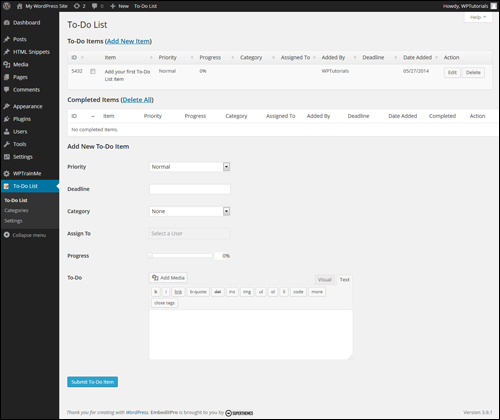
To create a new to do list, go to your WordPress dashboard menu and click on To-Do List > To-Do List …
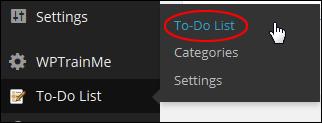
This brings you to the ‘To-Do List’ screen …
How To Add New To-Do Items To Your List
There are a number of ways to add new to-do items to your list.
For example, you can add new to-do items to your list from your dashboard toolbar …

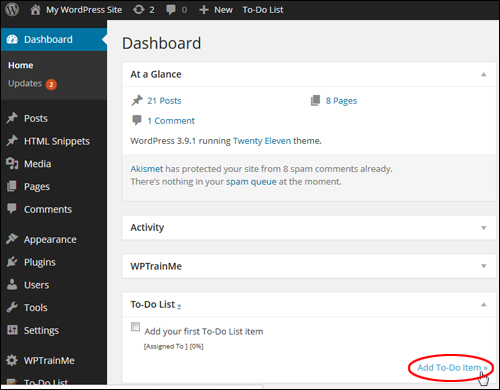
You can also add a new item to your to-do list in the Dashboard by clicking on the ‘Add To-Do item’ link …
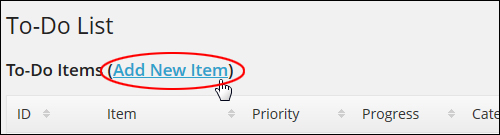
You can click on the ‘Add New Item’ link in the ‘To-Do Items’ section (note: only use this option if your To-Do list already contains many items, as the link is only going to take you to the “Add New To-Do Item” section further down the screen) …
All the methods shown above will take you to the ‘Add New To-Do Item’ area.
Depending on how you have configured the plugin’s settings, some options may not display when adding new to-do items.
Configure the options you have enabled for your to-do items, enter appropriate values and information into the relevant fields and click on the ‘Submit To-Do Item’ button to add the to-do item …
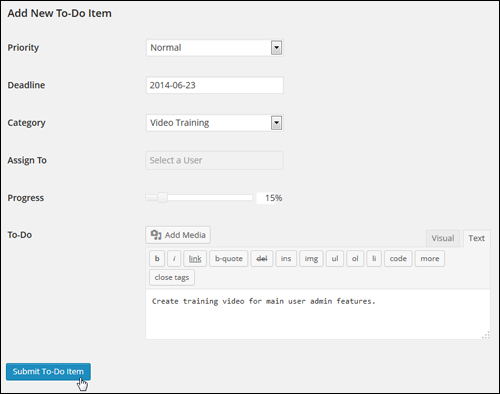
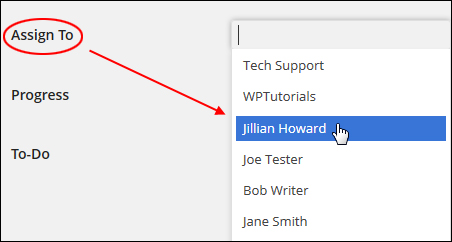
Note: If you have chosen a list type that allows you to assign responsibilities over items to users, select a user from the drop-down list and assign them the item …
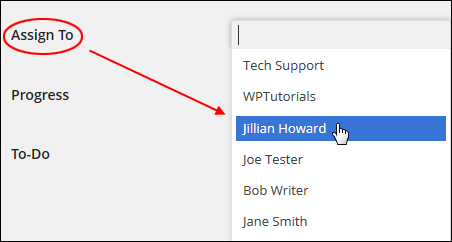
You can also assign multiple users to the same item (click on ‘x’ to delete a user) …

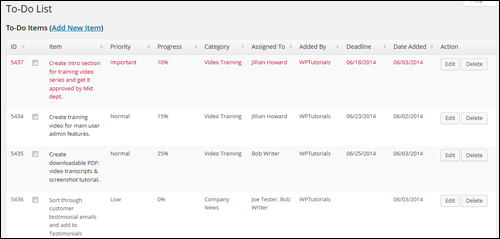
Once the item has been added, the item will be listed as an entry in the ‘To-Do List’ table …

Repeat the above process to continue adding items to your to-do list …
Editing And Deleting To Do Items
To edit or delete an item, click on the ‘Edit’ or ‘Delete’ buttons associated with each item under the ‘Action’ column …

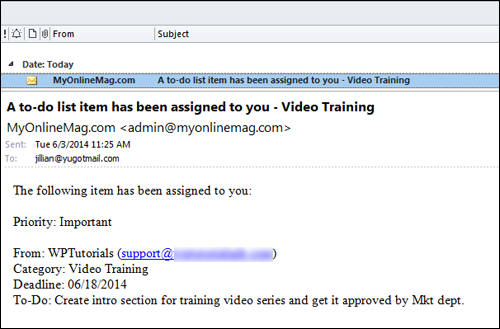
Depending on how you have configured the plugin (discussed earlier), users assigned to tasks may also receive email notifications …
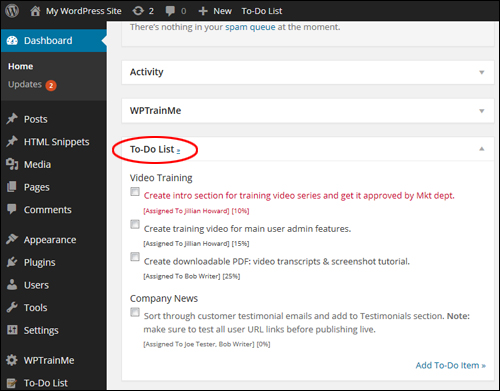
After creating your to-do list, users can view the list inside their own dashboard …
When a user assigned with the item completes the task and ticks the item checkbox …
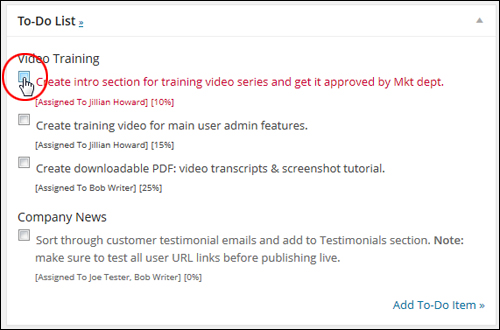
… the item is then deleted from the “To-Do” list …
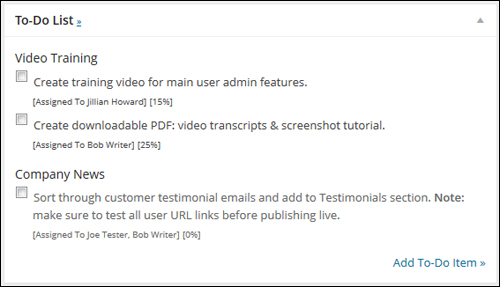
And gets listed the ‘Completed Items’ section located in the main screen of the ‘To-Do List’ plugin …

Additional Information
The Cleverness plugin provides additional functions that let you display to-do lists on your site using widgets, and display a list on any page or post using short codes.
Using The Plugin Widget
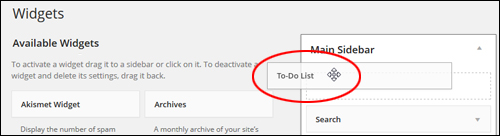
To add a to-do list to your site using widgets, go to the ‘Widgets’ section (Appearance > Widgets) and drag the ‘To-Do List’ widget to the location in your sidebar (or footer) menu where you want the to-do list to appear …
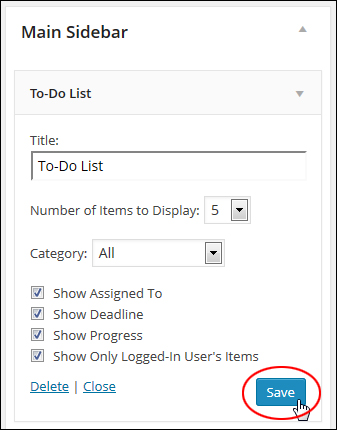
Configure the widget settings and click the ‘Save’ button to update your settings …
Your list will now display where the widget was added (e.g. the sidebar menu, footer, etc.)
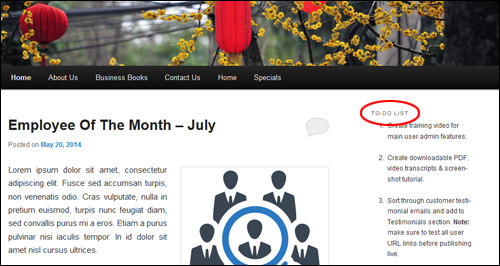
To learn more about how to use widgets in WordPress, see the tutorial below:
Using Plugin Short Codes
You can also add to-do lists and checklists to your site with short codes.
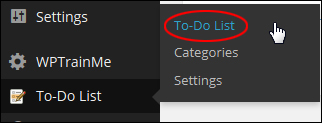
To access the plugin’s shortcode documentation, select To-Do List > To-Do List from the dashboard menu …
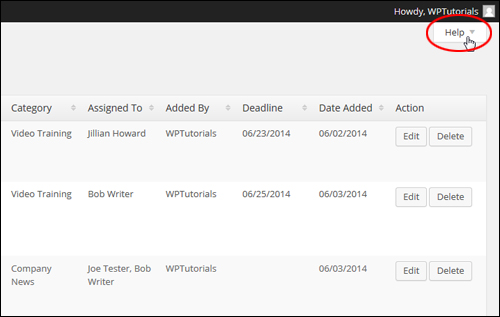
Click on the ‘Help’ tab on the corner of your screen …
Click on the ‘Shortcodes’ tab to access the Shortcode Documentation …
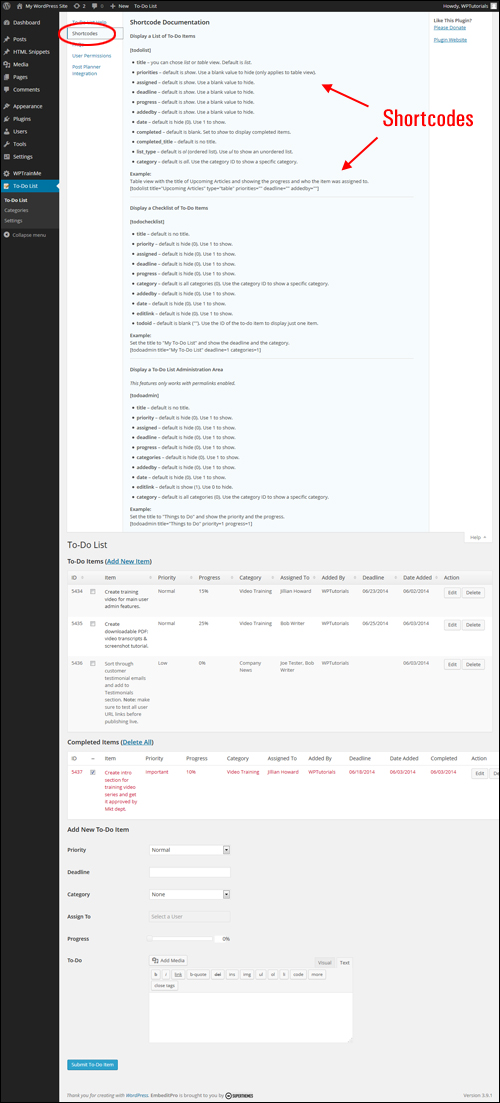
This section explains various ways to configure and use short codes for displaying lists on your content.
Once you know what information you would like to display on your site, open up a new page or post and either type or paste the short code inside the content editor …
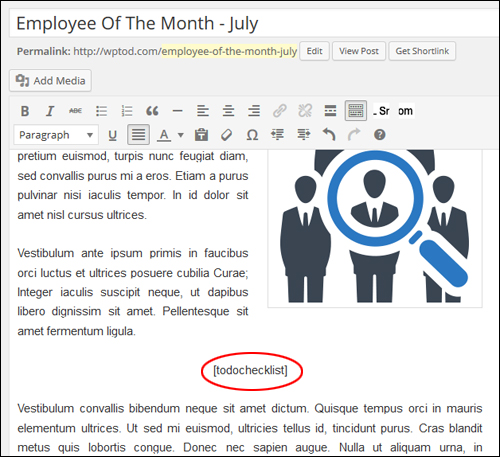
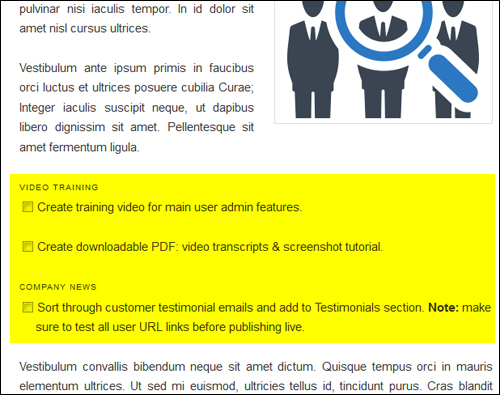
Publish your page or post and you should see the list showing in the location where you have inserted the shortcode …
Visit this site to learn more about this plugin:
Congratulations! Now you can create and add a to-do list in WordPress.
***
"I was absolutely amazed at the scope and breadth of these tutorials! The most in-depth training I have ever received on any subject!" - Myke O'Neill, DailyGreenPost.com
***