 As we’ve discussed in previous posts, in a default installation, WordPress treats your site as a ‘blog’ and displays your latest post entries on the home page, unless you set a specific page as your main page.
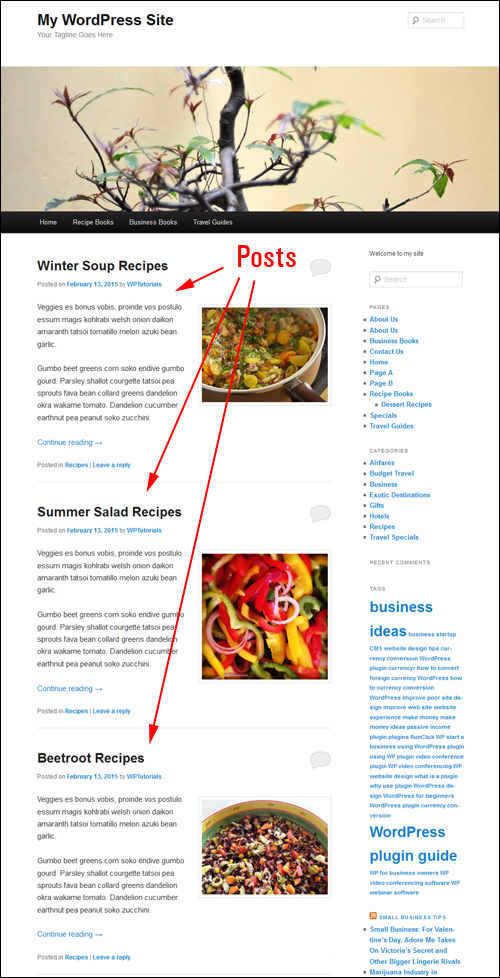
In a previous tutorial, we’ve also shown you how to create a WordPress blog page to show your latest blog post entries.
Regardless of your choice to make recently published posts show up on your main page or your blog page, With WordPress you can specify the number of blog post entries to show on these pages (e.g. ‘1’, ’7’, ’12’ etc.)
Your WordPress website will then display blog posts on your blog page up to the maximum number of items you have specified, even if your WP website or blog contains more blog posts than the number of posts set to display …
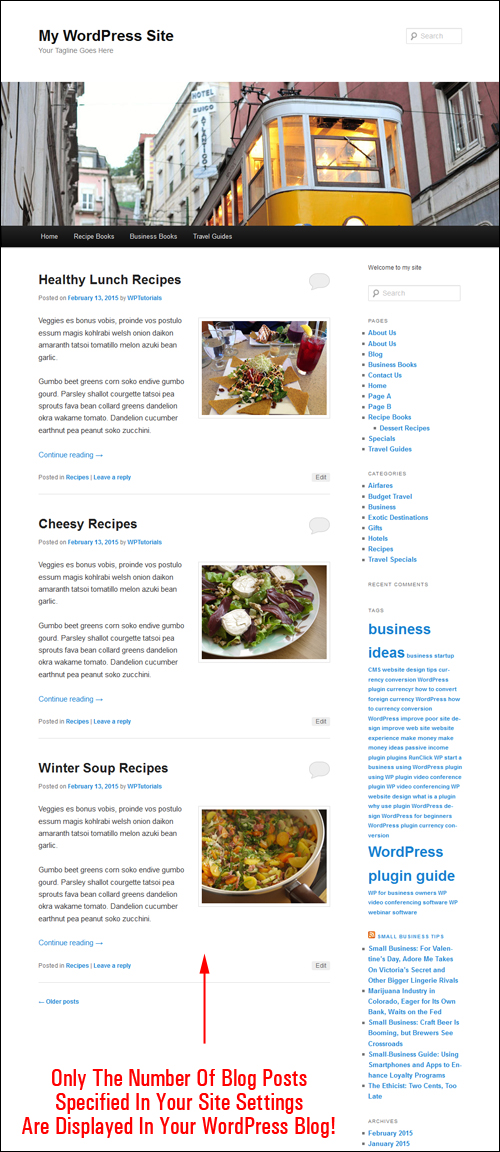
Being able to specify how many entries display on your WordPress site has a number of practical uses.
For example, you can display only the latest single entry you have published. This is handy, if, for example, you are promoting a weekly special, a ’book of the month’ type of offer, publish the latest results of a local sports competition, post an upcoming event, set up a monthly team page for updates and announcements, etc.
Or, you can use this feature to fill an ugly space on your blog page if your sidebar menu is too long …
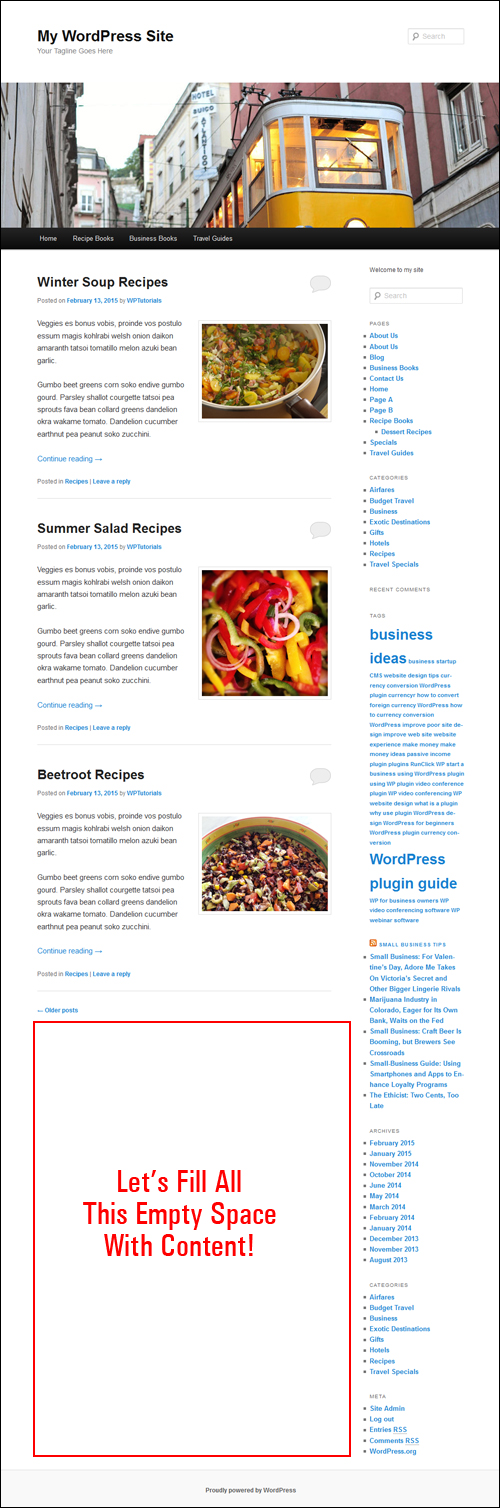
Whatever the reason, With WordPress you have the flexibility to change the number of posts that will display on main blog page.
Let’s show you, then, how to set the number of posts you want to display on your site’s blog page.
Setting The Number Of Post Entries To Display On Your WordPress Blog Page
Through its content management system (CMS), WordPress lets you specify how many published blog post entries you would like to have displaying on your blog page.

How many blog posts you want to display is entirely up to you. there is no limit to this amount …

Note: We recommend that you choose a sensible setting that won’t overload your page as the entries load on your site. You can always increase or decrease the amount of posts displayed.
To specify the number of published blog post entries you want to show on your blog page website, go to your WordPress dashboard menu and choose Settings > Reading …
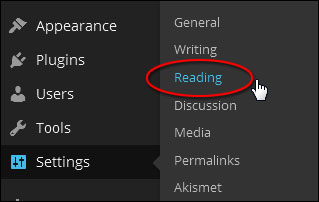
Configure the settings in the Reading Settings panel as per the screenshot below:
Changing The Number Of Posts Displayed On The Home Page
If you are using your site as a blog (i.e. the default WordPress option), where the front page displays your newest blog posts, then edit your settings as described below:
- Front page displays: Set this to Your latest posts
- Blog pages show at most: X posts (where ‘X’ is the number of posts you want showing – i.e. ‘1’, ’5’, ‘7’, ’12’ etc.)
- Click the ‘Save’ button when done…
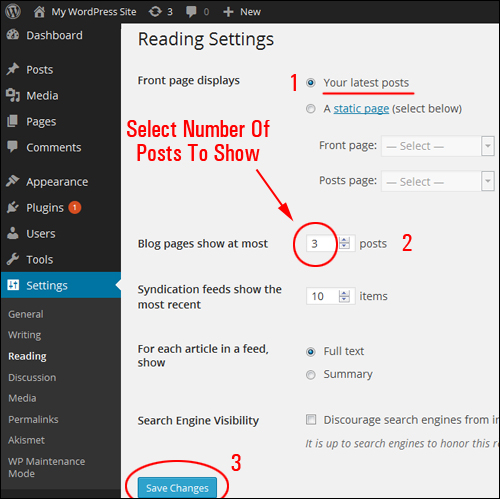
To Modify The Number Of Posts On Your Blog Page
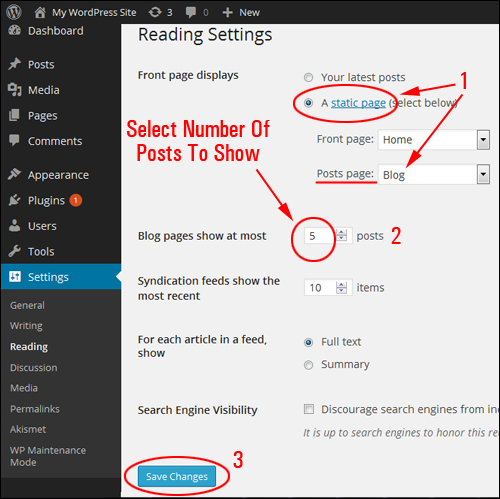
If you are using your WordPress site as a website, where the home page shows a fixed page and your most recent post entries display on a separate blog page, then edit your settings as shown below:
- Front page displays: Set this to A static page, then select Posts page: > your Blog Page from the drop down menu
- Blog pages show at most: X posts X posts (where ‘X’ is the number of blog posts that you want to show – e.g. ‘1’, ’5’, ’10’, ’12’ etc.)
- Click the ‘Save’ button when done …
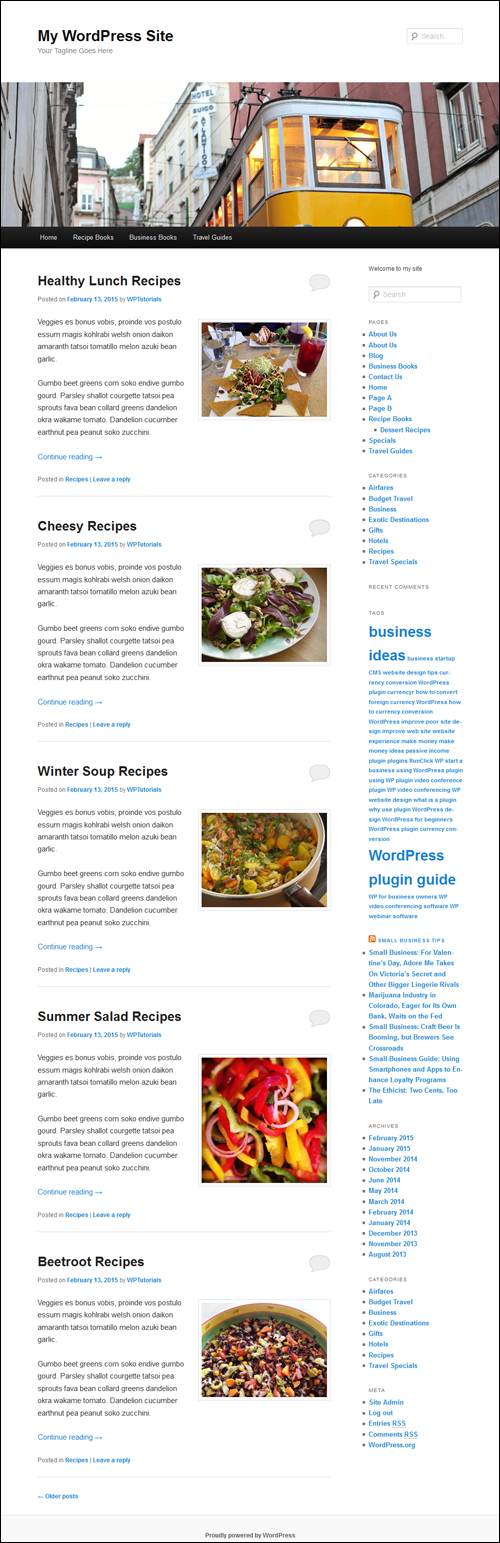
Now, when visitors land on your site, they will see your most recent published articles displayed either on your front page or blog page, up to the maximum number of posts you have specified …
To learn how to change the length of your post excerpts, see the tutorial below:
Congratulations! Now you know how to change the number of blog posts you want to display on the blog page.
Related Posts
If you are new to WordPress, you may also find the following topic-related posts useful:
***
"Wow! I never knew there's so much to learn about WordPress! I bought one of the WordPress for Dummies three years ago, such authors need to be on this course!" - Rich Law, Create A Blog Now