How To Create To Do Lists In WordPress
 If you are running a hectic business, time always seems to be in short supply.
There is just too much to do and remember. You have so many deadlines to meet, tasks to complete, priorities to attend to, fires to put out, appointments to make, commitments to keep and so on. The stress of trying to get things done on time never seems to stop.
Now … add the extra workload of promoting and growing your business online and maintaining your website updated with new content and things can quickly start becoming unmanageable and chaotic.
Whether you run a business, website, blog, or manage a project, you need to be able to organize and manage your daily activities.
A ”tried and true” tool that can help you save time, create a sense of order and manageability, and allow you to regain control is to use a “to do” list.
To Do Lists – Benefits
A “to do” list can help you measure your progress when trying to get projects completed. Your to do list can be detailed and specific, or serve as a concise reminder of what needs to be done over a given period of time.
Here are just a few of the many benefits of using to-do lists:
Free Up Resources
Creating a to-do list means that you won’t have to try and remember stuff or clutter your mind with details. Once things are recorded on a to-do list, your head is free to process other information and you can focus on more important things.
Better Strategic Planning
Creating and organizing to-do lists helps you view the bigger picture and come up with a strategy to get everything completed on budget and on time.
Keep Documented Work Logs
To-do lists let you maintain documented logs of what work has been done. This can be used as evidence of work done to employers or clients, or just as a way of helping you track your own productivity and efficiency.
Accountability
With no accountability there is no commitment to getting things completed, and no motivation to take meaningful action. Lack of accountability can also allow excuses to creep in and take over your work day.
Better Delegation Of Tasks
To-do lists help you better assign tasks to other people. This is also important if you plan to collaborate on a team-based project (see further below).
As you can see, there are many benefits to using a to do list, both in business and in your personal life. Create a list, prioritize your list items and work systematically and your business efficiency and productivity will surely increase.
What about using to-do lists on your WordPress website or blog?
In this detailed step-by-step tutorial we are going to show you how to add to do lists to WordPress to improve business efficiency and productivity using a customizable, multi-featured to do list plugin for WordPress called Cleverness To-Do List.
Cleverness To Do List
Download URL
http://wordpress.org/plugins/cleverness-to-do-list/
Plugin Description
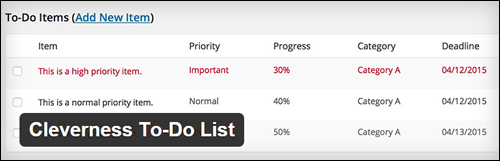
This plugin lets you easily add a customizable to-do list to a WordPress website or blog.
Plugin Features
Note: the features listed below will be discussed in more detail in the tutorial section.
You can configure Cleverness To Do List to assign private to do lists for individual users, to have all users share a to-do list, or to have a master list with individual item completions.
The shared to-do list option includes different settings. You can delegate to-do items to a specific user (this includes emailing new to do items to assigned users) and optionally to have those items be viewable by that user. You can also assign different permission levels using capabilities. There are also settings available to show deadline and progress fields. Category support is also included in the front-end administration.
A new menu item is added to the admin backend to manage your lists and your to-do list is also listed on the dashboard widget.
A sidebar widget is also available as short code to display the to do list items on your blog. There are 2 shortcodes for front-end list administration. Category management is accessible via the back-end.
If you plan to run a multi-author blog you can use this to do lists plugin to create custom to do lists for your post editors if you also use a copy of the Post Planner plugin for WordPress from the same developer.
Installing The Plugin
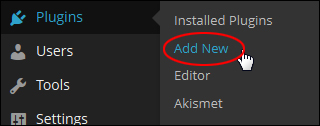
From your site’s administration section, click on Plugins > Add New …
In the Install Plugins section, type in “cleverness” into the search field and hit Enter …
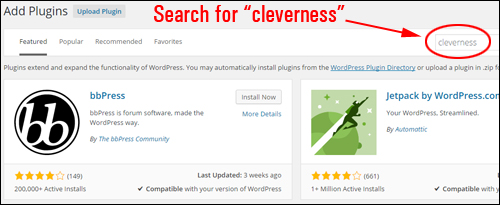
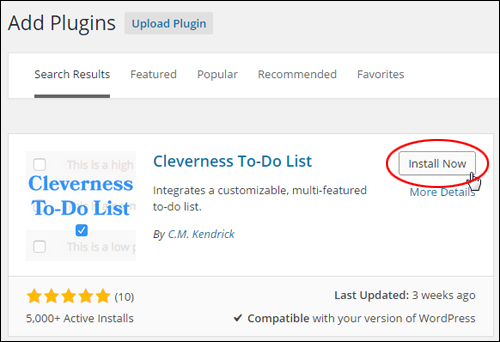
Locate the Cleverness To-Do List plugin in the Search Results section and click Install Now …
Activate the plugin …
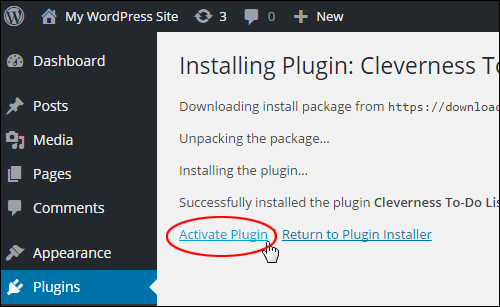
Note: You can also activate the plugin in the Plugins screen …

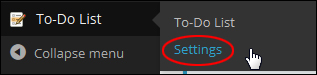
Once you have activated the plugin, click on Settings …

Note: The plugin’s ‘Settings’ area can also be accessed by selecting To-Do List > Settings from the dashboard menu …
This brings you to the ‘Settings’ page …
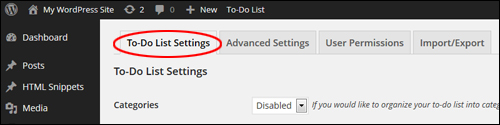
Let’s set up the plugin …
How To Set Up The Plugin
The “To-Do List” plugin ‘Settings’ screen is divided into four sections:
- To-Do List Settings – In this tab you can specify the main plugin settings.
- Advanced Settings – The options in this tab let you customize to-do lists, assign tasks to other users and perform plugin database maintenance tasks.
- User Permissions – The options in this section let you set up user permissions and capabilities for Master and Group List types.
- Import/Export – In this section you can export and import to-do list data and plugin settings.
Let’s now go through each of these sections.
To-Do List Settings
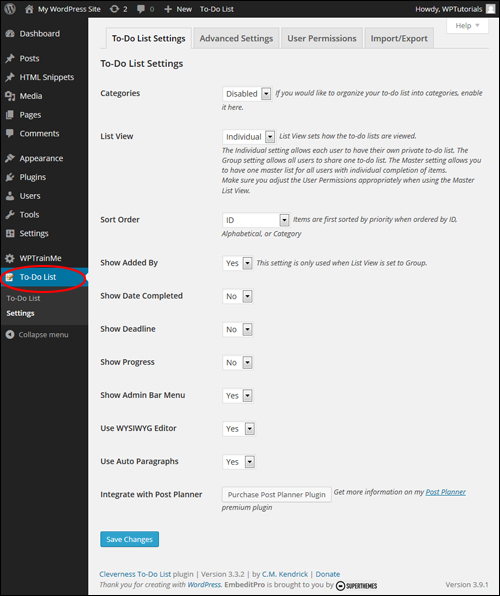
Categories
Select ‘Enabled’ to organize lists into categories, otherwise leave this option set to ‘Disabled’.
Note: If you enable this option, a ‘Categories’ item will be added to the To-Do List menu …
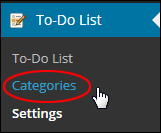
This allows you to add categories that you can then use to organize your lists (see ‘Plugin Usage’ section further below for more details) …
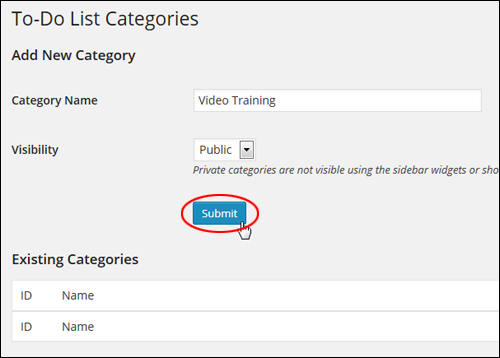
You can set up ‘public’ and ‘private’ categories for your to-do lists.
Private categories are not visible when using the sidebar widgets or shortcodes (only when ‘Sort Order’ is set to ‘Category’)
List View
List View allows you to specify how lists are viewed. You can choose 3 to-do list views:
- Individual – Select this option if you want each user to create and manage their own private to-do list.
- Group – Choosing this option lets all users share the same to-do list.
- Master – This option allows you to create a master list for all users, where users have their own individual items to complete. If using the ‘Master’ list view, make sure to set the User Permissions appropriately in the ‘User Permissions’ tab (this is covered further below).
Sort Order
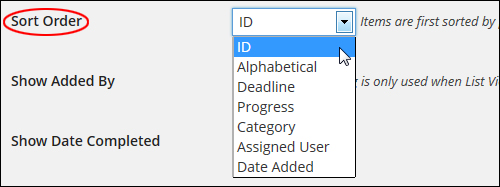
‘Sort Order’ lets you specify how list items will be sorted.
If you choose ID, Alphabetical, or Category options, items will be first sorted by priority.
Show Added By
Enabling this option lets you display which members have added an item to the to-do list.
Note: This setting only works if ‘List View’ is set to ‘Group’.
Show Date Completed
If this option is enabled (‘Yes’), completion dates will display for to-do items.
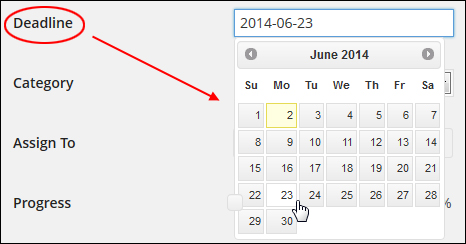
Show Deadline
Enabling this option lets you specify deadlines for your to-do tasks …
Show Progress
If enabled (‘Yes’), you can specify task progress indicators for your to-do items …

Show Admin Bar Menu
If this option is enabled, the ‘To-Do List’ menu displays in your WordPress Dashboard Admin bar …

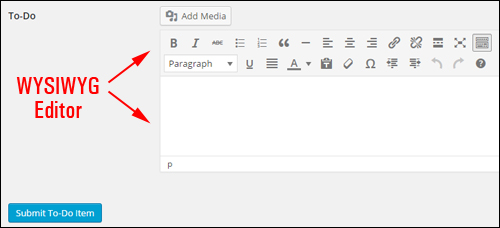
Use WYSIWYG Editor
This option lets you add and edit items on your to-do list using the WordPress WYSIWYG Editor …
Use Auto Paragraphs
Enable this option (‘Yes’) to display content in your to-do list items using paragraphs.
Integrate with Post Planner
If you are running a collaborative website or blog, you can integrate the Cleverness To Do List plugin with a plugin called WordPress Post Planner, from the same plugin developer that provides you with a complete WordPress editorial solution …
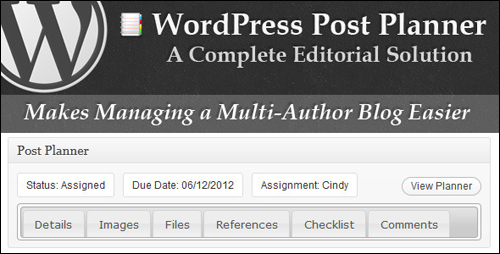
Go here to learn more about using this plugin: WordPress Post Planner – WordPress Multi-Author Publishing Plugin
After you have configured your plugin options in this section, remember to click the ‘Save Changes’ button …
Advanced Settings
After you have configured the general settings, click on the ‘Advanced Settings’ tab …

This brings up the plugin’s ‘Advanced Settings’ section …
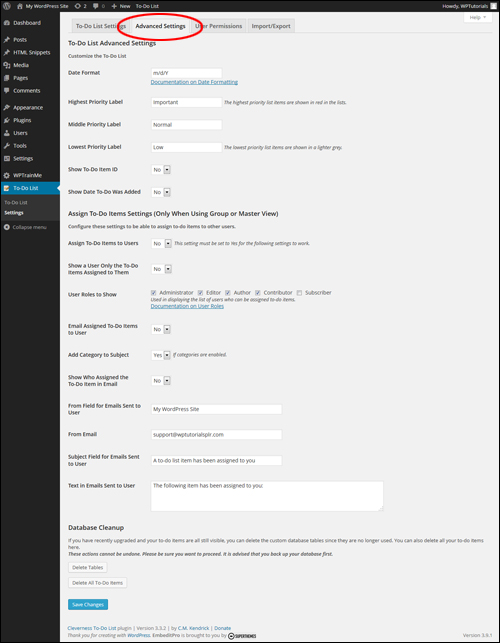
In this section you can customize your To Do lists, assign to-do tasks to other users and perform database maintenance.
Let’s take you through how to configure the plugin’s ‘Advanced Settings’ section …
To-Do List Advanced Settings > Customize The To-Do List
This section of the ‘Advanced Settings’ tab allows you to customize your To-Do List …
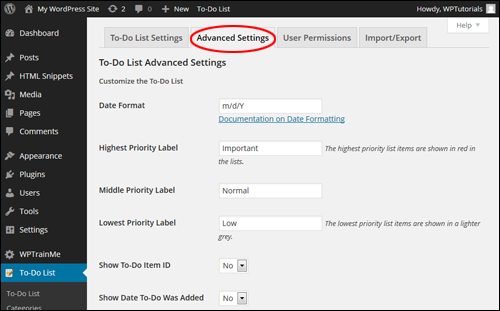
The following options can be configured in this section:
Date Format
This section lets you specify how to display dates on your todo list (e.g. month/day/year, day/month/year, etc.)
Note: To learn more about formatting dates in WordPress, refer to the relevant section of the WordPress Codex below:
WordPress Codex – Formatting Date And Time
Priority Labels
This section lets you customize your labels for prioritizing highest, middle (normal) and lowest items …
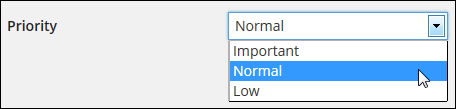
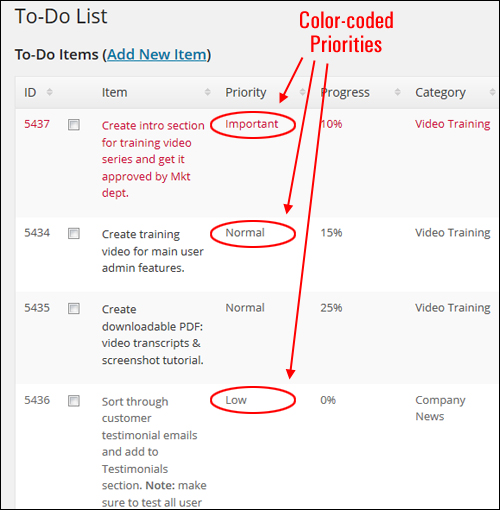
high priority items display in red in the lists and low priority items display in a lighter shade of grey …
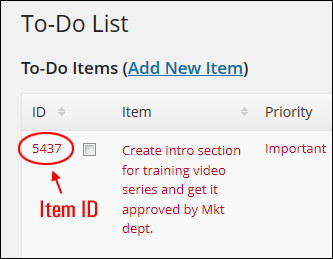
Show To-Do Item ID
If enabled, item IDs display on the to-do list …
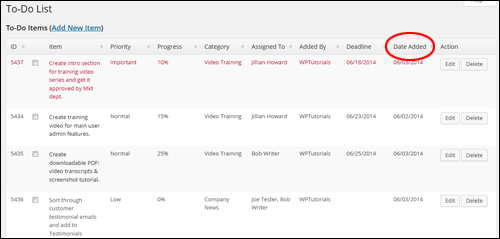
Show Date To-Do Was Added
If enabled (‘Yes’), the date your to-do list was added will display on the items table …
To-Do List Advanced Settings > Assign To-Do Items Settings
If you have chosen either ‘Group’ or ‘Master’ View for your to-do list, you can configure the options in this section and assign to-do items to other users …
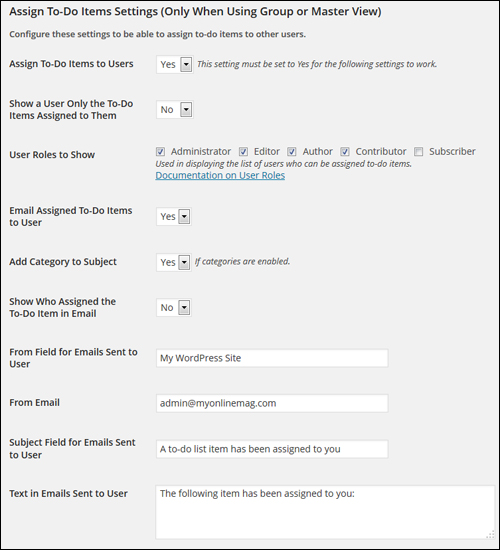
You can configure the following options in this area:
Assign To-Do Items to Users
If this option is enabled, you can assign to-do items to other users …
Note: This setting must be set to ‘Yes’ for the settings below it to work.
Show a User Only the To-Do Items Assigned to Them
Enable this option to display to-do items only to users who have been specifically assigned those items. Leave this option disabled (‘No’) to display items to all users.
User Roles to Show
Check the boxes in this area (Administrator, Editor, Author, Contributor, Subscriber) to display the type of users that can be assigned to-do items. Leave the checkbox unticked for any roles that you don’t want to assign to-do items.
Email Assigned To-Do Items to User
When this option is enabled (‘Yes’), WordPress will automatically send an email to users with their assigned to-do items …
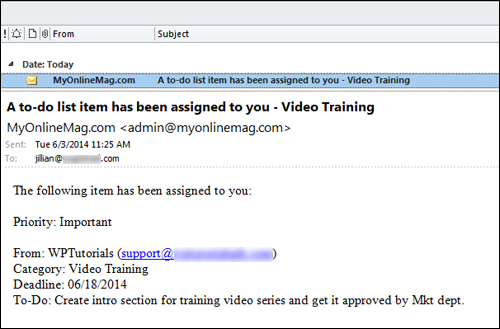
If you don’t want to send out emails to users, then leave this option disabled.
Note: If this option is disabled, skip the remaining items in this section.
Add Category to Subject
If categories are enabled in your plugin settings and you have selected ‘Yes’ for this option, the to-do category will display in the subject of emails sent to users …
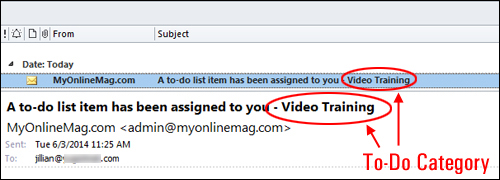
Leave this option disabled (‘No’) if you don’t want to show categories in the subject of your emails.
Leave this option disabled (‘No’) if you don’t want categories to display the subject of your emails.
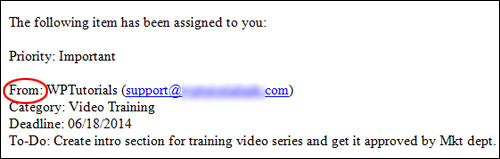
Show Who Assigned the To-Do Item in Email
If enabled, you can display the user who assigned the to-do item in the email. This is a useful option if your website has a number of project managers assigning to-do items to users …
From Field for Emails Sent to User
Use this field to customize the “From” field when sending out email notices. Type your company name, your domain, your name, or anything you like in this field …

From Email
Type into this field the email address that you want to display as the “sent from” address …

Subject Field for Emails Sent to User
Enter a subject field for the email that will be sent automatically to users whenever new items have been added in your to-do list …

Text in Emails Sent to User
Add the body of the email message that will be sent out automatically to users when a new item has been assigned to your to-do list.

To-Do List Advanced Settings > Database Cleanup
In this area of the ‘Advanced Settings’ tab you can carry out database maintenance tasks associated with plugin data directly from the plugin settings area itself …
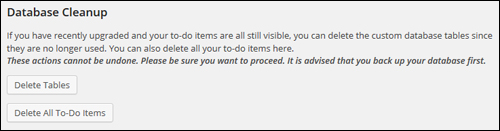
This is useful if, for example, you see that items you have already deleted are still listed on your site.
You can perform the tasks below in this section:
- Delete Tables – Remove custom database tables that you no longer use.
- Delete All To-Do Items – Erase all of your to-do items.

Any database operations carried out from this screen cannot be undone. If you are sure that you want to perform database operations in this section, then remember to backup your WP database first.
If you don’t want to back up your data manually, then consider getting support from a WordPress professional, or use a backup plugin. You can read about a WordPress backup plugin that we recommend using to perform automated site backups here:
User Permissions
In this area you can configure user permissions and capabilities for Group or Master List types …


If you have chosen the Individual List type, the only setting that applies in this section is the View To-Do List option …
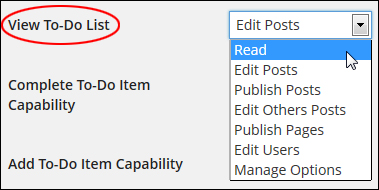
If you plan to configure user permissions and capabilities for Group and Master List types, select the highest level capabilities that you would like users to be able to perform for each option …
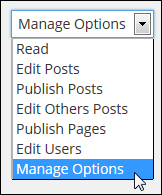
The default general capabilities for each user role are set as follows:
- Subscribers: Read
- Contributors: Edit Posts
- Authors: Publish Posts
- Editors: Edit Others Posts
- Administrators: Manage Options
Note: When working with the Master list type non-administrator users should only be authorized to view and complete items, otherwise they will be able to edit the Master list.
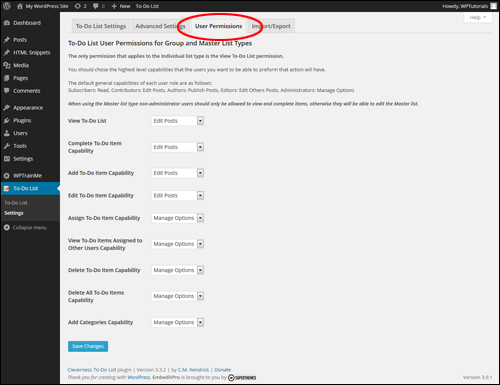
Let’s now review the settings in this tab:
View To-Do List
This allows the chosen capability to view to-do items in the dashboard widget and on the To-Do List page under the ‘Tools’ section.
Complete To-Do Item Capability
Here you can enable the chosen capability to mark items as completed or uncompleted.
Add To-Do Item Capability
Here you can enable the chosen capability to add new to-do items.
Edit To-Do Item Capability
This allows the selected capability to modify existing items.
Assign To-Do Item Capability
This enables the chosen capability to delegate to-do items to individual users.
View All Assigned Tasks Capability
Here you can enable the chosen capability to view all tasks even if “Show Each User Only Their Assigned Tasks” is set to ‘Yes’.
Delete To-Do Item Capability
Here you can enable the chosen capability to delete individual items.
Delete All To-Do Items Capability
This option enables the chosen capability to purge all the completed to-do items.
Add Categories Capability
Here you can enable the selected capability to add new categories.
Import/Export
The ability to import and export to-do list data can be very useful. For example, you may want to transfer data from an existing to-do list to another website, or export your list data for backup or reporting purposes.
To access this function, click on the ‘Import/Export’ tab in your plugin settings area …

Now you can easily export and import your list and plugin settings …
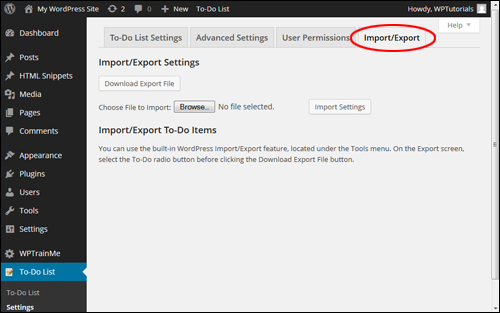
Exporting To-Do List Data
You can export and download your data settings by clicking on the ‘Download Export File’ …
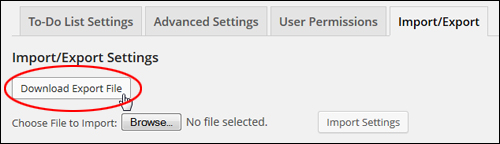
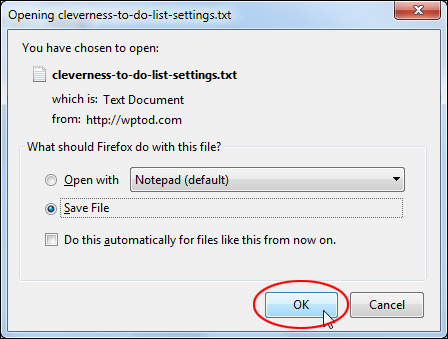
This will open up a window allowing you to download and save the data as plain text to an internal or external storage medium …
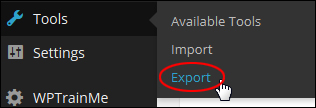
As well as exporting list data from the ‘Import/Export’ section, you can also export data by going to your WordPress dashboard menu and selecting Tools > Export …
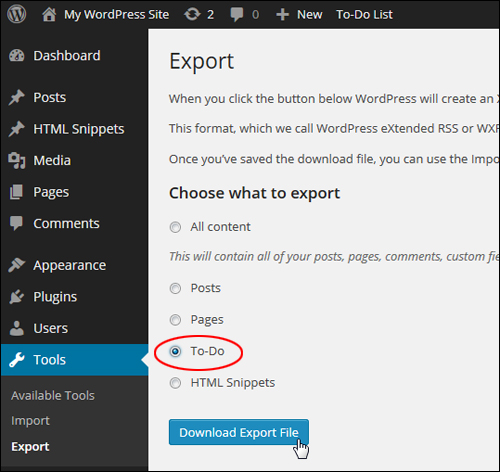
You can include to-do list data in a WordPress export file (in XML format), either by checking ‘All content’ (includes everything – posts, pages, etc…), or just select ‘To-Do’ from the ‘Choose what to export’ section and click the ‘Download Export File’ button to save your file to a storage medium…
Importing To-Do List Data
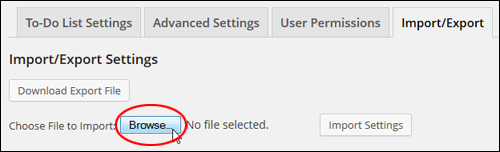
To import a list data file, click on the ‘Browse’ button next to the ‘Choose File to Import’ field …
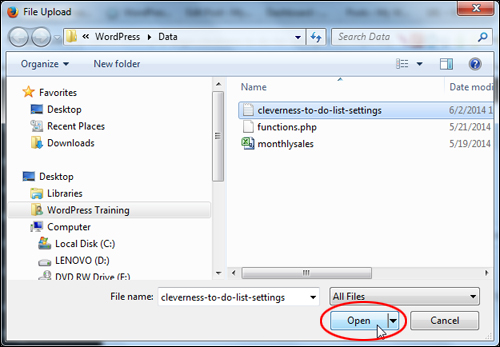
Locate the previously saved to-do list data file and click ‘Open’ …
Once uploading your data file, click on the ‘Import Settings’ button …
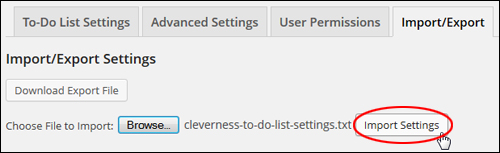
The data from the existing to-do file will be imported.
Now that you have configured all of the plugin settings, you are ready to begin creating and editing your lists.
How To Use The Cleverness To-Do List Plugin
To create a new to-do list, go to your WordPress dashboard menu and click on To-Do List > To-Do List …
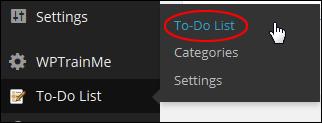
This brings up the ‘To-Do List’ page …
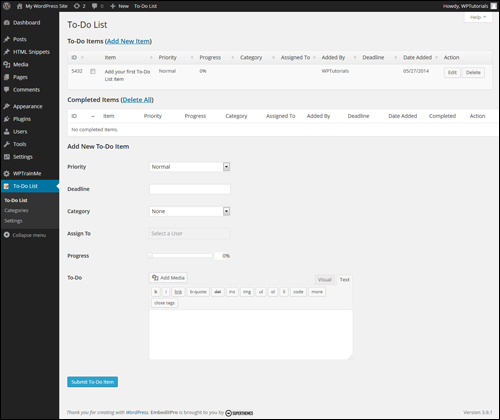
Add New To Do Items To Your List
There are several ways to add new to-do items to your list.
For example, you can add new items to your to-do list from your admin toolbar …

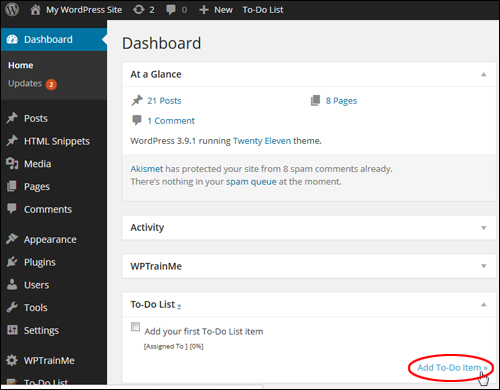
You can also add new items to your to-do list inside the ‘To-Do List’ dashboard section by clicking on the ‘Add To-Do item’ link …
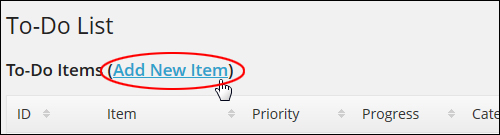
You can click on the ‘Add New Item’ link in the ‘To-Do Items’ section (note: only use this option if your To Do list contains many items, since the link is only going to take you to the “Add New To-Do Item” section at the bottom of the page) …
All the above methods will bring you to the ‘Add New To-Do Item’ section.
Depending on how you have configured the plugin’s settings, you may or may not see certain options displayed when adding new to-do items.
Set up the options you have enabled for your to-do items, add appropriate information into the relevant fields and click on the ‘Submit To-Do Item’ button to add the item to your list …
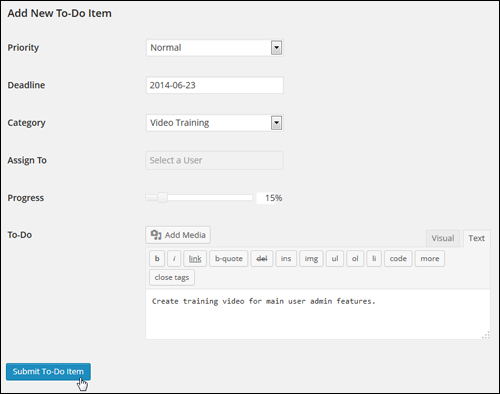
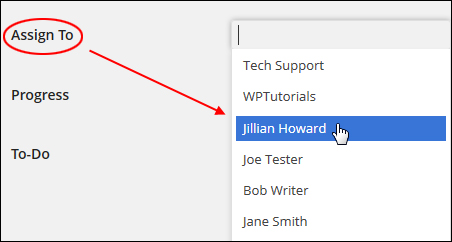
Note: If you are using a list type that lets you assign items to specific users, select a user from the drop-down list and assign them the item …
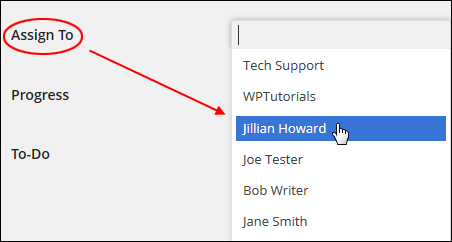
You can also make multiple users responsible for the same item (click on ‘x’ to delete users) …

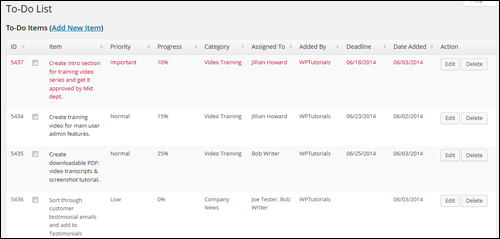
Once you have added the item, it will be listed as an entry in the ‘To-Do Items’ table …

Repeat the above process to keep adding new items to your list …
Editing And Deleting Items
To edit or delete an item, click on the ‘Edit’ or ‘Delete’ buttons next to each item under the ‘Action’ column …

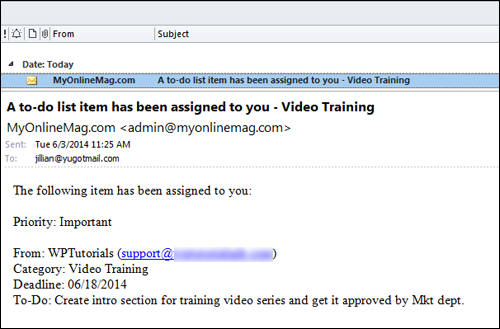
Depending on how you have configured your plugin settings (discussed earlier), users assigned to tasks may also receive email notifications …
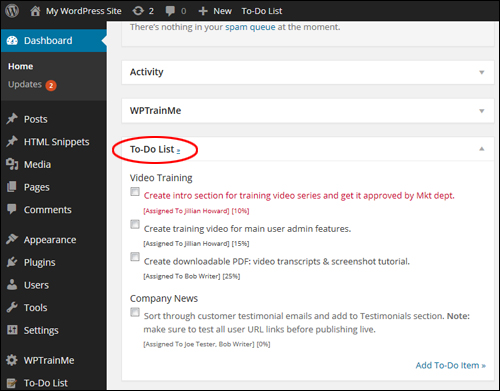
After creating your to do list, users can view the list when logged into their own dashboard …
When the user assigned with completing an item ticks the item check box …
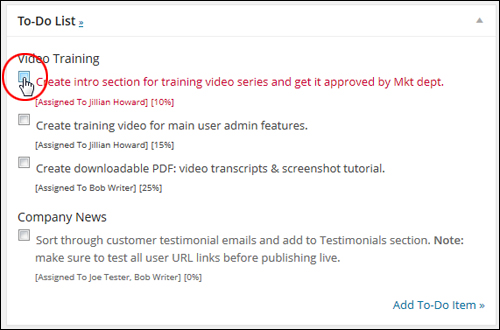
… the item is removed from the “To-Do” list …
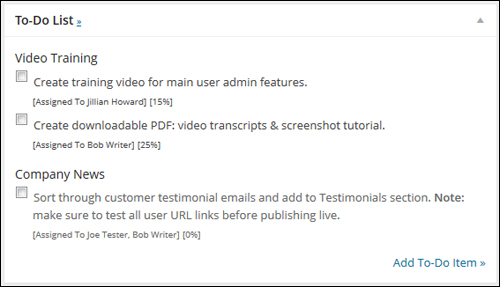
And gets listed the ‘Completed Items’ table located in the ’To-Do List’ page …

Additional Information
The Cleverness plugin offers added functionality that lets you display to-do lists on your WordPress site using widgets, and insert a list into any post or page using short codes.
Using The Cleverness To-Do List Plugin Widget
To add a to-do list to your site using widgets, go to the ‘Widgets’ section (Appearance > Widgets) and drag the ‘To-Do List’ widget to the menu location where you would like your list to show …
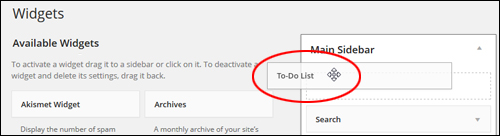
Configure the settings in the widget and click ’Save’ …
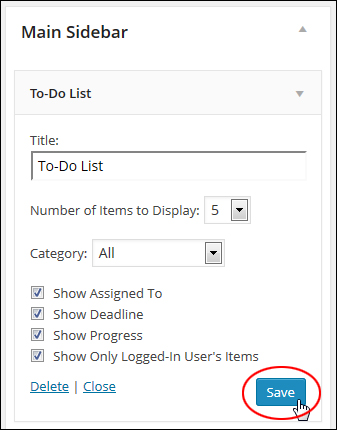
The to-do list will appear where you have added the ‘to-do-list’ widget (i.e. the sidebar menu, footer, etc.)
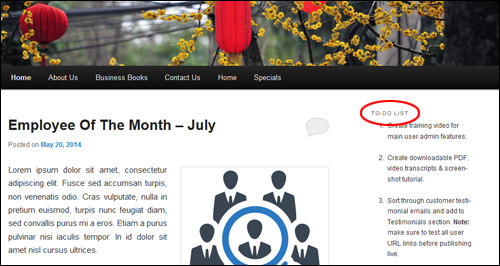
To learn more about how to use WordPress widgets, see the tutorial below:
Using Plugin Short Codes
The Cleverness To-Do List plugin also lets you add lists and checklists to your site by placing shortcodes into your content.
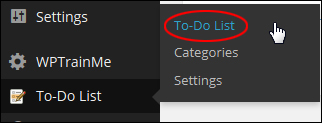
To access the plugin’s shortcode documentation, click on To-Do List > To-Do List from your WP admin menu …
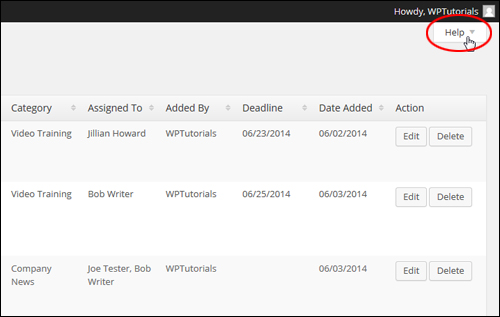
Click the ‘Help’ tab on the top right hand corner of your screen …
Click on the ‘Shortcodes’ menu to access the Shortcode Documentation …
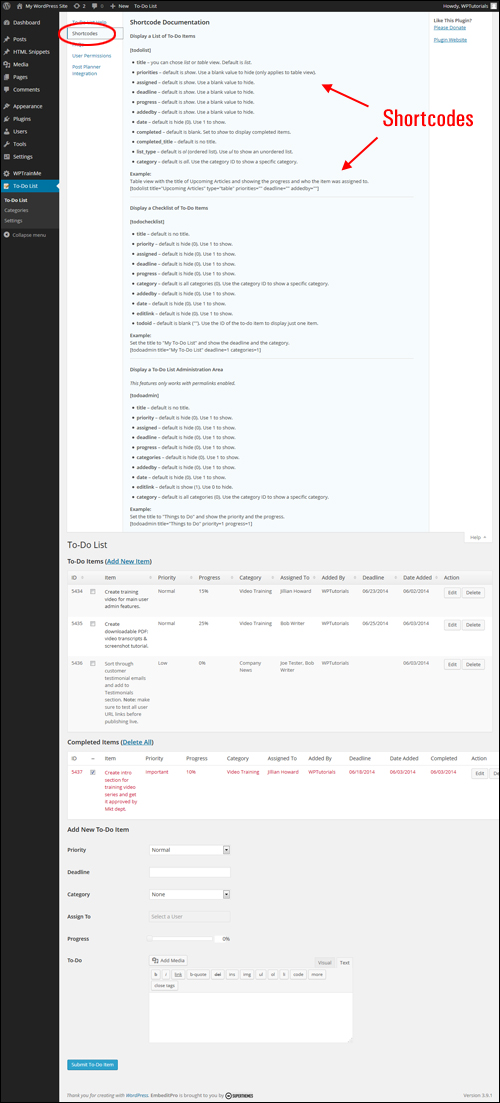
This section explains various ways to configure and use short codes for displaying lists on your content.
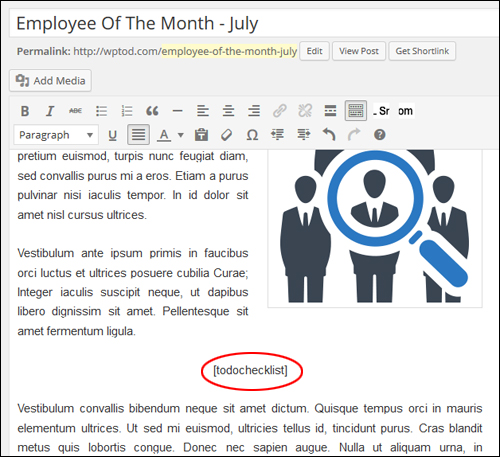
Once you know what information you want to display on your site, open up a new page or post and either type or paste the shortcode into the content editor …
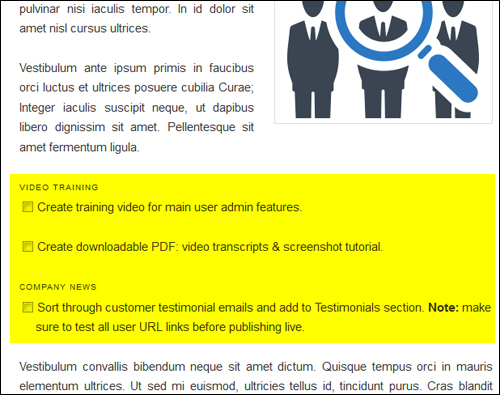
After publishing your post or page, you will see the list showing exactly where you added the short code …
Visit this site to learn more about this plugin:
Congratulations! Now you can create and add a to-do list in WordPress.
***
"These tutorials have so much information and are easy to understand. If you use WordPress or plan to in the future these will help you with everything you need to know." - Valisa (Mesa, Arizona)
***