 Something often said in marketing circles, is that people tend to buy from people they know, like and trust.
Are you looking for quicker, easier and cheaper ways to sell more products or services online? Then make it easier for visitors to get to know you, your team and your business better.
If you own a WordPress-powered site, a simple way to help people get to know you better is to add a directory plugin that will let you display information about your key partners, your business team, or your employees.
This tutorial explains how to add a simple and easy-to-maintain directory of employees to your site.
WordPress Plugin Tutorial: How To Easily Add An Employee List Directory
In this tutorial, we will install, activate and configure a free WordPress plugin called Simple Staff List.
Simple Staff List – WordPress Plugin
(Simple Staff List)
The Simple Staff List plugin is a no cost plugin that lets you display information about your employee on your website.
The first step is to install and activate the Simple Staff List plugin.
Log into your administration and in your admin menu section, choose Plugins > Add New …
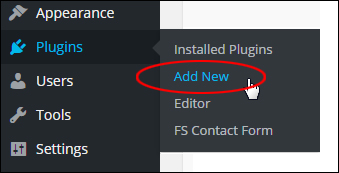
(WordPress Plugins Menu – Add New)
In the Plugins panel, search for “simple staff plugin”. This brings up the Simple Staff Plugin in your plugin search results.
Click on Install Now …
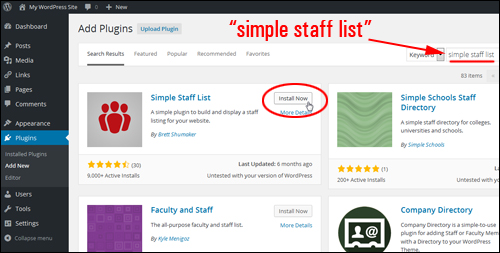
(Plugins – plugin search results)
Click on Activate Plugin …
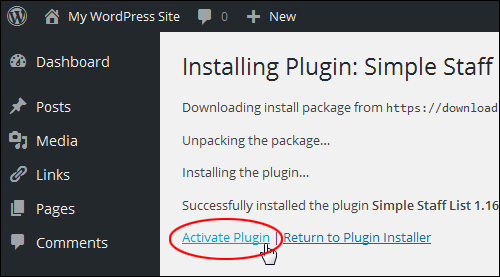
(Activate plugin)
After your plugin has been installed and activated, you will see that a new entry will be added to your WordPress admin menu called Staff Members …
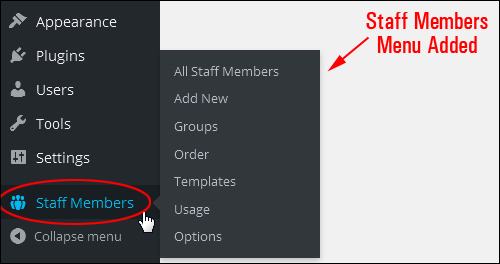
(Staff Members menu)
All of the options and settings for the Simple Staff List plugin are configured and managed in the Staff Members menu.
Simple Staff List – Plugin Configuration
Depending on how many people are in your team and how you want to structure your employee directory, you could begin adding new staff entries after installing the plugin, or create different groups (i.e. categories) to assign your individualstaff into.
Staff Members – Groups
To set up your directory categories go to your dashboard menu and choose Staff Members > Groups …
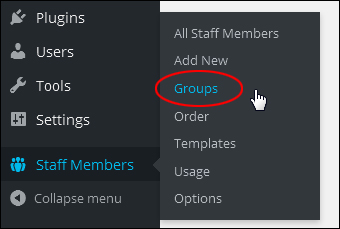
(Staff Members Menu – Groups)
The Groups screen …
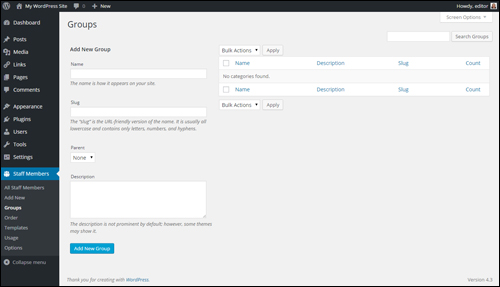
(Groups settings area)

Note: Setting up groups works in the same way as configuring categories in WordPress …
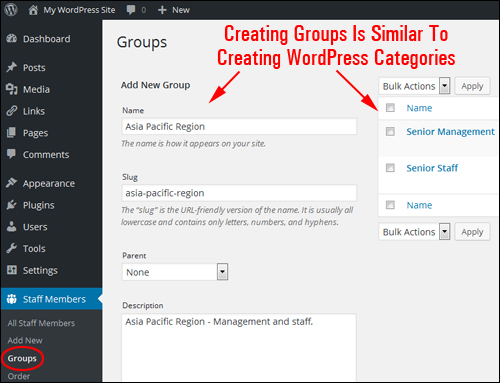
(Groups work like WordPress categories)
Add new groups by typing in the following information:
- Group Name – Enter your group category name here
- Slug – Type in the URL-friendly version of your group category name. Note: make sure that all letters are in lower case and use hyphens instead of spaces.
- Parent – This section lets you set up a directory hierarchy
- Description – Type in the category description in this field (optional)
- Click the Add New Group button when finished to set up a new directory category …
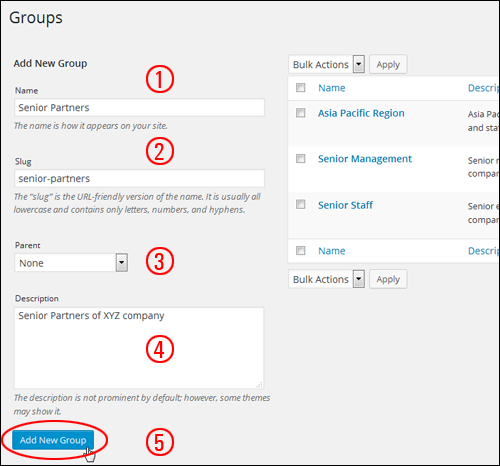
(Groups section)
If you manage a business that employs many people, being able to create groups can be very useful. For example, you can create groups for founders, developers, faculties, etc.
Create as many categories and nested categories as you want by adding new Groups and then using the Parent drop-down menu to organize these into a hierarchical structure …
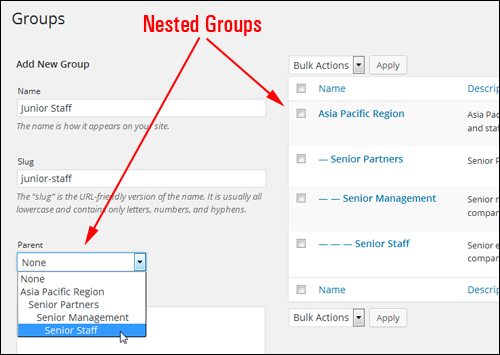
(Nested categories)
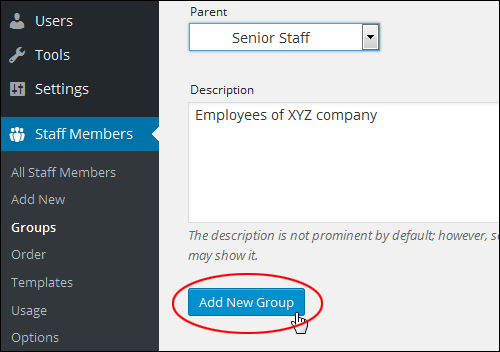
Remember to click on the Add New Group button after creating new items …
To change or reassign Groups for individual entries, hover over a category title and click on the Edit link …
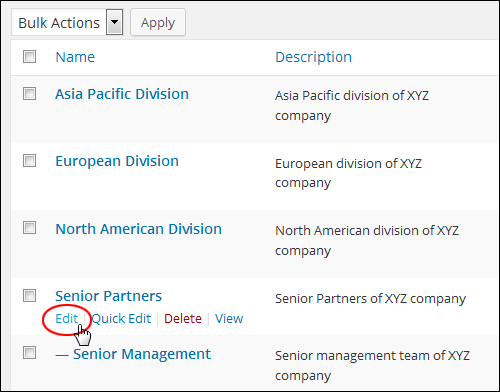
The item’s details will display in the Edit Group page. Select a new group from the Parent drop-down menu …
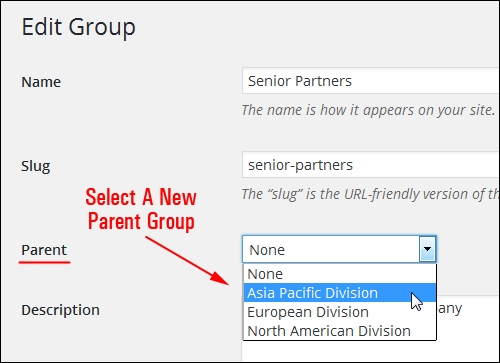
(Edit Group screen)
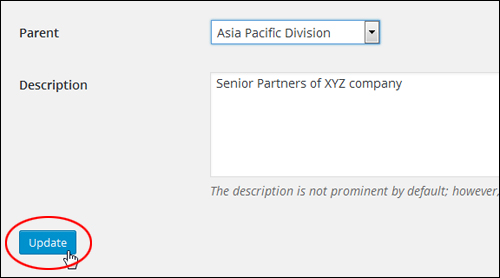
Click the Update button to save your changes …
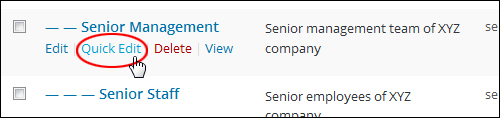
To edit your Group name or slug, hover your mouse over the group name and select the Quick Edit menu feature …
Click Update Group when done …
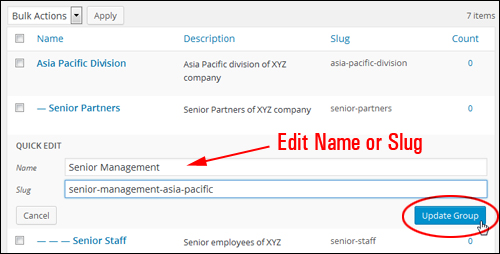
Add as many group names as you need to until you are done creating your directory structure …
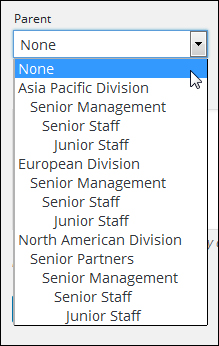
You can add as many nested categories as you like …
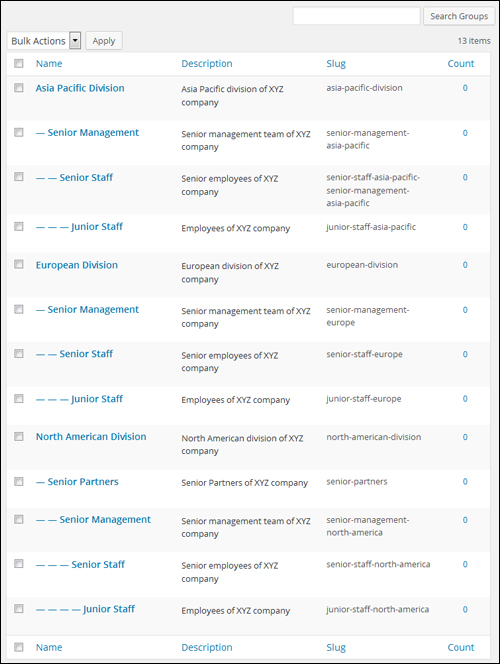
(Nested categories)
After you are done setting up your directory structure, the next step is to start adding your people to your directory.
Staff Members – Add New
In your admin menu, choose Staff Members > Add New …
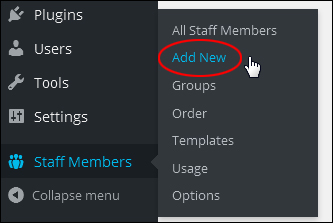
(Staff Members – Add New)
This brings up the Add New Staff Member section …
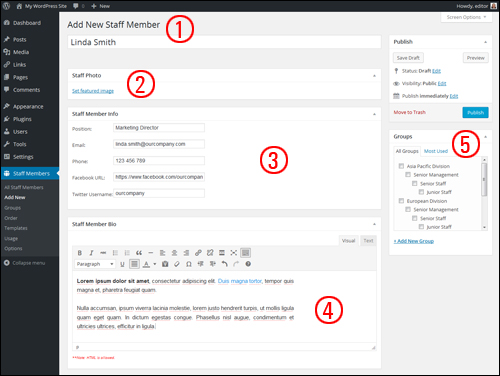
(Add New Staff Member section)
This page provides an easy-to-use interface for adding and editing your staff member details and includes the following fields:
Name Section (1)
- Name: Add your staff member’s name
- Slug: Edit the permalink URL associated with your employee if you want (you will see this section after your first save).
Staff Photo Section (2)
- Photo: Add a photo of your staff member
Staff Member Info Section (3)
- Position: Your staff member’s role
- Email: Your staff member’s email address
- Phone Number: The employee’s phone number
- Facebook URL: Add your company’s Facebook URL (note: use the full URL, e.g. http://www.facebook.com/username)
- Twitter URL: Type in the employee’s Twitter username here (note: only enter the username, not the full twitter URL)
Staff Member Bio Section (4)
- Staff Member Bio: Add a profile description for your employees here. This uses the WordPress Text Editor, so you can format content in this section.
Groups Section (5)
- Groups: This section lets you assign the individual to a group (see above to learn how to set up your groups).
Click on the Screen Options tab at the top of the screen …
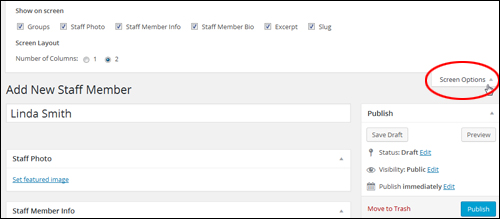
(Screen options tab)
You can enable additional page settings …
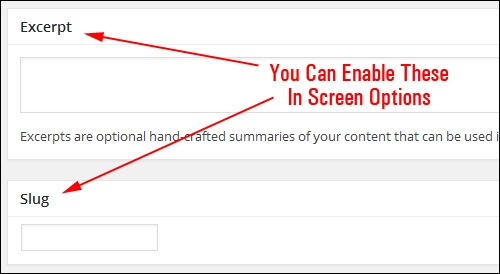
(Enable additional fields in screen options)
Now that you know what each section does, enter each of your employee’s details …
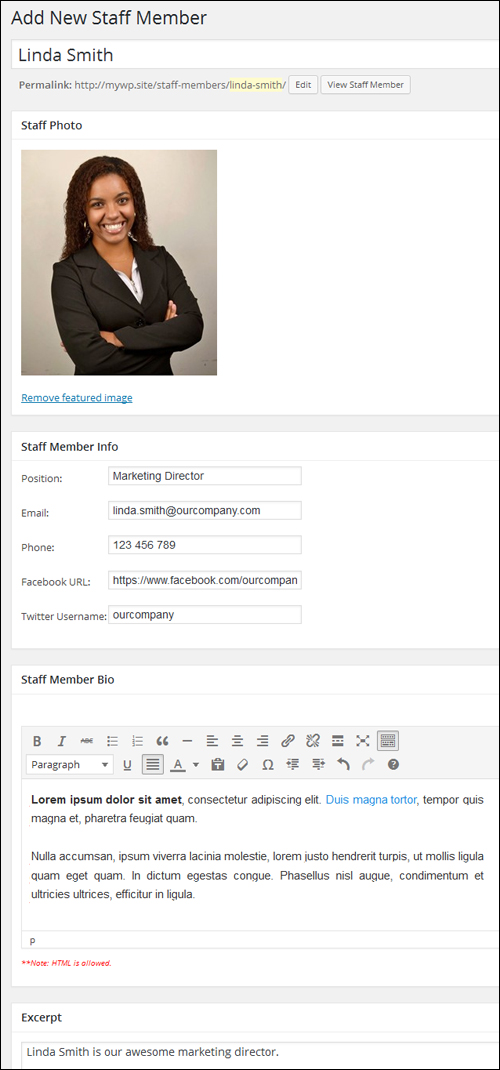
(Add Staff Member fields)
After you have finished inputting details, assign your new item to a directory group in the Groups box in the sidebar …
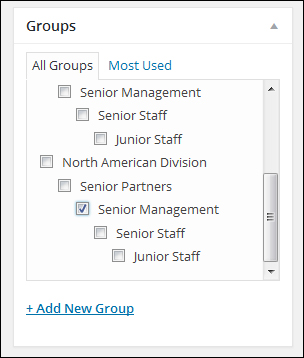
(Groups box)
Note: If you have not set up directory groups before starting to add new staff members, you can create a new group by selecting Groups > + Add New Group …
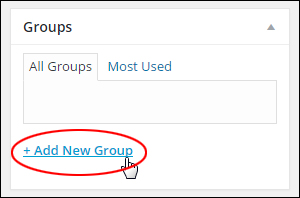
(Groups - + Add New Group)
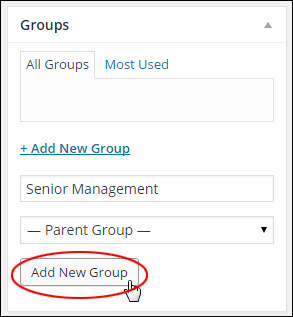
A field for creating your new group name will appear, with a drop-down menu to assign your new entry to a parent group. Enter your new category and click on the Add New Group button …
The new directory category will be added. Make sure that the checkbox is ticked …
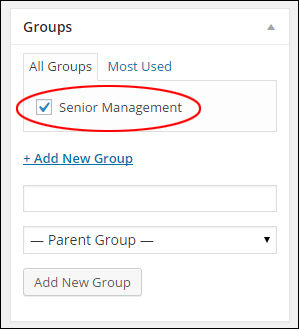
(New group added)

Note: Groups cannot be edited when adding or editing an employee’s details. To edit a group item, go to the Groups section of the plugin’s settings (see “Groups” section above for details).
***
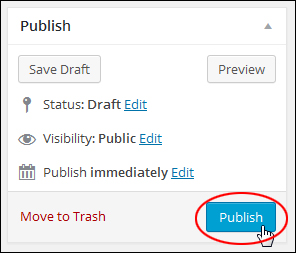
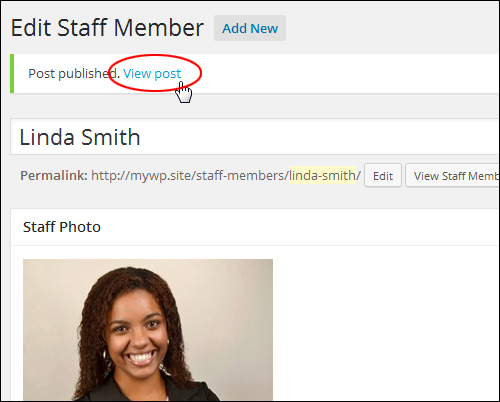
After entering the person’s details, click the Publish button to add them to your employee directory …
Click View Post …
To edit your staff member’s profile, click on the Edit Staff Member link in your admin toolbar …
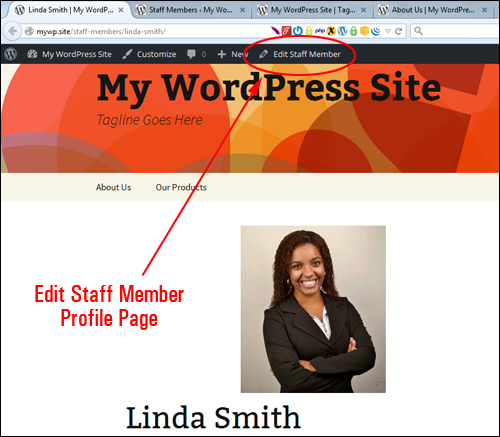
(Edit Staff Member link – WP admin toolbar)
We have written a detailed tutorial on using the WordPress admin toolbar here:
Note: If ’page not found’ errors like the one shown in the example below shows up, check that your permalinks have been set up correctly …
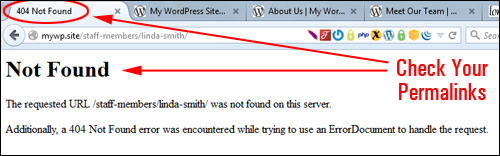
(Check your permalinks if you get a page error)
If you need help setting up WordPress permalinks, see this tutorial:
Repeat the above process to add new members to your employee or member directory.
Staff Members – All Staff Members
After entering employee or team members to your directory, you can view and edit their details by clicking Staff Members > All Staff Members on your menu …
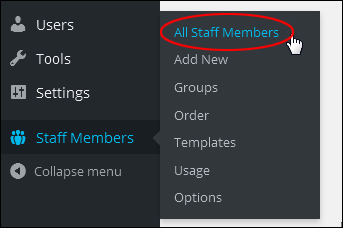
(Staff Members Menu – All Staff Members)
This brings up a table displaying all your employees and their details …
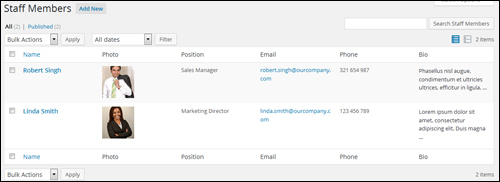
(Staff Members details)
If you need to modify individual entries, just hover over their name, and a menu will appear.
Click on Edit to make changes to their Staff Bio, or Quick Edit to update details like name, slug, group, and publish status. You can also remove an entry from your directory by clicking on the Trash link, or view the entry on your site by clicking View …
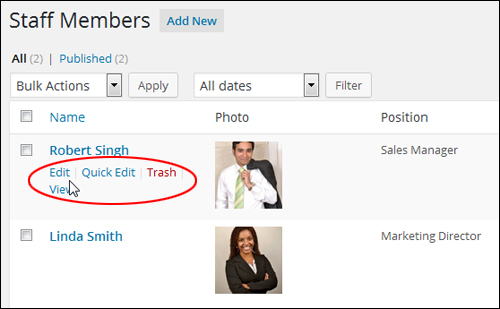
(Editing Staff Members details)
Depending on what you are using the plugin for, your table can get quite long.
You can use the Search Staff Members search box to locate member details if necessary …
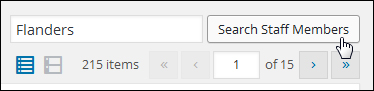
(Search members)
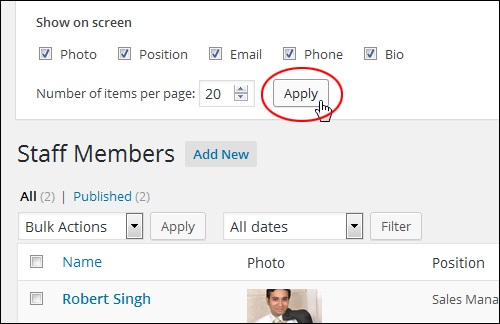
The plugin also allows you to specify which fields to display in this screen. To show or hide fields on your screen, click on Screen Options …
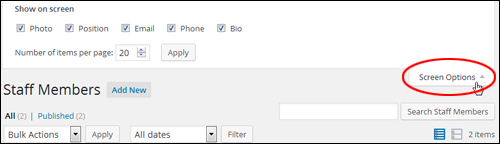
(Staff Members Screen Options tab)
Tick or untick the checkboxes to display or hide fields. You can also select how many staff members are listed per page. Click Apply when finished to save your preferences …
Staff Members – Order
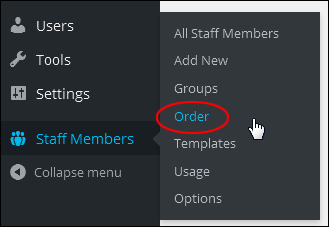
The Simple Staff List plugin also features a drag-and-drop interface that allows you to arrange the order that entries show on your directory pages.
Click Staff Members > Order in the menu …
(Staff Members Menu – Order)
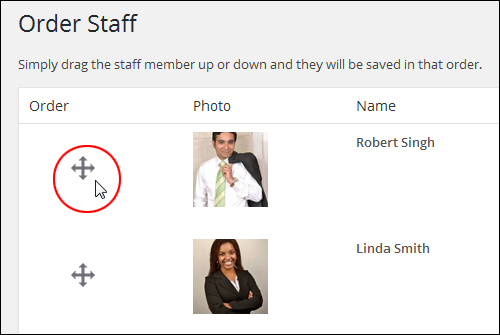
To reorder your entries, click and drag the item to the new location …
(Rearrange employee listings using drag and drop)
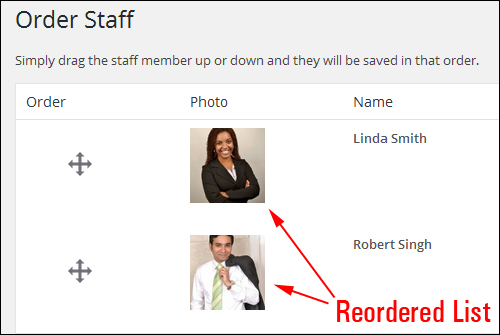
Your staff list will automatically be rearranged …
(Reordered listings)
Once you are done adding employees’ listing details to your directory, the next step is to make the directory show to your site users.
Staff Members – Order
The plugin also features a drag-and-drop interface that allows you to arrange the order that listings display on your directory page.
Click Staff Members > Order in your WordPress admin menu …
(Staff Members – Order)
To rearrange the order of your items, click and drag the entry to a desired position …
(Rearrange items using drag and drop)
Your directory will automatically be reordered …
(Reordered list entries)
Once you have added staff details to your directory, the next step is to display the directory to your site users.
Simple Staff List – Additional Notes
The plugin lets you create the style and layout of your staff directory listings using template tags and CSS (Cascading Style Sheets).
Templates Menu
To customize the layout and style of your staff list, select Staff Members > Templates from your menu …
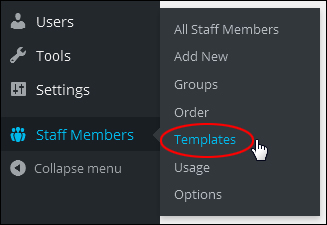
(Staff Members Menu – Templates)
This brings up the Templates page …
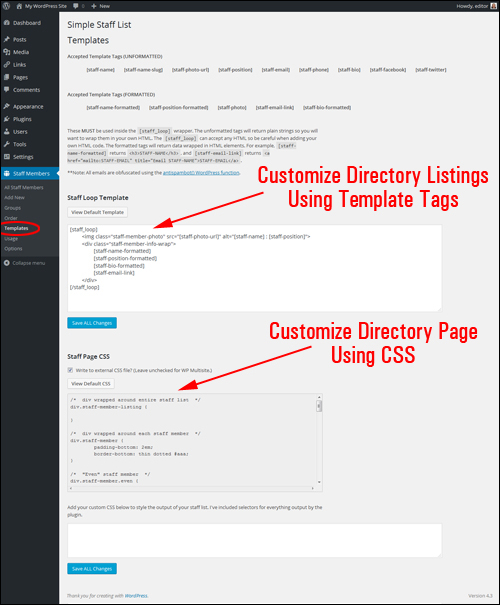
(Customize your directory template)
To customize your directory listings, insert any of the allowable template tags inside the [staff_loop] [/staff_loop] code.
For example, here is a screenshot of the Default Staff Loop Template …
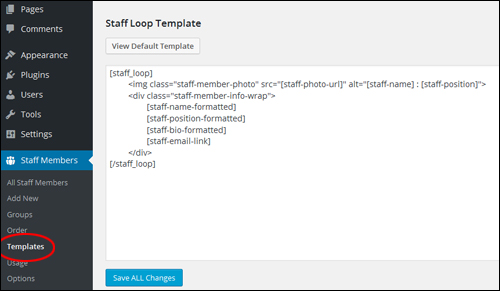
(Default Simple Staff List Staff Loop Template)
The This code displays your listing as shown below …
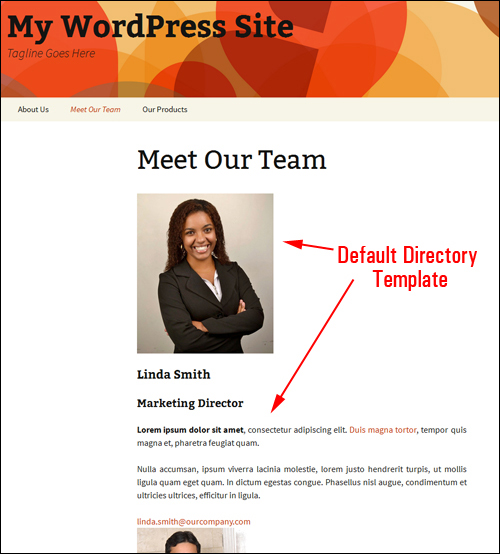
(Default Simple Staff List Template Listing)
Notice that no Facebook or Twitter URLs are showing in the above example. To make these fields show up in your directory, you will need to add the [staff-facebook] and [staff-twitter] tags to the template, as shown below …
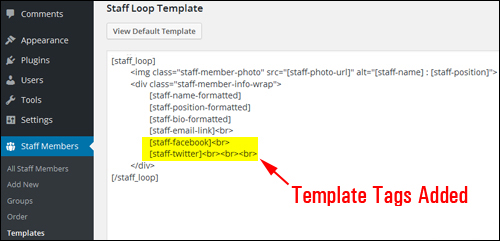
(Template tags added to Staff Loop Template)
Your employee profiles will now display as shown in the example below …
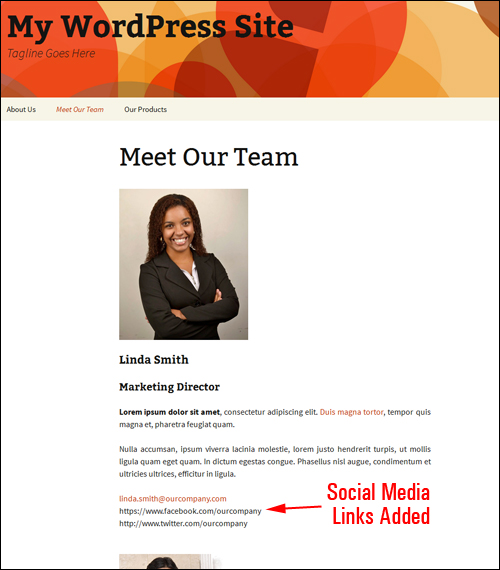
(Directory with social media links added)

Note: If you want to customize your directory listings but don’t want to mess around with CSS styles and template tags or are unsure of how to edit the template as shown above, please contact us for help.
Usage Menu
As well as being able to customize your directory templates, the Simple Staff List plugin allows you to display your staff profiles differently using modified shortcodes.
In your dashboard menu, select Staff Members >Usage …
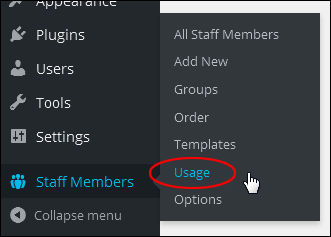
(Staff Members Menu – Usage)
This opens the Usage page …
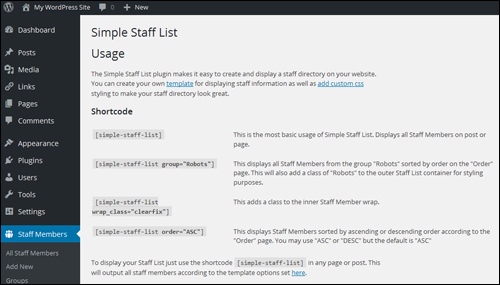
(Usage shortcodes)
This screen lists all the shortcode variations allowed by the Simple Staff List plugin.
For example, a useful variation you can insert in your page to display only members belonging a specific group is the shortcode [simple-staff-list group=”group name”], (e.g.:[simple-staff-list group=”sales reps”])
Or, you can display listings in ascending or descending order by inserting the shortcode [simple-staff-list order=”ASC”] (ascending).
Options Menu
Select Staff Members >Options in the menu …
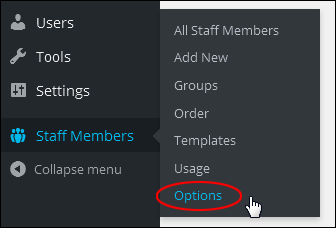
(Staff Members – Options)
This brings up the Options screen …
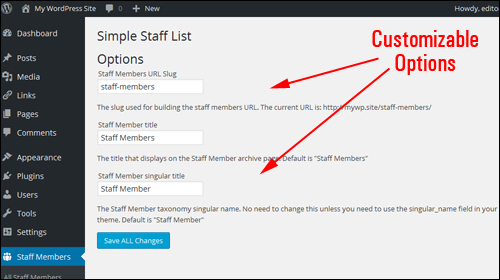
(Simple Staff List – customizable fields)
Here you can edit some of the labels used in the plugin
Finally, you can also export your staff members data from the Tools > Export screen …
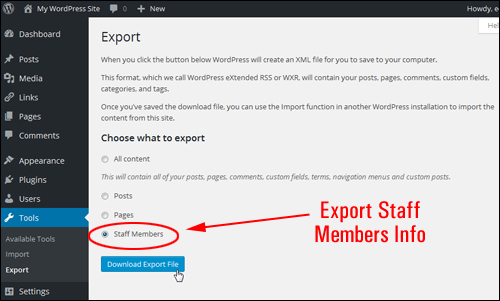
(Export Staff Members info)
If you need plugin help or support, go to the Simple Staff List support page and request help from the plugin author.
Additional Employee Directory Plugins
Simple Staff List is not the only plugin you can use to display a faculty directory in WordPress. Here are other plugins you can check out:
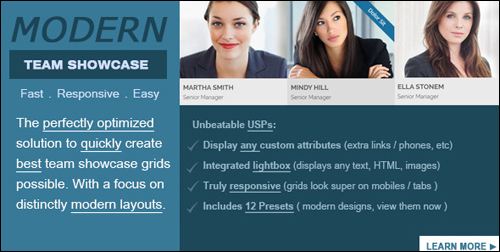
Modern Team Staff Directory
(Modern Team Staff Directory)
This plugin helps you collect your team information and showcase it anywhere on your site in beautiful grids, columns and tables. This premium plugin features over a dozen presets and provides editors that make it easy to edit and update your directory.
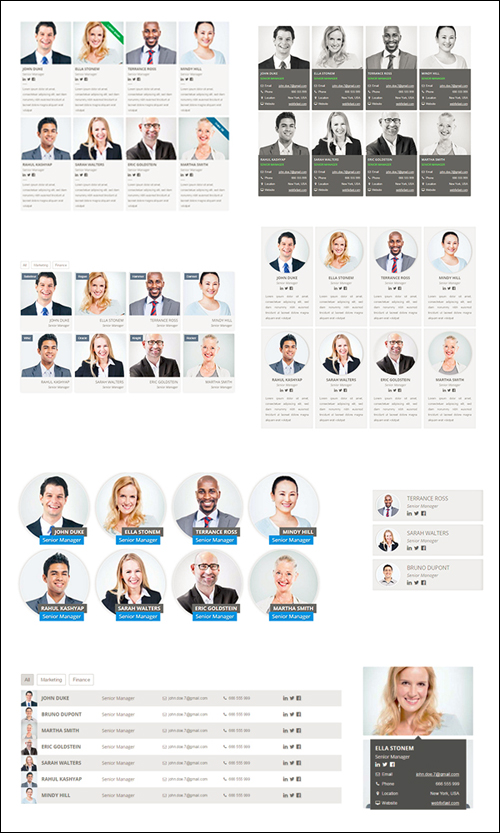
(Modern Team Staff Directory – Responsive Templates)
Learn more here:
Staff Directory

(Staff Directory)
Staff Directory lets you easily create a directory of faculty/staff/team members. The plugin supports staff categories and can be used for companies, schools, etc.
This plugin lets you add custom fields …
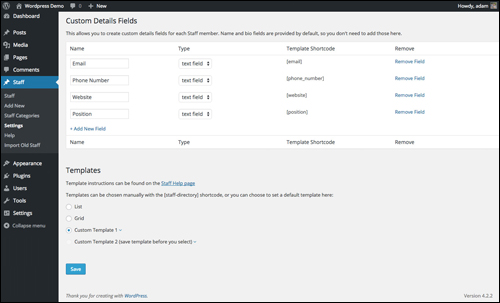
(Custom Details Fields Screen. Screenshot sourced from Staff Directory website)
To learn more about the plugin go here:
Faculty And Staff Directory
(Faculty And Staff Directory – WordPress Plugin)
Faculty And Staff Directory provides a simple and flexible faculty and staff directory for a small college, school or university.
The plugin also installs a widget that allows you to feature profiles in a widget area.
To learn more about the plugin go here:
Company Directory

(Company Directory – Plugin For WordPress)
With the Company Directory plugin, you can easily add your employees to your website. Different layouts are available, including list and single views, as well as fields like position title, email address, phone, pic and bio, allowing you to present your company and capabilities.
Visitors will be able to click through from your list, grid, and table views to learn more about each employee in a customizable single view …
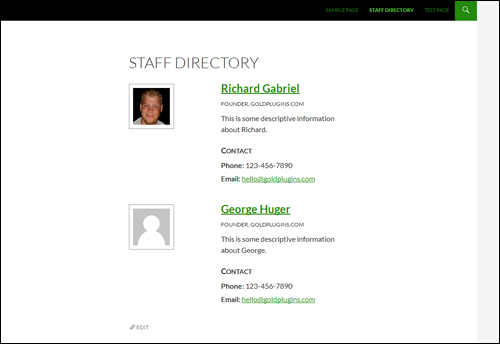
(Display your staff and faculty in an easy-to-view format. Screenshot sourced from Company Directory plugin website)
This plugin uses a simple shortcode system.
Go here to learn more:
Employee Spotlight

(Employee Spotlight – Plugin For WordPress)
Employee Spotlight displays team members, partners or just one single member of your team in a 4-column circle grid page. This page can be easily created with a setup assistant on plugin activation.
Employee Spotlight installs with two sidebar widgets that let you display featured and recent employees, and two responsive views which adjust to the viewer’s screen.
Detailed information about each team member can be displayed in their own page, as well as in summary …
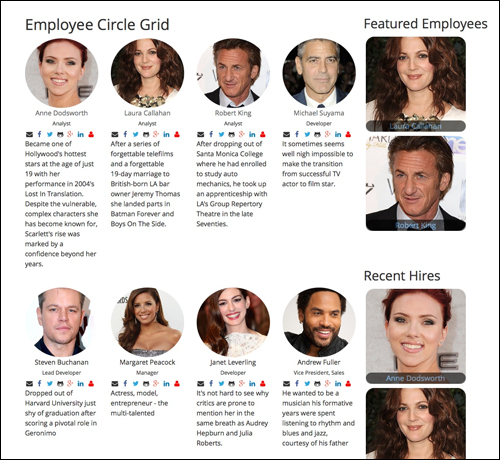
(Responsive layout with circle grid. Screenshot sourced from Employee Spotlight plugin website)
Go here to learn more about this plugin:
Staffer
(Staffer – WP Plugin)
The Staffer plugin uses custom post types for staff/employee management and supports the display of staff members via a shortcode, allowing you to easily create and manage an onsite staff directory …
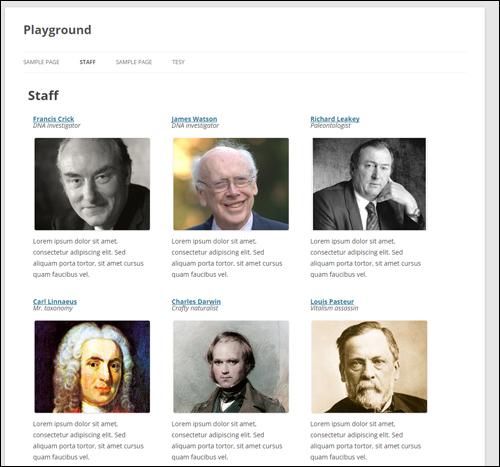
(Staffer archive page. Screenshot sourced from Staffer plugin website)
Staffer works immediately with almost all WordPress themes, and also allows for custom template use and custom content wrappers.
Learn more about the plugin here:
If the above plugins aren’t what you’re looking for, just go online or visit the WordPress plugin directory and search for:
- Add Staff Directory To WordPress
- WordPress Staff Directory Plugin
- Staff Directory WordPress Plugin
- Employee Directory WordPress
- etc.
Hopefully, now you know how to easily add a simple and easily updatable simple staff directory to your web site using free plugins.

Models used to portray sample staff members in this tutorial were sourced under creative commons license from pixabay.com
***
"Wow! I never knew there's so much to learn about WordPress! I bought one of the WordPress for Dummies three years ago, such authors need to be on this course!" - Rich Law, Create A Blog Now