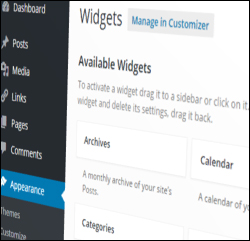
 As discussed in this article, one of the many benefits of using WordPress is that you can easily add content, improve your site’s functionality, or reconfigure the layout of your website without web coding skills required.
WordPress gives you the ability to easily add, remove, and control content in your blog’s sidebar navigation section (and header and footer sections, depending on what theme you are using) using widgets.
Once you know how to use widgets, you can easily add things to your site like:
- nested list of your web pages
- blog categories
- archive
- menus that display only the pages you choose
- links to resources
- links to your recent posts
- post comments
- image banners
- user testimonials
- polls
- RSS feed items
- newsletter subscription form
- product catalog images
- social media buttons
- display widgets from external sites (e.g. affiliate programs)
- administrative forms (e.g. login, register, etc.)
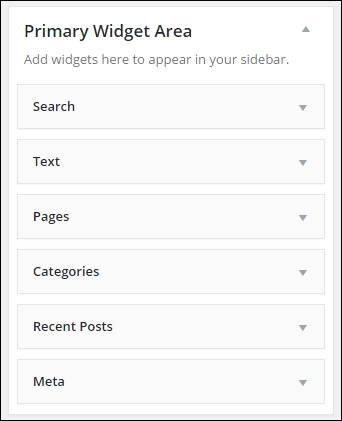
(Widgets help make managing and using WordPress easy)
To learn more about what WordPress widgets are, how widgets work and how using widgets can help you expand the functionality of your website, go here:
In this step-by-step tutorial we will show you how to use and configure various commonly-used widgets in WordPress.
How To Use WordPress Widgets
The Basics
Before we show you how to configure widgets, it helps to first review some of the basic concepts of how to use widgets:
Most WordPress Themes Support Widget-Ready Areas
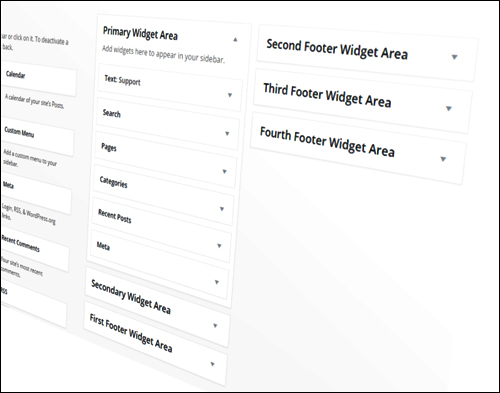
Most WordPress themes support widgets and provide built-in widgetized areas in your theme’s layout where widgets can appear, such as the sidebar, header area, and footer. Depending on your theme, widgets can sometimes also be used below or above the content area …
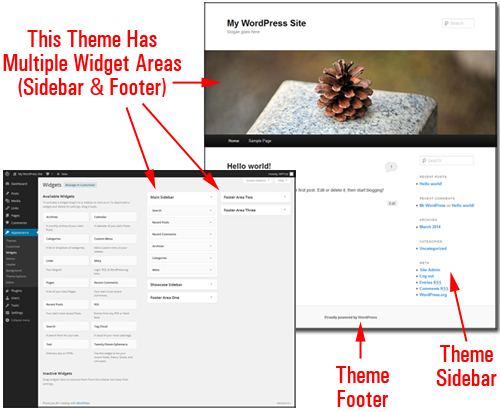
(Many themes provide a number of widget-ready areas)
These widget-ready areas correspond to a feature inside your Widget administration area called “Widget Areas” …
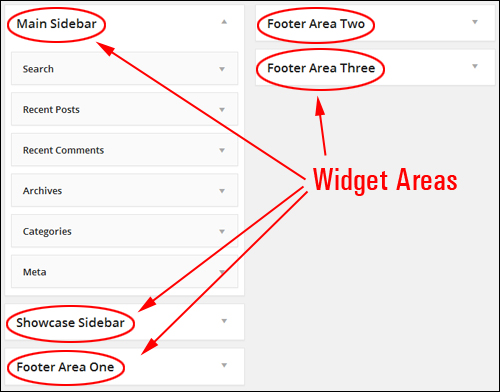
(Widget Areas)
Widgets Screen
The Widgets area displays a list of all the widgets that are currently available for use on your site.
On the right-hand side of the window, you can see your “active” widgets …
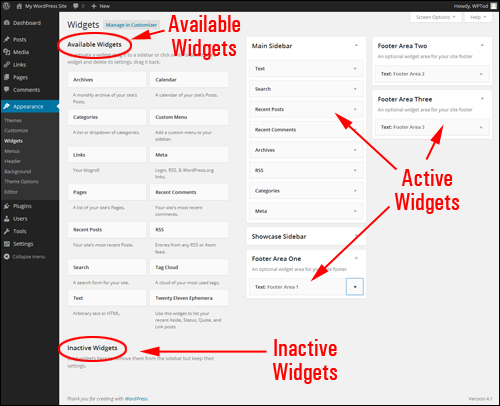
(Activate or deactivate widgets with drag and drop ease)
Available widgets can be made Active or Inactive by dragging & dropping items to different sections of the screen.
Widgets dragged from the Available Widgets section to widget areas like your sidebar, footer, etc. instantly become active and available for use on your site.
In addition, your Widgets panel includes an Inactive Widgets section that lets you remove widgets that you no longer want on your site. Inactive widgets do not lose their settings.
Rearrange WordPress Widgets Using Drag-And-Drop
You can easily add, activate, deactivate, reorder and remove widgets just by dragging and dropping items inside your Widgets area …
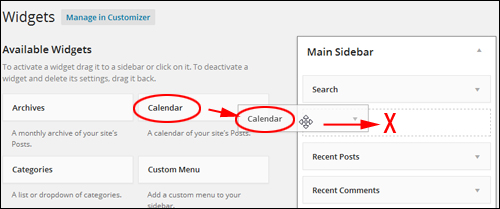
(Rearrange widgets on your WordPress site using drag-and-drop)
You can also easily reorder the layout and order of your theme’s widget-ready areas using drag & drop.
For example, take a look at the image below. In this site, the widgets have already been configured to display the following to visitors:
- A subscription form,
- A click for support banner, and
- ’Click to call’ buttons from a widgetized plugin (i.e. a WordPress plugin with an accompanying widget) …
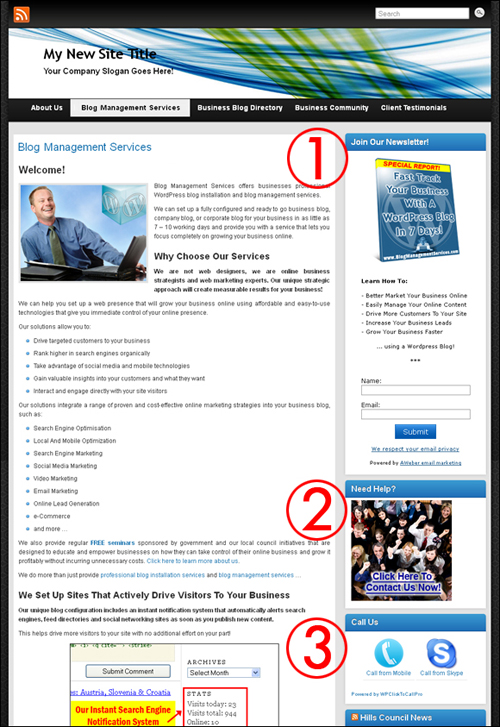
(Widgets control the order certain features on your site display)
Inside the Widget area, you would see that the front-end features display on the site in the same order as their corresponding widgets were arranged in the active widget section …
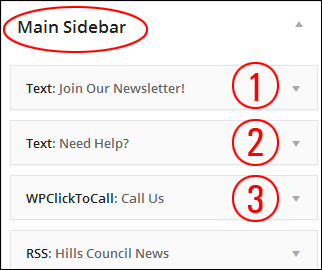
Let’s now reorganize the above widgets in the Sidebar Widget Area by dragging and dropping some of these items around …
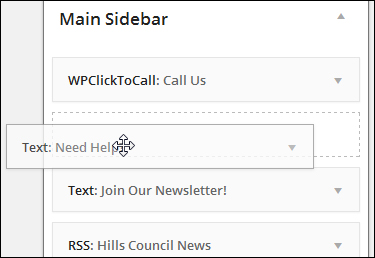
(Drag and drop widgets in your widget area to rearrange their order)
The widgets have now been reordered in your sidebar navigation section …
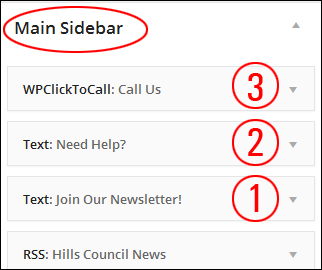
This instantly reorganizes the layout of the sidebar.
Rearranging sidebar elements using widgets can help to improve your site’s user experience.
Note in the screenshot below that the ‘click to call’ feature (3) is now the first item on the sidebar navigation area, and the ‘contact us’ graphic banner (2) is now placed above the newsletter opt-in form (1) …
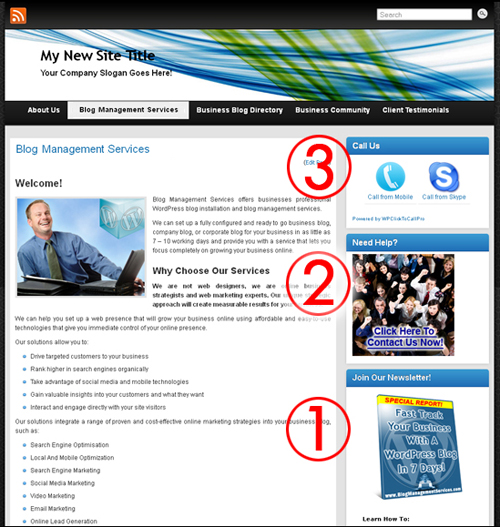
(Rearrange sidebar elements using widgets to improve user experience)
Removing Widgets From The WordPress Sidebar Menu
Deleting widgets from your WordPress sidebar is very easy.
For example, let’s show you how to remove the Search widget from your sidebar …
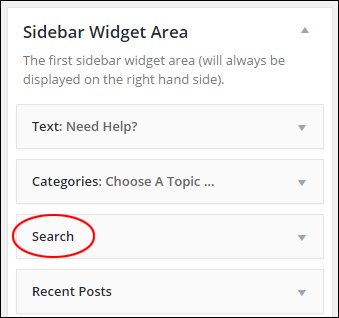
(Search widget)
To delete a widget from an active Widget area, either open up the widget settings and click the Delete link …
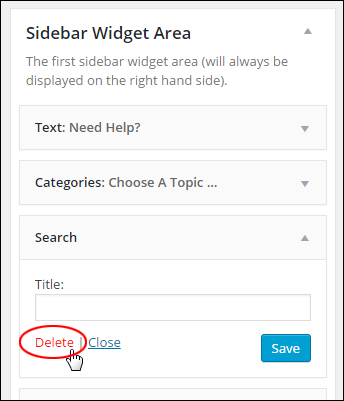
(How to delete WordPress widgets)
Or just drag the widget out of the Active Widgets area and drop it into the Inactive Widgets section …
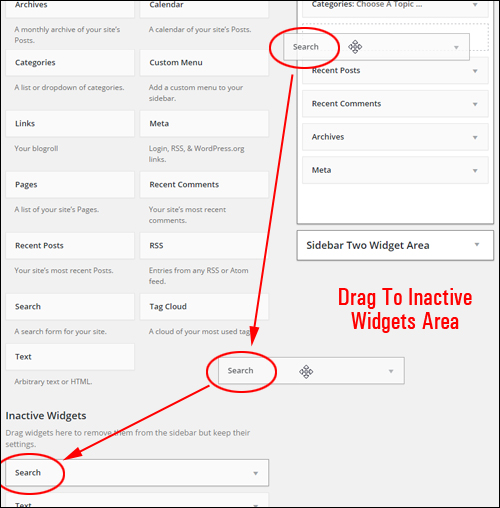
(Removing your WP widget)
Repeat this process for all widgets you want to remove from the sidebar. You can always restore a widget by dragging it back into the active widgets area.
Widget Settings
Many widgets can be further customized. This includes making certain types of information hidden to site visitors but visible to registered users, displaying additional forms, fields, or data, specifying sizes of sidebar images, videos, etc.
Clicking on the little triangle in the corner of a widget toggles between expanding and collapsing the item and displays the widget’s settings …
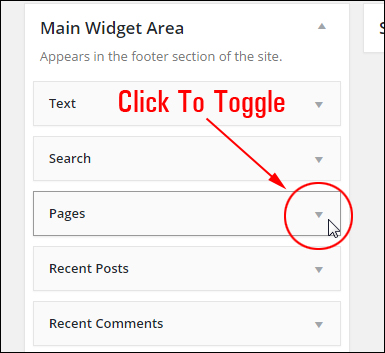
(Toggles expand/collapse widget settings)
When the widget expands, you can change and save your settings, remove your widget from the “Active Widgets” section, close the widget, or click on the triangle to collapse the widget …
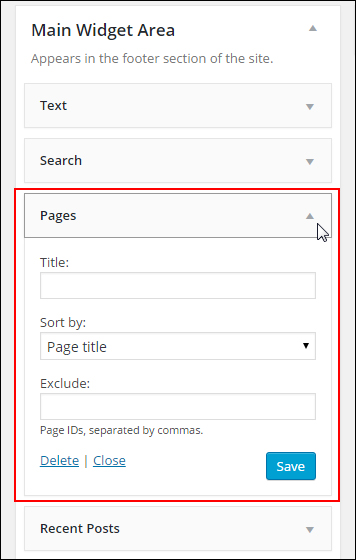
(Widget settings)

Some widgets provide users with little to no customizing options, or they may only allow you to add something like an optional title …
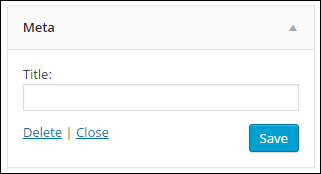
(Some widgets offer little to no configurable options)
Customize Widgets Section
Depending on which theme you use, you’re also able to customize and manage widgets without making actual changes to your site. This way, you can be sure that you like the customized edits before making any permanent changes to your site.
Widget management is a great feature of WordPress. You can work in preview mode inside the WordPress Theme Customizer screen (Appearance > Customize) and see how the widget content will appear prior to publishing changes (to avoid making mistakes), or change widgets on the fly using the Widget editor area.
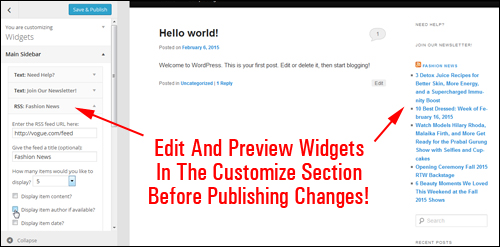
(Edit widgets in the Customize feature)
Wherever you are on the front-end just calick the Customize link in the toolbar …
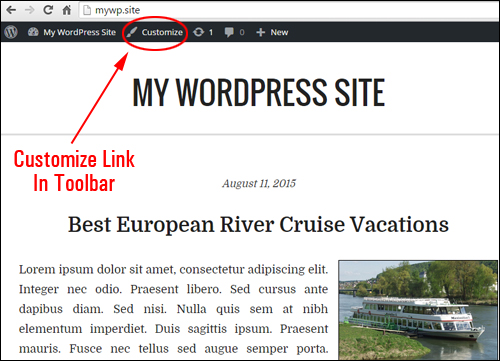
(Toolbar Customize Link)
This brings you to the Customizer area in the back-end.
You can do many edits, modifications and adjustments to widgets in preview mode (like inserting, deleting and moving widgets around), and this will all be done in real time. If you are happy with what you’ve done, click the “Save and Publish” button and the changes will be instantly updated and reflected on the blog’s frontend.
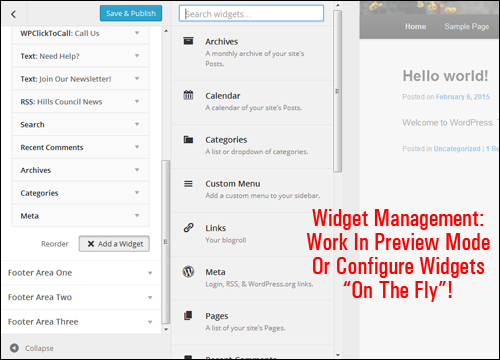
(Widget management – configure widgets on the fly!)
Once you have saved your changes, WordPress will automatically update the widget settings and display your new changes to your site visitors.

Since the WordPress theme you choose determines how elements display on your site, we recommend installing your theme first before configuring widgets.
Also, remember to use the Customizer feature to preview your changes. This will save you from having to keep two browsers open while you complete this tutorial (one to work in and one to see the site the way your visitors will see it).
Now that you know the basics of using widgets, let’s configure a number of frequently-used WordPress widgets.
***
This is the end of part 1 of this tutorial series about how to use Widgets.
Click on this link to access Part Two:
***
"Learning WordPress has been a huge stumbling block for me. I've been looking for something that covers absolutely everything but doesn't cost an arm and a leg. Thank you so much ... you have just provided me with what I have been looking for! Truly appreciated!" - Tanya
***