 There are loads of benefits to choosing the WordPress web publishing tool to build and grow your web site. One of these is that WordPress makes it very easy to add content, enhance your site and rearrange your site’s layout without coding skills.
WordPress allows you to quickly and easily insert, remove, and manage various blocks of content in your site’s sidebar menu (and header and footer sections, depending on what theme is installed on your site) using widgets.
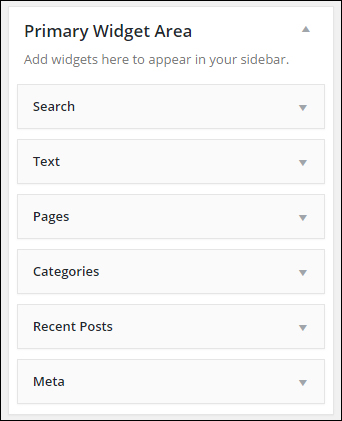
(Widgets)
This post explains how widgets work, what makes widgets so useful and how widgets can help to improve the functionality of your website.
WordPress Widgets: An Overview Of Widgets For Business Owners
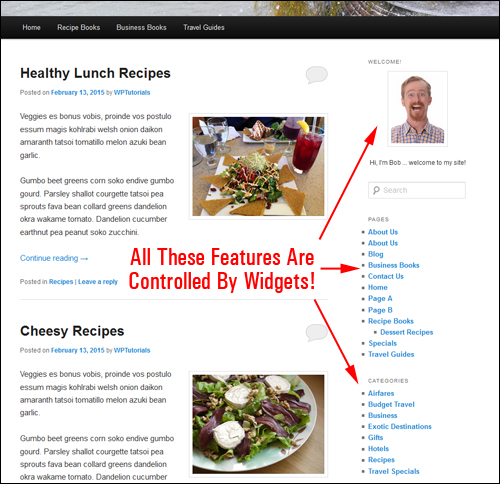
(WP widgets make managing and using WordPress easy!)
A widget is a small module of code that performs a specific function, such as adding a form, or a script or item to your site.
WordPress is written using a web language called PHP (Hypertext Preprocessor). Normally, in order to add features and functions that will enhance the functionality of a website, you need to know how to script PHP code.
Now … don’t worry if this sounds too technical. As will soon discover, WordPress widgets are made for non-techie users.
Widgets eliminate the need to know how to program or manipulate PHP code in order to customize your website.
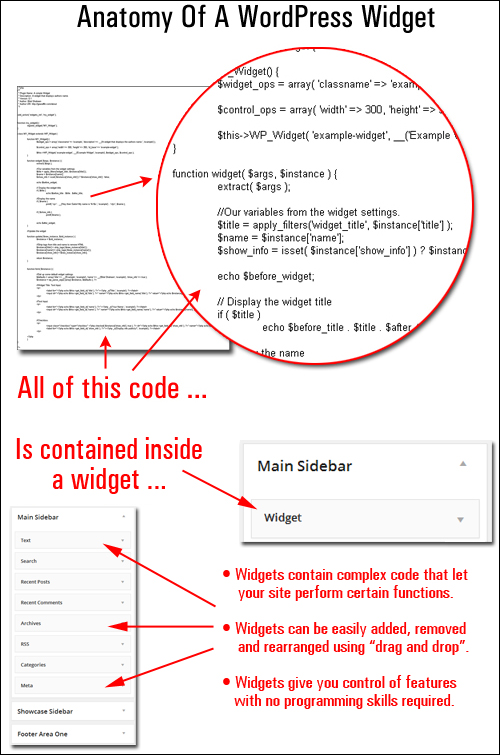
(WordPress widgets help you control specific features and functions on your site without having to touch code)
Widgets were originally designed to provide a simple way to allow WordPress users to control aspects of their WordPress theme’s layout and functionality.
In plain English terms, widgets let you do things like:
- Easily add, edit and delete content sections in parts of your website without touching any code, and
- Rearrange the functional layout of your theme on widget-enabled areas of your site (e.g. the sidebar, header, footer and other areas) using drag-and-drop technology.
Here are just some of the cool things you can add to your WP site’s sidebar section (plus headers and footers and other areas, depending on your theme) using widgets:
- site pages
- content categories
- archive
- custom page menus
- links to resources
- links to your recent posts
- post comments
- advertising
- quotations
- polls & surveys
- RSS content
- opt-in form
- product catalog images
- Facebook feeds
- display widgets from other sites (e.g. Amazon)
- administrative forms (e.g. login, register, etc.)
In other posts and tutorials, we write more extensively about WP plugins and WordPress themes; what they are, what they do, how these can easily add loads of new functionality to WordPress and even alter the design of your website.
As you will see shortly, themes can affect how widgets display on your website and many plugins include accompanying widgets that will further enhance your website or blog’s functionality.
Widget-Ready Themes
Most WP themes support widgets and provide widget-ready sections on your site where you can add widgets to.
Usually, you will find widget-powered features in the theme’s sidebar menu, but depending on the theme, these can also be located in the site’s header area, in the footer, and even above or below your content.
It all depends on what theme you have installed.
For example, the WP theme in the screenshot below has only one widget area adding functionality to the theme’s sidebar …
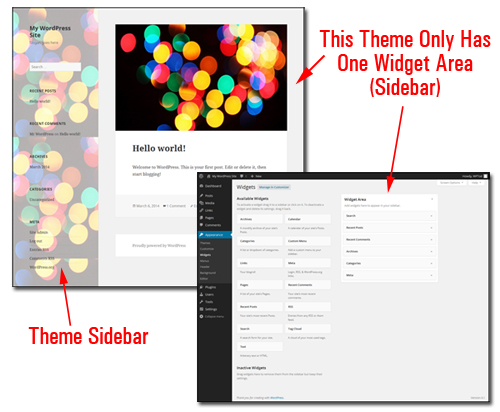
(Some WordPress themes only have a single widget enabled area)
Below is the widget section of the theme shown above, and you can see that this theme only contains one widget area …
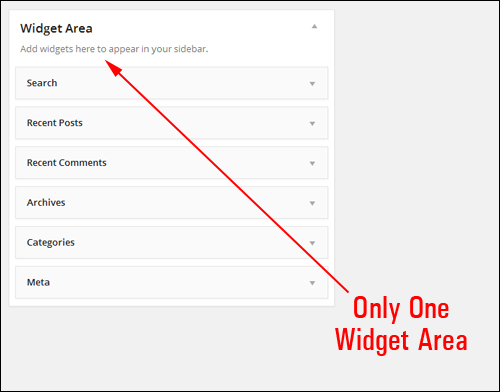
As you can see from the above, the only place where users can add widgets to their site using the above theme is in the site’s sidebar area.
In contrast, the theme shown below includes multiple widgetized areas …
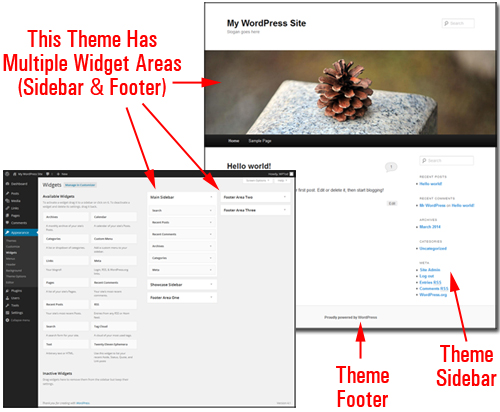
(Many themes offer users a number of widget-enabled areas)
Below is the widget panel of the theme shown above, so you can see how many widget areas are included in this theme …
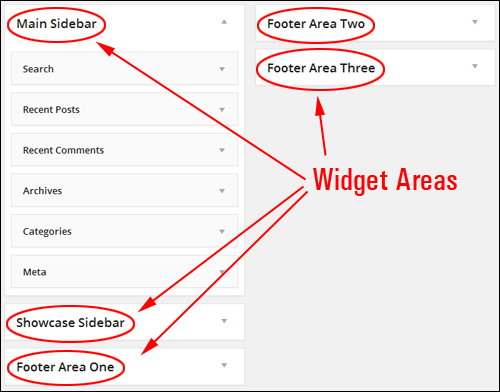
(Multiple WordPress widget areas)
As you can see, in the above theme, you can add widgets to the sidebar area of two different page templates (Main Sidebar and Showcase Sidebar) and three different Footer areas (Footer Area One, Footer Area Two, Footer Area Three) …
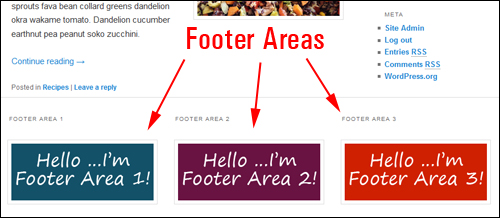
(Some WordPress themes let you add widgets to your site’s footer section)
Where Can I See My Widgets?
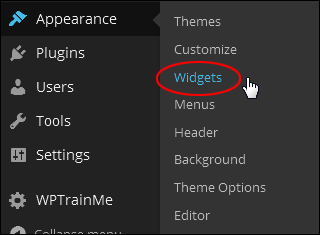
The Widgets panel is found inside the WP admin area and can be accessed from the WordPress administration menu by clicking on Appearance > Widgets …
This opens the Widgets section in your browser window …
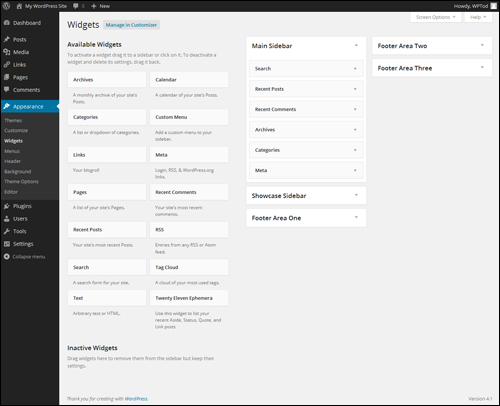
(Widgets Screen)
The Widgets panel displays all the widgets that are available.
The right-hand section of the window displays your “active” widgets …
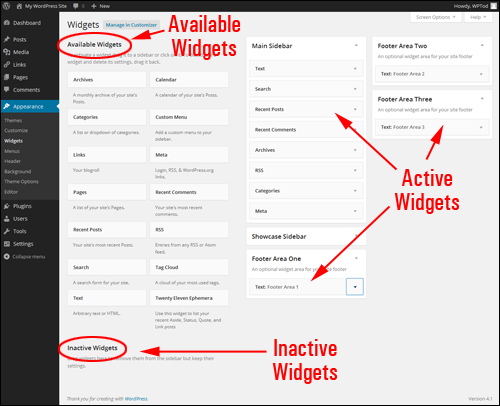
(Activate or deactivate widgets using drag-and-drop)
Available widgets can be made Active or Inactive by dragging-and-dropping items to different sections of the panel.
Widgets dragged from the Available Widgets section to widget areas like your sidebar, footer, etc. automatically become active and available.
In addition, your Widgets area includes an Inactive Widgets section that lets you remove any widgets that you no longer want to use on your site. Inactive widgets retain their pre-configured settings.

In a default WordPress installation, your site already comes with several pre-installed widgets (e.g. widgets for displaying your pages, links, posts, post categories, adding text, adding RSS feeds, adding tags, adding a search box, etc …) and active widgets.
These widgets are available right out of the box in your default WordPress theme and display items like Recent Posts, Recent Comments, Meta, etc. to site visitors …
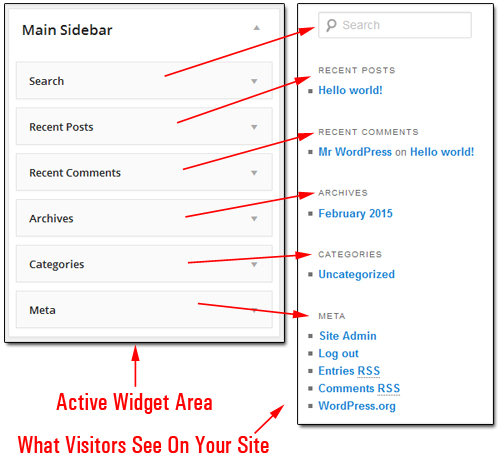
(By default, your site already comes with several pre-installed widgets)
Sometimes, as new plugins are installed on your website, you may find that new widgets have also been added to your Widgets area …
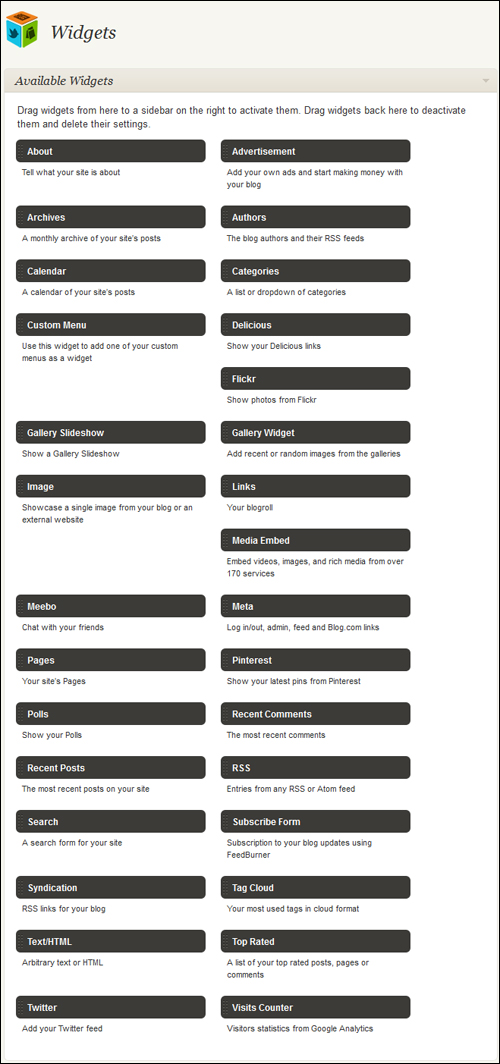
(Installing new WP plugins can sometimes add new widgets to your Widgets admin section!)
WP Widgets Features: Drag-And-Drop
Widgets are great because you can easily add, activate, deactivate, rearrange and remove them all inside your Widgets section using drag and drop …
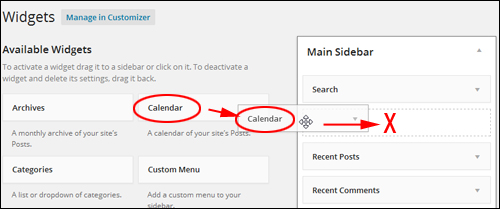
(Rearrange your site’s widgets using drag and drop)
Drag & drop technology lets you easily reorder the order and layout of your widgetized sections.
For example, take a look at the image below. In this example site, the widgets have already been configured to show the following:
- A newsletter opt-in form,
- A click for support button, and
- A couple of click to phone sales buttons from a widgetized plugin …
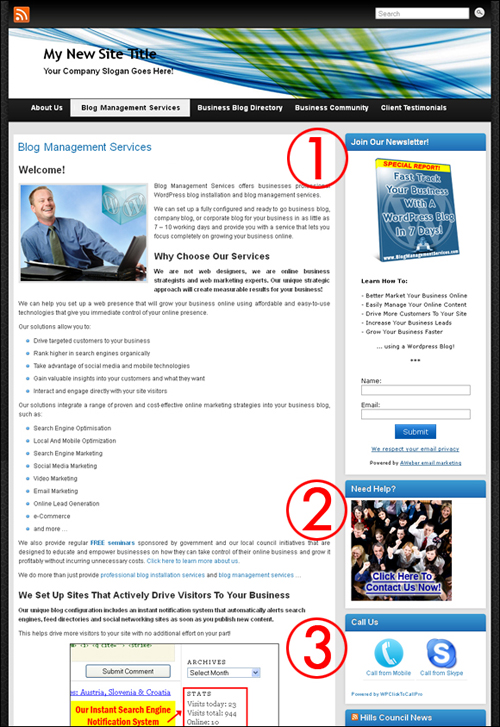
(Widgets control how certain features display on your WordPress site)
If you were to peek inside the example site’s Widget area, you would see that these features display on the site’s sidebar menu in the same order as they were arranged in the site’s active widget section …
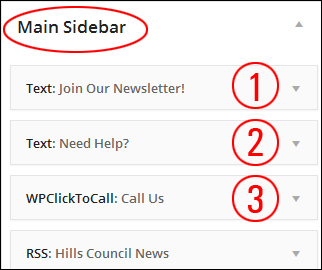
Let’s now reorganize these widgets in the Widget Area using drag & drop …
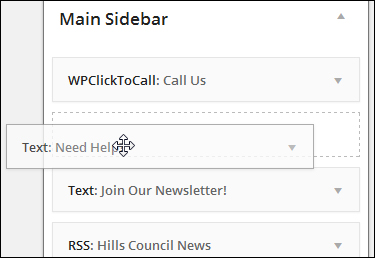
(Drag-and-drop to rearrange widgets in your widget area)
The widget features have now been reorganized in your sidebar …
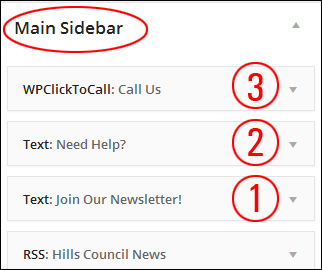
This immediately reorganizes the layout of your site’s sidebar. Note in the screenshot below that the click to call function (3) is now the first item on the sidebar menu, and the contact us banner (2) can now be found above the newsletter opt-in form (1) …
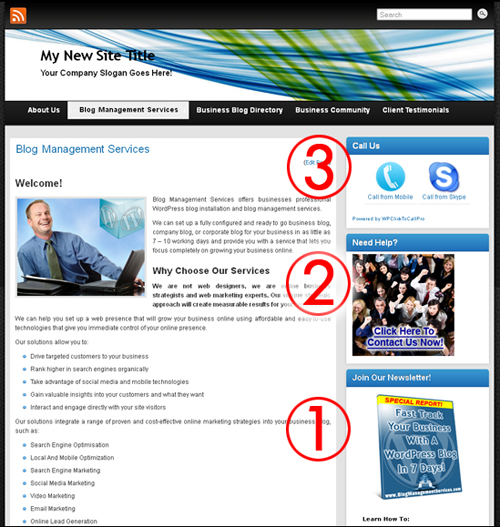
(WordPress widgets are very easy to use!)
Pretty simple, huh?
Here are some more useful things about WP widgets that are also worth keeping in mind about:
Widget Management – Previewing Widgets
Depending upon the actual WP theme that you have installed on your site, you can also manage widgets without making actual changes to your site, so you can be sure that you like what you have done before committing these changes to the live website.
You can do several edits, modifications and adjustments in preview mode, like adding, removing and reorganizing your active widgets to any widget areas that your theme makes available, and everything is done in real time. If you like what you’ve done and click the “Save and Publish” button, your changes will then be instantly updated and reflected on your site to visitors.
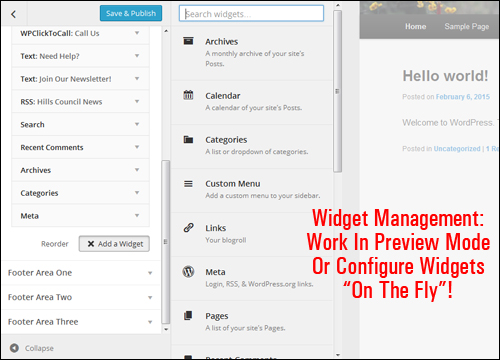
(Widget management – work in preview mode or configure widgets on the fly!)
The ability to manage widgets from your WordPress dashboard is a valuable feature of WordPress. You can work in preview mode inside the WordPress Theme Customizer screen (Appearance > Customize) and see how your widget content will appear before publishing any changes you’ve made (to avoid making mistakes), or configure widgets on the fly using the Widget editor area as shown earlier.
Widget Configuration
As we have explained earlier, WordPress lets you easily and quickly reorder how content is displayed in areas like your site’s sidebars, footers and navigation menus with just a few clicks of your mouse button, using drag-and-drop technology …
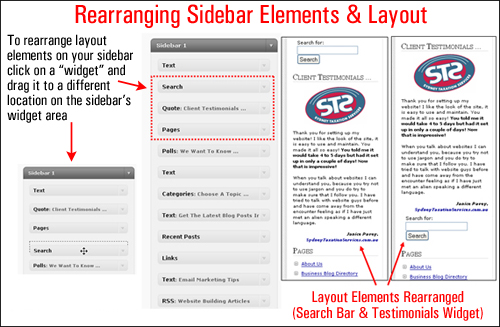
(Rearrange sidebar layout using widgets to improve your site’s user experience)
In the above screenshot, for example, you can see that we have easily reorganized the sidebar menu by switching around the search and testimonial sections. As you now know, this was easily done by dragging and dropping the widgets into different positions inside the sidebar widget area.
Rearranging sidebar layout using widgets can help improve your site’s visitor experience.
Now … what about the widgets themselves? Can the widgets be customized instead of simply added, removed and rearranged?
Absolutely!
With many traditionally-designed websites, you would need to edit code in your web templates to reorganize the order of elements, make unique customizations to features on page elements like shopping cart information sections, or just add features like a list of your web pages, or a dropdown menu of your content categories, an archive section, custom menus, links to external sites, a list of your most read posts, the latest post comments, a section displaying clickable images, testimonials or surveys & polls, content from RSS feeds, product catalog images, social media sharing buttons, and more.
While some widgets are “fixed” in the sense that they provide little to no customizing options, other than to add an optional title to the widget as shown in the example below …
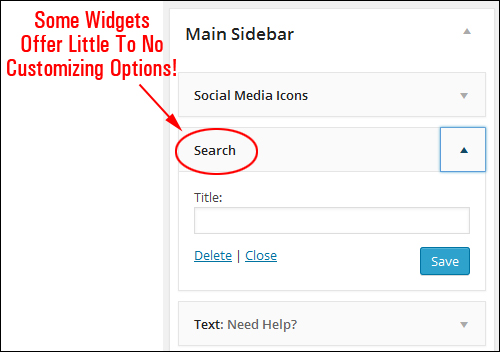
(Some widgets provide users with little to no configurable options)
Most widgets provide additional settings that allow you to further customize them. This can include things like making certain types of information hidden to site visitors but visible to registered users, displaying additional forms, fields, or information, specifying dimensions of sidebar images, videos, etc. and more …
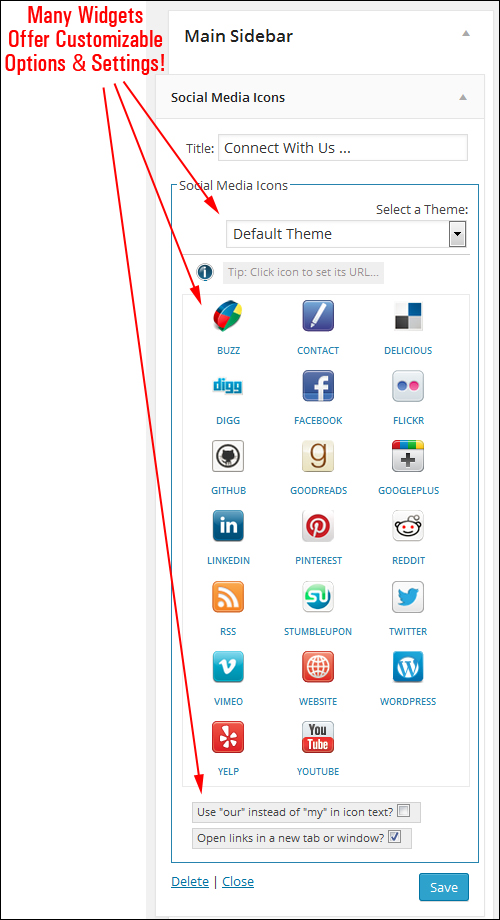
(Many widgets provide users with configurable options!)
Using WordPress Widgets
As you have just seen, widgets require no coding experience or programming expertise to use. Most widgets can be added to your WordPress web site simply by activating a plugin and then dragging and dropping the plugin’s corresponding widget into your Active widgets area.
For some useful tips and tricks to using widgets, see these great step-by-step tutorials showing you how to use a number of different widgets in WordPress to boost the effectiveness of your site, plus many great tips for getting the most out of WordPress with widgets:
- How To Use And Configure WordPress Widgets – Part 1
- How To Use And Configure WordPress Widgets – Part 2
- How To Use And Configure WordPress Widgets – Part 3
- How To Use And Configure WordPress Widgets – Part 4
Related Posts
If you are learning how to use WordPress, you may also find the following topic-related posts useful:
Hopefully, now you have a better understanding of issues that can affect your website and how WordPress can help you build a better online. To learn more about using WordPress please click on links to visit our related posts section.
***
"I have used the tutorials to teach all of my clients and it has probably never been so easy for everyone to learn WordPress ... Now I don't need to buy all these very expensive video courses that often don't deliver what they promise." - Stefan Wendt, Internet Marketing Success Group
***