 In Part 1 of this tutorial series, we explained how to use widgets in WordPress and in Part 2, we explained how to configure a text widget.
In this tutorial we are going to show you how to configure other commonly-used WordPress widgets.
How To Add A Categories Widget To Your Sidebar Area
Now that you have configure a text widget containing a contact button, let’s configure a widget for displaying Categories on your sidebar.
The Categories widget already displays on your sidebar by default. Place the widget wherever you want your post categories to display by clicking and dragging it on the sidebar widget area …
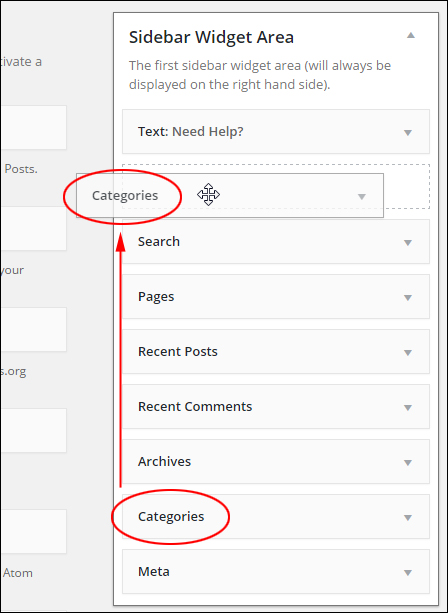
(WordPress Post Categories widget)

Before adding a Categories widget to your sidebar, we first recommend configuring your categories inside the WordPress dashboard …
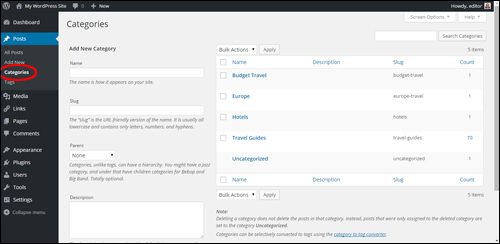
(Categories Panel)
Note: We plan to provide separate tutorials on how to configure and use WordPress post categories.
Configure your Categories widget settings as described below:
- In Title: type something that will make sense to visitors, like “Choose A Topic…” (1)
- If you plan to use several categories, check Display as dropdown (this significantly reduces the length of your content by displaying all categories in a drop-down menu). Leave the box unchecked if you want a list of all categories to display on your sidebar menu. (2)
- You can leave the other options unticked, or see the additional notes on configuring the Categories widget below.
- Click Save when finished …
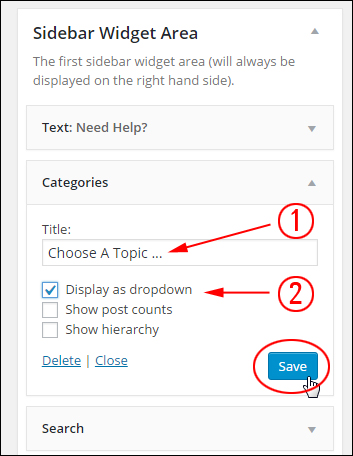
(Categories widget settings)
Load the site in your web browser or reload your page to see how your sidebar categories will display to your visitors …
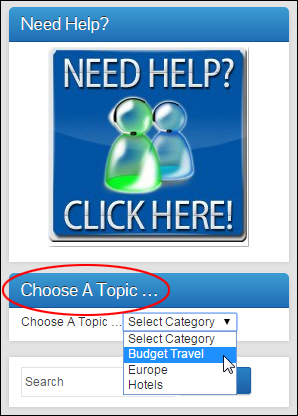
(WordPress Categories widget added to sidebar area)
Tips:
- Change the default Uncategorized post category to something more meaningful.
- If you use nested categories on your site, you may want to check the Show hierarchy option, otherwise leave this section as is.
- To display the number of posts published in each category on your site, enable the Show post counts check box …
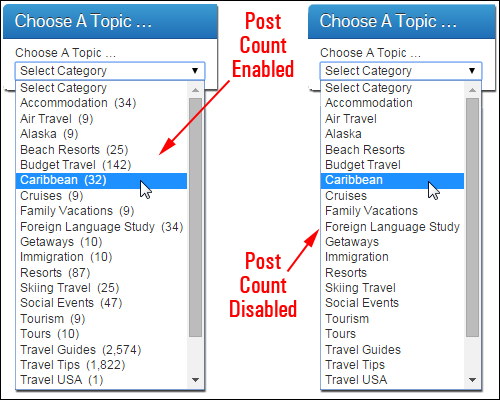
(Category widget options – Post Count Enabled vs Post Count Disabled)
Add A Recent Posts Section
The Recent Posts widget normally shows on your sidebar by default. All you need to do is configure your widget.
Click on its widget title bar to display the configuration settings …
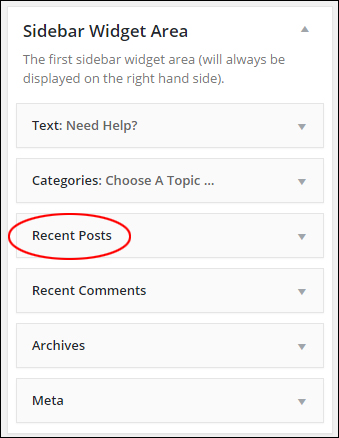
(Recent Posts widget)
There is not much to set up in this widget. You can add a title, select the number of posts to display and display post dates. If you want to use the default Number of posts to show setting, then just leave the widget as is, otherwise change the number of posts and click Save when done …
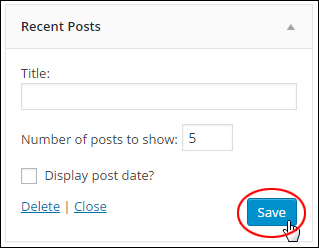
(Recent Posts WordPress widget settings)
Your most recent posts will be listed on the sidebar …
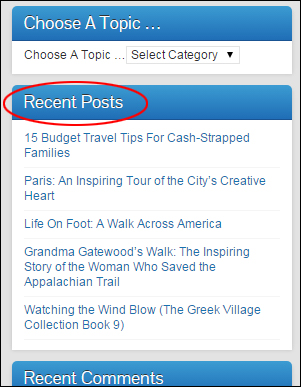
(Recent Posts widget added to sidebar)
A tutorial is provided on how to create a post in WordPress here: How To Create A New WordPress Post
Adding A Pages Widget
Next, we’ll add a widget to your sidebar navigation menu to display page links.
Find a Pages widget in the Available Widgets section …
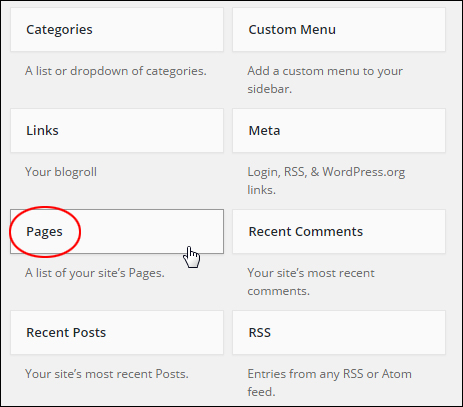
(Pages Widget)
Drag the Pages widget to your active widget section …
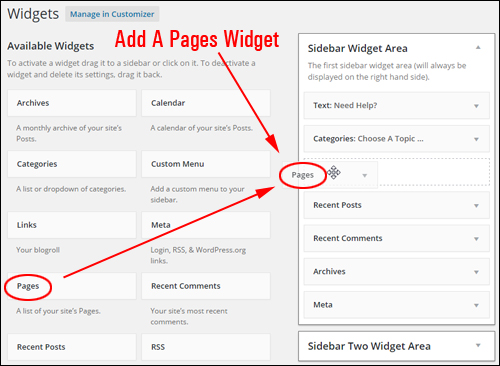
(Inserting a Pages widget into your sidebar section)
The Pages widget allows you to configure the following settings:
- Title: Add a title to display above your links (e.g. “Useful Information“) (1)
- Sort by: Sort how your pages display: by title (i.e. alphabetically), by page order, or by page ID. (2)
- Exclude: Use this setting to prevent pages from showing on your sidebar navigation area (3) …
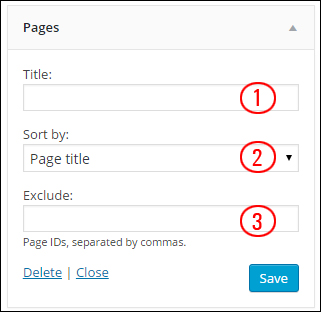
(Pages Widget settings)
By default, pages will be listed by title in alphabetical order. If you want to display pages using another option, then choose a different method in the Sort by: drop-down menu …
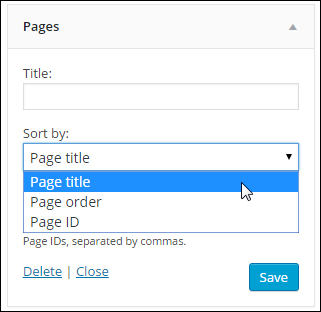
(Pages Widget settings – sort options)
To exclude pages from showing in the sidebar, enter the Page Ids for the pages you want to exclude separated by commas into the Exclude field of the widget …
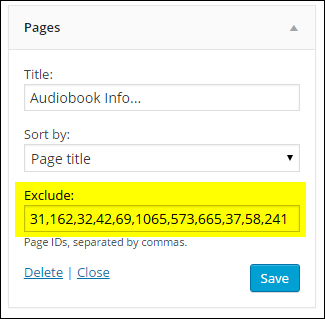
(WordPress Pages Widget settings – exclude pages by ID)
Finding a WordPress post or page ID is explained here: How To Find Page And Post IDs In WordPress
Click the Save button when done and click Close at the bottom of the widget box to minimize your widget.
Links to your site’s pages will now appear in your sidebar …
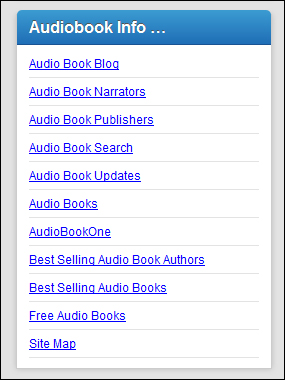
(WordPress Pages Widget on sidebar)
Tip: You can add multiple Pages widgets to your sidebar navigation section. This is handy if you need to display separate page groups on the sidebar (e.g. “Products”, “Legal Pages” etc.)
Add Links To Your Sidebar
Now, we’ll add a widget to your sidebar for displaying links to external resources.
Before adding a Links widget to your sidebar navigation section, you should first configure the Links feature inside your WP dashboard …
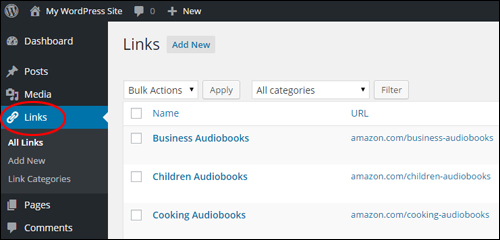
(WordPress Links screen)
Note: We plan to provide tutorials on how to use WordPress Links.
To add the widget, select a Links widget in the Available Widgets section …
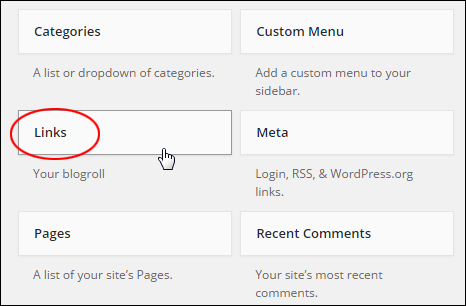
(Links Widget)
Drag it to your active area …
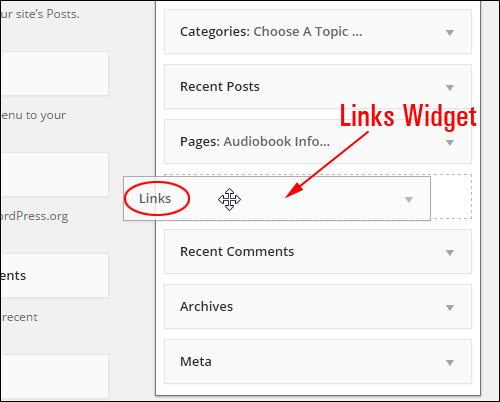
(Making Links Widget active)
The widget offers a number of configurable options, including the ability to specify what information to show about your links and how many links you want to display on the sidebar area …
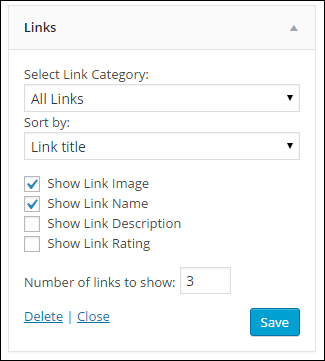
(WordPress Links Widget Settings)
You can add as many separate ‘Link Widgets’ to your sidebar as you want. As you will see in a moment, this lets you create and display specific lists of links on your site …
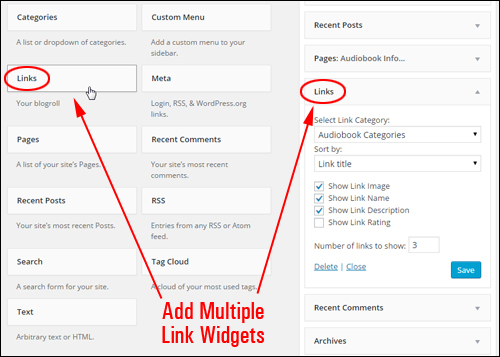
(Add Multiple Links Widgets To The Sidebar Menu)
You can sort links by Link title, Link rating, Link ID, or display links in Random order …
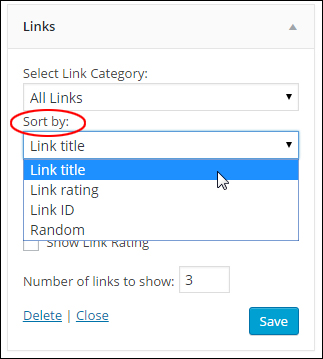
(WordPress Links widget: ‘Sort by:’ drop-down menu)
You can also create and display a list of items for a specific category, by selecting a link category from the ‘Select Link Category’ drop-down menu …
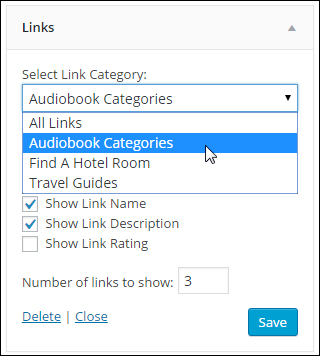
( Links widget: ‘Select Link Category’ drop-down menu)
When you have finished configuring your Links Widget, click the Save button …
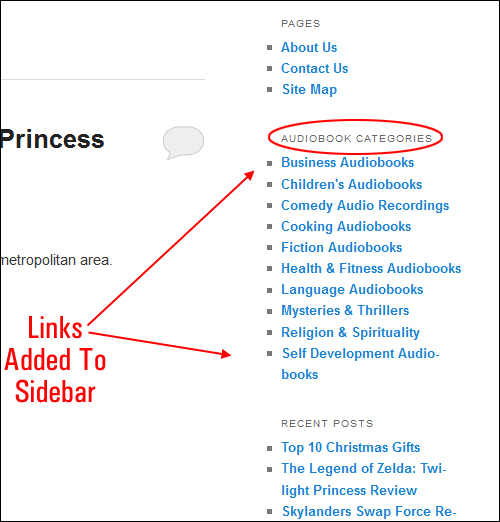
(External links added to sidebar navigation area)
As the above example shows, you can display specific external links to your site visitors (e.g. a list for a specific link category only), and add multiple lists of links to the sidebar.
***
This is the end of section 3 of this series of tutorials.
Click here to continue:
***
"I have used the tutorials to teach all of my clients and it has probably never been so easy for everyone to learn WordPress ... Now I don't need to buy all these very expensive video courses that often don't deliver what they promise." - Stefan Wendt, Internet Marketing Success Group