 As we’ve discussed in this article, one of the many great benefits of using WordPress is that you can easily add content, enhance your site’s functionality, and redesign the layout of your website without web coding knowledge required.
WordPress allows you to easily add, remove, and reorganize content in your site’s sidebar (or header and footer sections too, depending on what theme you use) using widgets.
Once you know how to use widgets, you can easily add things to your site like:
- list of your web pages
- blog categories
- archive
- menus
- links to resources
- posts that you want to promote
- excerpts of recent comments added to your posts
- clickable text ads
- client testimonials
- survey results
- RSS feed content
- newsletter registration form
- video
- social media buttons
- add widgets from external sites (e.g. Facebook)
- administrative forms (e.g. login, register, etc.)
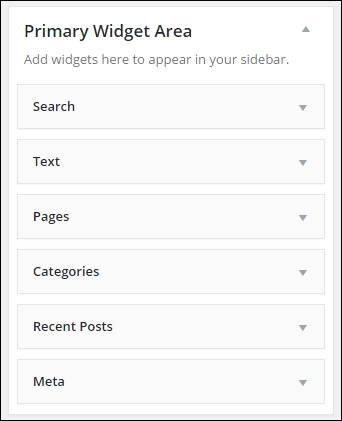
(WordPress widgets make managing and using WordPress easy)
To learn more about what widgets are, how they work and how using widgets can help you expand the functionality of your website, go here:
In this step-by-step tutorial series we explain how to use and configure a number of frequently-used widgets in WordPress.
Using Widgets
Widgets – Basic Concepts
Before we explain how to configure widgets, let’s first cover some of the basics about using widgets:
Most WordPress Themes Support Widgetized Areas
Most WordPress themes support widgets and provide built-in widget-ready areas in your theme’s layout where widgets can be added, such as the sidebar menu, header area, and footer sections. Depending on what theme you are using, widgets can also display in the content area …
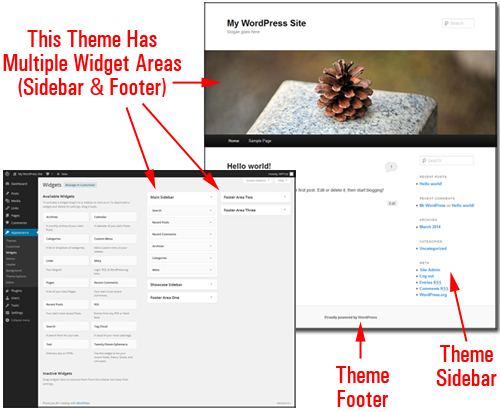
(Many themes offer users multiple widgetized sections)
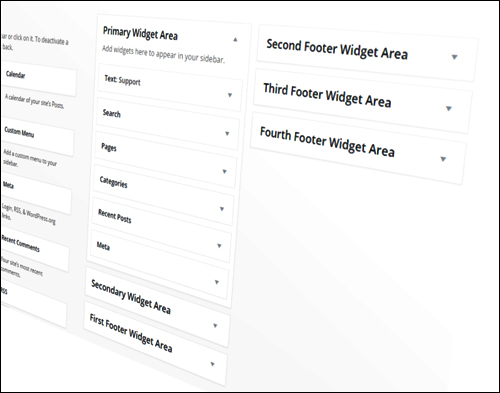
These widgetized layouts correspond to a feature inside your Widget administration area called “Widget Areas” …
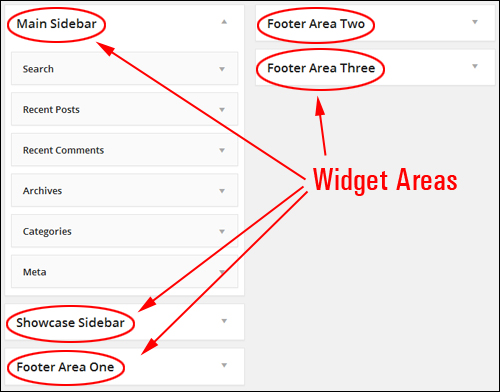
(Widget Areas)
Widgets Panel
The Widgets panel displays a list of all the widgets that are available.
The right-hand section of the screen displays the “active” widgets …
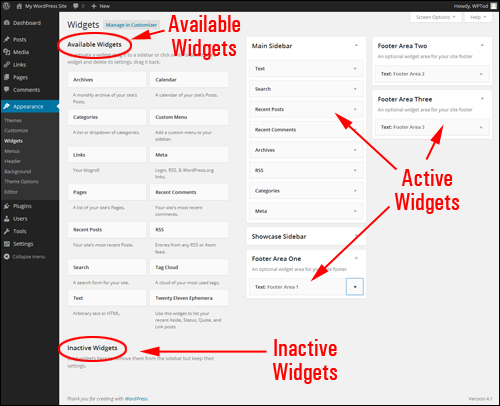
(Widgets can be activated or deactivated using drag-and-drop)
Available widgets can be made Active or Inactive using drag-and-drop.
Widgets dragged from the Available Widgets section to widget areas like your sidebar, footer, etc. become active and can be used for their purpose.
In addition, the Widgets panel includes an Inactive Widgets section that lets you remove any widgets that you no longer want actively displayed on your site. Inactive widgets retain their settings.
Rearrange Widgets Using Drag And Drop
You can easily add, activate, deactivate, rearrange and remove things using widgets just by dragging and dropping items in your Widgets area …
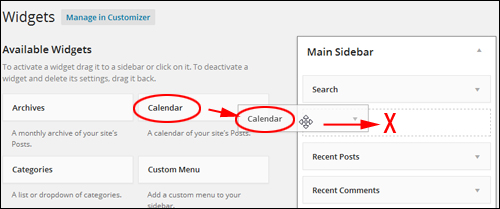
(Rearrange widgets using drag-and-drop)
You can also easily reorder your theme’s layout with drag-and-drop ease.
For example, in the image below, the widgets have already been configured to display things on your site like:
- A subscription form,
- A contact support button, and
- ’Click to call’ buttons from a widgetized plugin (i.e. a plugin that adds an accompanying widget to your site) …
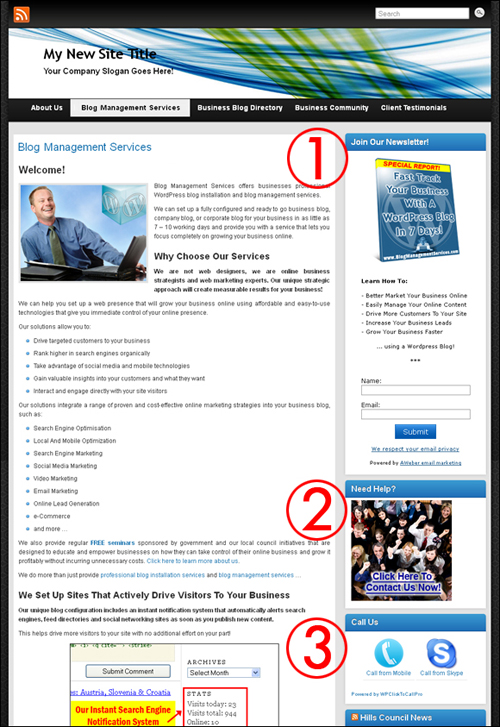
(Widgets control the order certain features display on your WordPress site)
If we look inside the example site’s Widget area, you will see that these features correspond to the order of widgets inside the active widget area …
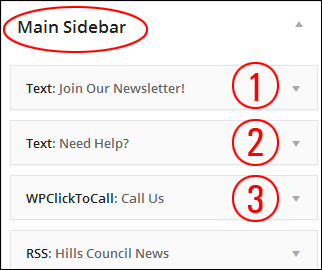
Let’s now change the above widgets in the Widget Area by dragging and dropping items …
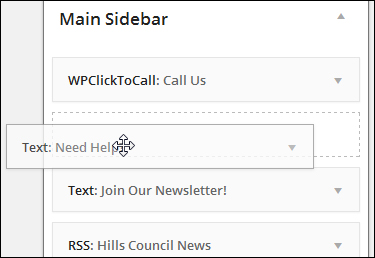
(Drag & drop to rearrange widgets in your widget area)
The widget features have now been reorganized in your sidebar …
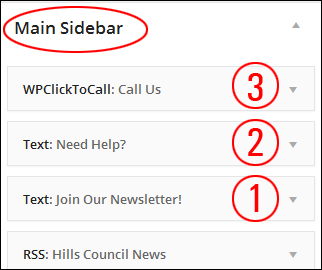
This instantly changes the layout of your site’s sidebar.
Rearranging sidebar elements using widgets can help to improve your site’s user experience.
Note in the screenshot below that the ‘click to call’ feature (3) is now the first item on the sidebar, and the ‘contact us’ section (2) can now be found above the newsletter subscription form (1) …
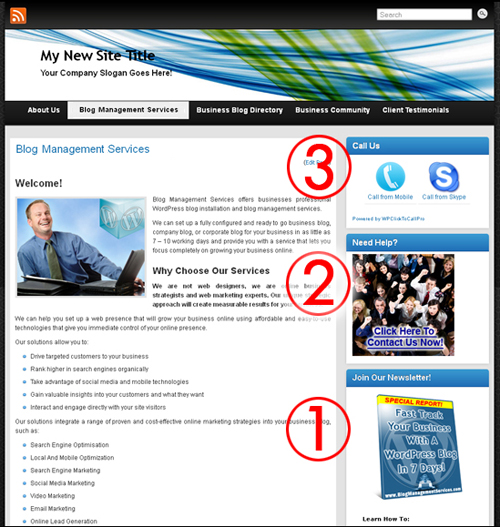
(Reorganize sidebar elements using widgets to improve your site’s user experience)
Deleting Widgets From Your Sidebar Section
Deleting widgets from the sidebar menu is really easy.
For example, let’s delete the Search widget from your sidebar navigation section …
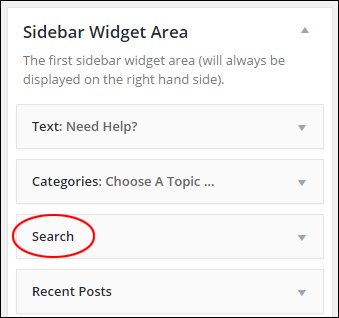
(Search widget)
To remove a widget from an active Widget area, you can either open up the widget settings and click the Delete link …
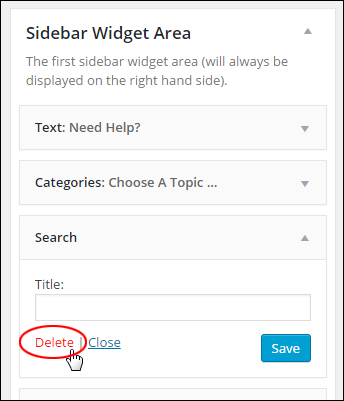
(Deleting your WP widgets)
Or just drag the widget out of the Active Widgets area and drop it into the Inactive Widgets area …
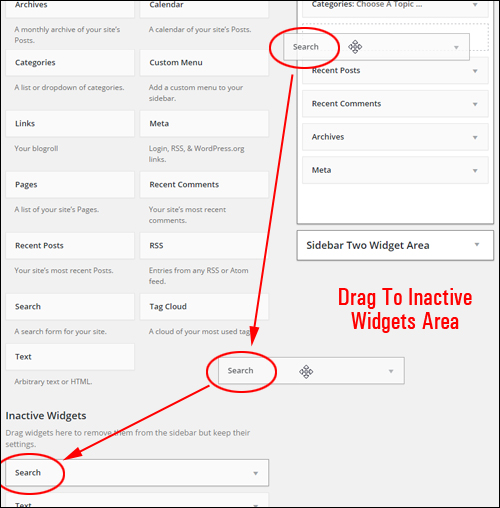
(How to remove your widget)
Repeat this process for any widgets you want to remove from your sidebar area. You can always reinstate widgets by moving them back into the active widgets area.
Widget Settings
Most widgets can be further customized. This includes hiding information from users, displaying additional forms, fields, or information, specifying dimensions of sidebar images, videos, etc.
Clicking on the little triangle in the corner of a widget toggles between expanding and collapsing the item and displays the settings for that widget …
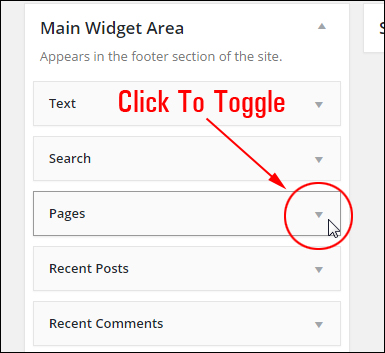
(Toggle to expand/collapse widget settings)
When the widget expands, you can change and save your settings, click Delete to delete the widget from the “Active Widgets” section, close the widget, or click on the triangle to collapse the widget …
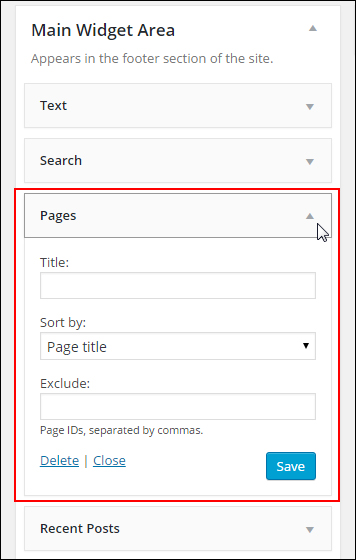
(Widget settings)

Some widgets may require or offer no customization, or they may only allow you to add an optional title …
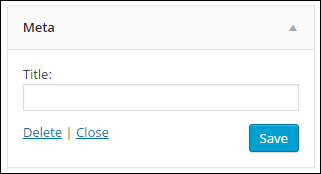
(Some widgets provide users with little to no customizing options)
WordPress Theme Customizer
Depending upon which theme you have installed, you’re also able to preview any changes live without making actual changes to your site. This way, you can be sure that you like your customizations before making any permanent changes to your website or blog.
Widget management is a great feature of WordPress. You can work in preview mode inside the WordPress Theme Customizer screen (Appearance > Customize) and see how the widget content will appear before publishing changes (and avoid making mistakes), or manage your widgets on the fly using the Widget editor area.
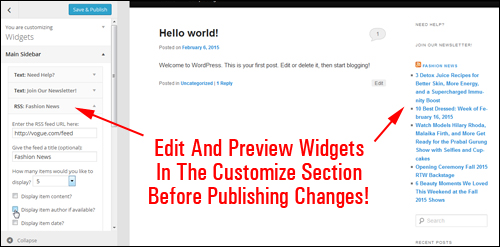
(Edit widgets in the Customize section)
Wherever you are on the front-end just calick the Customize link in the toolbar …
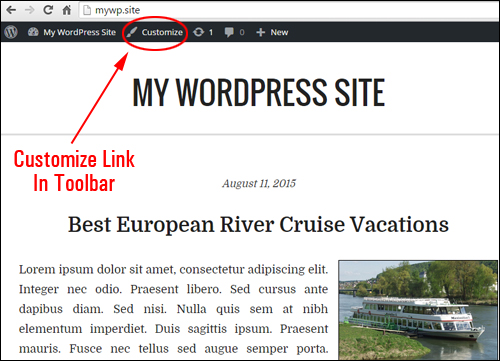
(Toolbar Customize Link)
This will bring you to the Customizer section in the backend.
You can do lots of modifications and adjustments to your widgets in preview mode (like inserting, deleting and reorganizing your widgets), and see all changes in real time. If you like what you’ve done, click the “Save and Publish” button and your changes will then be instantly applied and reflected on your site to visitors.
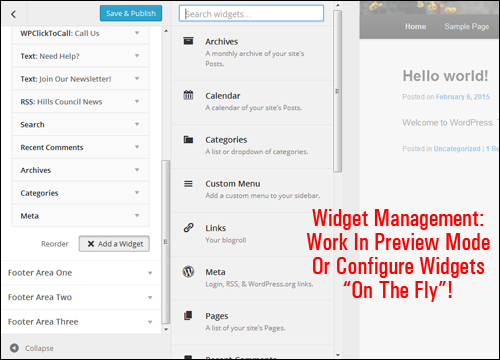
(Widget management – work in preview mode)
After saving changes, all changes made to widgets will be automatically updated.

Because the theme you choose determines how elements display on your site, we recommend that you install your theme first before configuring widgets on your sidebar.
Also, remember to use the WordPress Customizer to preview your changes. This saves you from having to keep two browsers open while you work through this tutorial.
Now that you know the basics of using widgets, it’s time to learn how to configure various commonly-used WordPress sidebar widgets.
***
This is the end of part 1 of this tutorial series.
To continue, click here:
***
"I was absolutely amazed at the scope and breadth of these tutorials! The most in-depth training I have ever received on any subject!" - Myke O'Neill, DailyGreenPost.com
***