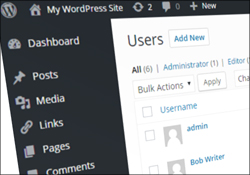
 For better WordPress site security, don’t set up sites using the user name “admin”.
This is the default installation username for WordPress and one of the leading causes of brute force attacks on the WordPress platform.
In this tutorial, we’ll show you how to change the admin username in WordPress to a more secure username.
Changing Your Admin User Name In WordPress
Generally, with a new WordPress site, the first registered user is usually the admin.
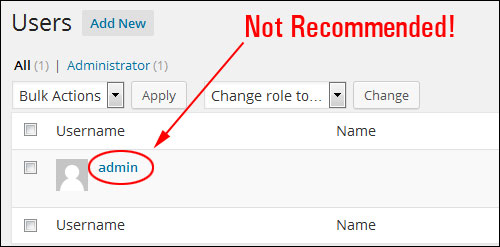
Having the default WordPress username admin is not recommended, as it poses a security risk to your WordPress site …
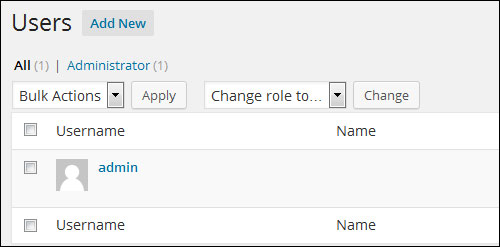
Let’s change your admin username in WordPress from ‘admin’ to a more secure username.
There are a number of ways to access your “Profile” section after logging into WP:
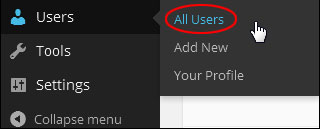
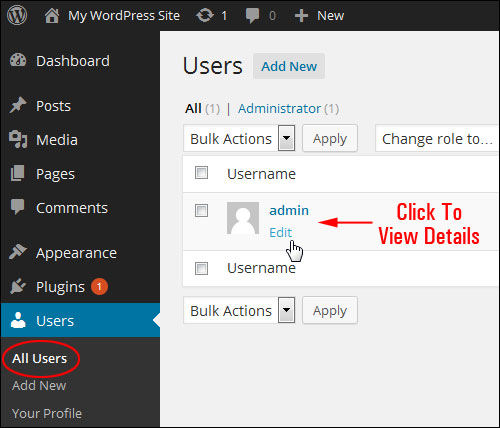
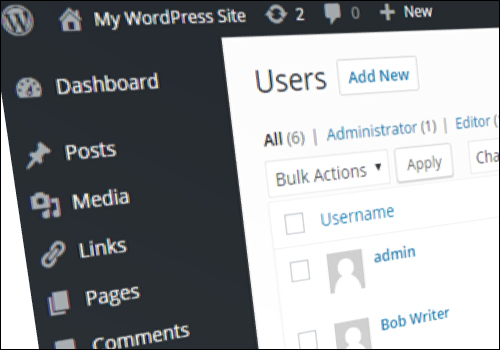
Select the Users > All Users screen in the main menu …
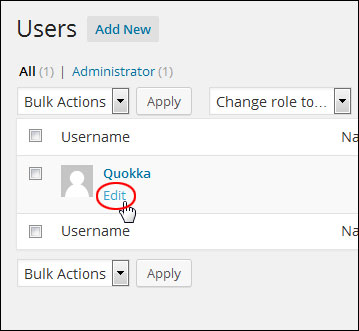
Click either on the username, or the Edit link when hovering over the user name with your mouse …
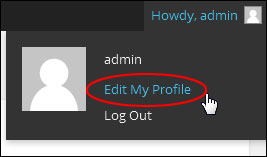
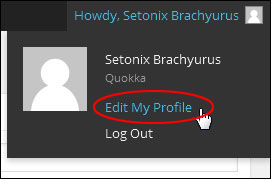
Or, select Edit My Profile from the “Howdy, User” menu at the top-right hand corner of your screen …
You can also go to your “Profile” area by selecting Users > Your Profile from your admin menu.
You will see when you get into your Profile page that you can’t change usernames inside the admin section …
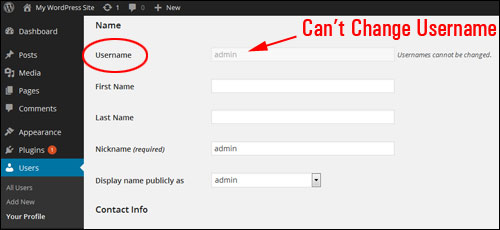
So, how can you modify this user name?
Change Admin Username By Creating A New Admin User
If your username is “admin,” here’s the easiest way to change your user name without going into your server:
Click Add New to create a new user …
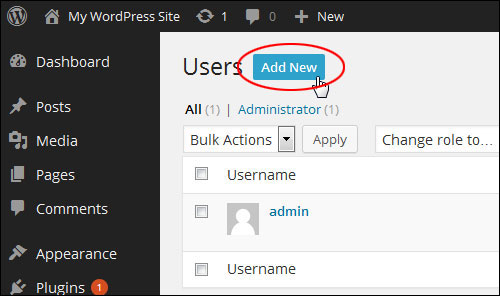
Next, create a new user name, and assign the new user the role of “Administrator”. Save your changes to update your settings …
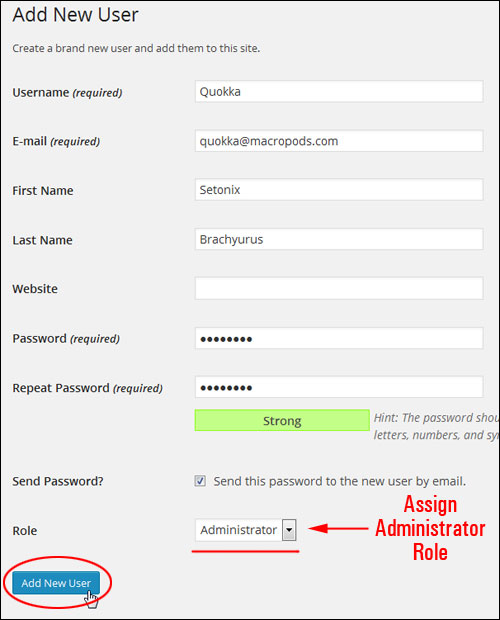
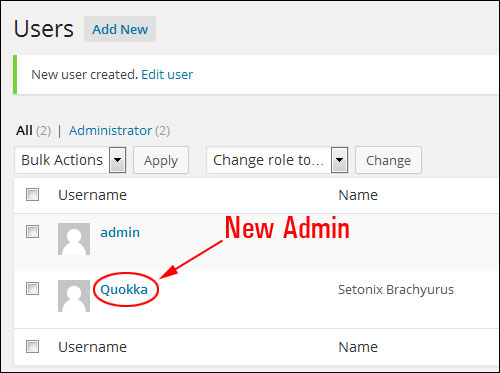
You have now created a new user with admin privileges …
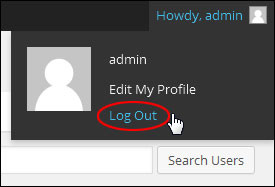
Log out of your WordPress admin area …
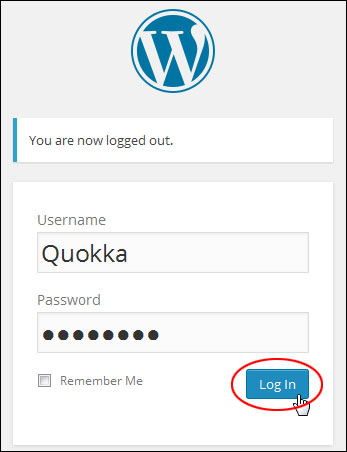
Log in with the new admin details for the user you have just created …
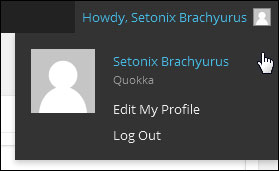
You should see your new user name details in the “Howdy, User” panel …
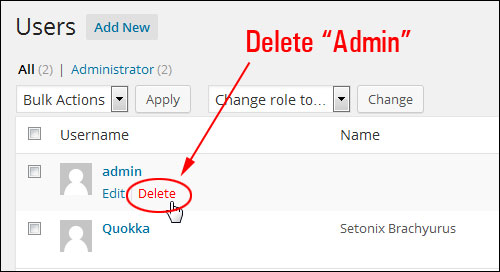
Select Users > All Users in your main menu …
You can now delete the old administrator account …
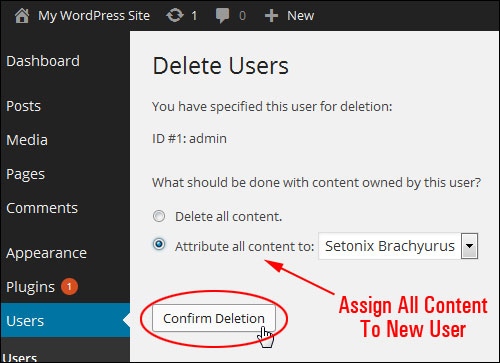
Select the option to attribute all content owned by the old user account and reassigned it to the new user, then confirm the deletion of the old user account …
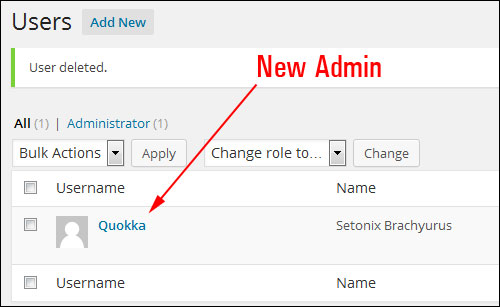
You are now left with only the new Admin account, effectively changing your WordPress admin user name …
Change Admin Username Using A WordPress Plugin
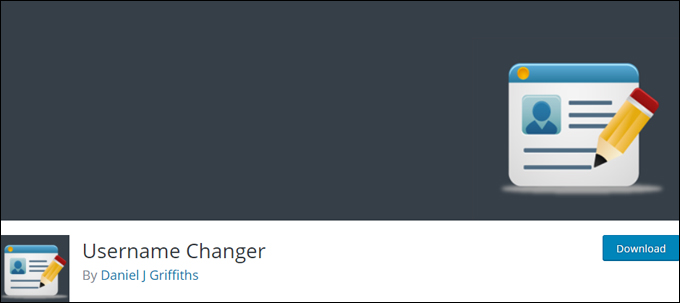
Another easy way to change the username is to use a plugin like the one shown below.
Username Changer
(Username changer)
Username Changer is a free WordPress plugin that lets you easily change your admin username (and allow other users to change their usernames too!)
Installing The Plugin
To install the plugin from your WordPress dashboard, go to Plugins > Add Plugins and type in “username” into the Keyword search field (if you need help see our tutorial on installing WordPress plugins).
There are several plugins you can use to perform a similar function. Locate the Username Changer plugin and click on ‘Install Now’ …
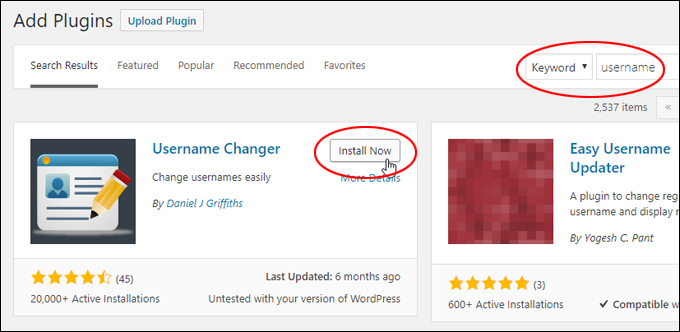
(Install the plugin)
After installing the plugin, click the ‘Activate’ button …
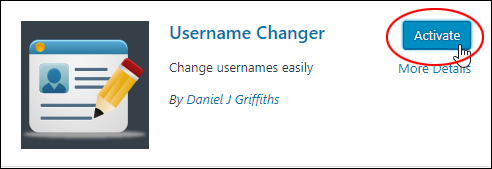
(Activate the plugin)
Configuring The Plugin
After installing and activating the plugin, go to Settings > Username Changer …
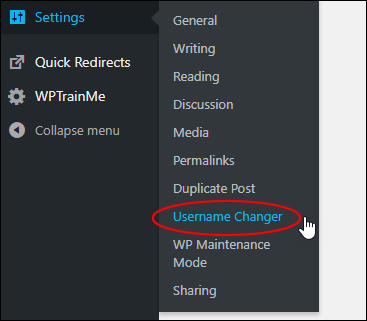
(Settings – Username Changer menu)
This brings you to the ‘Settings’ screen.
Here, you can allow other user roles to change their usernames too (be careful about doing this!) …
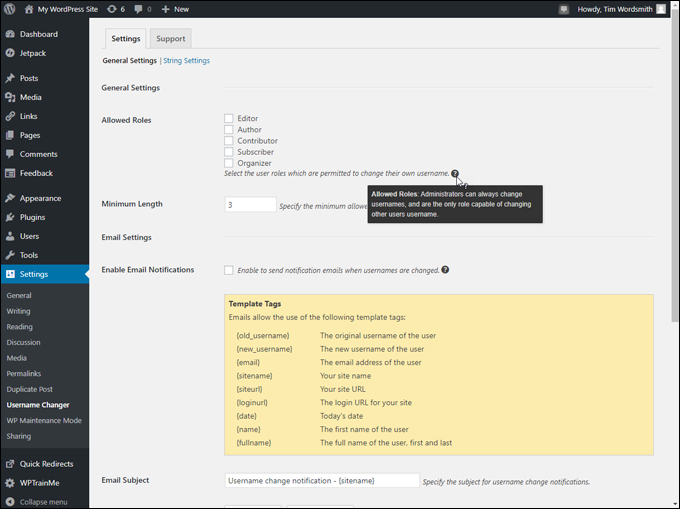
(Username Changer Settings – Allowed Roles)
You can also configure email notifications (if you choose to allow users to change their usernames) …
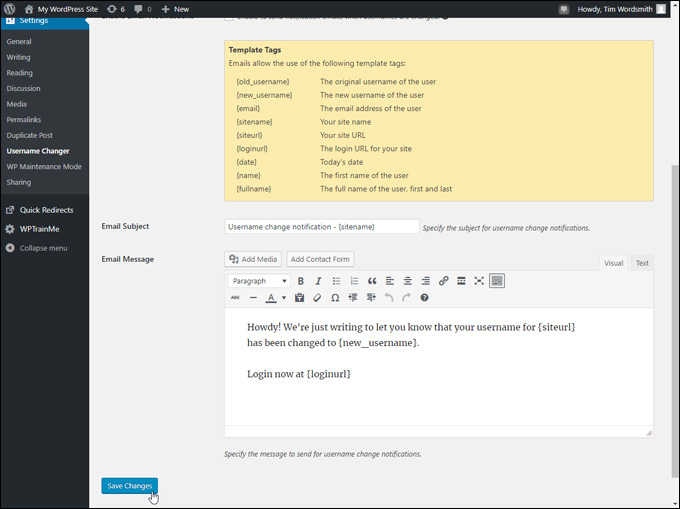
(Username Changer Settings – Email notifications)
Using The Plugin
To change your username, go to Users > Your Profile …
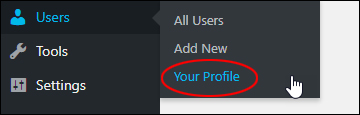
(Users – Your Profile menu)
Scroll down to the ‘Name’ section and you will see a ‘Change Username’ link next to the grayed out username field. Click on this link to change your username …
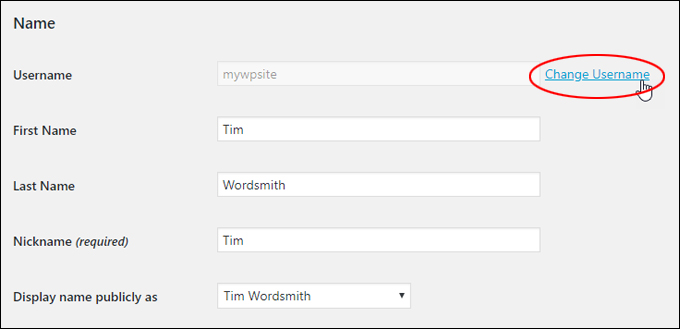
(Click on ‘Change Username’ link)
The ‘Username’ field will become editable. Change your username and click the ‘Save Username’ button …
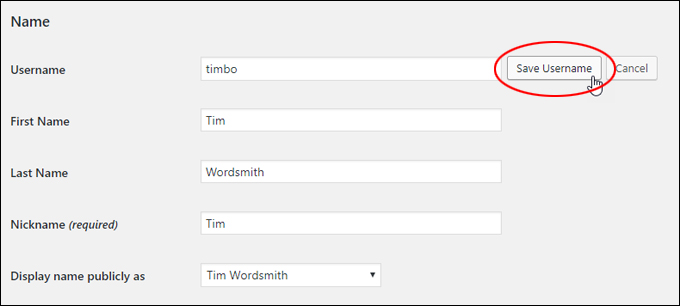
(Save your new username)
Changing your username will log you out of your WordPress admin area. You will need to log back into your WordPress site.
Click on the link to log back in …
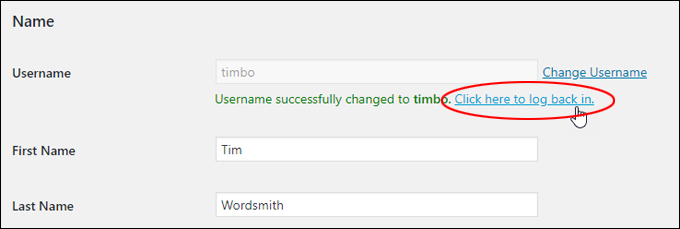
(Click on the link to log back in)
Log back into your site with your new username (note: your password should remain the same) …
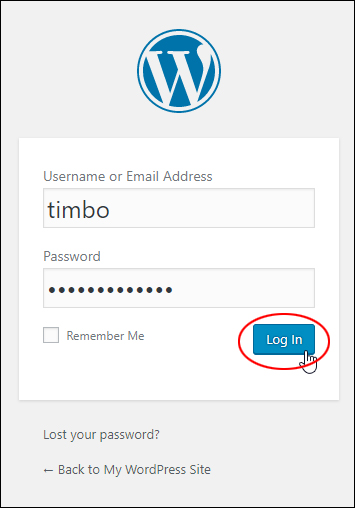
(Log back in with your new username)
Note: If you don’t click on the link to log back in you will find yourself logged out of your site …
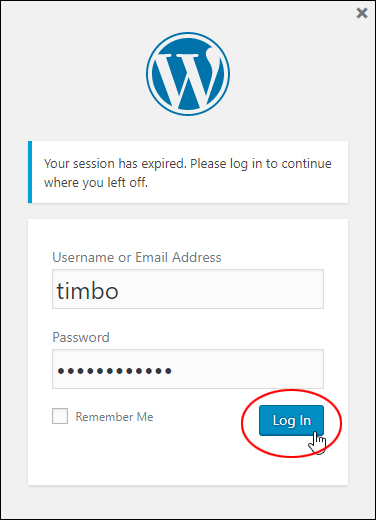
(Changing your username will expire your session)
After logging back into your site, go to your User Profile section and you will see that your username has been changed.
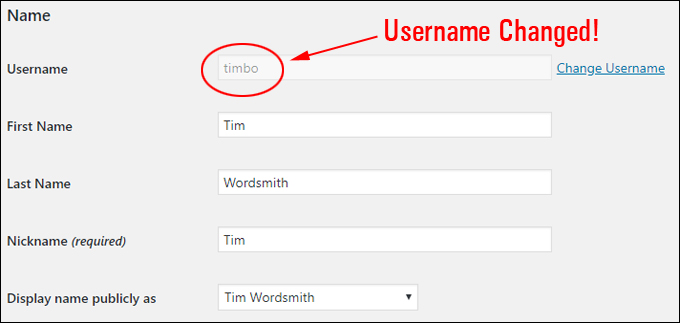
(Username changed)
To learn more about this plugin, go here: Username Changer

Although this tutorial is mostly designed for non-technical WordPress users, let’s go one step further and show you how to change a user name inside the WordPress database.
All you need is access to your server’s control panel.

To learn how to search and replace content in your WordPress database without touching code or editing WordPress database tables, see the tutorial below:
How To Change A Username Inside The WordPress Database
For the example below, the server is using cPanel …
cPanel
Log into your server control panel …
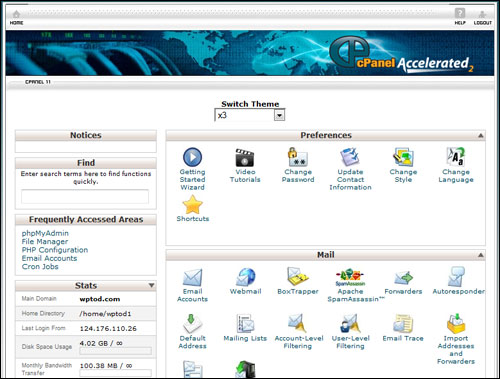
cPanel administration area
Navigate to the “Databases” section and open up phpMyAdmin …
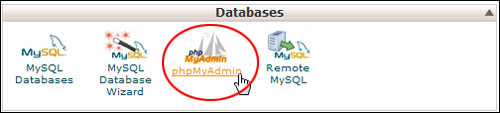
phpMyAdmin
Open up your WordPress database.
Note: If you have a number of databases set up on your domain, make sure that you choose the right one …
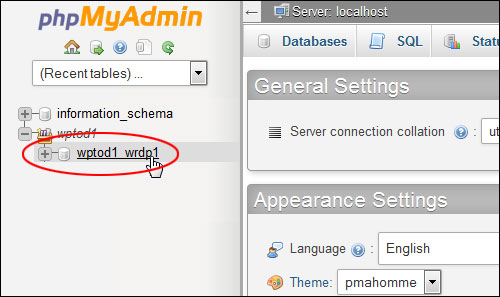
phpMyAdmin databases
Don’t be concerned about the technical-looking nature of the information on your screen.
Click on wp_users in the left-hand column …
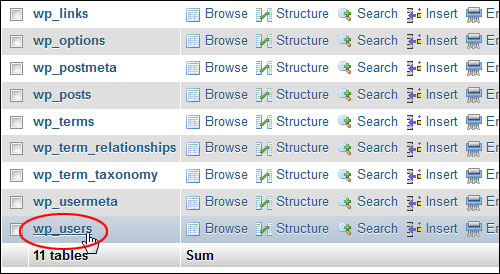
The user name is located in the “user login” column. To edit the field just double-click on this text you want to change …
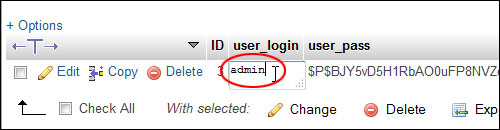
Type in the new username and click outside the edit box to update the field with the new user name …
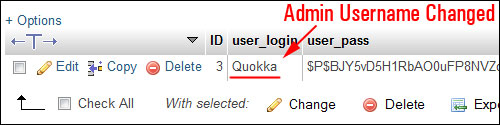
Log out of your server when you’re finished and go back to your WordPress site. You will probably find that your session is expired. Log in again with your new administration login details …
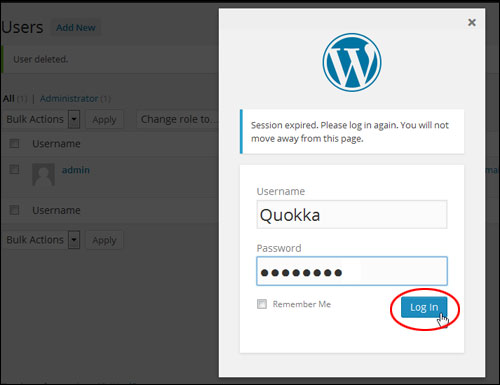
You will see that your user name is now updated. However, your admin details will probably still display the previous “nickname” …
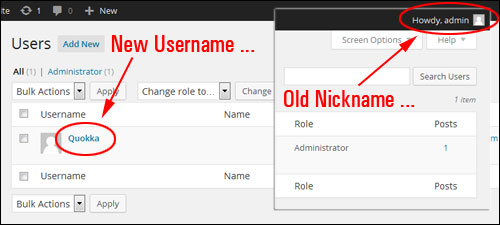
To choose a new “nickname”, access your Users screen and click on the Edit link below your username …
You can also get to the Profile section if you click on the Edit My Profile link in the “Howdy, User” panel …
Select a new name to display publicly from the drop down menu …
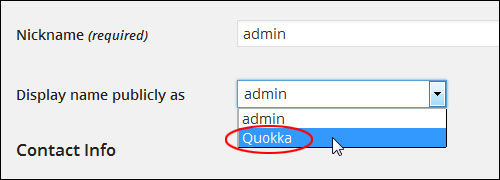
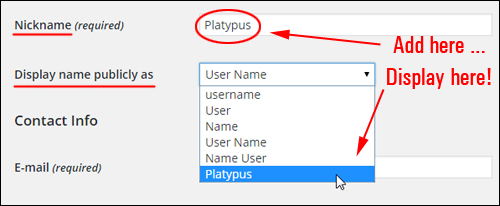
Note: You can also create a new Nickname in the Nickname field and it will then be available for selection in the Display name publicly as drop-down menu …
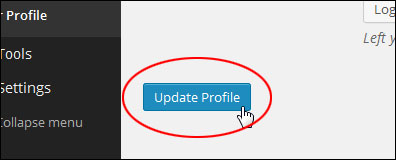
Click Update Profile to save your new settings …
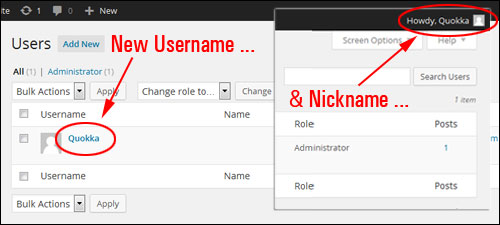
You admin area is now updated with a new user name and nickname …
Congratulations! Now you know how to change the WordPress admin user name on your website or blog.
***
"Learning WordPress has been a huge stumbling block for me. I've been looking for something that covers absolutely everything but doesn't cost an arm and a leg. Thank you so much ... you have just provided me with what I have been looking for! Truly appreciated!" - Tanya