 It’s a well-known fact that headlines are one of the most important aspects of any content marketing strategy. Without an engaging post title, your visitors may never get to click through to your content.
Headlines are so important, in fact, that we devote a significant amount of space to how to create eye-catching post titles in our free email training series on content creation. If you need help coming up with topics for posting content on your site, we recommend subscribing to our FREE email training series here:
Generate Powerful Headlines For Your Web Content
You can raise your conversions just by changing one or two words in your headline in areas like:
- Getting more visitors to your site.
- Getting more subscribers to your list.
- Getting more sales.
This can could mean many thousands of dollars more in sales … all because of a few words.
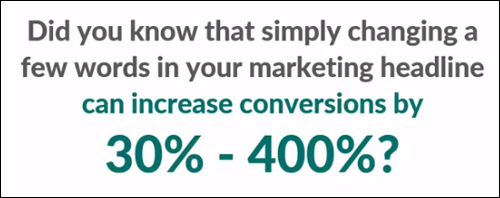
(Changing one or two words in your headline can significantly increase your conversions)
Conversely, if you are not using proven headlines, you could be losing a ton of money.
The Importance Of Using Powerful Content Headlines
Think about this …
- Print, media and advertising companies have relied on powerful headlines before the internet was even invented.
- It takes just one great headline to flood your website with traffic, viral shares, and loads of clicks!
The problem with split-testing headlines or post titles (or any element of your content) is that you need to drive a great deal of web traffic in order to arrive at statistically significant results. Typically, larger businesses spend large budgets on split-testing, data analysis and optimization.
Fortunately, now there are smarter tools that can help save you time and money on what was once an extremely time-consuming and resource-intensive process.
Fresh Title – Headline Builder
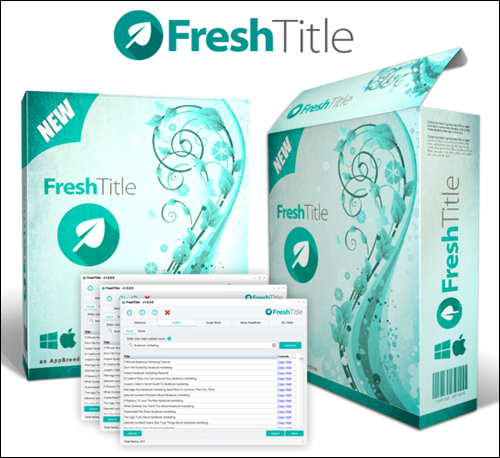
(Fresh Title)
Description
FreshTitle Headline Builder lets you instantly brainstorm hundreds of highly responsive headlines & titles for all of your content.
With this tool, you simply enter your niche keywords (e.g. Pinterest marketing, improve your posture, growing vegetables, etc.) and Fresh Title’s built-in algorithm instantly returns over 830 pre-optimized and proven headlines that you can then copy and paste into your content.
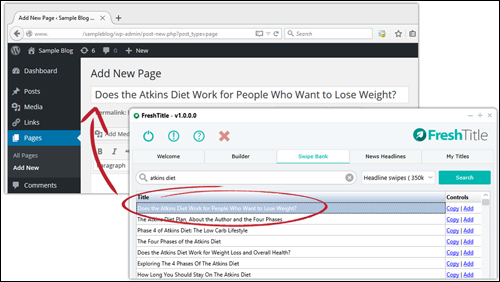
(Fresh Title Headline Software - Get 1-Click Access To Thousands Of Proven Blog Titles)
In addition to entering niche keywords into the tool, you can answer a few simple questions and the tool will deliver you an additional 125 detailed and more finely optimized titles that are also proven to convert.
For more details, visit the software site here: FreshTitle
Benefits
Here are just some of the many benefits and advantages of using Fresh Title Headline Generator to instantly create hundreds of compelling headlines & titles for all of your web content on your website:
Never Run Out Of Great Post Title Ideas
The Fresh Title headline generator gives you immediate access to thousands of proven headlinesfor any content you need.
You can use this software to generate new ideas for post headlines, Facebook ads, banner content, offline flyer headlines, etc.
Save Thousands Of $$$ On Copywriters And Data Experts
With Fresh Title, you can instantly pump out hundreds of proven headlines for any type of content you need in seconds and save thousands of dollars on the cost of hiring copywriters, data analysts, and conversion experts.
Some of the services this tool can be used with, include:
- Blogging Platforms – In addition to WordPress, this software can be used on blogging platforms like Blogger, Medium, Joomla, etc.
- Email Platforms – e.g. Aweber, GetResponse, InfusionSoft, ShoppingCart, etc.
- Social Media Sites – e.g. Facebook, LinkedIn, Flickr, etc.
- eCommerce Platforms – e.g. WooCommerce, Bigcommerce, XCart, Magento, Volusion, etc.
- Article Platforms – Ezine Articles, ArticleCity, Amazines, etc.
- Video Platforms – YouTube, DailyMotion, Vimeo, etc.
- Landing Page Platforms – LeadPages, Instapage, Megaphone, etc.
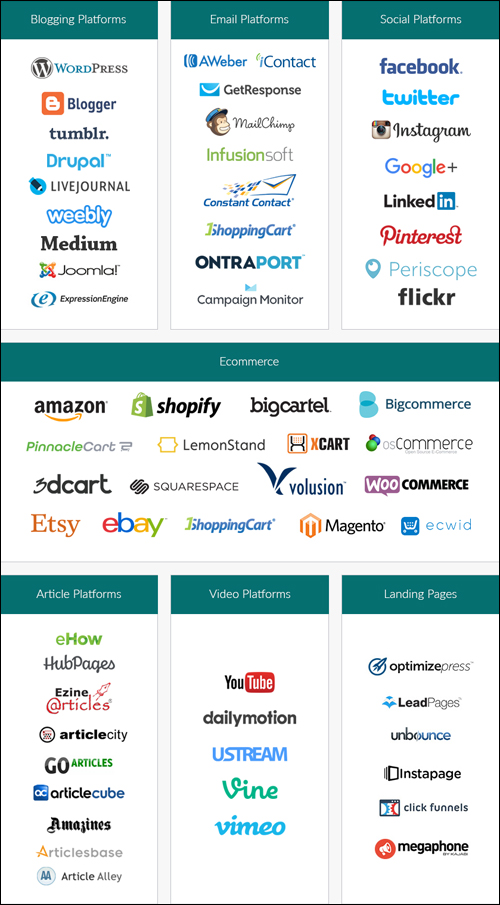
(FreshTitle works with all marketing services)
Additional benefits include:
- Very Simple To Use: Fresh Title is really easy to install and really simple to use.
- Increase Leads, Clicks, And Traffic: FreshTitle gives you immediate access to thousands of proven headlines, so there’s no need to reinvent the wheel.
Fresh Title Features
Fresh Title includes 4 very powerful built-in tools:
Instant Headline Builder
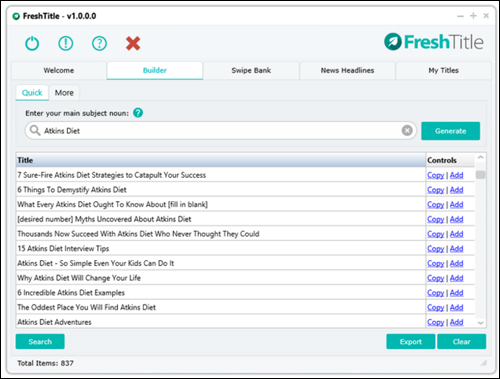
(Fresh Title – Instant Title Builder)
Swipe Bank Tool
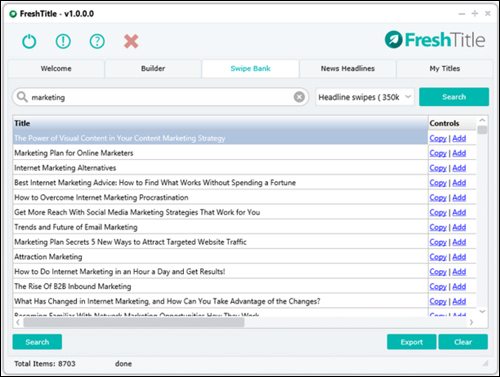
(Fresh Title – Swipe Bank)
FreshTitle includes a swipe bank that includes over 420,000 headlines and email subject lines that are proven to convert, that you can instantly copy and modify for your marketing campaigns.
News Headlines
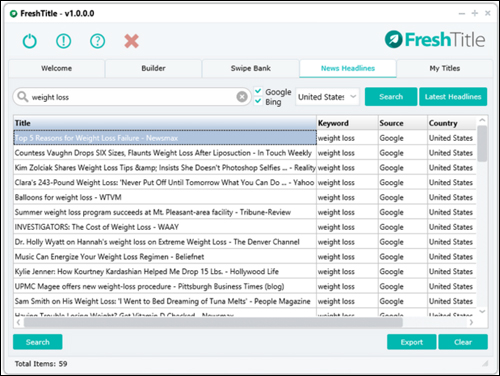
(News Headlines Tool)
Fresh Title provides users with the most popular headlines in real-time from Google and Bing, giving you insights about proven headlines of your competitors.
My Titles Tool
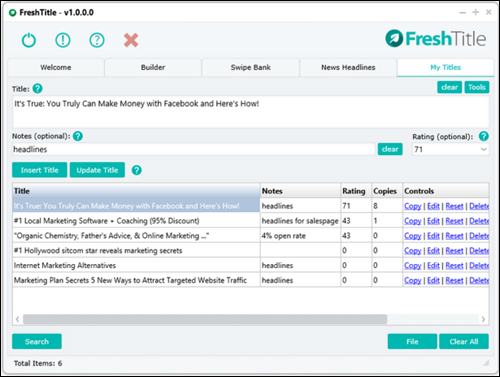
(My Titles)
Fresh Title also includes a built-in personal database tool for storing your favorite headlines. You can transfer headlines from the other tools to your My Titles tool and edit the titles to suit your needs.
Additionally, the tool comes with a built-in thesaurus, allowing you to further customize your titles, plus a function for storing notes, a feature for rating your items and a counter that lets you see which content items you are using the most …
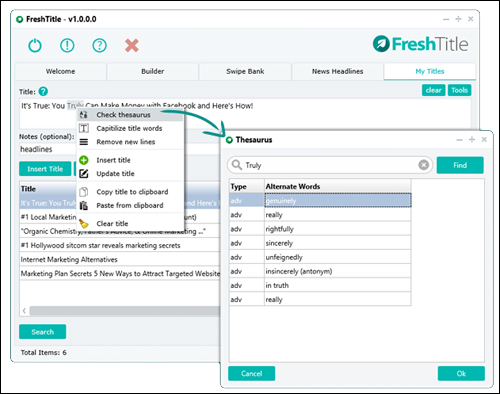
(Fresh Title – Built-In Synonym Finder)
Feedback From Users
Below are some of the testimonials that customers have published about the Fresh Title software:
“This Tool is to a Copywriter as a Calculator is to an Accountant!” Dennis
***
“You’ve done an amazing job with this, congratulations … it’s awesome!” T.R.Goodman
Software Tips
Dave Guindon, the creator of Fresh Title will occasionally bundle the headline generator with another powerful tool called Title Analyzer …
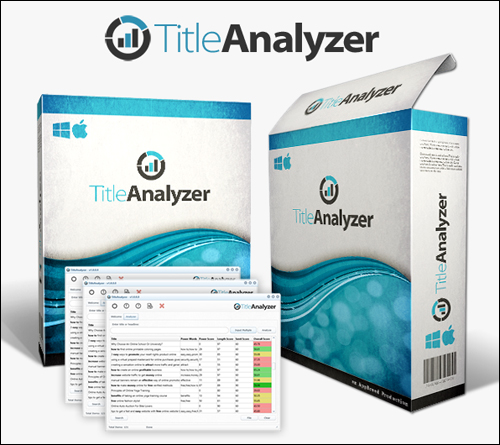
(TitleAnalyzer – Powerful Headline Analysis Software)
Title Analyzer is a powerful headline analysis software that can tell you which headline is likely to convert better.
Simply type in a title, click ‘Analyze’ and Title Analyzer will calculate an overall headline score from 0 to 100 (the higher the scroe number, the better your headline is likely to perform) …
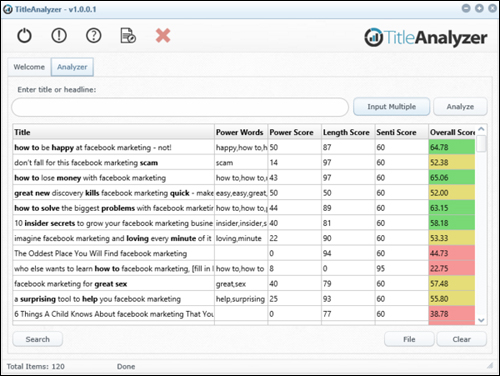
(TitleAnalyzer – Title Analysis Tool)
TitleAnalyzer allows you to analyze and calculate performance scores for as many headlines as you want without requiring an internet connection to do all of the processing work …
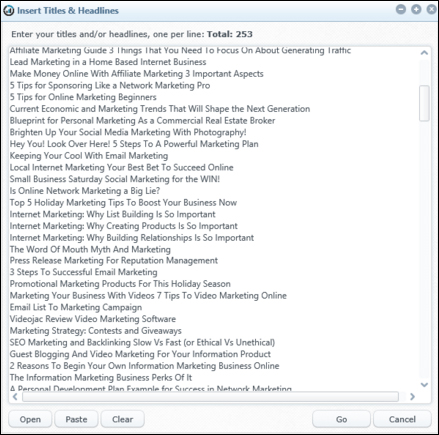
(Enter multiple titles)
The software’s built-in analysis algorithm accesses over 1,800 power words to calculate the performance score of your items …
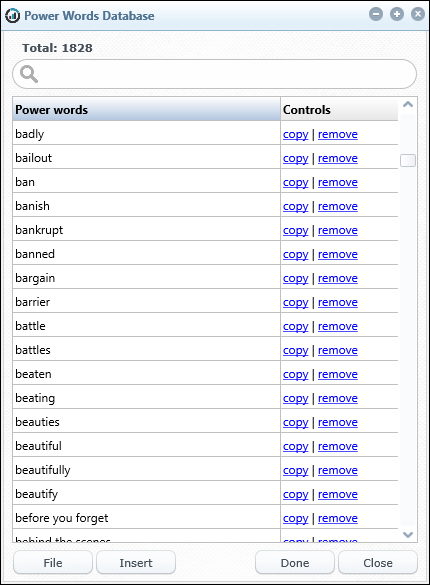
(Title Analyzer includes a large database of power words used to score your titles)
TitleAnalyzer not only scores your titles, it also provides detailed suggestions on how to further improve your marketing content …
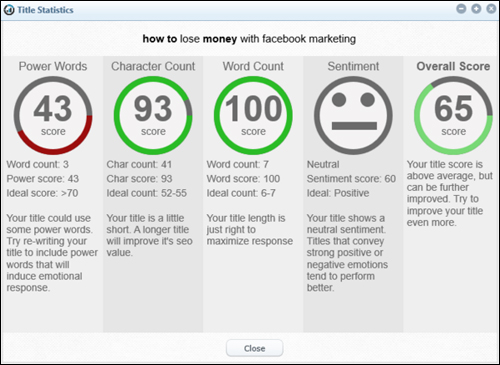
(Title Analyzer provides detailed suggestions on how to improve your titles)
The tool also comes with another built-in headline editor that lets you quickly optimize your headlines using color-coded information and a synonym finder linked to the internal power words database …
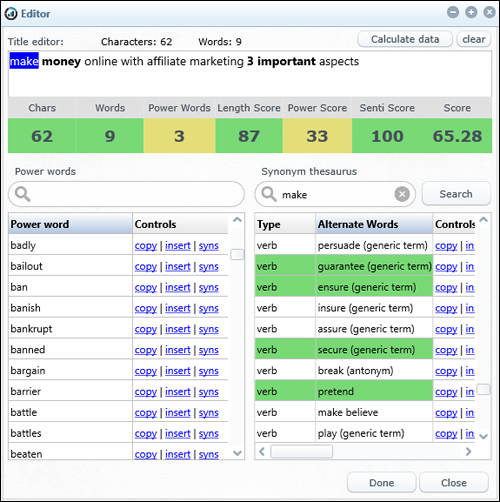
(Easily add great power words to your post titles)
Software Support
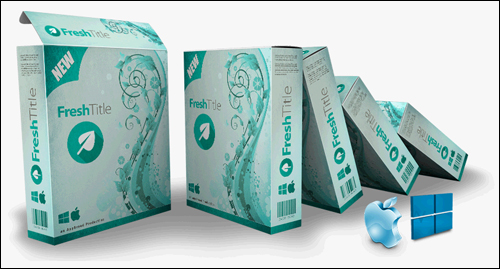
FreshTitle Headline Generator is well-supported and runs on both PC and Mac computers. Users get lifetime access to the software and a no-risk, 30 day, 100% money-back guarantee.
Software Pricing
The software retails for a single purchase fee of $97. You can install the tools on up to three personal computers (PC and Mac|Mac and PC). This price entitles you to free minor version updates and discounts on future major version releases. Major version updates may require an additional fee.
Please Note: Price details for the FreshTitle software depends on whether there are any promotions or limited-time specials being offered. The price shown here may or may not be the actual pricing set by the software developer when you visit the software website and there may be additional upsells or one-time offers after your purchase. Also, keep in mind that the software tools discussed above may not be offered as a package when you visit the website.
When we first reviewed the above software, a special introductory price was available, which may or may not still be the case. Check the tool’s website for current pricing details: FreshTitle – Headline Builder
Additional Info
For ”how to” videos showing tool usage, including installation instructions and tutorials, FAQs, customer helpdesk, contact details and more, visit the Fresh Title website.
The Bottom Line
If you watch the demo video on the product website, you will see that , the software has been used to test hundreds of thousands of proven headlines and predict which headlines will convert better. This software not only provides you with nearly one thousand optimized titles just by entering a few keywords, a swipe bank of almost 420,000 headlines and email subject lines, and a suite of powerful tools, but you will also save yourself thousands of dollars and hundreds of hours on copywriters, split-testers and data analysts.
This is definitely a tool that we recommend if you would like to improve your web traffic, more clicks, and better conversions.
For full details, visit the software website: Fresh Title – Headline Generator
***