 In Part 1 of this step-by-step tutorial series, we explained how to use widgets in WordPress and in Part Two, we explained how to configure a text widget.
In Part Three, we began configuring a number of default widgets in WordPress.
In this final section, you are going to learn how to complete this step-by-step tutorial series by configuring a few more useful sidebar widgets.

In WordPress v. 4.8, WordPress introduced new media widgets covering images, audio, and video, and an updated text widget that supports visual editing …
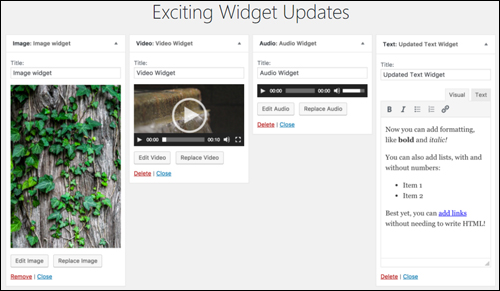
(WordPress 4.8 introduced new widget updates)
These widgets let you add content from your media library and media stored in other servers or storage locations (e.g. Google Drive, Dropbox, Amazon S3, etc.).
Let’s go through how to configure and use each of these widgets:
Rich Text Widget
From version 4.8 onward, WordPress has added native rich-text editing capabilities to text widgets …
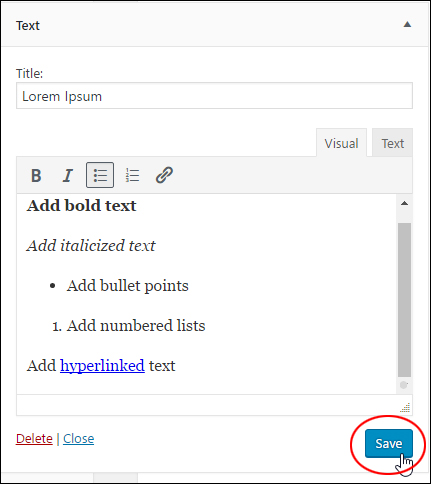
(Rich Text Widget)
This lets you format text, create lists, add emphasis, and insert links into your sidebar text quickly and easily …
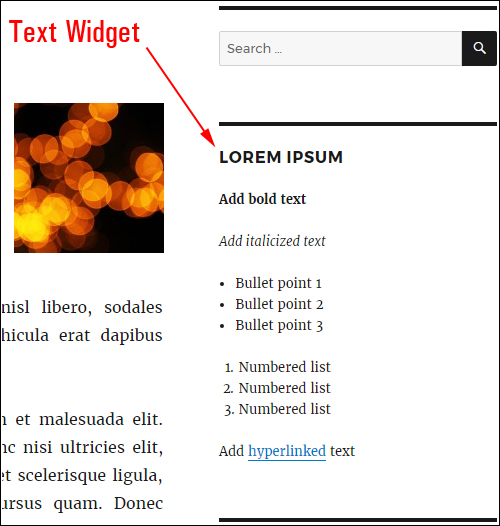
(Format text easily with the new text widget)
To learn more about using text widgets in WordPress, see the tutorial below:
WordPress Image Widget
The WordPress Image Widget lets you add an image to your sidebar from your Media Library or an external storage location.
To add an image, drag an image widget to your active widgets area …
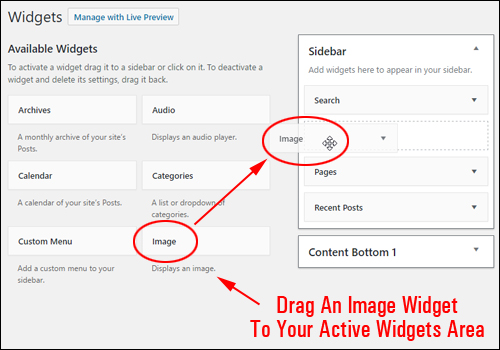
(Image Widget)
Click on ‘Add Image’ …
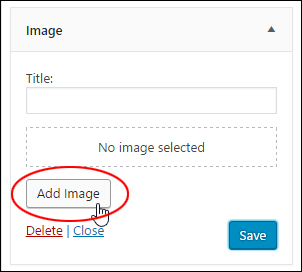
(Let’s add an image!)
Select an image from the Image Library, check or add image details (e.g. Caption, Alt text, Description, etc.) if desired and click the ‘Add to Widget’ button …
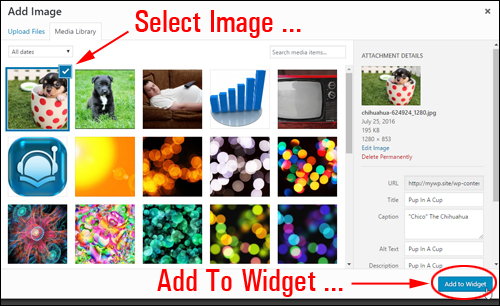
(Select an image)
The image will automatically load into the widget area …
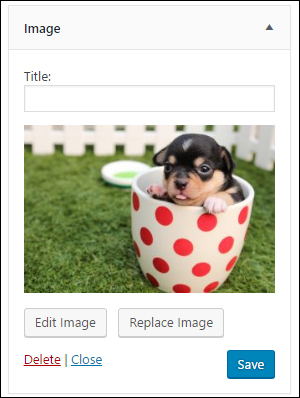
(Image added to widget)
Add a Title to your image if you want, or leave the ‘Title:’ field blank and click ‘Save’ …
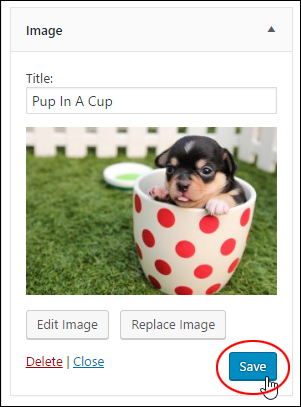
(Save your image)
Preview your website and you should see the image displayed where you have placed your image widget …
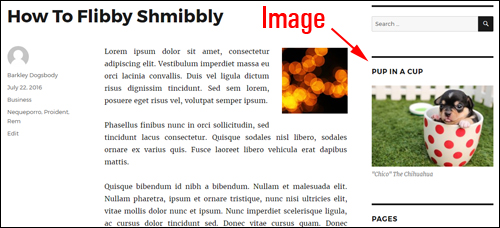
(Image added to website using WordPress image widget)
If you want to link your image to an URL, go back to your image widget and click on ‘Edit Image’ …
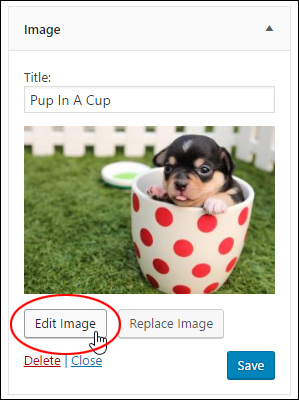
(Image Widget – Edit Image)
Add a URL in the ‘Image Details’ > ‘Display Settings’ > ‘Link To’ screen and click the ‘Update’ button …
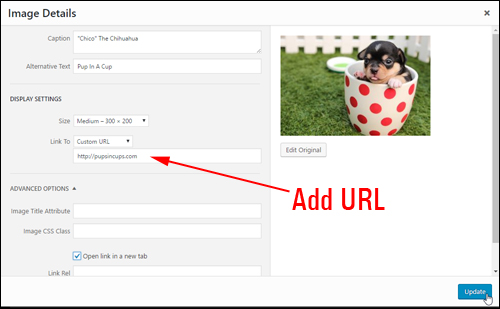
(Link your image to an URL)
To add an image stored in an external server or remote location, locate and copy the URL of the image to your clipboard …
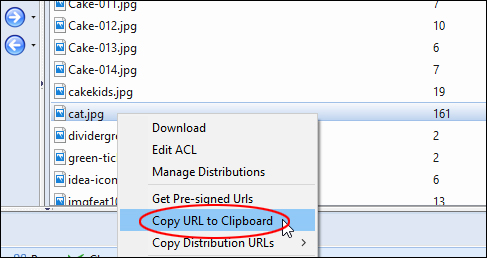
(Copy image URL to your clipboard)
Go back to your image widget and click on ‘Replace Image’ …
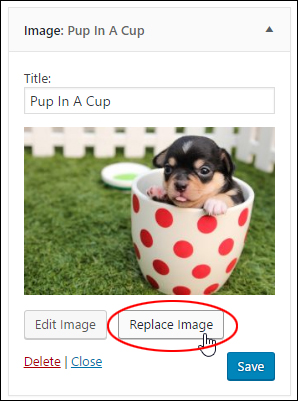
(Image Widget – Replace image)
The Media Library browser opens. Click on ‘Insert from URL’ and paste in the image URL copied to your clipboard, then click on ‘Add to Widget’ …
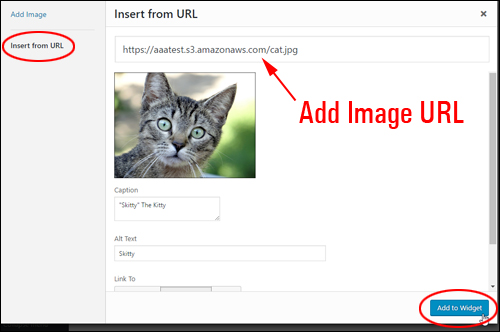
(Add image URL)
If you have previously added an image title in your widget, remember to replace it if required, then click ‘Save’ …
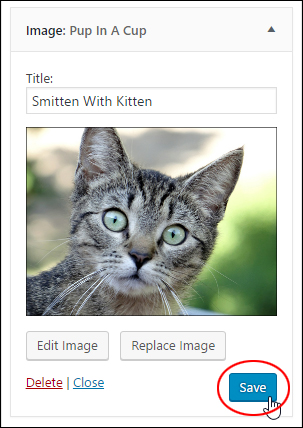
(Save your new image)
The new image will now display on your sidebar …
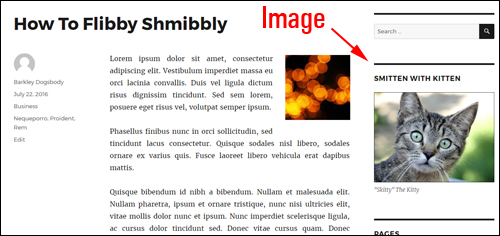
(New image added using WordPress image widget)
To learn more about adding images to WordPress, see this tutorial:
WordPress Video Widget
The WordPress Video Widget lets you add audio files to your sidebar from your Media Library, YouTube, Vimeo, or an external storage location.
To add a video to the sidebar, drag a Video widget to your active widgets area …
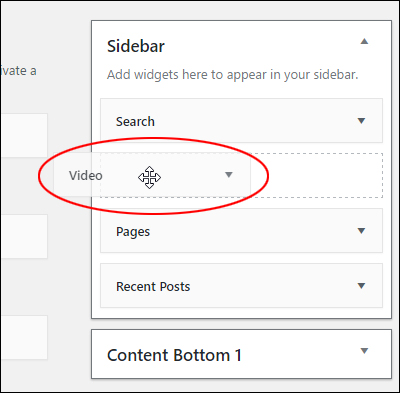
(Drag a Video widget to your sidebar)
Click the ‘Add Video’ button …
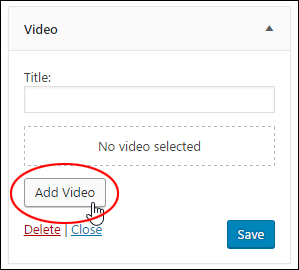
(Video widget – Add Video)
Select a video from your media library or add a video URL and click the ‘Add to Widget’ button …
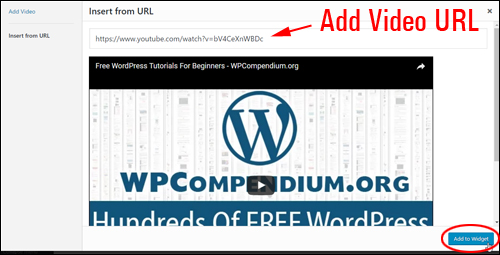
(Add a video URL)
Add a title to the widget if desired and click ‘Save’ …
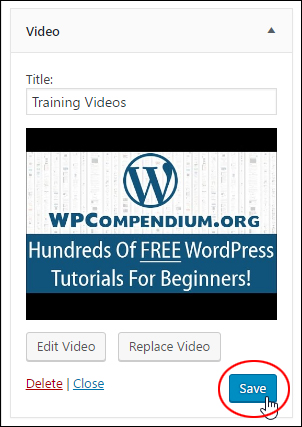
(WordPress Video Widget – Save Button)
Your video will display on your site where the video widget has been added …
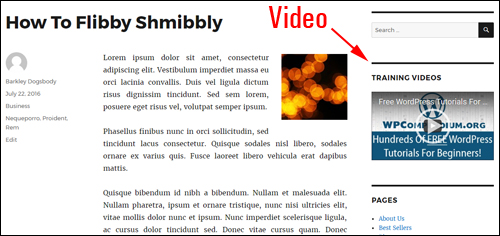
(Video added using WordPress video widget)
To learn more about adding video to WordPress, see this tutorial:
WordPress Audio Widget
The WordPress Audio Widget lets you add audio files like podcasts, music or a personal greeting to your sidebar from your media library or an external storage location.
To add an audio file to your sidebar, drag an audio widget to your active widgets area …
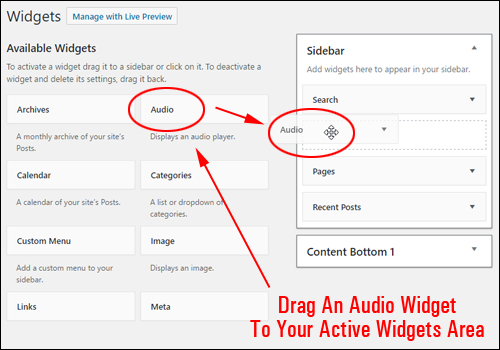
(Add an audio widget to your sidebar)
Click the ‘Add Audio’ button…
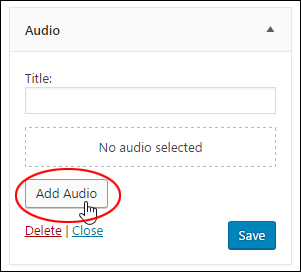
(WordPress Audio Widget – Add Audio button)
Select an audio file from your media library or insert the URL of an audio file stored in an external location …
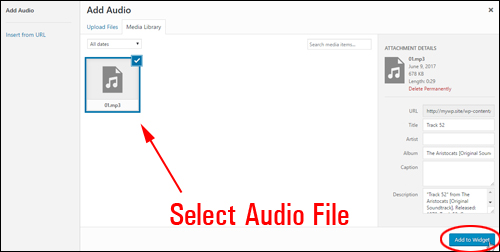
(Select your audio file)
Add a title to your widget if desired and click the ‘Save’ button …
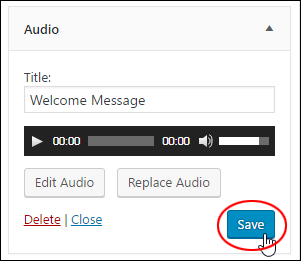
(Save the audio file on your audio widget)
Your site will now display an audio file to visitors where you have placed the audio widget …
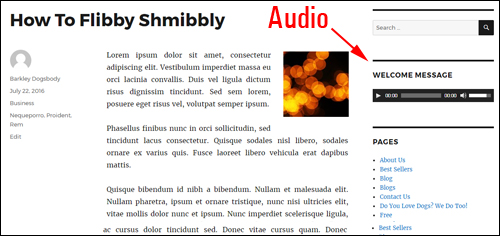
(Audio file added to your site using the WordPress Audio Widget)
To learn more about adding audios to WordPress, see this tutorial:
Adding A Newsfeed Section
Let’s add a widget to display news items on the sidebar area.
To add the widget, find an RSS widget in the Available Widgets section and drag it to your active area …
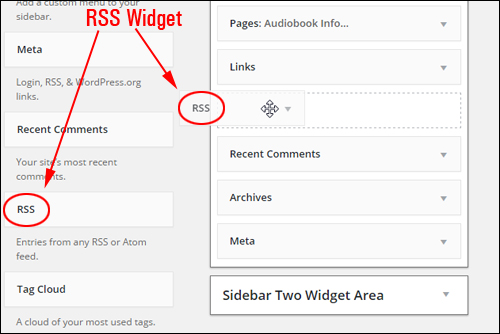
(WordPress RSS Widget)
Enter the following information into the widget settings:
- RSS feed URL: Enter the URL of your RSS feed here.
- Feed Title: If you would like to add a title to the widget, enter it into this field.
- Items to display: Select how many feed items you would like to show in your sidebar from the drop-down menu.
- Display item content: Tick this box if you want to show the RSS feed content.
- Display item author: Tick this box to show the feed item item author.
- Display item date: Check this box if you would like to show the feed item item date.
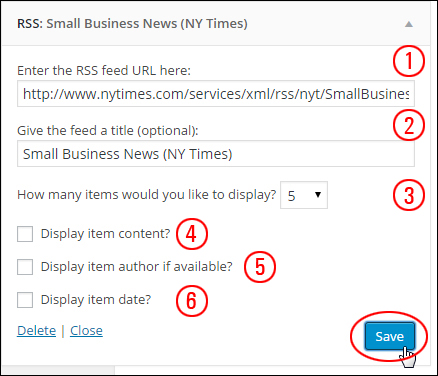
(RSS Widget settings)
Experiment with different widget settings to find the combination that works best for you.
The example below shows the RSS Feed widget configured as per the settings shown above …

(RSS Widget on sidebar menu)
The example below shows a published RSS widget configured with some of the other options selected …

(WordPress RSS Widget settings)
To learn more about using RSS feeds in WordPress, see this tutorial:
Adding A Tag Cloud
Now, let’s add a widget to the sidebar that displays tags.
Tags appearing in your widget are listed in the Tags section …
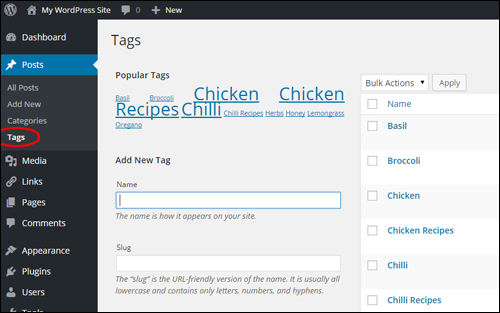
(WordPress Tags screen)
To insert the widget, select a Tag Cloud widget in the Available Widgets section and drag it to the sidebar area …
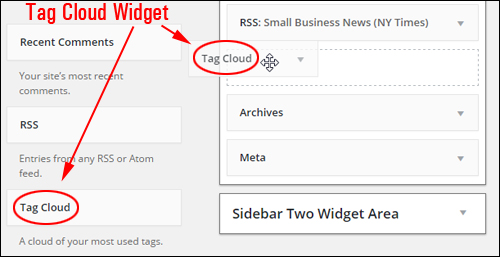
(Tag Cloud Widget)
There’s not much to configure. You can add a title if you want, and choose whether to display items in the tag cloud using Tags or Categories. Click Save when finished …
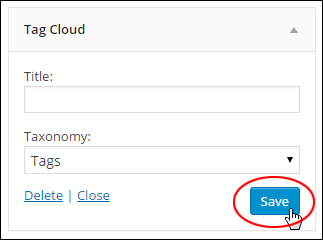
(WordPress Tag Cloud Widget settings)
Your Tag cloud will now display on your sidebar navigation menu …

(Tag Cloud widget displaying tags)
The example below shows the Tag Cloud widget set up for showing Categories instead of Tags …
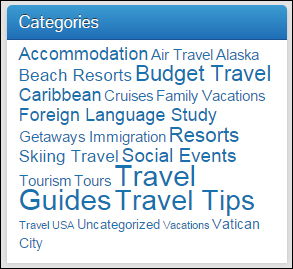
(Tag Cloud widget set to display WordPress post categories)
To learn more about using post tags in WordPress, see this tutorial:
Configure Your Archives Section
To complete this tutorial series, we’ll configure the default Archives Widget, which is a commonly-used widget.
As you keep publishing new posts in WordPress, your older posts begin to get pushed further down the chronology list and become less visible to visitors. Your posts are still there, it’s just not as visible.
The Archives Widget lets your visitors access WordPress posts that you may have published a while back …
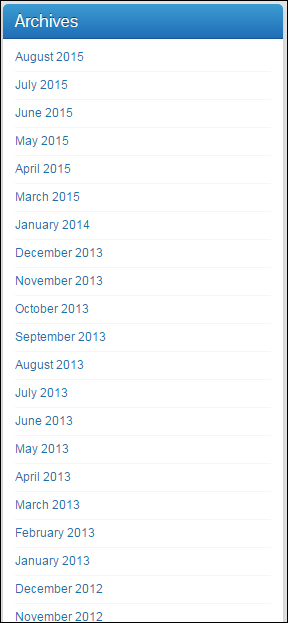
(WordPress Archives Widget)
There’s very little to set up here. You can add a title, and choose whether to display items in the sidebar area in a dropdown menu, and show post counts . Click Save when done …
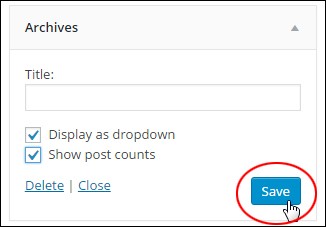
(WordPress Archives Widget settings)
The example below shows an Archives widget set up to display posts as a dropdown menu with post counts enabled …
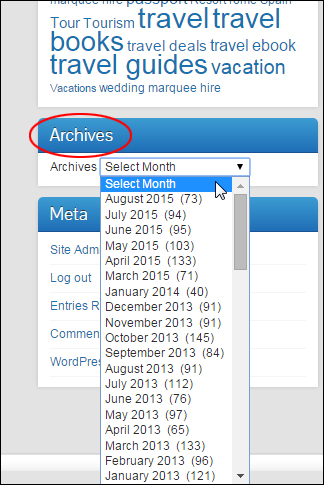
(WordPress Archives Widget displayed on sidebar navigation area)
Now that you know how to configure widgets, let’s explore some other areas of WordPress widgets.
WordPress Widgets – Useful Tips
Here are some additional ways to use WordPress widgets:
Add ‘Visibility’ Function To Widgets
Installing the Jetpack plugin not only adds many new widgets to your widgets area …
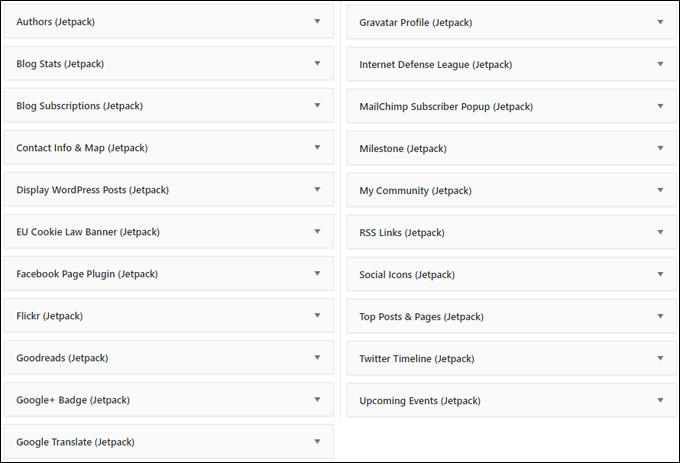
(Jetpack Widgets)
It also adds a useful ‘Visibility’ function to all WordPress widgets …
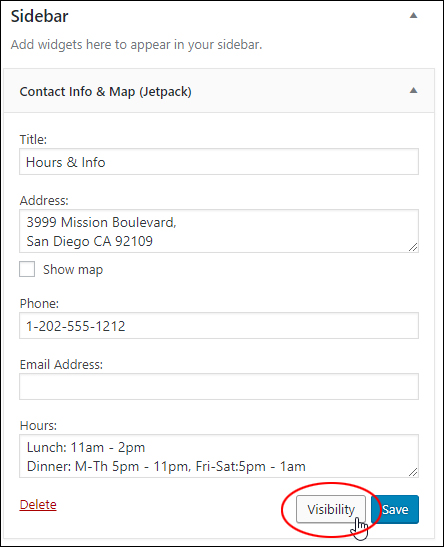
(Jetpack adds ‘Visibility’ to all widgets)
This function lets you specify whether to display or hide widgets from your sidebar based on conditions you set for a particular category, author, user. role, tag, date, or page …
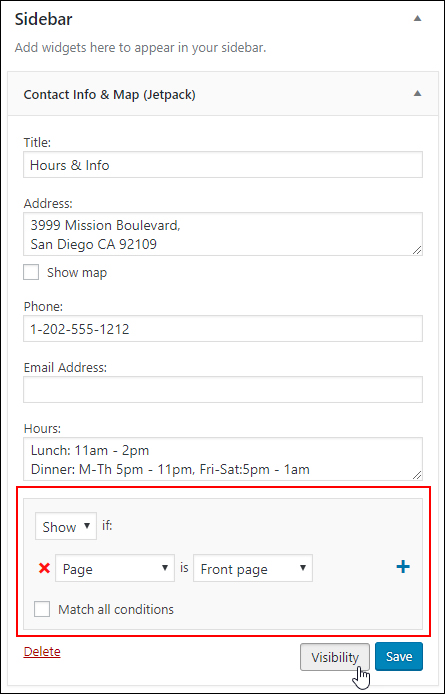
(Set conditions to show or hide widgets)
This is a really useful function to have.
For example, you can:
- Display a widget only on your home page or only on posts published under certain categories, tags, authors, dates, etc.
- Configure widgets to display specific or time-sensitive announcements based on a post’s category, date, etc.
- Configure widgets to display targeted ad banners based on a post’s category or tag.
- Hide widgets from appearing on certain posts or pages to prevent users from being distracted (e.g. remove widgets with ads from your sales pages).
- And more!
To learn more about using the Jetpack plugin, go here:
Override Default Sidebar Widgets
If you see widgets displaying on your blog sidebar navigation section that aren’t showing up under your active sidebar in the Appearance > Widgets section, it’s because some themes will display their own default set of widgets until you add widgets to your sidebar.
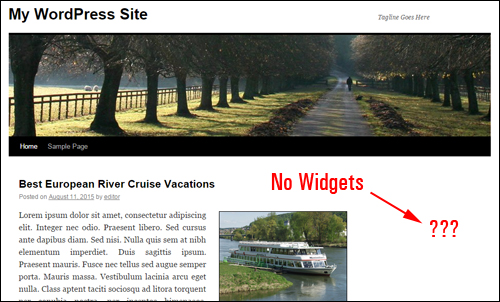
For example, the site below shows some widgets in the sidebar section …
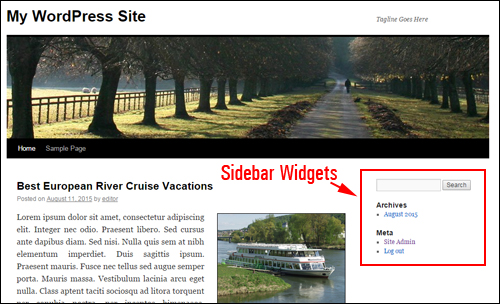
If you look in the Widgets section, however, you will find that no widgets have been added to the active widget areas …
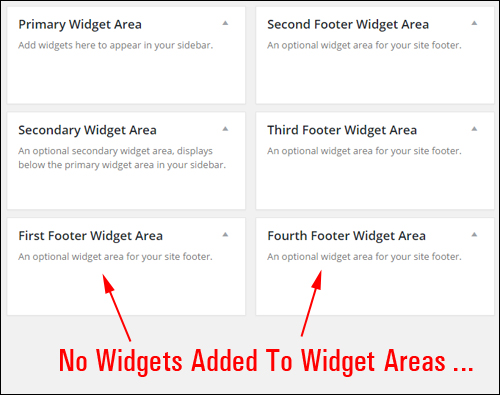
The above theme could be using default widgets.
Once you add one or more widgets to an available widget area, the other widgets will your new widgets will be used instead.
Note: If you don’t want anything to show up in the sidebar navigation section, either use a theme page template without a widgets layout or just add a blank Text widget to your sidebar.
Add a blank text widget to a widget area …
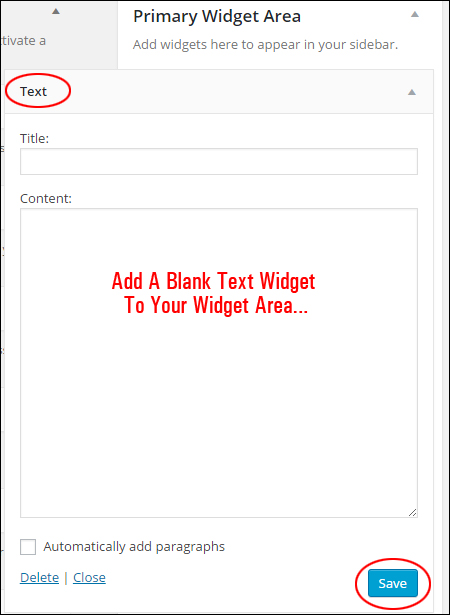
And default widgets will not display in the sidebar/footer section …
Accessibility Mode
As we have explained earlier, with WordPress you can completely reorganize how content displays in widgetized areas of your website or blog, like sidebars, footers and navigation menus with only a few clicks of your mouse button, using drag-&-drop technology …
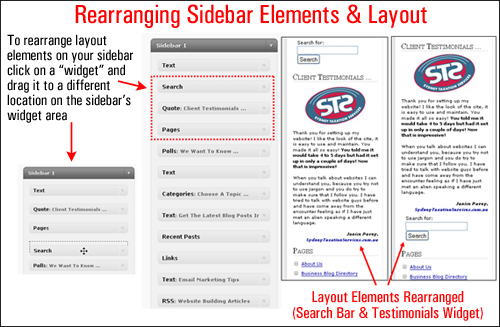
(Reorganize sidebar elements using widgets to improve visitor experience)
In the screenshot above, for example, you can see that we have quickly and easily reorganized the site’s sidebar section by switching the search and testimonial sections. This is easily done by dragging and dropping the widget elements into different positions inside the sidebar widget area.
Rearranging sidebar elements using widgets can improve visitor experience.
If, however, you find that you cannot move widgets using drag and drop (e.g. using a mobile device that doesn’t support dragging-and-dropping), you can still use widgets by enabling Accessibility Mode.
Enabling Accessibility Mode For WordPress Widgets
Enabling Accessibility Mode, via the Screen Options, allows you to use Add and Edit buttons instead of dragging and dropping.
To enable Accessibility Mode, log into your admin and go to the Widgets section …
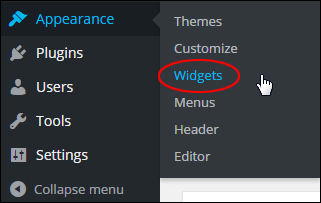
(WordPress Widgets Menu)
Click on Screen Options on the top right hand corner of your screen …
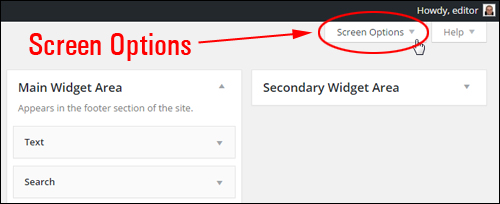
(Widgets – Screen Options)
Click on Enable accessibility mode …
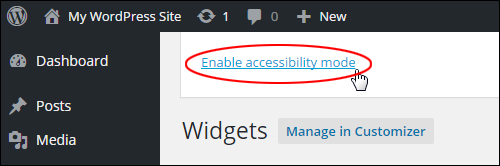
(Enable accessibility mode)
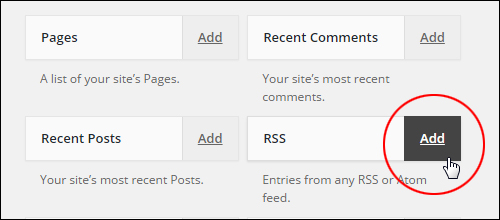
Once accessibility mode has been enabled, the widgets in the Available Widgets and the Active Widgets sections, widgets will display an Add and Edit link respectively …
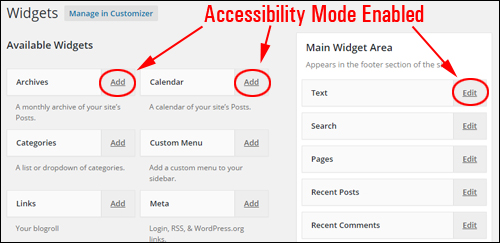
Click on a Widget’s Add link in the Available Widgets section …
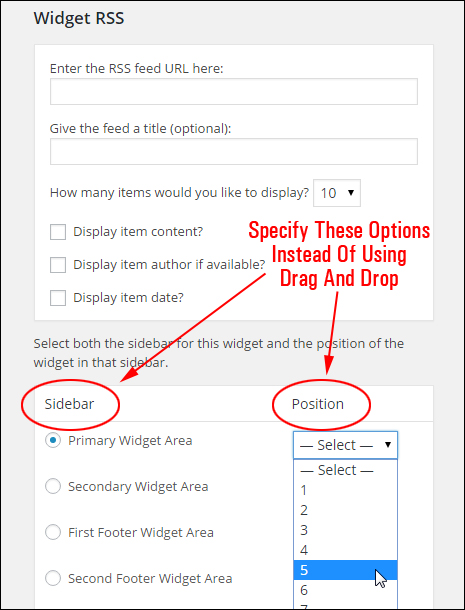
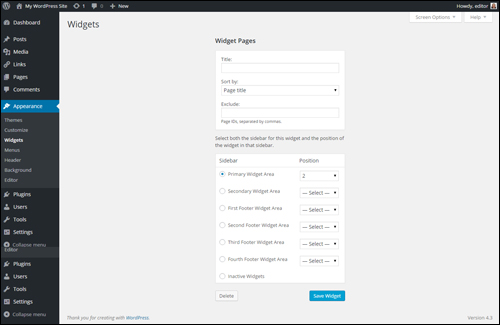
A screen will display the selected widget with options for customizing the widget’s settings, selecting a location to add the widget, plus drop-down menus that let you specify the position of the widget in your widget area (e.g. position “1”, “2”, “5”, etc.) …
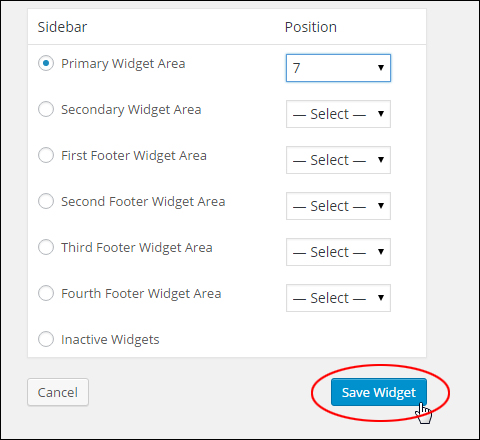
Click Save Widget to add the widget to your Active Widgets section, or click the Cancel button to return to the previous screen …
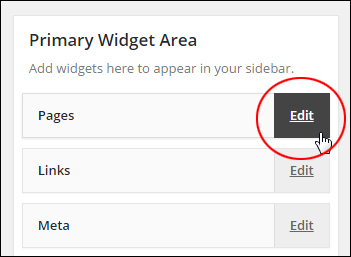
Click on an active widget’s Edit link …
A screen will display the selected widget with options for modifying the widget’s settings.
Click Save Widget to update your settings and go back to the Active Widgets section, or click the Delete button to remove the widget from the Active Widgets section …
Click on Disable accessibility mode in the Screen Options section to go back to using drag and drop …
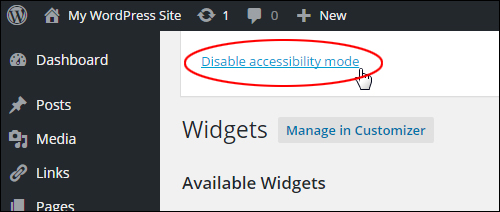
(Disable accessibility mode)
Creating Your Own Custom Sidebar Widgets – An Easy Cheat
Most widgets will either be installed by default when you create a new WordPress site, or be automatically added to your Available Widgets section when you install a new plugin on your site.
If you want to create a custom sidebar widgets, then here is a really simple and easy way:
First, create a new Post and type in the content that you would like to add to your sidebar…
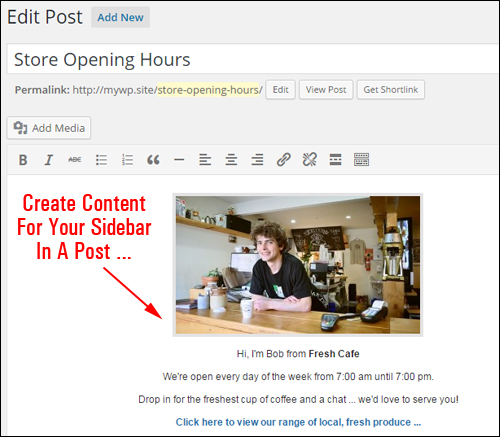
Ensure that any images you plan to use are resized to fit the maximum width of your sidebar. Also, keep in mind that there’s no a lot of room to put content on your sidebar section, so try and keep your information concise.
Also, don’t worry about publishing your Post – all we need is the content so we can paste it into a sidebar widget.
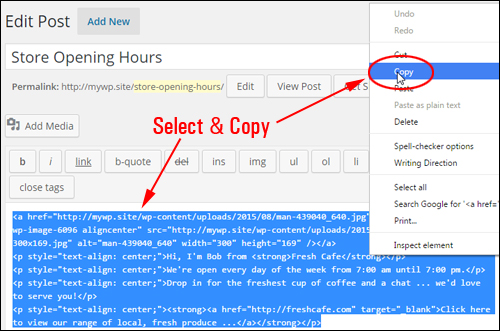
After composing your content, switch to the Text tab …
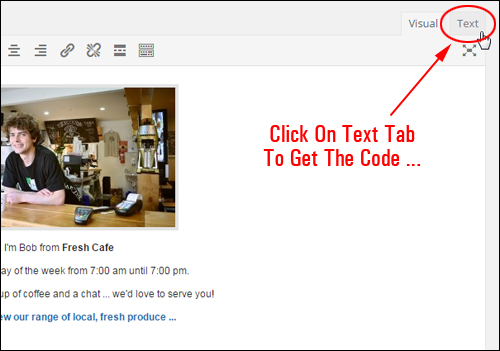
Select and copy everything to your clipboard…
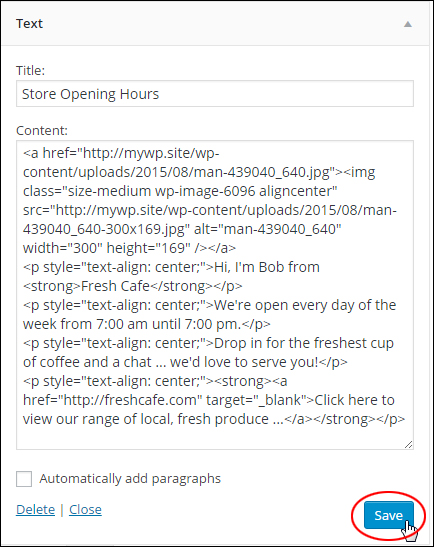
Now, go into your Widgets Screen.
Insert a new Text widget into your sidebar, paste the content from your clipboard into the content field and click Save …
Your new widget is now added to the sidebar navigation menu…
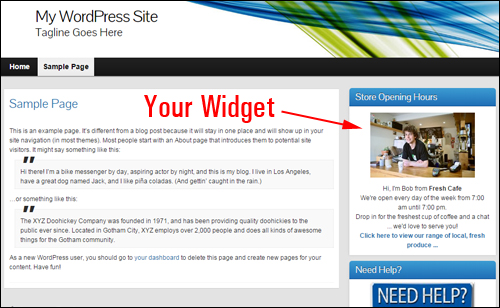
(Create your own custom sidebar widgets)
Congratulations! Now you know how to use and configure a number of sidebar widgets.
Subscribe below & receive 101+ useful WordPress tips that will help grow your business online faster ...
***
"These tutorials have so much information and are easy to understand. If you use WordPress or plan to in the future these will help you with everything you need to know." - Valisa (Mesa, Arizona)