 In Part One of this step-by-step tutorial series, we explained how to use widgets in WordPress and in Part Two, you learned how to configure text widgets.
In this tutorial you are going to learn how to configure other WordPress widgets.
Adding Post Categories To The Sidebar
Now that you have configure a text widget containing a contact button, let’s configure a widget to display Post Categories.
The Categories widget already displays on your sidebar by default. All you have to do, therefore, is place the widget wherever you want your categories to display by clicking and dragging it on your sidebar widget area …
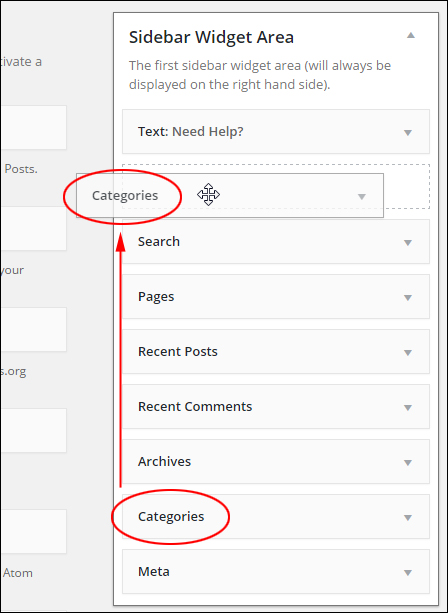
(Post Categories widget)

Before adding a Categories widget to the sidebar menu, we recommend configuring your Post Categoriessection first …
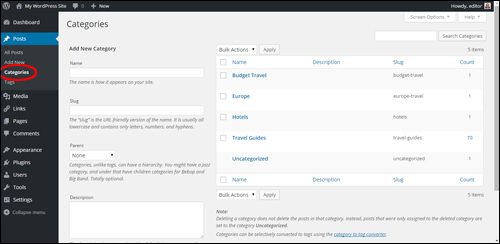
(WordPress Categories)
Note: We plan to provide tutorials about how to use WordPress post categories.
Configure your categories widget settings as shown below:
- In Title: type something that visitors will understand, like “Choose A Topic…” (1)
- Check Display as dropdown if you plan to have many categories (this significantly reduces the length of the widget content by displaying all categories inside a drop-down menu). If you plan to publish posts under a few categories only, then leave the Display as dropdown box unticked. (2)
- You can leave the default settings for the remaining options, or see the additional notes on configuring the Categories widget below.
- Click Save to update your settings …
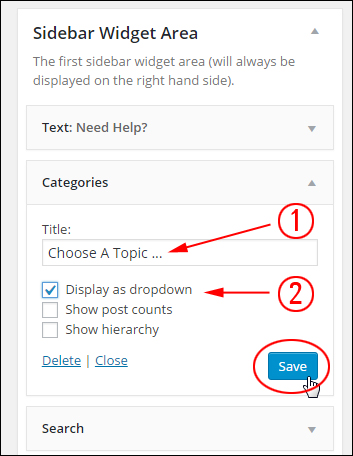
(WordPress Categories widget settings)
Load the site in your browser or reload your page to see how your Categories widget will look to your blog readers …
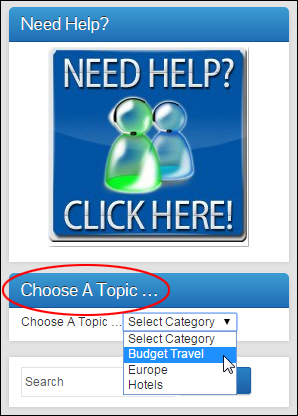
(WordPress Categories widget added to sidebar)
Tips:
- Change the default Uncategorized post category to something more meaningful.
- If you use nested categories on your site, you may want to check the Show hierarchy box, otherwise leave this box unchecked.
- To display the number of posts published in each category on your site, enable the Show post counts check box …
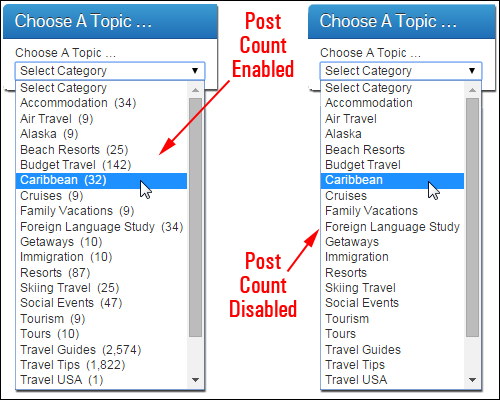
(Category widget options – Post Count Enabled vs Post Count Disabled)
Add A Recent Posts Section To The Sidebar Section
The Recent Posts widget is normally added to the sidebar navigation area by default. All you need to do is configure this widget.
Click on your Recent Posts widget title bar to display the configuration settings …
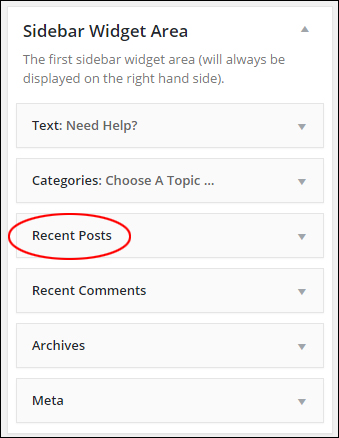
(Recent Posts WordPress widget)
There’s really not much to configure. You can add a title if you want, select the number of posts to display and opt to display post dates. If you want to use the default setting for Number of posts to show, then just leave the widget as is, otherwise change the number of posts and click Save …
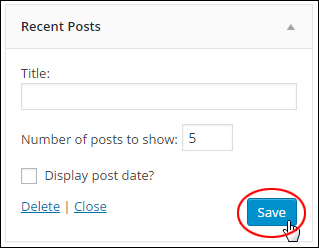
(Recent Posts widget settings)
Your most recent posts will be listed on your sidebar menu …
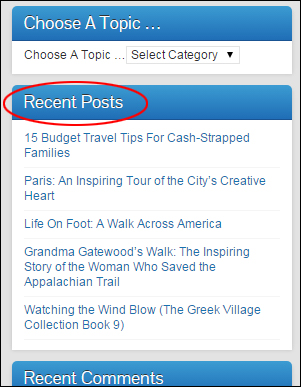
(Recent Posts WordPress widget displayed on sidebar)
We provide a step-by-step tutorial that explain how to create WordPress Posts here: How To Create A Post In WordPress
Add Links To Your Site’s Pages
Next, we’ll add a widget to your sidebar menu to display pages.
Find a Pages widget in the Available Widgets section …
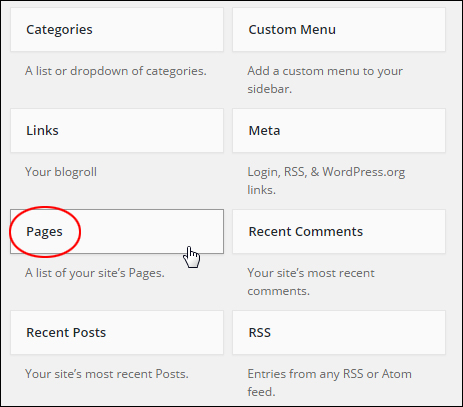
(WordPress Pages Widget)
Drag the Pages widget to your widget area …
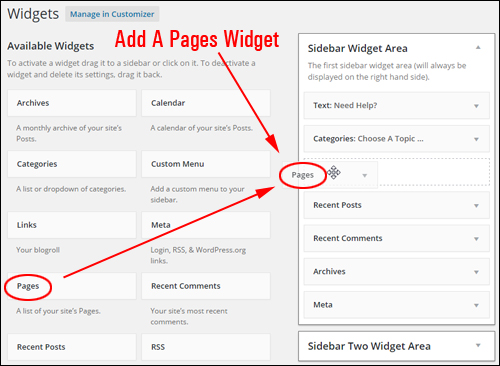
(Adding a Pages widget to the sidebar section)
The Pages widget lets you configure the following settings:
- Title: Add a title to display above your links (e.g. “Site Info“) (1)
- Sort by: Sort how your pages display: by title (i.e. alphabetically), by page order, or page ID. (2)
- Exclude: Hide pages on the sidebar (3) …
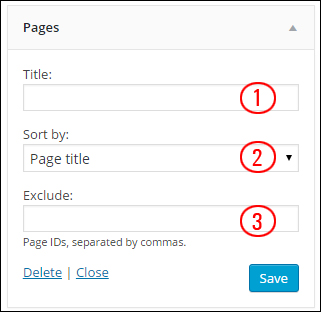
(Pages Widget settings)
By default, pages will be listed by title in alphabetical order. If you want to display pages using one of the other options, then choose a different method in the Sort by: drop-down menu …
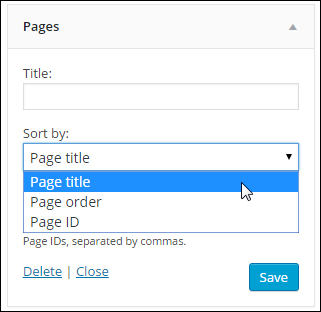
(Pages Widget settings – sort options)
To exclude certain pages from showing in the widget, simply type or paste in the Page Ids for the pages you want excluded separated by commas into the Exclude field of the Pages widget …
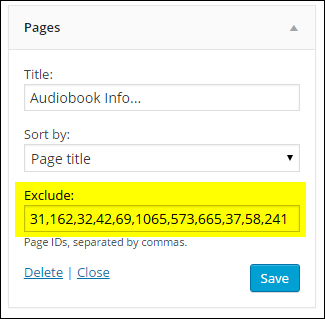
(WordPress Pages Widget settings – excluding pages)
To learn how to find a WordPress post or page ID, see this step-by-step tutorial: How To Find The ID Of A WordPress Page Or Post
Click the Save button when done and click Close at the bottom of the widget box to minimize the widget.
Links to the blog’s main pages will now display on the sidebar navigation area …
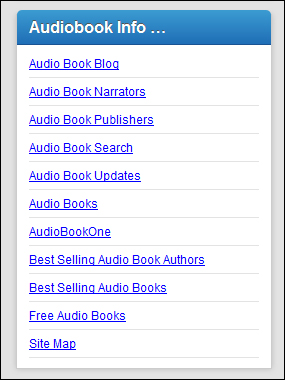
(WordPress Pages Widget on sidebar)
Tip: You can add multiple Pages widgets to the sidebar navigation area. This is handy if you need to display separate groups of pages on the sidebar (e.g. “Products”, “Legal Pages” etc.)
Add A Links Widget
Now, let’s add a widget to your WordPress sidebar that will display external links (e.g. to useful resources, affiliate links, etc).
Before adding the Links widget to your sidebar section, you will first need to configure the Links section inside your dashboard …
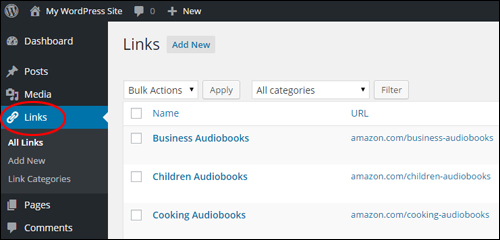
(WordPress Links screen)
Note: Setting up the WordPress Links feature will be covered in separate tutorials.
To add the widget, select a Links widget in the Available Widgets section …
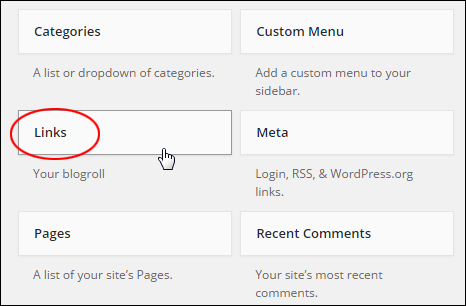
(WordPress Links Widget)
Drag the widget to your sidebar area …
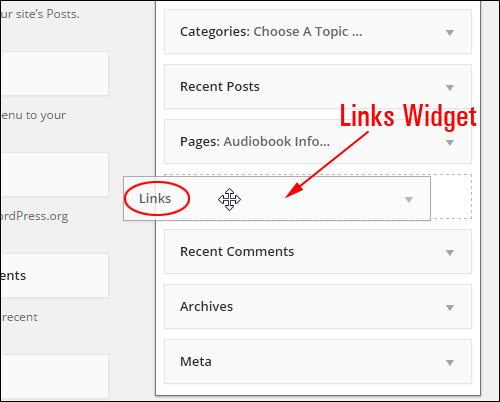
(Making Links Widget active)
The widget offers a number of configurable options, including the ability to specify what information to show about your links and how many links you want to display on your sidebar …
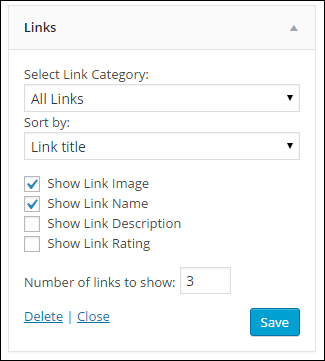
(Links Widget Settings)
You can add as many separate ‘Link Widgets’ to the sidebar as you want. As you will see in a moment, this lets you create and display specific lists of links on your site …
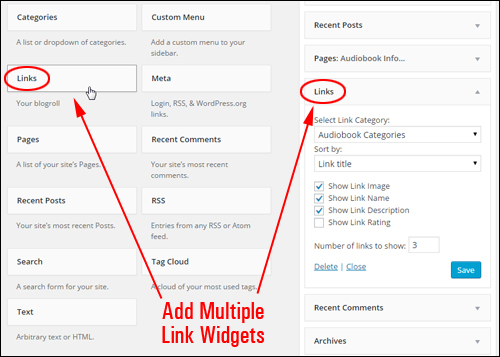
(Add Multiple Links Widgets To Your Sidebar Section)
You can sort links by Link title, Link rating, Link ID, or display links in Random order …
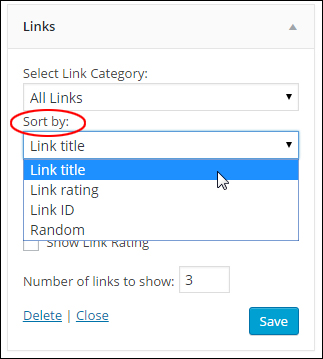
(WordPress Links widget: ‘Sort by:’ drop-down menu)
You can also create and display a list of items for a specific category, by selecting a link category from the ‘Select Link Category’ drop-down menu …
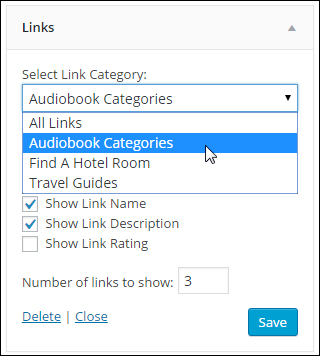
( Links widget: ‘Select Link Category’ drop-down menu)
When you have finished configuring your Links Widget, click the Save button …
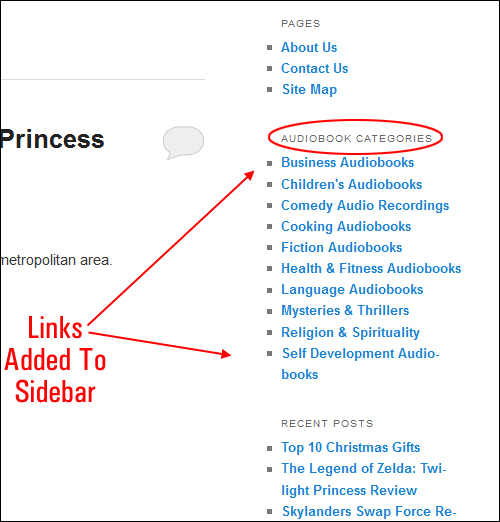
(Links added to WordPress sidebar navigation section)
As the above example shows, you can display specific external links to your site visitors (e.g. a list for a specific link category only), and add multiple lists of links to the sidebar.
***
This is the end of part 3 of this tutorial series.
Click here to continue reading:
***
"I love the way your email series "Infinite Web Content Creation Training Series" is documented and presented. It is very absorbing and captivating. The links and tutorials are interesting and educational. This has motivated me to rewrite my content following the concepts I am learning from the email series." - Mani Raju, www.fortuneinewaste.com