 In Part One of this step-by-step tutorial, we explained the basics of using WordPress widgets.
In this section you are going to begin configuring several widgets in WordPress.
Sidebar Widget Configuration
In a default WordPress installation, your site comes with a number of preinstalled widgets, such as widgets that let you display links to your pages, filter posts by categories, news items, adding search features, etc.
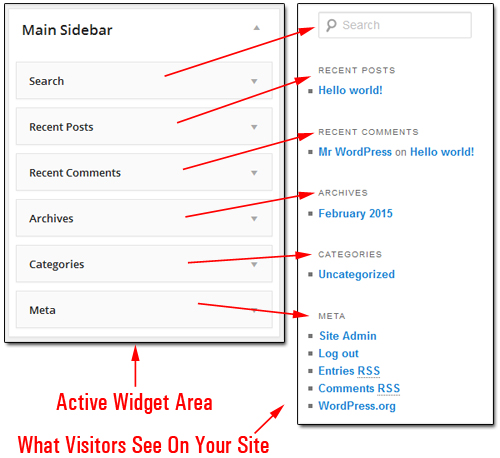
(By default, your site comes with a number of pre-installed widgets)
How To Configure Commonly-Used Sidebar Widgets: Step-By-Step Tutorial
In this tutorial, we are going to add, configure and reorder a number of commonly-used WordPress widgets to display in your site’s sidebar, including:
- Adding a clickable Support graphic linking to the help page.
- Adding a Categories section with a drop down menu.
- Adding a Recent Posts section.
- Add a list of Pages.
- Display important Links on your sidebar.
- Display newsfeeds using an RSS Feed section.
- Add a list of clickable tags through a Tag Cloud section.
- Configure how Archived Posts display on the sidebar.
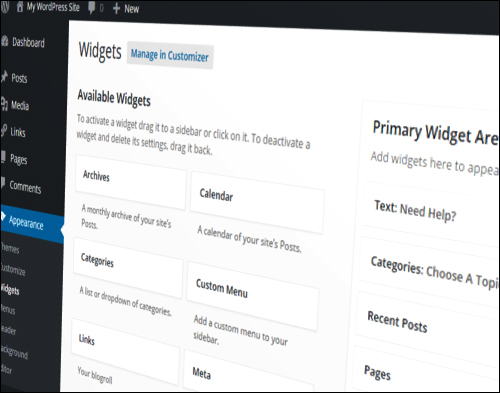
The Widgets area is located inside your WordPress administration area and can easily be accessed by going to Appearance > Widgets …
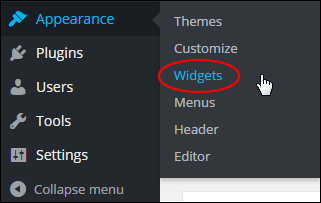
(WordPress Widgets Menu)
This brings up the Widgets panel in your browser …
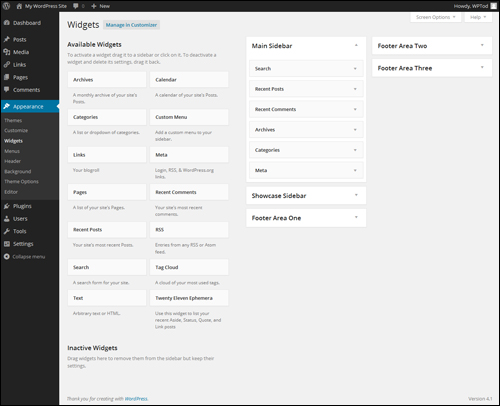
(Widgets Screen)
Let’s get started …
Text Widgets
Text widgets are incredibly useful …
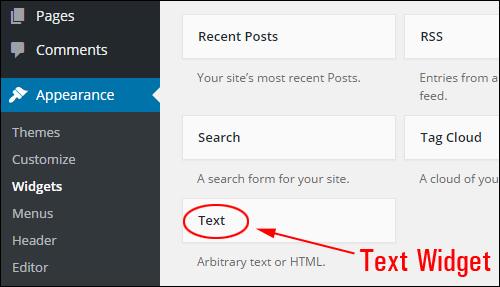
(WordPress Text widget)

Rich Text Widget
From version 4.8 onward, WordPress has added native rich-text editing capabilities to text widgets …
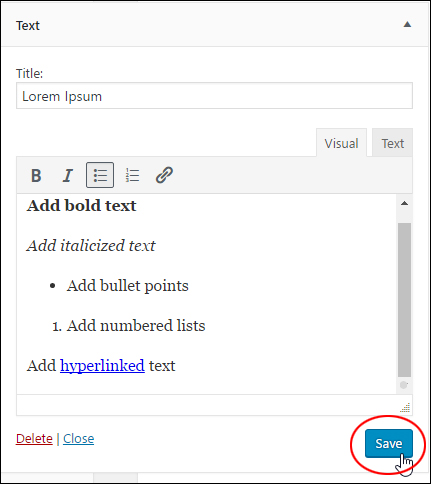
(Rich Text Widget)
This lets you quickly and easily format text, create lists, add emphasis, and insert links into your sidebar text …
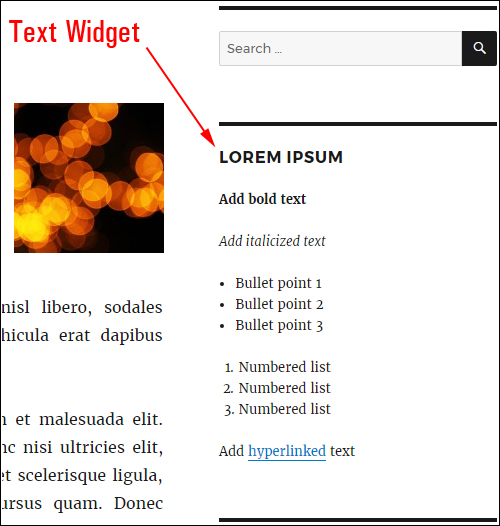
(Format text easily with the new text widget)
A text widget lets you insert just about anything you want into the sidebar section or other widget sections, such as single lines or paragraphs of text, image links, special promotions and more to your site … simply type in text or add HTML into the widget content area. You can also add an optional title in the Title field. Remember to save your settings when done …
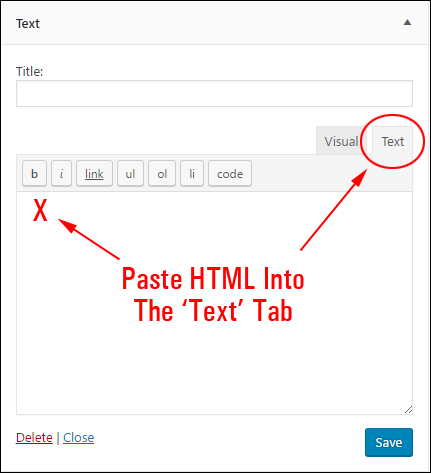
(A text widget is really versatile!)
Example: Use A Text Widget To Add A Support Button To The Sidebar Navigation Area
For this example, we’ll set up a contact button on the sidebar navigation menu that takes visitors to a page on your site (or an external site, e.g. a helpdesk) where they can contact you for help and support.
First, you will need to create or source a graphic image that visitors can click on …

We’ll set up the clickable Help button to display at the top of your sidebar navigation section like in the example shown below …
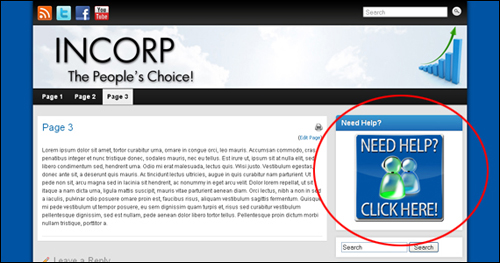
Step 1 – Upload your image.
To display the clickable button image on your site, you must first upload the graphic image to your server and note the address of your server’s image location.
For example …
http://www.yourdomain.com/images/supportbutton.jpg
You will use this information in Step 3.
In order for visitors to go to your contact page when they click on the support button, you will need to either create a contact page, or have an existing destination page already set up (e.g. a helpdesk). We will then link the button image to this URL in Step 3 …
Step 2 – Create a support page.
Create a contact page and note its URL …
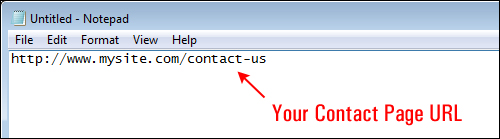
Step 3 – Compose the code for your text widget.
If you’re not a technical-minded person, don’t worry … this sounds a lot more technical than it is. Basically, we just need to create the instructions for your clickable button.
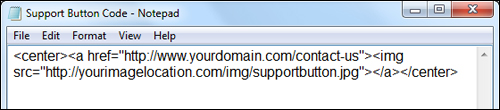
Your instructions can be typed in a simple text editor and will look something like this …
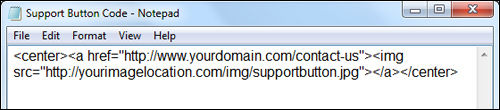
- Replace “http://www.yourdomain.com/contact-us” in the code above with the URL of your contact page location.
- Replace “http://yourimagelocation.com/img/supportbutton.jpg” in the code with the URL of your image location.
The image below shows the sections of the above sample code that you need to replace with the actual web addresses …
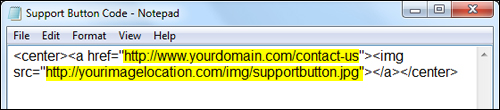
Replace the above URLs and then copy all of the above code to your clipboard when finished.
If you need help understanding basic HTML code, refer to this tutorial:
Now, go back to your Widgets panel …
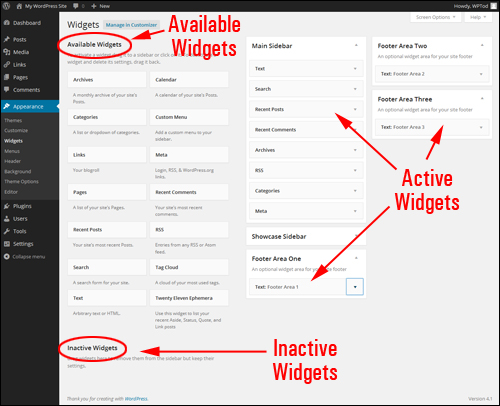
(Widgets Area)
Step 4 – Add a Text widget.
Add a Text widget to your sidebar in the location where the support button should display.
In the Available Widgets area, select the Text widget …
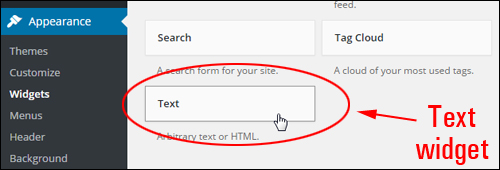
(Text widget)
Drag your Text widget to your Active Widgets section and release the widget at the top of the Widget Area …
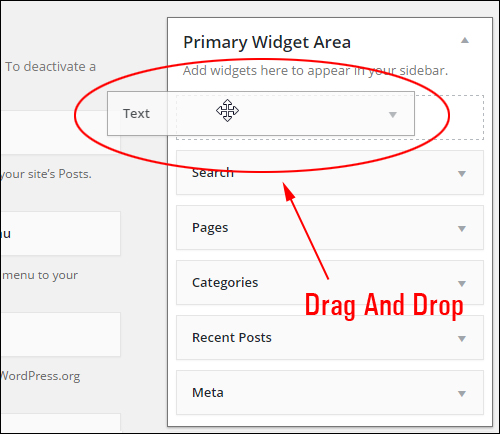
(Drag and drop your Text widget)
Step 5 – Configure your text widget settings.
Click on the Text widget title bar to configure the widget settings. Paste the code with the URLs to your contact page and graphic button into the text widget content area and click save …
Add a heading to your widget if you want (e.g. “Need Help?”, “Support”, etc.) and paste the code with the correct URLs into the large text box, then click Save when done …
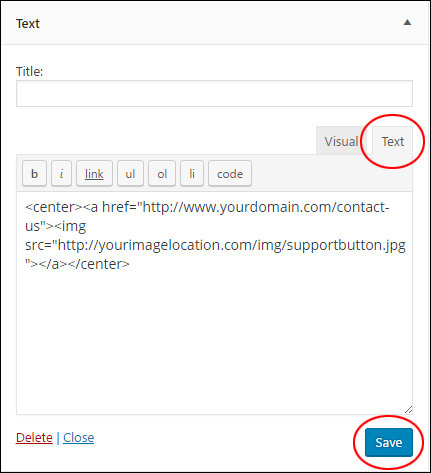
Note: Make sure to test your contact page and button image URLs before pasting scripts into your Text Widget, or the button won’t work.
*** If using WordPress version pre-4.8 ***
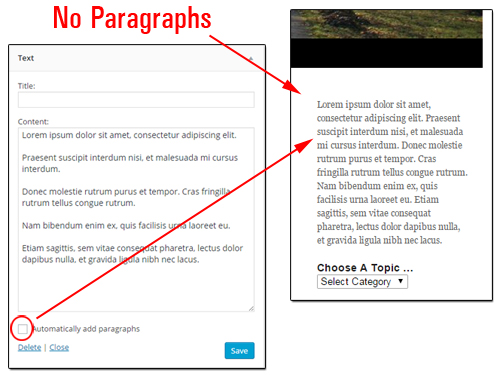
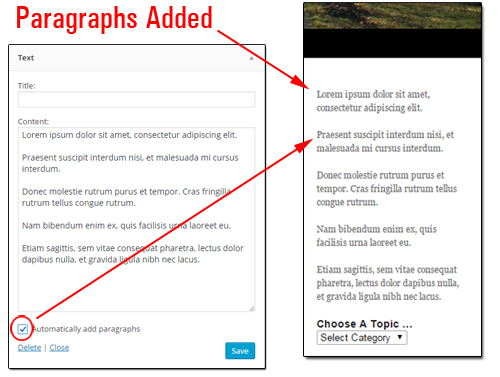
If you’re adding text without formatting tags, you may want to tick the Automatically add paragraphs box to wrap each block of text in an HTML paragraph code (note: not required if you type in formatted HTML code like we’re using in the example for this tutorial).
Here is some text added to a Text widget with Automatically add paragraphs box unchecked …
(Automatically add paragraphs option not selected)
Here is some text with Automatically add paragraphs option checked …
(Automatically add paragraphs box ticked)
***
Step 6 – Refresh the browser.
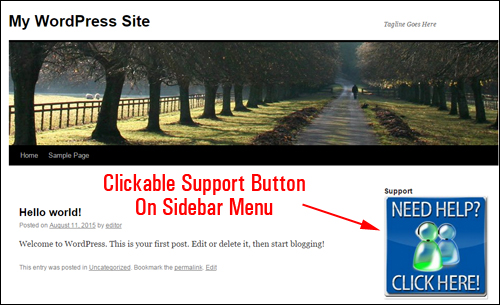
After adding the widget and code, visit your site and refresh the browser. If you have entered all of the links correctly, then your support button should display at the top of your site’s sidebar menu …
(Clickable support button widget on blog sidebar)
The above screenshot shows the contact button in the sidebar navigation area of a newly-installed WordPress site.
Step 7 – Test the button.
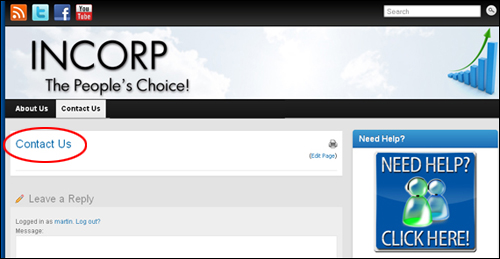
The last step is to make sure that the clickable button works. Test your button to make sure that visitors will go to the help page when clicking the graphic image. You should be taken directly to the contact page …
(Test your clickable button)

Useful Tips:
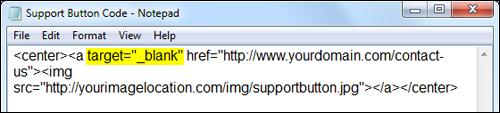
If you want a new window to open up when visitors click on your support button (so they don’t leave the page they’re in), then change the code from this:
To this (i.e. insert the section that says: target=”_blank” in the text widget code):
When choosing images to add to your sidebar menu, make sure that the width of the image doesn’t exceed the width of the sidebar column, especially if you are using a non-responsive WordPress theme. As we’ve previously explained, some themes may display elements differently depending on their templates and their layout. Some sidebars are wide and some are narrow. If your theme’s sidebar is narrower than the width of the graphic images, then you may need to either adjust the graphic size, or the width of your sidebar column to make the images display correctly on your theme.
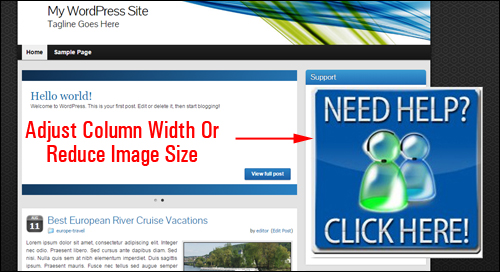
(Make sure that the width of the image does not exceed the sidebar column width)
Additional Tips:
- If you don’t want your button image to be centered in the sidebar, delete the <center> and </center> tags from the beginning and end of the HTML code. The image will then be left-aligned.
- Link the help button to any URL you want (e.g. to an external site, contact form, support forum, etc.) and change this anytime by replacing the links inside the widget.
***
This is the end of part two of this series of tutorials on how to use Widgets.
To view Part Three, click here:
***
"Wow! I never knew there's so much to learn about WordPress! I bought one of the WordPress for Dummies three years ago, such authors need to be on this course!" - Rich Law, Create A Blog Now