 Savvy marketers understand the power of mailing lists.
This is because a a list of email subscribers gives you traffic on demand and access to repeat buyers.
It’s a well-known fact that, on average, 50%-80% of everyone who visits a site who leave will never return. That’s a lot of money to leave behind. Also, marketing research tests show that it takes an average of 7 interactions with your business before a purchase decision is made. It’s vitally important, therefore, to find a way that will help you get repeat interactions with site visitors.
How can you do this, however, if most visitors never return?
The answer, of course, is to get your visitors’ details while they’re still on your website or blog, so you can build a relationship after they leave your site.
Building a list is an essential aspect of building a successful online business. A great list of email addresses has the potential to become your most powerful source of profit.

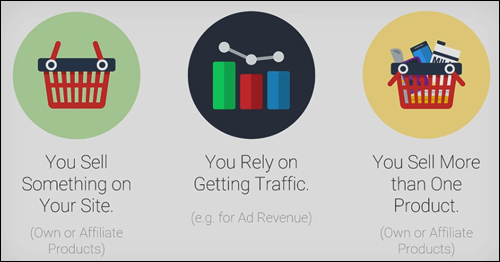
If you sell one or more products on your website, or your business relies on traffic, then list-building is essential, because it is the key to accessing repeat visitors and building a relationship.
There are many ways and different strategies to build a targeted list of subscribers, but until very recently, it was very hard to find a cost-effective and simple solution that incorporates almost all of the most effective methods available to capture email addresses on your website.
Thrive Leads – WP Mail List-Building Plugin

Plugin Description
Thrive Leads mailing builder for WP could easily become the ultimate list-building plugin for WordPress. It lets you build a list of subscribers fast using a wide range of opt-in forms, test different offers, boost your conversions, and get traffic on demand, all from within your WordPress dashboard …

As stated earlier, there are many ways and effective strategies to build a targeted list of subscribers, and almost all of these methods and strategies involve the use of lead capture forms.
What makes Thrive Leads different than other lead capturing solutions is that Thrive Leads comes with a range of conversion boosting technologies and list-building strategies built all into one plugin.
The Thrive Leads list-building plugin for WP is developed by Thrive Themes, a conversion-focused WP theme developer. As you will soon see, the plugin was developed to help WordPress users not just build a mailing list, but to build it faster.

For more details go here:
Plugin Benefits
Here are just some of the benefits and advantages of using Thrive Leads to build a list of subscribers fast and get traffic on tap on your website:
It’s WordPress
Thrive Leads list-building plugin for WP eliminates the need to have multiple plugins installed on your website. This not only reduces potential plugin conflicts, but the “lean and clean” nature of the plugin keeps your site’s loading speed down.
Ready To Start Using In Minutes
Thrive Leads installs like any other WordPress plugin. Simply upload the plugin file to your Plugins folder via your WordPress admin area and activate.
Really Simple To Use
Once you have installed and activated the plugin, you can easily set up one or more opt-in forms, use their pre-designed templates and start collecting email addresses. No technical skills or design skills are required at any point.
To get the most out of the plugin, you will want to implement all of the advanced targeting, testing and reporting features. If you are a new user, allow 20-45 minutes to learn how to use all of the functionality in the software. Fortunately, ThriveThemes provides extensive training content, case studies and a dedicated support team that is available to provide you with any assistance you need.
Every Type Of Form Your Business Needs
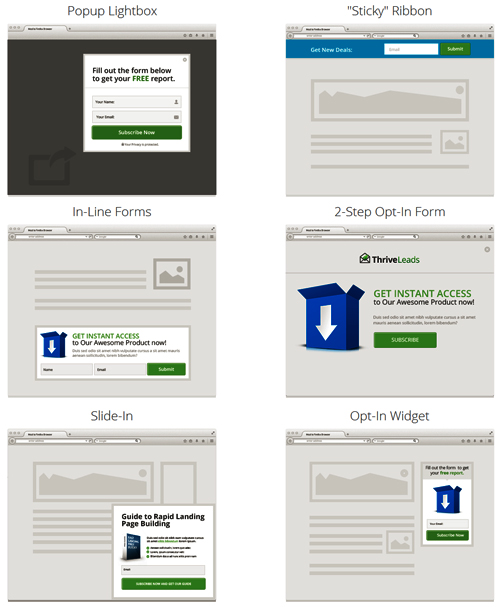
With the Thrive Leads plugin, you can begin to capture subscriber details using pre-designed templates, and every kind of form your business will ever need.
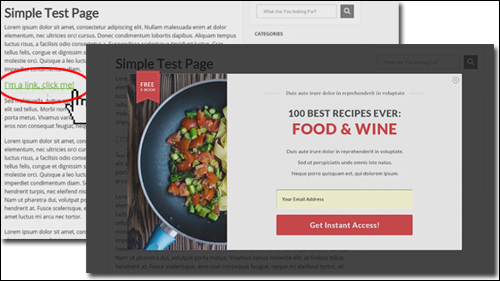
For example, you can use it to display “pop-up” lightboxes …

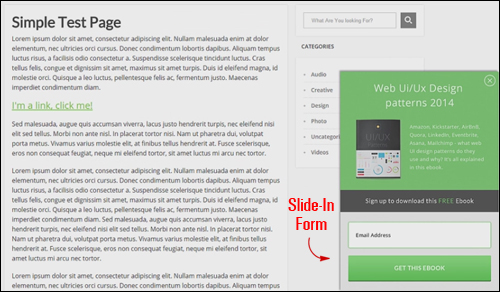
Display slide-in forms …
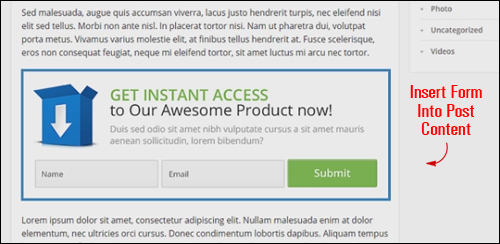
You can use the Thrive Leads plugin to add great-looking forms anywhere within your content, or the bottom of your blog posts using a simple shortcode …
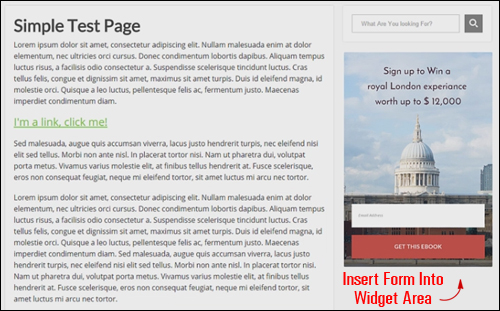
Insert a form into the sidebar widget area …
You can add two-step opt-in links that open a lightbox when a link is clicked on …
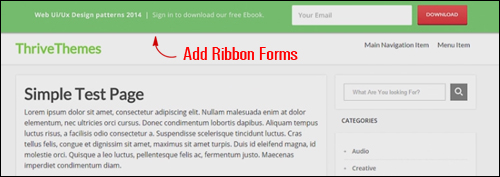
And even add ribbon forms to your site that shows at the top of the screen and remain “sticky” as the visitor scrolls down the page …
As you can see, Thrive Leads combines every type of opt-in form you need in one single plugin …
Thrive Leads also lets you add ‘smart’ Exit Popups that display opt-in forms with exit intent technology, which allow you to capture visitor details when they exit your site.
And it gets even better …
Plugin Features
Thrive Leads provides many features to site owners. Here are just some of these:
Quick And Simple To Install
Ready to start using in minutes. As already mentioned, the plugin developer provides extensive training and tutorials, webinars, case studies, and a dedicated support team.
This tool not only integrates every type of opt-in form your business needs into a single plugin, as you’ve just seen, but it also lets you run all your list-building campaigns directly from your own WP dashboard.
All-In-One List Building Strategies
Thrive Leads integrates all of the list-building strategies you need to boost your conversions into one easy-to-use software:
Design & Deploy
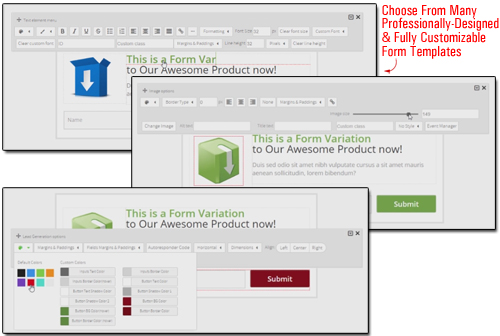
The Thrive Leads plugin provides an extensive library of professionally-designed and web optimized form templates that can be fully customized to suit your needs, without technical skills required.
Simple “point and click” technology and a drag-and-drop editor allows you to create, modify and customize your forms …
Split Testing
Split testing is the quickest way to increase your conversion rates and speed up your list growth.
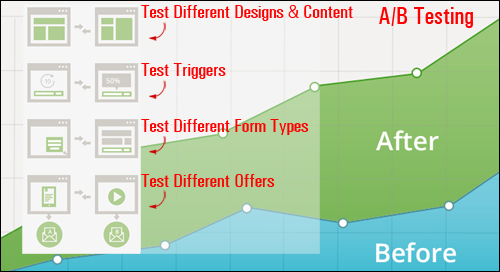
Thrive Leads comes with a powerful A/B testing engine built-in that allows you to easily test a whole range of variables, including:
Split-Test Different Designs And Content
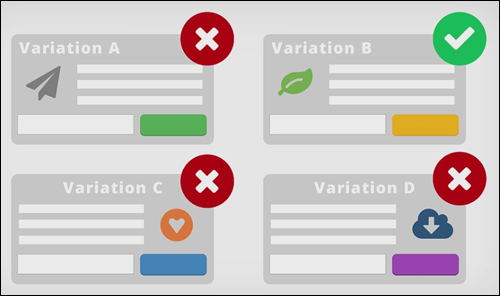
The plugin lets you test different opt-in form designs and content, and provides an “automatic winner” feature that automatically eliminates the non-converting variations, and keep displaying only the highest converting tests after sufficient data has been gathered.
You just start your test and the plugin handles the rest, automatically increasing conversion rates over time.
A/B Test Multiple Opt-In Form Triggers

Thrive Leads lets you customize when and how your forms should appear to visitors.
For example, you can set up:
- Time-based triggers to present a link on your screen after 45 seconds
- Scroll-depth triggers where a message appears only when the visitor scrolls down at least 15% of the web page
- Exit-intent triggers that can detect when someone is about to leave the page and presents them with a pop-up form.
Furthermore, you can also test if a form should display instantly, or animate into view (e.g. slide in). You can test many triggers against one another to further optimize your conversion rate.
A/B Test Form Types
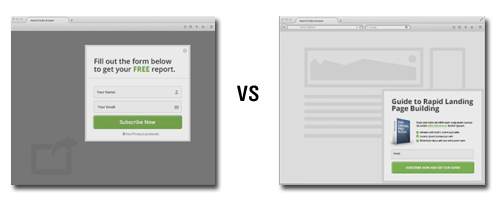
The plugin also lets you test different opt-in form types. For example, you can test a lightbox pop-up vs a ribbon form and see which type of form performs better for your business.
Test Different Offers
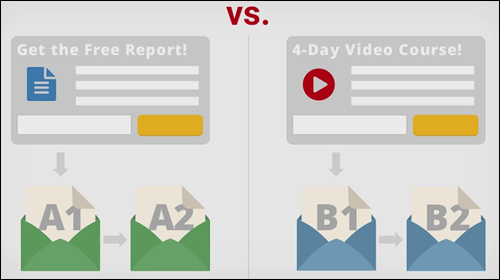
The Thrive Leads plugin even lets you split-test completely different offers.
For example, you can assign different forms to different email marketing lists to help you determine which campaign offers yield the best conversion results.
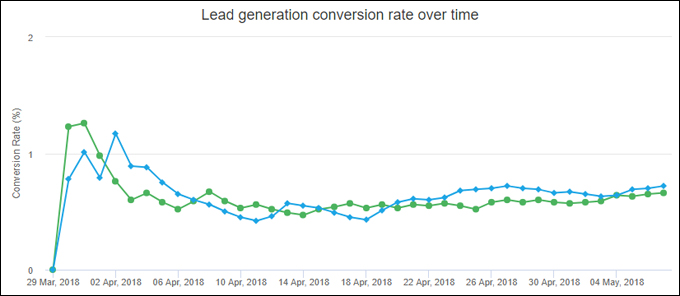
(Split-test different offers)
Not only does the Thrive Leads plugin give you tremendous flexibility when it comes to split-testing your opt-in forms, but you can easily clone any existing form – even make multiple copies, then edit the element(s) you want to test and instantly start running your A/B split test again, and and you can do all this with just a few mouse clicks.
Additional features of this software include:
Advanced Targeting Features
You can create hyper-targeted offers for your visitors with 3 advanced targeting options (Easy, Advanced, Ultimate). You have precise control over how you target your offers to make your offers more relevant.
For example, you can create a “catch-all” offer to show on all posts and pages or only your blog posts, or define exactly where kinds of offers — even specific designs — will display across your entire website based on certain rules you set (e.g. a widget form on your sidebar on the Front Page only), including which templates, archive pages, etc. or, conversely, where to exclude forms from displaying on your site.
You can even create highly relevant offers to show to specific segments of your audience at precisely the right time. Use this feature to create hyper-targeted and extremely profitable lists.
You can even use different lists with different services and different forms.
Supports Advanced Lead Generation Forms
Advanced form features supported include multiple fields, checkboxes, radio buttons and drop-down menus.
100% Responsive
Your forms and list marketing campaigns will work on any device or screen size.
Thrive Leads is also compatible will all major web browsers.
Smart Analytics
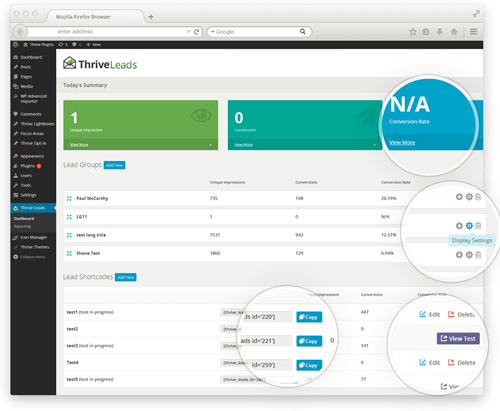
the Thrive Leads plugin gives you access to detailed reports that let you see exactly how your opt-ins and A/B tests are performing over time.
Plus, the plugin provides a “lead sources” report that shows you exactly where your most valuable traffic is coming from, allowing you to plan your campaigns strategically for getting the most highly qualified traffic from the best converting sources.
Integrates Seamlessly With Major Autoresponders & Leading Email Marketing Systems
If your email marketing service allows embedding of HTML forms then Thrive Leads with work seamlessly with your solution.
Plus, you can use different lists and different services with different forms, so you’re never dependent on any one service.

As you can see, Thrive Leads gives you opt-in testing capabilities that go far beyond what most other list-building tools provide.
User Feedback
Here are some of the testimonials customers have provided for the Thrive Leads plugin:
”Shane, this new addition to Thrive Themes is great. I have several different plug-ins like this, but this one is really great. It fits perfectly with the themes and is seamless.” David Wakeman
***
”I’m loving Thrive Leads so far, Shane! My opt-in forms look a lot more professional now, and I’m excited to find out which ones will convert better in the split tests. I’m also looking forward to your webinar, since I learnt so much from the last one I watched.” Priscilla Shoeman
Plugin Support
As mentioned previously, ThriveThemes provides extensive training content, case studies as well as a responsive support team that is available to provide users with assistance.
The plugin interface provides video tutorials explaining exactly what you’re seeing and how to use the plugin. You can also access an extensive library of tutorials, training webinars, case studies and list building strategies, so you can learn how to get the most out of Thrive Leads.
The software is well-supported, and users get one-year updates with their purchase, backed by a risk-free, 30 day, 100% refund guarantee.
Software Pricing
The Thrive Leads plugin is available in the following editions:
- Single Site – This license allows you to install & activate the plugin on one single site. All plugin features are included, and Free, unlimited updates, with 1 year of support included. Price = $49.00.
- Unlimited Websites License – This license allows you to install & activate the plugin on all domains that you own and operate. Includes all plugin features, and Free, unlimited updates, with 1 year of support included. Price = $97.00.
- Agency – The Agency license allows you to install & activate the plugin on all domains that you own and operate, and on all of your client sites. Includes all plugin features, plus Free, unlimited updates, with 1 year of support included.. Cost = $199.00.
Note: The price of Thrive Leads depends on whether there are any promotions or limited-time special offers. The price above was correct when this article was published. This may or may not be the actual pricing charged by the software developer when you visit the product site and you may be shown additional upsells or one-time offers after your purchase.
Check the plugin’s website for the current pricing details here:
Additional Plugin Information
Even on an existing website with hundreds of blog posts, you can install Thrive Leads and use the targeting feature to retroactively display more relevant and higher-converting opt-in forms across your entire website.
For a demo video showing how the software works, including help documentation and tutorials, FAQs, customer help desk, contact details and more, visit the Thrive Leads website.
Our Recommendation
Building a list is absolutely essential when it comes to building a successful online business. When it comes to growing a targeted subscriber list, the only way to increase the speed your list grows is by continually running tests and then analyze your performance to find out what works best for your business. Thrive Leads makes a very powerful tool available to WordPress users without technical or cost barriers, such as requiring expert coding skills or expensive subscriptions.
With Thrive Leads, you have 100% control over exactly where and how your forms display to visitors, and intelligent reporting that helps you improve your opt-in rates. There are other form plugins and solutions for list-building, but the main difference is that other list-building plugins are designed to focus more on some aspect of functionality, such as allowing the user to create and insert pop-up forms into their site. Thrive Leads starts with this kind of functionality, but their real focus is on conversion optimization.
As the plugin developers state on their website …
“It’s not just about helping you build your mailing list. It’s about helping you build your mailing list as fast as possible!”

For complete details, visit the plugin website: Thrive Leads – List-Building Plugin For WordPress
By the way …
We use Thrive Leads here on WPCompendium.org. Check it out for yourself …
***