The Information Age has revolutionized the way we live and do business. However, it has also placed us in a position where we are continuously under the potential threat of digital theft, having our digital assets being infected by malicious software and our business and personal data wiped out.

If you own anything where information can be visited online like a website, then you need to always keep in mind digital security and the importance of implementing a web security and data recovery plan.
In addition to creating an online security and site recovery plan for your business, you will also want to protect your site from mistakes that can result in data loss and set your business back. Having a way to fully restore your site, files or data in extreme situations is something that can only be appreciated once tragedy has struck.
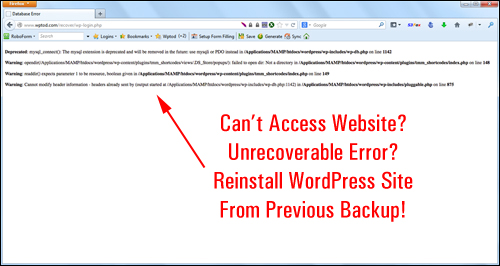
Then again, you may just want to save time. If you need to copy data from a number of websites or blogs, having a time-saving way to duplicate web site information from one website to another can be most convenient.
As any wise website owner eventually learns, “it’s better to be safe than sorry.” Backing up your WordPress website, therefore, is not just important, it is imperative. The truth, however, is that left to their own devices, very few people do it, or don’t do it as often as these things should be done.
Let’s face it … getting hacked, losing data, and doing things that end up breaking your site is all part of owning a digital presence. If this ever happens to you, then you will need an easy and quick way to recover lost data, get back an earlier version of your site, or complete reinstall your site and information.
Fortunately, if you use WordPress, then it’s easy to create backups of your WP database and site files, copy your website to another location and restore your old site and data.
Backup Creator – Back Up, Clone And Protect Your WP Web Sites
 (Backup Creator – Back Up, Clone And Keep Your WordPress Websites Protected)
Plugin Description
Backup Creator is a simple-to-use WordPress plugin that lets you backup your site data, duplicate your blogs and content and keep your WordPress websites and blogs protected with just a few mouse-clicks.
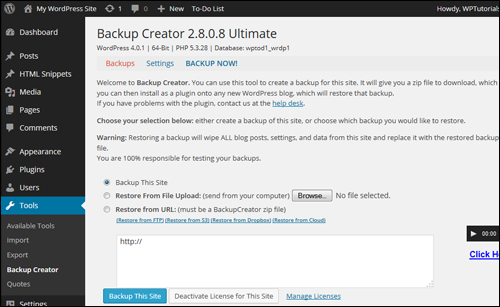 Once you have installed and activated Backup Creator on your web site, you can easily configure the plugin settings. Backup Creator lets you set up backups to run automatically, backups via email, backups using FTP, cloud backups, and even remote backups using 3rd-party hosting applications like Dropbox, Google Drive, and Amazon S3.
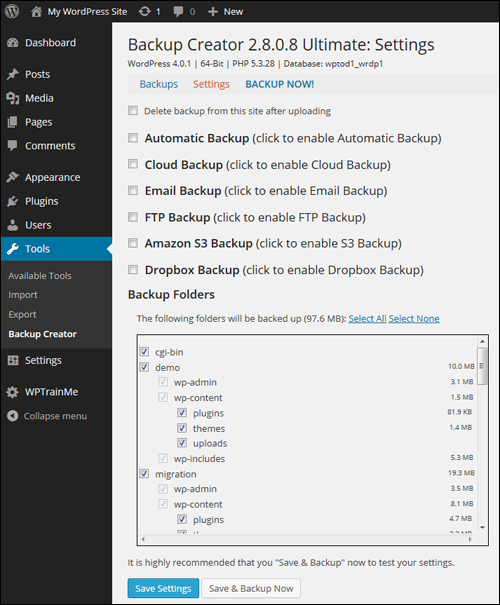 For more details go here: Backup Creator
Plugin Benefits
Here are just a few of the benefits and advantages of using Backup Creator to schedule and automate WordPress backups on your website:
Easy Installation
Backup Creator installs just like every other plugin. Just upload the plugin file to your Plugins folder via your WP dashboard and activate.
After entering a license code, the plugin unlocks and the application will be ready to use.
Really Simple To Use
Backup Creator makes the whole process of creating backups as well as restoring and protecting your blogs and web sites really simple. All it takes is a few simple mouse clicks. This makes it an ideal backup tool for non-technical users.
Saves Loads Of Time
Apart from saving time restoring your website data should something cause irreparable problems for your site, Backup Creator is especially useful for anyone who needs to set up multiple WordPress sites with similar or identical configurations.
Once you’ve set up your master , you can then clone as many duplicates as you want to any new sites you want to set up on other locations. That’s a lot of valuable time saved setting up new websites.
Additional benefits include the following:
- Backs Up Big Sites: Quite often, owners of websites that contain huge amounts of data can experience problems with backups. Many users report being able to easily perform backups of large sites. Note: the plugin’s ability to perform backups above certain sizes may depend on your webhost and your server configuration.
- Peace Of Mind: We’ve mentioned this already, but it’s worth repeating again. Knowing that your information can be instantly recovered should any kind of problem affect your site is vital to the success of your business, especially when your business depends on your site being up and running.
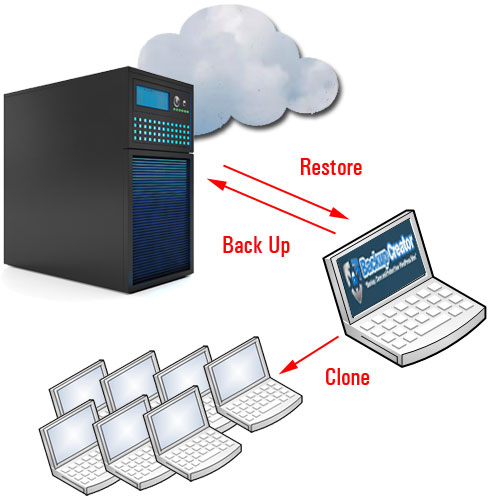
Backup Creator Features
Backup Creator provides a number of great features to web site owners. Here are just a few:
- Create Backups Instantly. One button is all you need to click to backup your site. Once your site is backed up, you can then send it securely to the location of your choice. Download your backup file to your hard drive, send it to yourself via email, or even FTP your backup offsite.
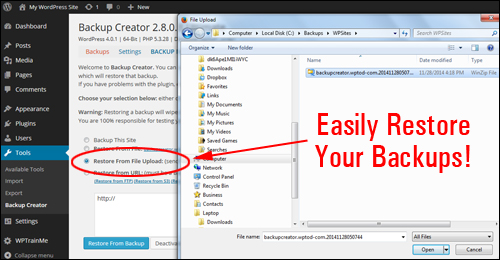
- Restore Backups Instantly To Any Location. Instantly restore your information to any destination you like. You can clone it straight from another WordPress, upload using your browser or even transfer using FTP, Amazon S3, or Dropbox.
- Server-to-Server Technology. Backup Creator’s proprietary “Server-to-Server” technology enables unlimited deployment of pre-configured client sites in just seconds, without FTP.
Additional features include:
- Automatic Scheduling: Once you set up your backup schedule, Backup Creator takes over. There are no cron jobs to set up or files to upload and no FTP is required. Just select your schedule and you’re done.
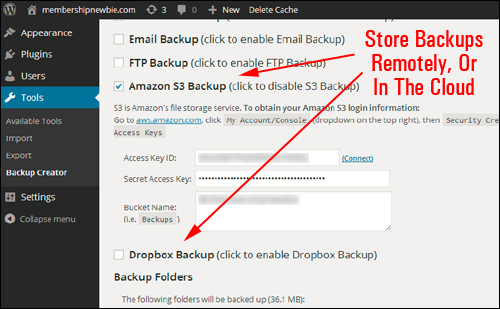
- Use Remote FTP Or Cloud Storage Solutions Like Dropbox, Google Drive, And Amazon S3. Restore, store, and manage all of your backups and clones in one single offsite location and from any place around the world using remote FTP, Amazon S3, Google Drive, or Dropbox.
(Backup offsite to Amazon S3, Dropbox, Google Drive, or all of the above.)
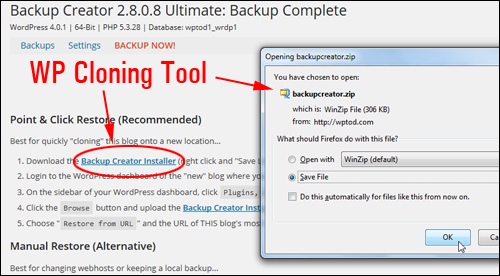
Once BackUp creator has been installed, you can perform “one-click” backups anytime you want …
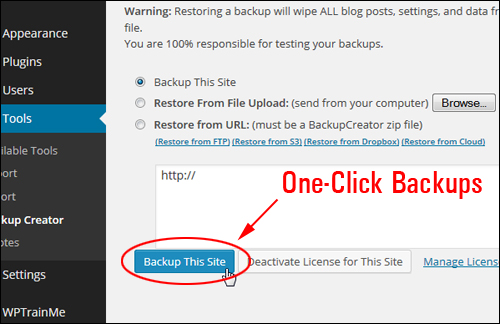 Your site will be backed up in seconds …
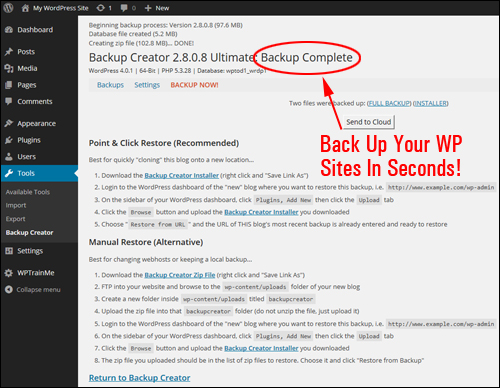 You can restore your backups any time you want using various backup restore methods …
 You can also store your backup files in different locations …
 Testimonials From Plugin Users
Below are some of the testimonials users have written about Backup Creator:
”It’s amazing! Cloning instead of making new membership sites from scratch, which is what I used to do. Now I just clone it and transfer it. It’s simply amazing how everything transfers intact!” Juan Mitre, BlogMasterTraining.com
***
”I just backed up from my site http://mysite.com/customersite (I installed a wordpress installation under my own domain to let them see what they were getting)… when I restored it to their domain (http://customersite.com) EVERYTHING was fixed with all pointers regarding “mysite.com” removed…. Freakin Awesome… I figured I was going to copy and paste all the pages, pictures, etc… since I’m doing this part time, I figured about 2 nights of work…. NOT!!! This utility just paid for itself. Literally took about 5 minutes to complete.” Larry Tosten, Tosten.com
***
”Now one of the 10 best software tools so far for WordPress!” David Povilaitis, SonomaRealEstate4U.com
***
Plugin Tips
Here are some great uses for this tool:
Document Your Site Processes Live.
Instead of spending so much time documenting all the steps you would normally have to go through in order to set up new sites, you can just set up your blog exactly the way you want it, back it up|clone your site and then restore it on another domain and now you’ve got an exact, “documented” copy of your site setup.
For example, let’s say that you want to set up a number of websites containing identical plugins, settings, and configurations in other niches. This could be for a franchised retailer, or a real estate agency with branches in different locations, where each store will manage the content of their own separate blog. Think of all the time you’ve spent tweaking and fine-tuning your discussion settings, widgets and sidebars, configuring SEO plugins and navigation menus, creating the main content sections, customizing your theme, etc. Now you can save loads of time and install a fully-functioning, completely configured site every single time with only a couple of mouse clicks.
Restore A Backup On A Different Website With Correct Internal Reference Links.
Simply downloading WP files and restoring WP file backups won’t duplicate your websites or blogs successfully. You also need to copy the WP database and ensure that your links reference the new domain. Otherwise, your data will be restored to another site, but still be referencing the old location. This is why it’s important to have a backup plugin that has been specifically designed to clone sites. This allows you to back up site ”A” in seconds and restore it to site ”B” in minutes with all the theme customizations, plugins, settings and configurations intact, and everything will be pointing to the new site (i.e. site “B”), instead of the old one (site “A”).
Don’t Waste Time Fixing Serious Problems … Just Restore!
Here’s another great time-saving tip: if your site did get hacked, or an unauthorized user somehow gets in and causes some kind of damage to your site, instead of spending days or weeks trying to repair the problem, just make a backup of your files and database, delete your old site, then restore a previous working version. Your site is now instantly back and you can then send the damaged site’s files to a WP troubleshooting expert who can then try to understand how your site got broken into and how to fix or report any vulnerabilities.
Here’s one last tip:
Document Your Site’s Progress Over Time.
Imagine in a few years that your business has grown and transformed into an online success. Wouldn’t it be great to show people how it all began? Or maybe you’ve changed things around on your site so much and would like to restore things to a place of simplicity. Perhaps you’ve accidentally deleted a bunch of articles and other important content and want to get these back.
If you keep a weekly backup of your site, the chances of losing data are minimal because you no longer need to worry about where you have stored or organized everything. Just go back to the time you remember you had that content, restore the backup (note: the backup can be anywhere, even on a test site) and grab the data you need.
Plugin Support
Backup Creator is a robust and well-supported plugin. It was created by Robert Plank, lead WordPress plugin developer for Double Agent Marketing LLC. Support for this plugin includes a detailed step-by-step online installation and user guide, video tutorials, support helpdesk and 1 year of free updates and new releases with their purchase, backed by a no-risk, 60 day, full refund guarantee.
Note: Check the plugin website for a list of webhosting companies that support the plugin and any known issues with these.
”Had a problem and your respond time to help me was phenomenal. Great product too.” Daniel Altman, CarsWithDan.com
Software Pricing
Backup Creator is available in the following editions:
- Express – Backup Creator Express edition lets you install the plugin on up to 5 personal sites that you own. You can perform unlimited backups and restores only. Cost = $7.00.
- Ultimate – Backup Creator Ultimate lets you install the plugin on unlimited personal domains, as well as schedule automatic backups, email backups as an attachment, back up and restore over FTP, Amazon S3, Dropbox and Backup Creator Cloud, restore backups from browser uploads and choose which folders get backed up. Cost = $47.00.
- Developer License – Backup Creator developer license allows you to install the plugin on unlimited personal and client URLs. You can also flip websites with the plugin installed. Note: Developer edition is only available as an upgrade inside your product download area. Cost = $100.00 (+ the cost of purchasing either the Express or Ultimate plugin editions).
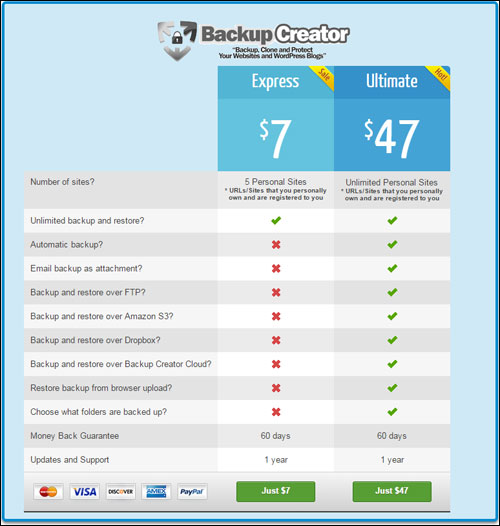 Note: Pricing details of this product can vary, depending on whether there are any promotions or limited-time special offers. The above reflects the current pricing at the time this article was written. This may not be the actual pricing charged by the software author when you visit the website and there may be additional upsells or one-time offers after your purchase.
Check the plugin’s website for the current pricing information:
Additional Information
For a demo video of the plugin, including installation instructions and tutorials, FAQs, support help desk, testimonials, contact details and more, visit the Backup Creator website.
Our Recommendation
Performing regular backups of your website’s data and files is a vital part of doing business online and disaster prevention. There are many great WP backup plugins available, but BackUp Creator doesn’t just perform backups, it also allows you to completely copy your sites and pre-configured WordPress installations.
For this reason, we highly recommend choosing the Backup Creator plugin to backup, clone and protect your WordPress websites.
 For more information, check out the plugin here: Backup Creator – Back Up, Duplicate And Keep Your WP Website Protected
 ***
***