
Welcome to Part Three of our Web Site Traffic Blueprint article series, where we show you how to create an automated traffic generating machine using the WordPress CMS platform.
In Part 1 of this article series, we explained why using an expertly configured WordPress website is the key to automating traffic to your website …
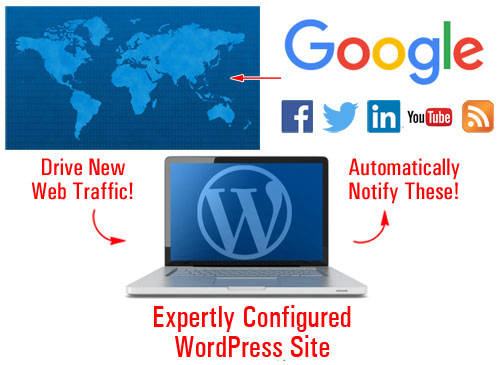
(With an expertly configured WordPress site, all you have to do to begin attracting more traffic is post content on a consistent basis!)
In Part 2, we looked at critical setup decisions. We helped you understand the best way to get started if you don’t have a web presence yet, how to set everything up if you already have a website, and what to do if your site was built with WordPress.
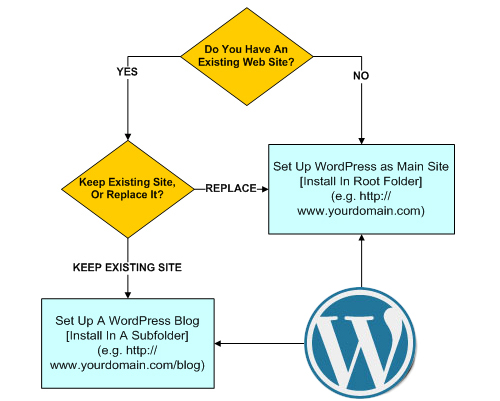
(In Part two we show you where to set up a WordPress web site on your domain)
In this article, we will discuss the configuration stage of the traffic system. You will learn how to configure a WordPress site so you can attract web traffic automatically simply by consistently posting new content to your web site.
WordPress Traffic Automation Blueprint – Configuration Phase
Finding ways to drive more traffic to one’s website is often cited by business owners as one of their greatest challenges online. With competition becoming increasingly more difficult businesses are looking for any and every advantage they can that can help you improve their performance and results online.
The ability to automatically generate traffic on demand is a huge advantage over the competition. Having an expertly configured WordPress site gives your business an immediate advantage from the word “go”.
Configuration Is The Difference
There is a difference between an expertly configured WordPress site and a website that has been professionally installed and set up by a web-building expert but not necessarily configured to its fullest advantage.
Here’s one way to explain the difference:
An expertly configured WordPress website gives you a web presence plus online business marketing automation!
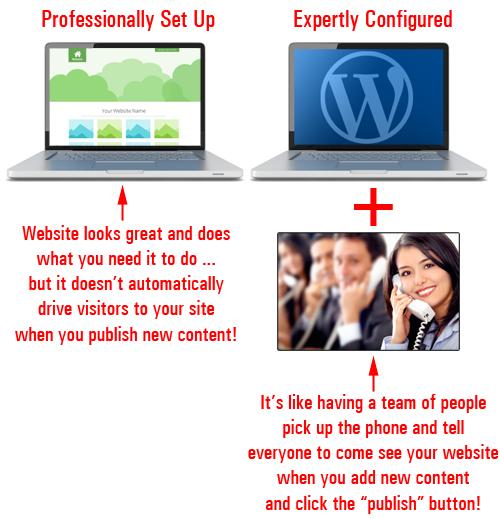
(An expertly configured site gives you a professional web presence with a built-in automated online business marketing tool!)
Not only are more steps needed to build and integrate an automated online business marketing process into your website, it also takes a special kind of expertise.
Let’s illustrate this with a story.
Knowing Where To Tap
All was going fine in the gizmo-making factory when all of a sudden, things stopped working.
As no one could figure out what was wrong, the floor manager decided to call in an expert to try and fix the problem.
The expert arrived shortly afterwards and, without uttering a word, walked immediately towards the control box. After staring silently at the wires and circuitry for about 2 minutes, the expert then produced a tiny hammer and made a gentle tap about three cm from the left side of the box.
Immediately, everything returned to normal.
The floor manager was delighted as he thanked the expert, who left as quickly as he had arrived.
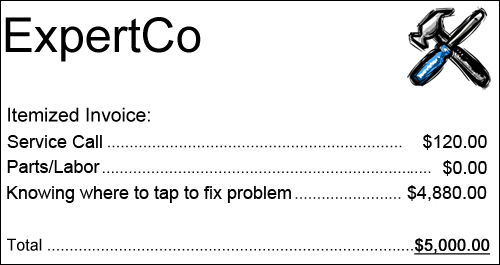
A few days later, the manager received a bill for $5,000.
The factory manager dialled the expert, demanding to know why they were being charged so much for so little time spent delivering a minimal amount of work and then requested an itemized invoice before hanging up.
The next day, an invoice arrived in the manager’s intray. Upon opening it, this is what he saw:
The number one challenge most businesses face online is being able to consistently drive visitors to their sites.
In the story we’ve just described, how much money did the widget plant stand to lose when production ground to a halt and no one on the business had the expertise required to get things up and running again? Did the expert in our story not have the right to demand fair compensation for years spent acquiring the knowledge, skills and expertise that enabled him to fix a potentially costly problem?
Similarly, if you could have your website or blog set up and configured so all you had to do is publish content to it and search engines, social sites and dozens of other traffic-generating online properties would be instantly notified, how much time and money would you save?
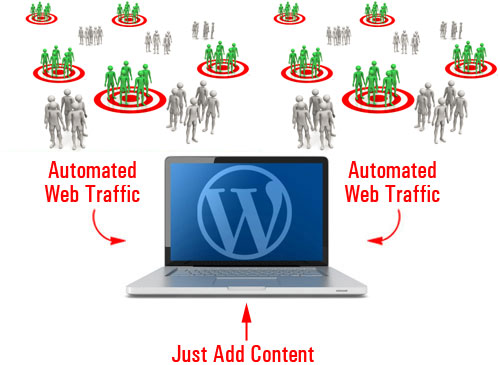
(How much time and money would you save if you could automate the process of driving traffic to your site?)
Although experts often make difficult solutions look easy, it rarely turns out to be that way.
Expertly configuring a WordPress site is more than adding some pages with content and configuring a few internal settings. It also requires knowing where to tap! In other words, knowing things like:
- Which plugins you need to install to get various functionalities on your site.
- Which third-party services you need to set up and activate to achieve desired results
- Which internal and external settings need to be configured to make sure processes will run as you have imagined, etc.
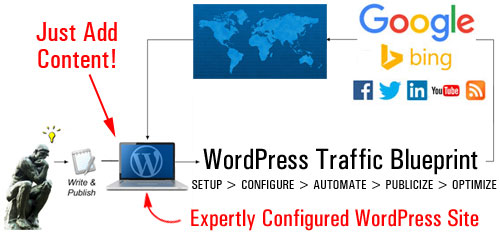
(Generating web traffic automatically with WordPress is a process that requires knowledge and expertise)
This stage of the WordPress traffic automation system is not technically difficult, but it’s quite involved. It’s not just about installing and configuring a plugin, clicking on a button or two … it’s all of this and so much more.
The configuration stage is a complex process that involves your server, your web site, and a number of third-party sites or online services …
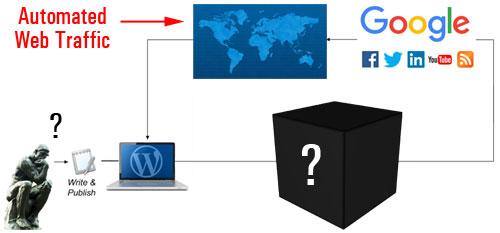
(Expertly configuring your website involves more than just configuring some settings in WordPress)
If we create a simplified flowchart of the activities involved in the configuration process, it would look something like this …
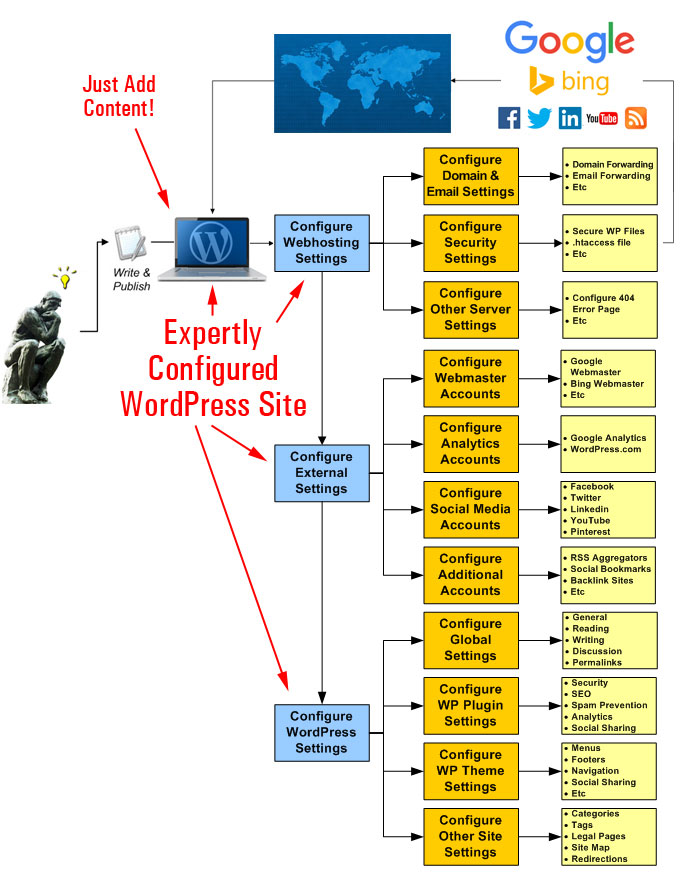
(A simplified diagram showing the steps involved in the configuration process)
Let’s take a look at these areas in more detail.
Your Web Server
We’re not talking about the process of configuring your web-hosting account for installation purposes (this is normally done during the Setup phase). We’re talking about tweaking settings in your web server specifically for handling all web traffic …
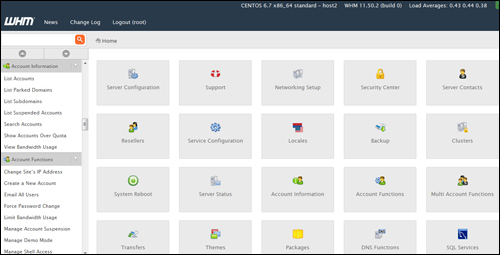
(During the configuration stage, your web server settings need to be fine-tuned for handling both good and bad traffic)
Not all web traffic is beneficial traffic. Some of the web traffic you will attract will be unwelcome traffic like spam, security threats, brute-force bot attacks, etc.
This aspect of the configuration process, therefore, is all about evaluating your needs, planning for good and bad traffic and adjusting settings in your server accordingly. This includes looking at things like configuring server-level spam protection and securing server files, to configuring your domain and email redirections, setting up htaccess file redirections, etc …
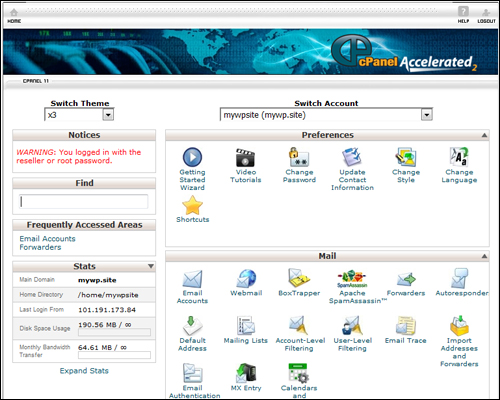
(Have you configured your hosting control panel settings for handling things like emails, page error redirects, etc?)
After checking your web server settings and configuring these (if required), the next step is to set up and configure various external sites and/or online services.
Integration With External Web Properties
The purpose of choosing external sites is that all content should be posted to a central location (your site) and from there, it will radiate outwards to other parts of your web traffic generation system, or notify traffic-related web properties and applications.
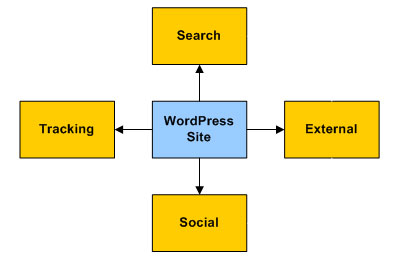
Once you add these external platforms to your traffic system, content with links pointing back to your website will be automatically syndicated to search, social and aggregator sites. Your site will be exposed to new audiences and new sources of traffic.
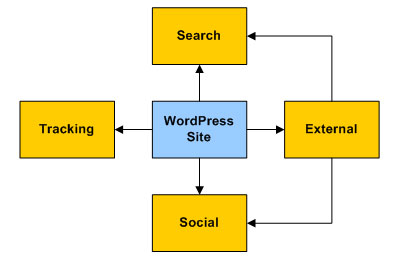
Some external sites and services will need to be set up before configuring your site to save time and some will need to be done later, during the automation phase.
For example, here are just some of the accounts you will need to have set up:
Google Search Console
(Google Webmasters)
Google Webmasters lets you tell Google about your site’s pages, submit XML sitemaps for faster page indexing, and provides site owners with useful data, tools, and reports about their website.
After setting up your account and entering site data, this information can be used with traffic-related settings and notifications in WordPress (e.g. using plugins like Yoast SEO) and other applications.
Google Analytics

(Google Analytics)
Google Analytics lets you improve your site’s results, SEO, marketing campaigns, and more, by tracking all user behaviour, pages visited, keywords searched for, search engine and organic referrals, etc.
Once your Google Analytics account is set up, traffic tracking information can be added to all of your pages in WordPress using a plugin and instantly fed to various other useful applications and reporting tools.
Bing Webmaster Tools
(Drive more traffic with Bing Webmaster Tools)
Bing Webmaster Tools is similar to Google Search Console. After setting up your account with Bing, this information can be used with traffic settings and notifications in WordPress and other applications.
WordPress.com
(WordPress.com)
As discussed in Part 2, WordPress offers a hosted and a self-hosted option. We recommended choosing the self-hosted WordPress option if you are planning to grow a professional business presence online.
WordPress.com (the hosted option), however, provides some great features, which a number of WordPress plugins can access. We recommend setting up an account with WordPress.com, therefore, and we’ll show you how to integrate these features into your traffic generation system in Part 4 of this series.
Social Media And Social Bookmarking Sites

(Syndicate your content automatically to your social media sites and social bookmarking accounts and bring new traffic to your site)
You will need to have already set up your various social media and social bookmarking accounts before you can integrate these with your traffic generation system.
After setting up and configuring everything, you will be able to syndicate your content automatically to your social media and social bookmarking accounts and bring new traffic to your site.
Make sure you have accounts and pages set up with all of the popular social networks – Facebook, Twitter, Pinterest, LinkedIn, YouTube, etc.

There are many social sites you can set up. You don’t need to create accounts with all of them, just pick those that will work with your setup and/or content sharing tools (we discuss some of these tools in more detail in the Automation phase).
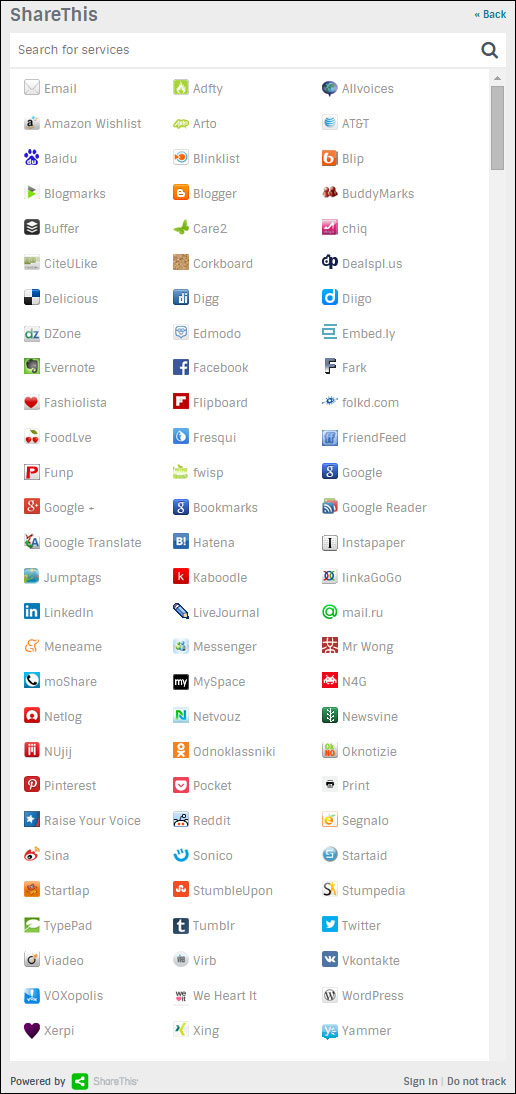
(You can syndicate your content to many social bookmarking sites. Image source ShareThis.com)
Additional Services, RSS Aggregators, Etc.
There are many online platforms and RSS aggregators that can serve as secondary-level sources of traffic. Some are free or provide free levels, and some offer a range of pricing plans.
For example, here is a content aggregator that lets you add an RSS feed from your WordPress blog …
RebelMouse

(RebelMouse)
RebelMouse is an aggregator for your social profiles and RSS feeds. Your content is displayed in a Pinterest-like format and users can follow your RebelMouse social feed.

There are many different technologies and third-party applications that can be incorporated into your own web traffic system. Please feel free to contact us if you need assistance exploring some of these, or to discuss a configuration plan to suit your needs.
After you have configured your server settings and set up external site accounts, it’s time to configure your WordPress settings.
WordPress Configuration
The first step in configuring your WordPress site for traffic is to make sure that your global settings have been set up correctly.
Let’s go over some of the important areas.
WordPress – Global Settings
Your WordPress dashboard area contains a Settings menu that allows you to set up your site’s main settings …
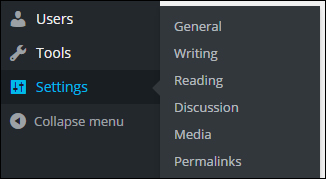
(WordPress settings section)
General Settings
Sections like Site Title and Tagline can affect your site’s SEO, search indexing, etc …
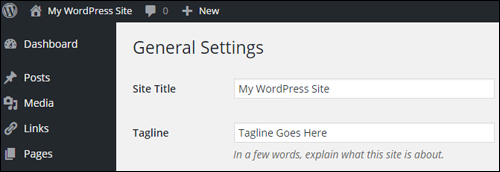
(Settings Menu – General Settings)
Writing
The Writing Settings area contains one of the most powerful and frequently overlooked automated traffic notification systems available to WordPress site owners …
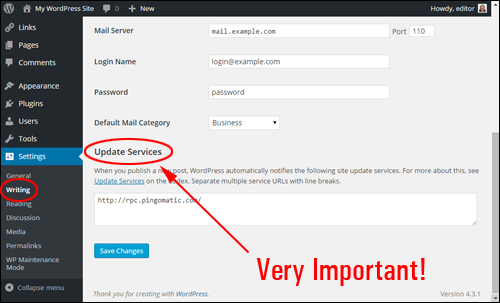
(Settings Menu – Writing Settings Section)
As stated below the Update Services section,
When you publish a new post, WordPress automatically notifies the following site update services …
Unless you or your webmaster have specifically configured your site settings to prevent search engines from indexing your site, then your site will automatically ping the services entered into the Update Services section
By default, when WordPress is installed, this section lists only one entry …
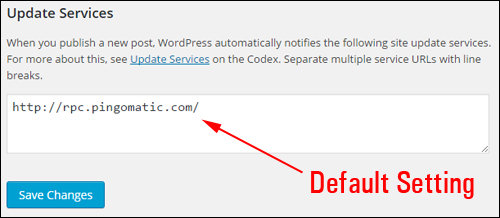
(Update Services – A Powerful Traffic Feature Of WordPress)
You can notify dozens of update services automatically – just add a list of all the update services you want to notify as soon as you publish a new post to this section …
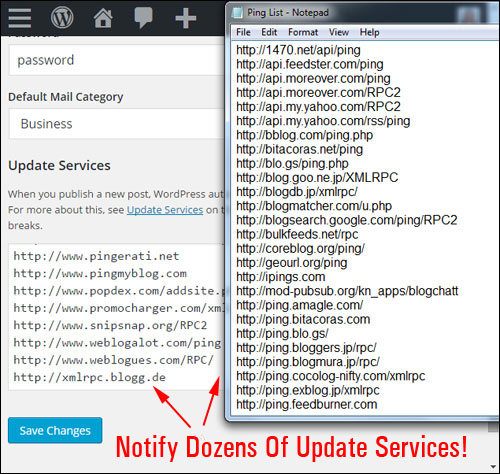
(You can notify dozens of update services automatically with WordPress!)

Download A Comprehensive List Of Ping Services For Your WordPress Site!
Click the link below to download a comprehensive list of reliable and authoritative ping services for your WordPress site or blog:
Download A List Of Ping Services For Your WordPress Site
***
Note: If you need help setting up the list of ping services on your site, we recommend using a professional web services provider. You can find professional WordPress service providers in our WordPress Services Directory.
Reading
This section affects how your content gets seen by visitors when they visit your home page and blog pages.
The syndication settings in this section can influence traffic. For example, your choice of displaying the full content vs a summary of your post, affects how your content shows up in RSS readers and blog post digests, and could play a part in someone’s decision to explore your site further, and whether or not they will visit your blog to read the rest of the content from excerpts, or read the content in full without the need to click through to your site.
As far as your traffic system is concerned, however, the most important setting here is whether the Search Engine Visibility checkbox is ticked or not.
Generally, you want search engines to visit your site. Leaving this box unchecked enables WordPress to automatically ping various update services when new posts are published (see Writing Settings above). Unless there is a specific reason to discourage search indexing spiders from visiting your site, do not check this box …
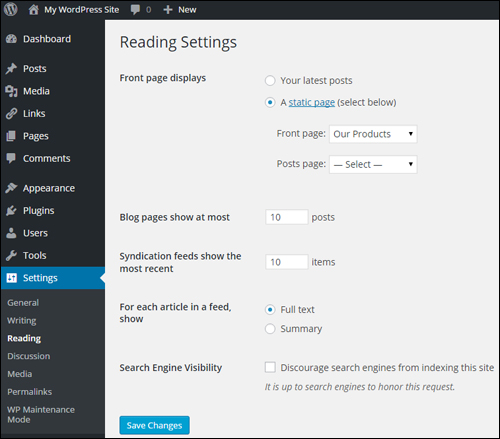
(Settings Menu – Reading Settings)
Discussion Settings
Although this section is mostly concerned with how users engage with content on your site, you have the option to allow notifications to sites linked to from your content, and to allow link notifications from other blogs (pingbacks and trackbacks). This can work for you, but it can also drive bad traffic in the form of SPAM comments …
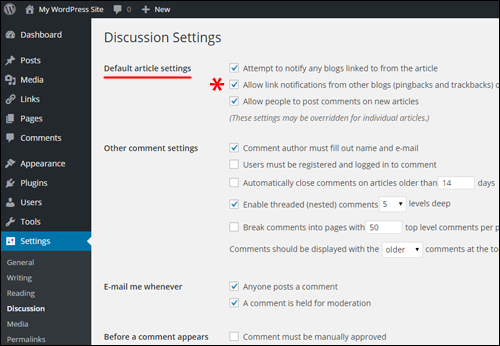
(WordPress Settings – Discussion Settings)
Permalink Settings
Your Permalink settings allow your site to display posts with SEO-friendly URLs …
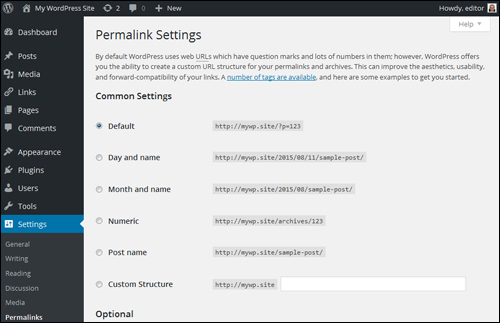
(WordPress Settings – Permalink Settings)
Here are some of the ways site’s permalinks can be configured …
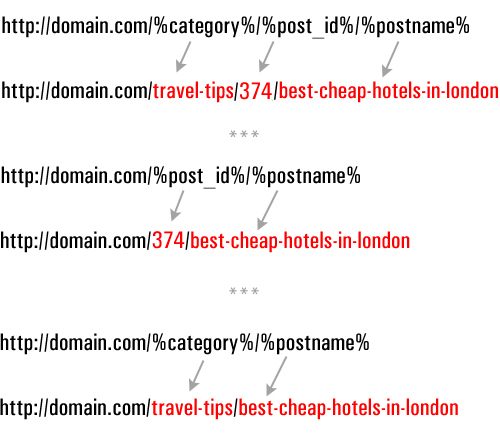
(Configuring SEO-friendly URLs)
We have written a detailed tutorial on using WordPress permalinks here: Improve Your WordPress SEO With SEO-Friendly URLs
WP Plugins
The WordPress developer community makes available plugins that can add almost every type of functionality imaginable to your site, including traffic generation.
Here are some types of plugin categories that affect traffic and plugin examples
Security Plugins – Blog Defender
Once again, it’s important to configure your website for handling both good traffic and bad traffic. No matter what type of business you run or plan to run online and how small you think your web presence is, you simply cannot ignore the importance of securing your site.
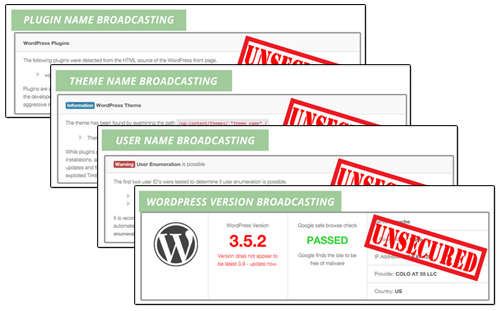 (Security Plugins help prevent bad traffic from harming your web presence)
Security plugins like Blog Defender help to make your WordPress blog invisible to botnets and hackers.
Go here for more details:
WordPress SEO Plugins – Yoast SEO
SEO plugins help drive traffic by improving your site’s SEO …
(SEO plugins like Yoast SEO help increase traffic by making your website more search engine friendly)
Use a plugin like Yoast SEO (previously known as WordPress SEO by Yoast) to improve your SEO. Properly configured, this plugin not only makes your site easier for search engines like Google and Bing to find and index, it also lets you configure how your content will show up in Google’s search results and social media pages, e.g. Twitter, Facebook, and Google+.
WordPress Social Plugins
Allowing visitors to share your content with members of their social communities can help to increase traffic to your site, especially if you post content that adds value to readers.
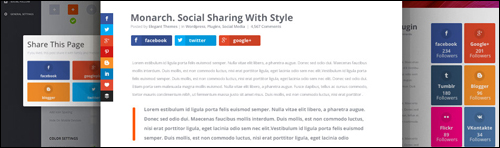
(You can add social sharing features to your website easily with free or inexpensive plugins)
There are loads of social sharing plugins available for WordPress.
Many social share plugins allow you to choose which sites visitors can share your content to, embed social buttons into your content, set up default update notifications, display/hide share counters (e.g. number of shares), etc. Some plugins even allow you to set up protected content areas on your pages which visitors can unlock by liking your page.
WP Theme Settings
As well as configuring various plugins, many WordPress themes also include features that can help improve your site’s traffic generation capabilities.
For example, as well as options and settings for configuring design and layout elements of your site, many themes also include built-in features that let you improve search optimization and site linking structure for faster indexing, add analytics snippets, social sharing buttons, etc …
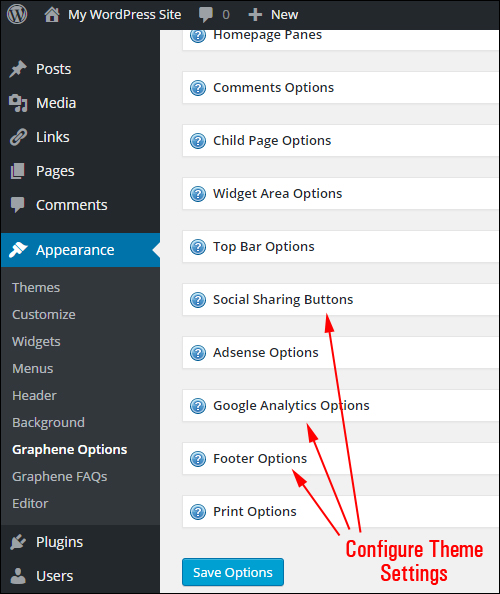
(Many WP themes like Graphene (a highly customizable free theme) have built-in traffic optimization features)
With many themes, adding social sharing features to your content is as easy as clicking a few buttons and enabling the feature …

(Many WordPress themes have built-in social sharing features that can be easily enabled on with the click of a button)
WordPress Traffic System – Additional Configuration Areas
Last but not least in the web traffic system configuration process, are the things that need to be configured outside of the global settings.
These include the following:
Compliance Web Pages
Once again, when preparing your site for a growth in visitor numbers, it’s important to plan not only how to handle good and bad traffic but also for all the things that can go wrong when more and more people start finding and visiting your website.
If you do any type of business online, it’s important that your website is found to comply with regulatory agencies.
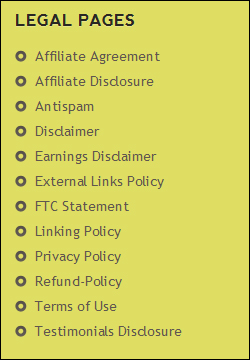 (Is Your Site Legally Compliant?)
For a detailed article on how to quickly add all necessary legal pages to your website, see this article:
Post Categories And Post Tags
WordPress post categories & tags help to improve your site’s search optimization, which helps you get more traffic.
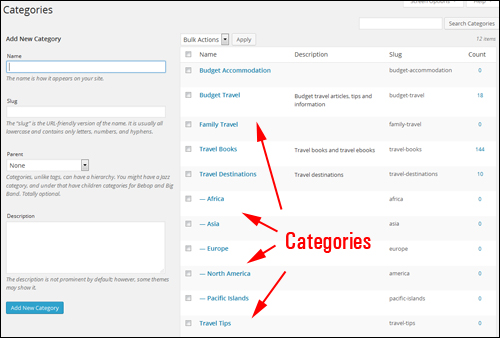
(Post categories help search engines index your web pages, which helps to increase traffic.)
As we strongly recommend in this article, your site’s post tags and categories should be set up earlier on, during the Website Planning Phase.
When looking at ways to automate and improve traffic, you will want to review and make sure that the categories and tags you have set up.
A Site Map Of Your Pages and Posts
A site map that displays all of your site’s posts and pages is not only a useful navigation tool for users, it can also help external sites find your web content …
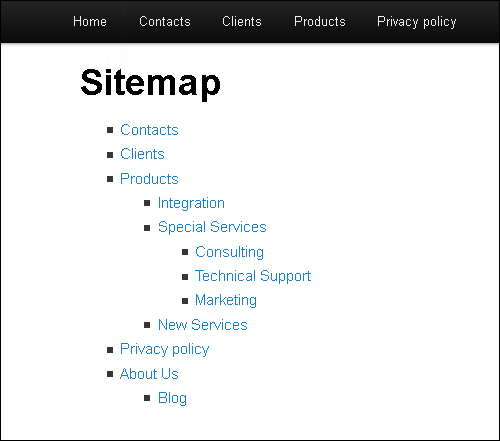
(Site Map – great for visitors and beneficial for traffic too!)

It’s important to note that an HTML site map and an XML sitemap are different things. Although search engines like Google can index your site just from an XML sitemap (which plugins like Yoast SEO will create for you – see earlier section), making it easier for visitors to find more pages on your site can result in increased traffic.
Configure Your WordPress 404 Error Page
When online visitors type in the wrong URL or click on a dead hyperlink, they are greeted with an error page (known as a 404 error page) …
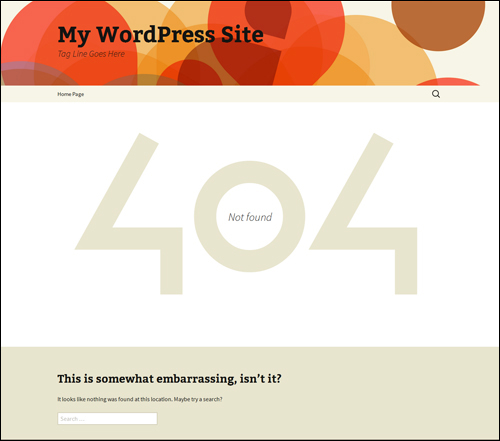
(A WordPress 404 Error Page)
A 404 Error Page can be configured to funnel visitors to your functional web pages …
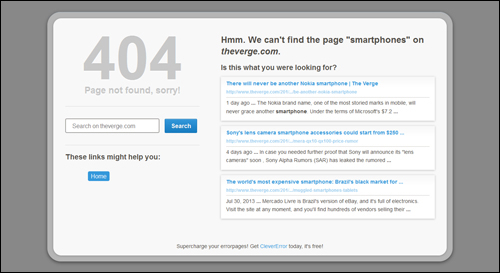
(Configuring your 404 page allows you to redirect web traffic that may otherwise be lost.)
Although a 404 Not Found error page can be set up on your server, there are several WordPress plugins that allow you to easily configure your 404 page from your WordPress admin.
WordPress Traffic System: Configuration Phase – Summary
Once you have your website or blog expertly configured and fully set up, all you need to do to generate web traffic is post great content consistently.
The process of expertly configuring your WordPress site, however, is quite involved and elaborate , requiring the configuration and integration of various elements and web properties …
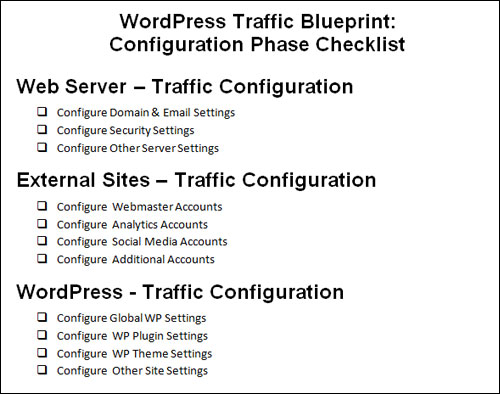
(WP Traffic System – Configuration Phase Checklist)
The kind of skills and knowledge required to perform the configuration stage of the traffic automation process can take many website developers months to learn.
Once you have configured your WordPress site, the next step is to automate as much of the process as you can. This step is covered in the next article in our series.
This is the end of Section 3
To read more, click here:

This tutorial is part of a comprehensive article series designed to help you learn how to grow your business online and drive traffic automatically with a WordPress website and proven web marketing strategies.
Subscribe To WPCompendium.org And Get Notified When New Tutorials Get Published!
***
"This is an awesome training series. I have a pretty good understanding of WordPress already, but this is helping me to move somewhere from intermediate to advanced user!" - Kim Lednum
***