 In Part One of our Website Traffic Blueprint article series, we explained that the key to creating an automated web traffic generation machine is to use an “expertly configured” WordPress website.
As we also explained, an expertly configured WordPress website or blog is not the same as a professionally-configured WordPress site. An ”expertly configured” WordPress web site is a site that is not only powered by the WordPress CMS, but has also been expertly set up and configured (either by yourself or professionally) to take advantage of the enormous power, ease-of-use and functionality of WordPress and how it integrates with various sites, specifically in areas like search engine optimization, content syndication and analytics.
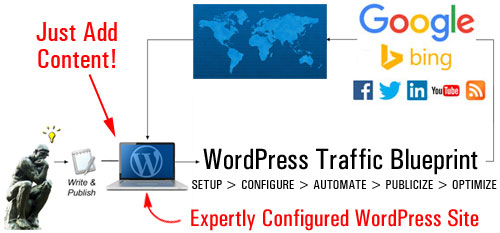
(With an expertly configured WordPress website, all you have to do to start driving traffic is add great content regularly!)
Once you have your WordPress site expertly configured and fully set up, all you need to do then is add content on a regular basis to drive more web traffic organically.
As outlined in Part 1 of this article series, the components of the automated web traffic system are as follows:
- Setup
- Configure
- Automate
- Optimize
In this article, we look at the “Setup” phase of this process. You will learn the best way to start if you don’t have a web presence yet, or if you already have an existing site that may or may not have been built using WordPress.
WordPress Traffic Automation Blueprint – Setup
If You Have No Website
If you haven’t got a website yet, then it’s really quite simple … build a web presence with WordPress!
WordPress is the most powerful, flexible, cost-effective and easy-to-use content management system available. We provide many articles, tutorials, and tips on this site about the benefits and advantages of using WordPress to grow your business online.
For example, to learn just how popular WordPress is, see this article: WordPress: How Popular Is It? Some Facts And Figures About WordPress
After making the choice to build your website with WordPress, the next step is to choose which WordPress platform you will use to build your web presence on.
This is important because there are two types of WordPress platforms available …
WordPress Hosted Or WordPress Self-Hosted?
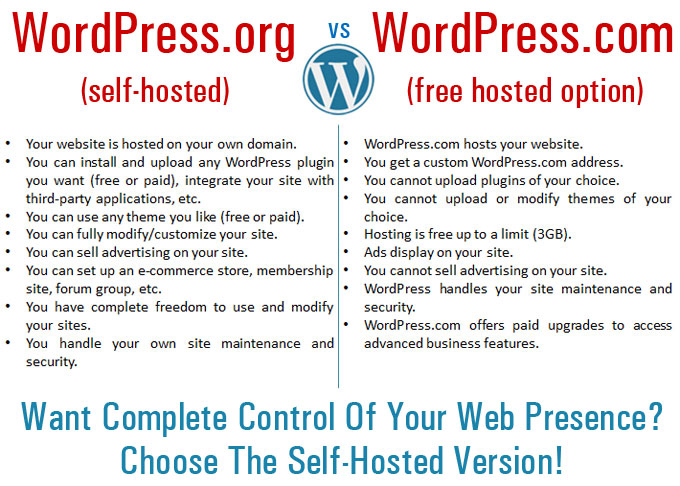
(Self-Hosted vs Hosted WordPress)
WordPress offers users a ”hosted” and a “self-hosted” option.
The “self-hosted” option allows you to download the full-featured WordPress CMS application at no cost from WordPress.org and host a WordPress site or blog using your own domain name.
With the “hosted option”, WordPress will host your blog for free at WordPress.com. There are, however, a number of limitations on what you can and can’t do with your site when it is hosted for free at WordPress.com.
If you are planning to build a professional business presence online and you want to set up the traffic system described here, then you should choose the “self-hosted” WordPress version. The benefits of choosing the “self-hosted” option (WordPress.org) far outweigh those of hosting a free site at WordPress.com. You can fully customize your web presence and avoid the limitations of the hosted option. Keep in mind that You can overcome the limitations of the free hosting platform by upgrading to a paid option, but then why not just start off by hosting a WordPress site on your domain and avoid the hassles of upgrading later?
If You Have An Existing Site
If you already have an existing website, check first if it has been built using WordPress.
If you need help with this step, check this article: The Easy Way To Tell If Your Website Runs On The WP CMS Platform
If your website was built using the WP CMS platform, move to the next step, and make sure that your site’s internal settings have been properly configured. We cover this step in more detail in another tutorial.
If your blog runs on something other than WordPress, then you will need to make some decisions.
Take a look at the diagram below …
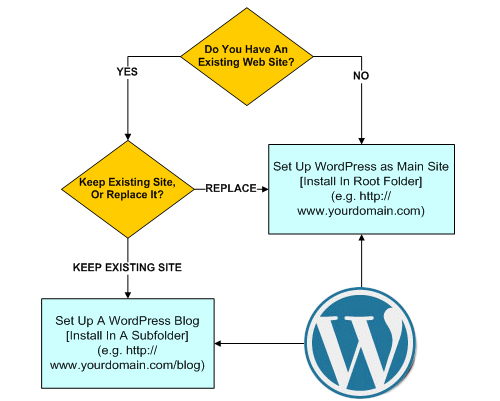
(Use this simple flowchart to help you choose where to set up a WordPress website on your domain)
Basically, you have two choices:
- Replace your existing site so that your main website is powered by WordPress, or
- Keep your existing site and add a WordPress-driven blog. This blog will then be expertly configured and used to drive traffic to your main web site.

If you choose to keep your existing website and add a WordPress blog, make sure to use the self-hosted version of WordPress, which requires your own domain name and web hosting, but allows you to fully configure your blog’s settings and customize the design of your existing web site using an appropriate WP theme.
To use WordPress as your main website, install the platform in the “root” directory of your domain name (e.g. mydomainname.com).
If you have a website, then you will want to install WordPress in a subfolder of your domain, e.g. www.mydomainname.com/blog (you can name your subfolder anything you like).
If you already have an existing website that you don’t want to delete or replace with a WordPress site, the other option you have is to set up your WordPress site or blog on an entirely different domain.
This way:
- mydomainname.com – goes to your existing website
- myotherdomain.com – goes to your WordPress blog
Once you have set up your WordPress site, the next step is to configure its internal settings. This step is explained in the next article in the series.

This is the end of Part 2
To read more, click on the link below:

This tutorial is part of a comprehensive series of articles designed to help small business owners learn how to grow their business and drive traffic organically with a WordPress-driven website and proven web marketing strategies.
Want To Get Automatically Notified When New Tutorials Are Published? Then Subscribe To Our Site!
***
"I was absolutely amazed at the scope and breadth of these tutorials! The most in-depth training I have ever received on any subject!" - Myke O'Neill, DailyGreenPost.com
***