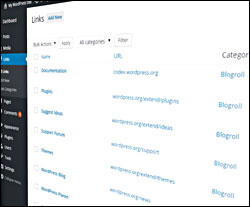
 As you discover more about WordPress, you may occasionally come across something called a blogroll.
In WordPress terminology, a list of links displayed on your sidebar is sometimes referred to as a blogroll.
According to official WordPress documentation …
“The term ‘blogroll’ was originally used because it was a list of links to other blogs, but you can include links to any sites.”
You can display links on your sidebar or footer using the Link Manager plugin.

Before the release of WP version 3.5, Links were a built-in feature of the WordPress CMS. From v 3.5 onwards, the Links manager and blogroll sections were removed …
Before …
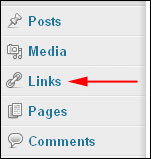
(WP Links Manager Feature – pre v 3.5)
After …
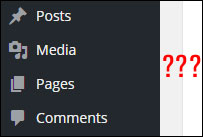
(Post v.3.5 – no WP Links Manager)
If you’ve used an earlier version of WordPress than v.3.5 and updated your installation, the Link Manager would be removed, unless you have previously used it. If you’ve never used the Links Manager feature, however, or if your site installation is new, then this function will become invisible – it will not be displayed on the menu.
How To Add A Link Section To WordPress

You can add a link section to your sidebar menu by creating a custom menu, or use a plugin like the one shown in the tutorial below.
If you can’t see a Links section on your main menu when you log into your WP admin area, you can add it via a plugin. In this step-by-step tutorial, you will learn how to add and manage blogroll links on your site’s sidebar using plugins.
Link Manager
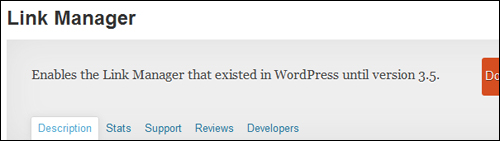
(Link Manager Plugin)
Download URL
http://wordpress.org/plugins/link-manager
Plugin Description
The Link Manager plugin restores the Links menu on your WordPress dashboard, even if you upgrade WordPress to a later version or remove all of your current links.
Note: All this plugin does is add a single line of code to your installation in order to restore the hidden feature. The last time we checked, this plugin had not been updated for a while, but it should still work fine. If you don’t want to use this plugin, then use the one below instead, or contact us for help editing your site’s template code.
Simple Links

(Simple Links Plugin)
Plugin Download URL
https://wordpress.org/plugins/simple-links/
Description Of Plugin
This plugin recreates the same concept as the built-in WP Link Manager while addressing the shortcomings of the deprecated feature.
How To Install Link Manager
Let’s install the Link Manager plugin.
In your WP administration area, select Plugins > Add New …
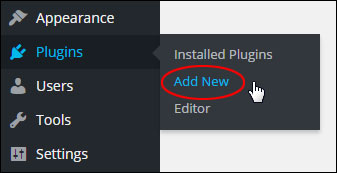
(Plugins Menu – Add New)
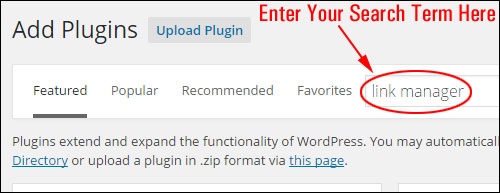
Select the Install Plugins > Search tab, type ”link manager” into the search field and hit Enter …
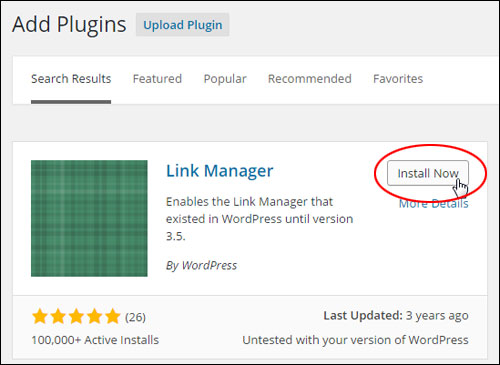
Find the plugin in the results area and click Install Now …
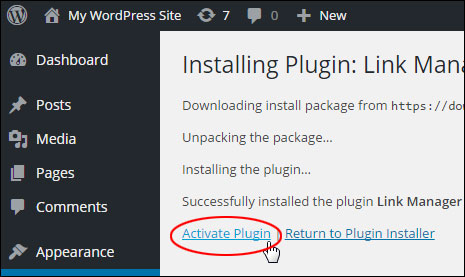
Activate the plugin …
After you have activated the plugin, a ‘Links’ item will show on the WP sidebar menu screen …
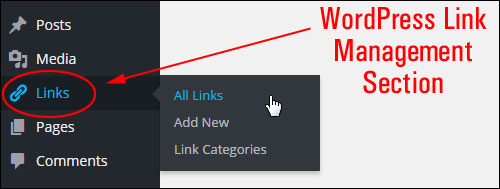
(Links menu)
Configuring Link Manager
We recommend setting up link categories first before adding links. This way, you can assign new links to a link category you have already created.
Link Categories
To create a new link category, go to the WP navigation menu and click on Links > Link Categories …
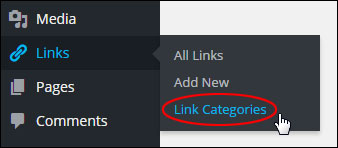
(WP Links Menu – Link Categories)
This brings up the ‘Link Categories’ screen.
Enter information into the following fields:
- Name: What you enter here will display as the category your links will be assigned to.
- Slug: The slug is the URL bit of your link category. Only use lower case letters and do not include spaces (use hyphens to separate words).
- Description: Some themes may display a link category description.
When done, click Add New Link Category to save your new link category …
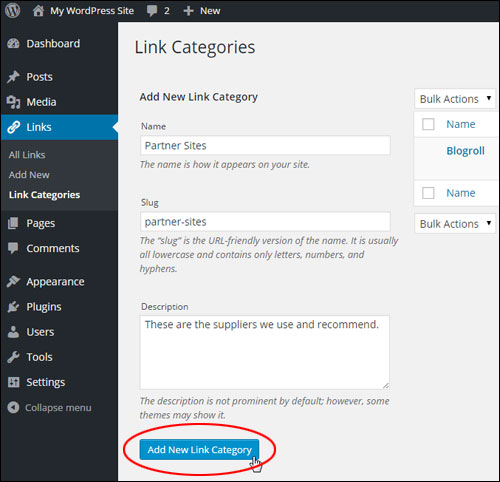
(Link Categories)
Your link category will display in the table …
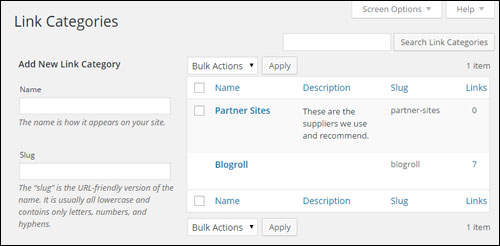
(Link Categories)
Tip: The default WordPress link category is called Blogroll . Unless you specify the category when creating a new link, WordPress automatically assigns new links to the default category …
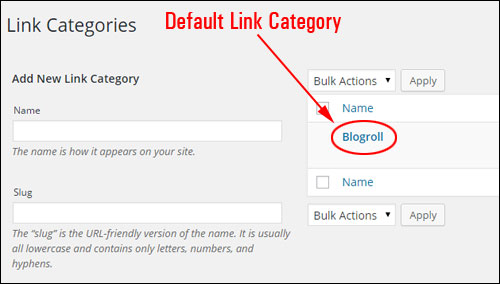
(Default link category name is ‘blogroll’)
You may want to change this to something that your visitors can understand. This not only makes it easier for visitors, but any new links that you add to your site will automatically be listed under the new category name …
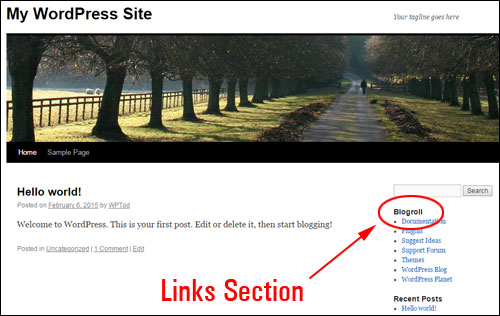
(Change the default ’blogroll’ to something your visitors will understand)
To edit the ‘Blogroll’ link title, hover your mouse over the item and click on Quick Edit …
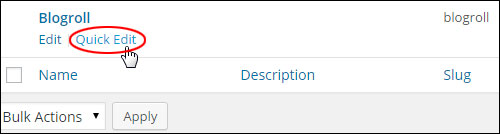
(Editing the link category name)
Replace both the Name and the Slug with a new category name, then click on the Update link Category button …
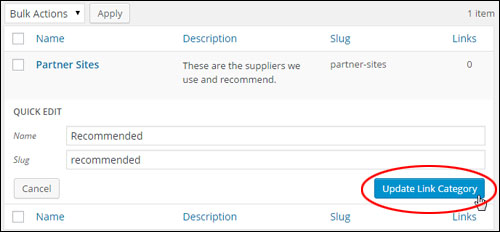
(Editing the link category)
In our example, the category name ‘Blogroll’ has been replaced with a more suitable name (e.g. ‘Recommended’).
Let’s add a link category description. To add a description to an existing link category, click on the Edit link under the category name …
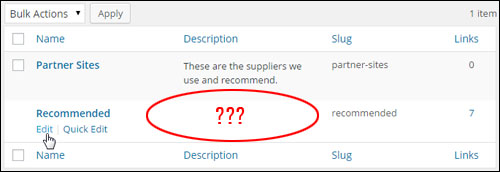
(You can add/edit your category description)
Enter your link category description field and click Update …
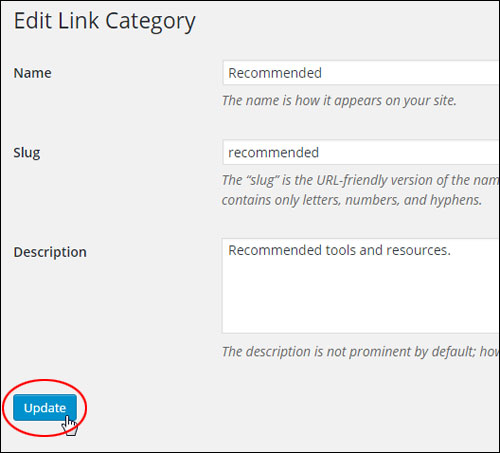
(Edit Link Category area)
Repeat this process to add as many different link categories as your site needs.
After you have finished setting up your link categories, you can add new links.
Adding Links
To create a new link, choose Links > Add New in the dashboard navigation menu …
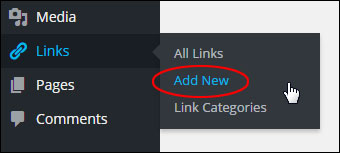
(Links Menu – Add New)
The ‘Add New Link’ screen will display in your browser …
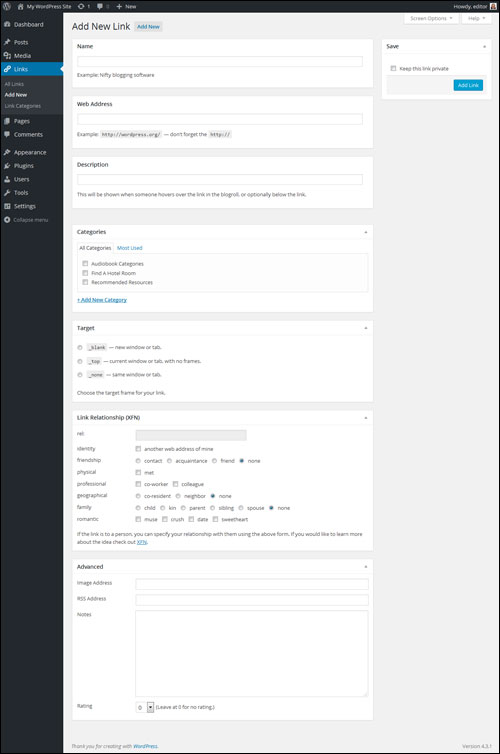
(Add New Link screen)
You can also access this screen by clicking on the ‘Add New’ button in the main Links screen …
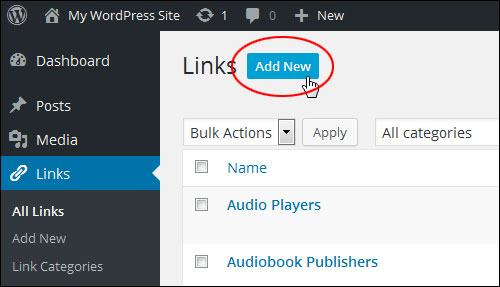
(Add New Link button)
The ‘Add New Links’ page is divided into the following sections:
Name, Web Address & Description
Enter your link details in this section …
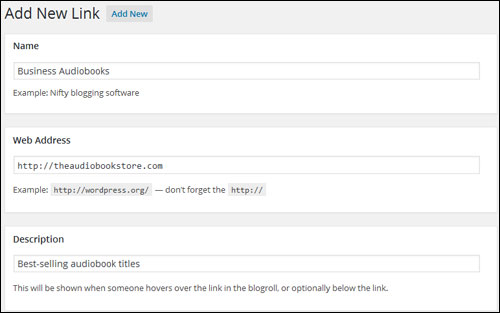
(Add New Link – Name, Web Address, Description section)
Enter information into the following fields:
- Name: Enter the category name.
- Slug: The slug displays in the web address of the link category name. It must be in lowercase letters and contain no spaces (use hyphens to separate words).
- Description: Some themes may display a link category description in the links section, or as a tool tip when visitors hover over the link name with their mouse. (Optional)
Categories & Target
Select a Category and Target for the new link …
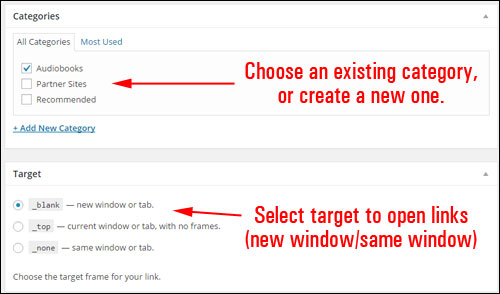
(Categories & Target area)
In the Categories section, tick one of the link categories you have already added, or click on the ‘+ Add New Category’ link to create a new category link.
Also, select a target frame radio button for your link in the Target section. This lets you specify how you want the link to open when a visitor clicks on it:
- _blank means that a new, separate browser window will open up to display the content for that link.
- _none means that when a visitor clicks on the link, they will exit your site and a new website or page will load in your web browser window instead.
- _top opens the link at the top level of the frame system if you’re using frames. Don’t worry about this option if you don’t use frames, or if you don’t know what frames are.
Link Relationship XFN
This area provides some additional link functionality …
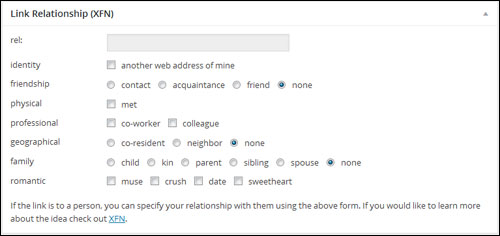
(Link Relationship (XFN) – Add New Link page)
Link Relationship (XFN) – XFN stands for XML Friends Network – is a way to define your relationship with the linked person. For example, if you work with Florence O’Malley and you link to her blog, you would probably check co-worker or colleague.
XFN relationships are optional for WordPress links. You can ignore this section and your links will still work. Defining relationships with XFN makes your links more understandable to some websites and search engines that use this information.
rel – This field specifies the ‘rel’ attribute that will be assigned to your link. The rel attribute specifies what relationship exists between the current document and the linked document. For example, if you don’t want search engines to follow your link, enter nofollow into this field. Separate multiple ‘rel’ keywords with spaces.
You can learn more about XFN by visiting the site below:
Advanced
The last section allows you to specify Advanced features for your links (You can ignore this section, unless there’s a good reason to use it) …
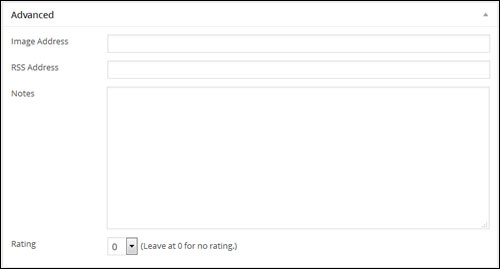
(Add New Link – Advanced fields)
The Advanced section fields include the following:
- Image Address: Specify an image to be displayed with the link. To use this feature, add the URL of where the image is stored and make sure that the image is small (around 16×16 like a favicon).
- RSS Address: If your theme allows it, the link’s RSS feed will display next to your links.
- Notes: This section lets you add notes for your own internal reference.
- Rating: You can add a rating score to the link if you want to sort links by rating (see the ‘Links’ widget section below).
Enter information into the above fields or just leave this section blank.
When you are done adding information about your link, click on the Add Link button to update your link settings …
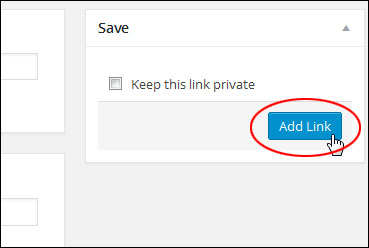
(Click on Add Link to update your link settings)
Note: If you tick the Keep this link private checkbox, the link will not be visible when links are displayed on your site …
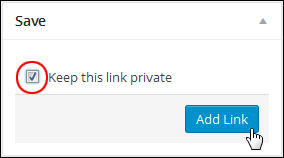
(Make links private by checking the box)
Making links private lets you toggle their visibility on or off without deleting these (this is useful if you would like links to display during certain times and hide them when not required) …
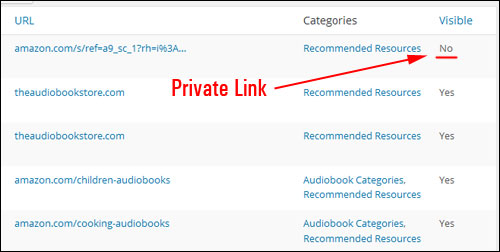
(Toggle link visibility on and off)
To see all the links you have added to the Link Manager, choose Links > All Links in the navigation menu …
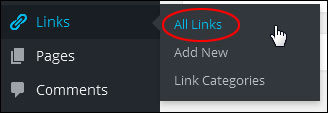
(WordPress Links – All Links)
This brings up the ‘Links’ table in your web browser. The table of links displays your links and link information (e.g. URL, categories, visibility, etc.) …
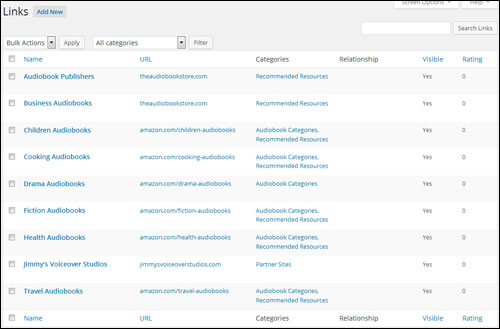
(Table of links)
Tip: To display or hide fields in the table of links, click on the ‘Screen Options’ tab near the top of your screen …
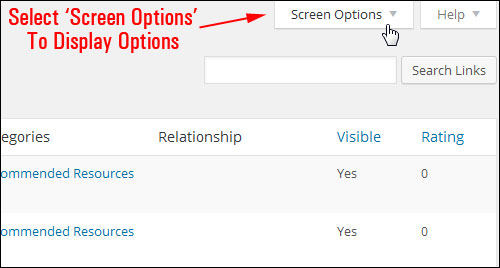
(List of links – Screen Options)
Enable/disable fields on your Links table by ticking/unticking their check boxes …
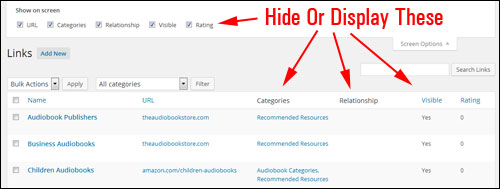
(Table of links – Hide or display screen options)
How To Edit Your Link Information
To modify links in the Link Manager, choose Links > All Links in your WP navigation menu to bring up the list of links …
(Links – All Links)
Locate the item to be edited and click on Edit to bring up the link’s information …
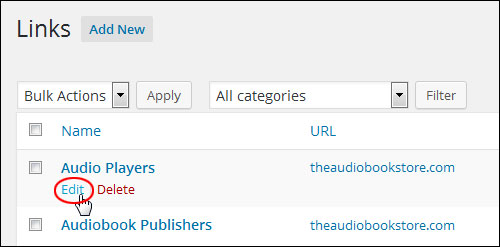
(Editing links)
Edit your link information …
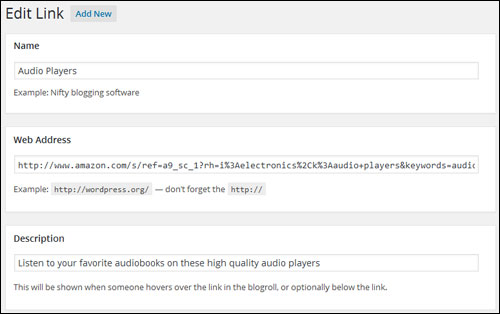
(Edit Link screen)
After editing the link, you can:
- Click on Update Link to save and update your link details,
- Click on Visit Link to make sure that you have set up your link’s URL correctly (the link will open in a new window),
- Click Delete to remove the link …
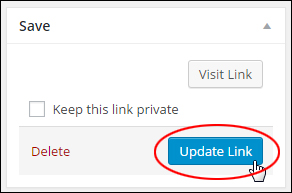
(Update Link button)
How To Remove Your Links
To remove links, go to the dashboard navigation menu and click on Links > All Links …
(WP Links Menu – All Links)
The ‘Links’ table will load in your web browser.
You can delete links individually, delete multiple links by selecting their check boxes, or perform a bulk delete.
To delete individual links, hover your mouse cursor over the link that you want to remove and click Delete …
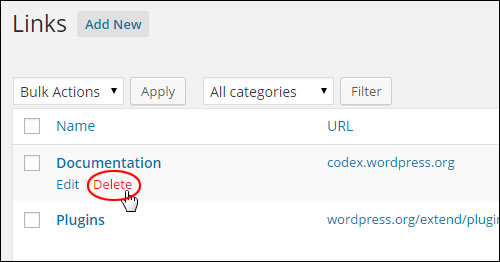
(Deleting your links)
To delete multiple links, either tick the check box next to each item that you would like removed, or select all links by clicking on the checkbox next to the ‘Name’ column header at the top of the list …
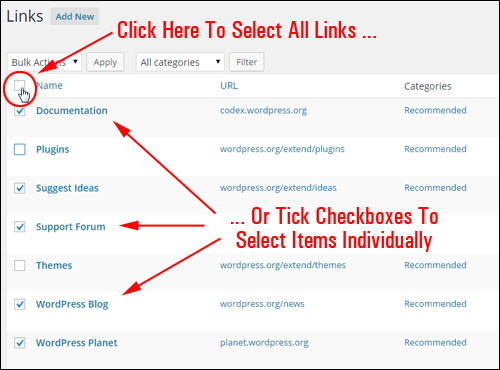
(Deleting multiple links)
Select Delete from the ‘Bulk Actions’ drop-down menu, and click Apply to delete your selected links …
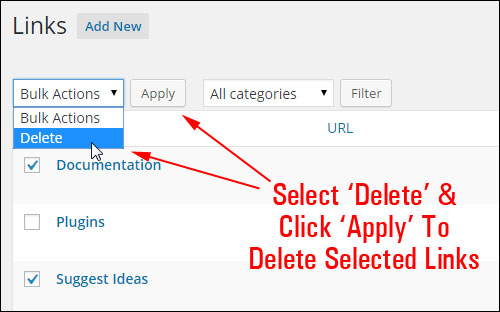
(Links: bulk-deletion function)
All the links you have selected will be removed …
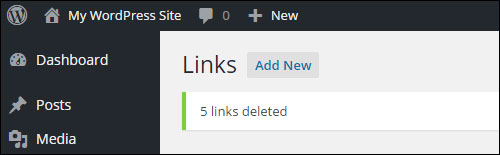
(links deleted notification)
Plugin Usage
Now that you know how to configure link categories and how to add, edit and delete links, let’s show you how to display links on your website or blog.
Using The Links Widget
Installing the Link Manager plugin adds a ‘Links’ widget to your ‘Widgets’ section.
To access and configure your Link widgets, click on Appearance > Widgets in your WP navigation menu …
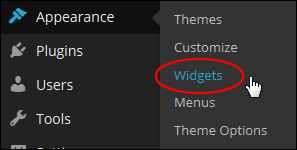
(Appearance – Widgets)
The ‘Widgets’ page will load in your web browser.
You will see that a ‘Links’ widget has been added to the Available Widgets section …
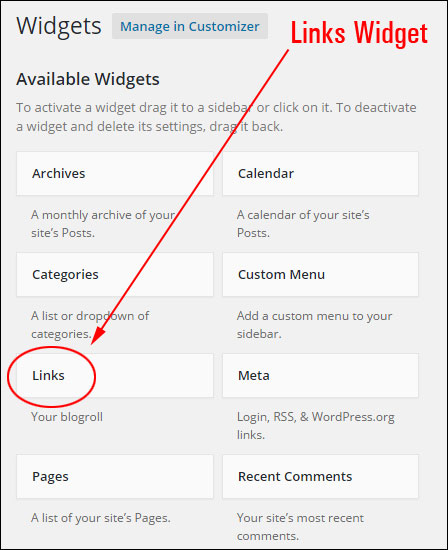
(Links widget)
Drag the ‘Links’ widget to one of the widget sections in the Widgets screen and drop it wherever you would like the links to display …
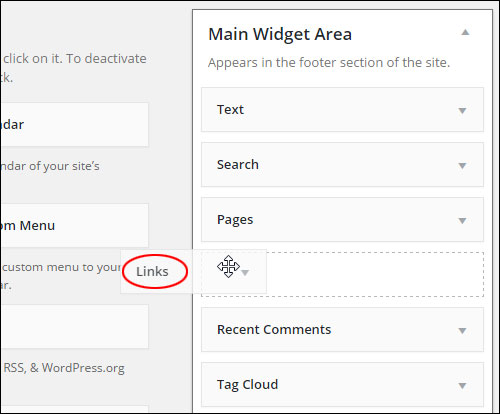
(Adding a links widget to a widgetized area using drag & drop)
The Links widget offers various configurable settings. You can specify what information you would like to display about your links and how many links you want to display on your sidebar menu …
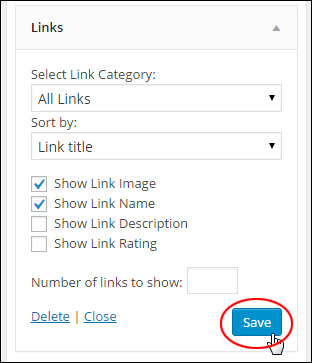
(Link widget - settings)
You can also add as many link widgets as you want. This lets you add and display various links throughout your site …
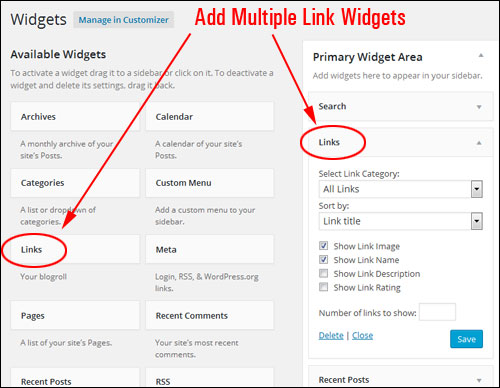
(Add multiple link widgets to your widget bars)
You can select a link category …
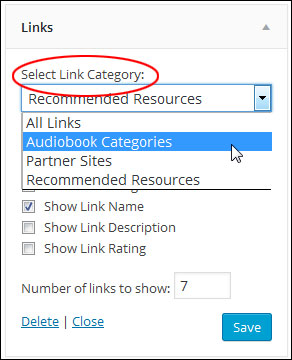
(Link widget settings – Select Link Category)
You can sort links by Link ID, Link title, Link rating, or display links in Random order …
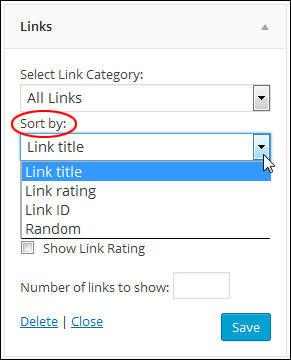
(Link widget options – Sorting options)
After configuring the Links widget, click the Save button to update your settings. A links will show on your site …
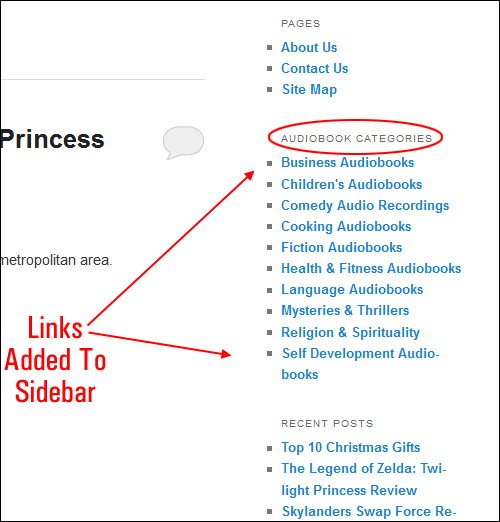
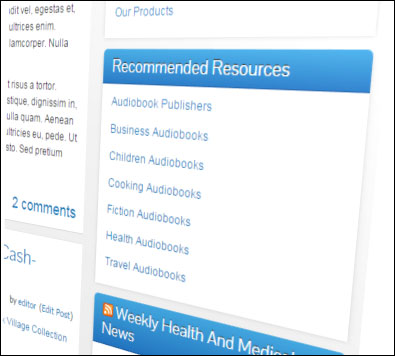
(Links can be displayed on a sidebar)
As the above example shows, you can display specific links to your site visitors (e.g. a list for a specific link category only), and add multiple lists of links to your sidebar menu.
Need more help using widgets? If you want to learn more about using widgets, see this article:
Link Manager – Additional Information
If you have many links, the Links Manager plugin lets you easily administer these using sorting, searching, and filtering functions.
Sorting Links
You can sort links by hovering your mouse cursor over the title of the column you want to sort and clicking on the little triangle displayed next to the column title …
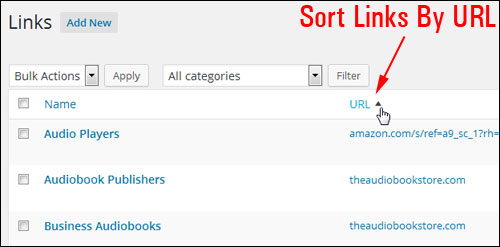
(Sort your links)
Search Your Links
Search for links using the ‘Search Links’ function …

(You can easily find links with the search function)
Filter Links Function
You can filter links by link categories …
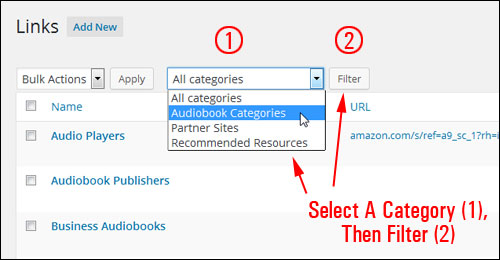
(Filter links by link categories)
You can also search and filter links in the Link Categories screen. Use the ‘Search Link Categories’ button to search for link categories, or click on the category links in the ‘Links’ column …
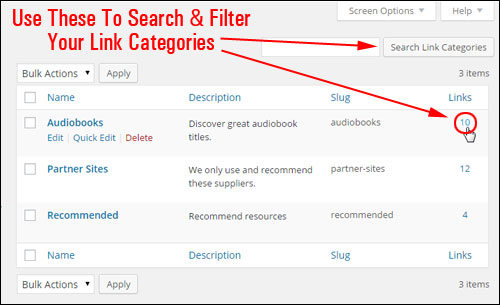
(searching and filtering links in the Link Categories screen)
This displays a list of all links grouped under a specific link category …
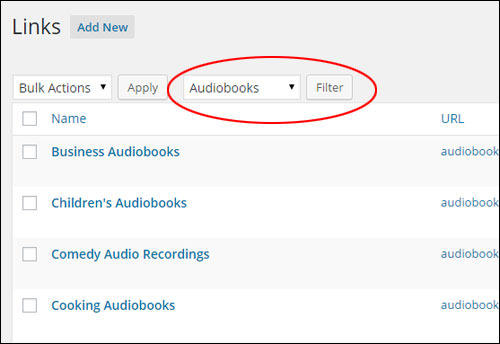
(Links filtered by link category)
Additional Link Options
If you plan to add a lot of links to your website, or if you want to add a ‘Links’ page to your site (i.e. not just add links on your sidebar), then you may want to consider using a plugin that can help you administer links.
Link Library

(Link library – Plugin For WordPress)
Plugin URL
http://wordpress.org/plugins/link-library/
Plugin Description
This plugin gives you the ability to output a list of your link categories with a complete list of links plus descriptions and notes …
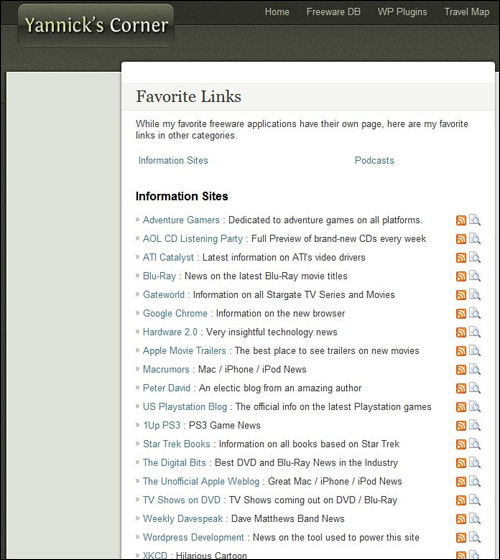
(List of links created with Link library. Screenshot taken from Link Library plugin website.)
Link Library can be used to create a page on your web site that contains a list of all of the link categories in your Links section, and all links defined for these categories. Additionally, you can select a sub-set of categories to display or not display, show only one category at a time, display a search box and find results based on visitor queries, display a form to accept user submissions that can be moderated by a site administrator, and even generate an RSS feed of your link collection so that your site users can become aware of additions to your link library.
To learn more about this WordPress plugin, visit this site:
Congratulations! Now you know how to add a featured links section to your WordPress site.
If you want to learn more about how to add HTML hyperlinks into your WordPress posts & pages, see this article:
***
"I love the way your email series "Infinite Web Content Creation Training Series" is documented and presented. It is very absorbing and captivating. The links and tutorials are interesting and educational. This has motivated me to rewrite my content following the concepts I am learning from the email series." - Mani Raju, www.fortuneinewaste.com